

Large Language Model
Standard Usage (Using OpenAI Models)
Clique your username no top right corner of the webpage to enter the settings interface.Selecione OpenAI no model provider section and abra settings.
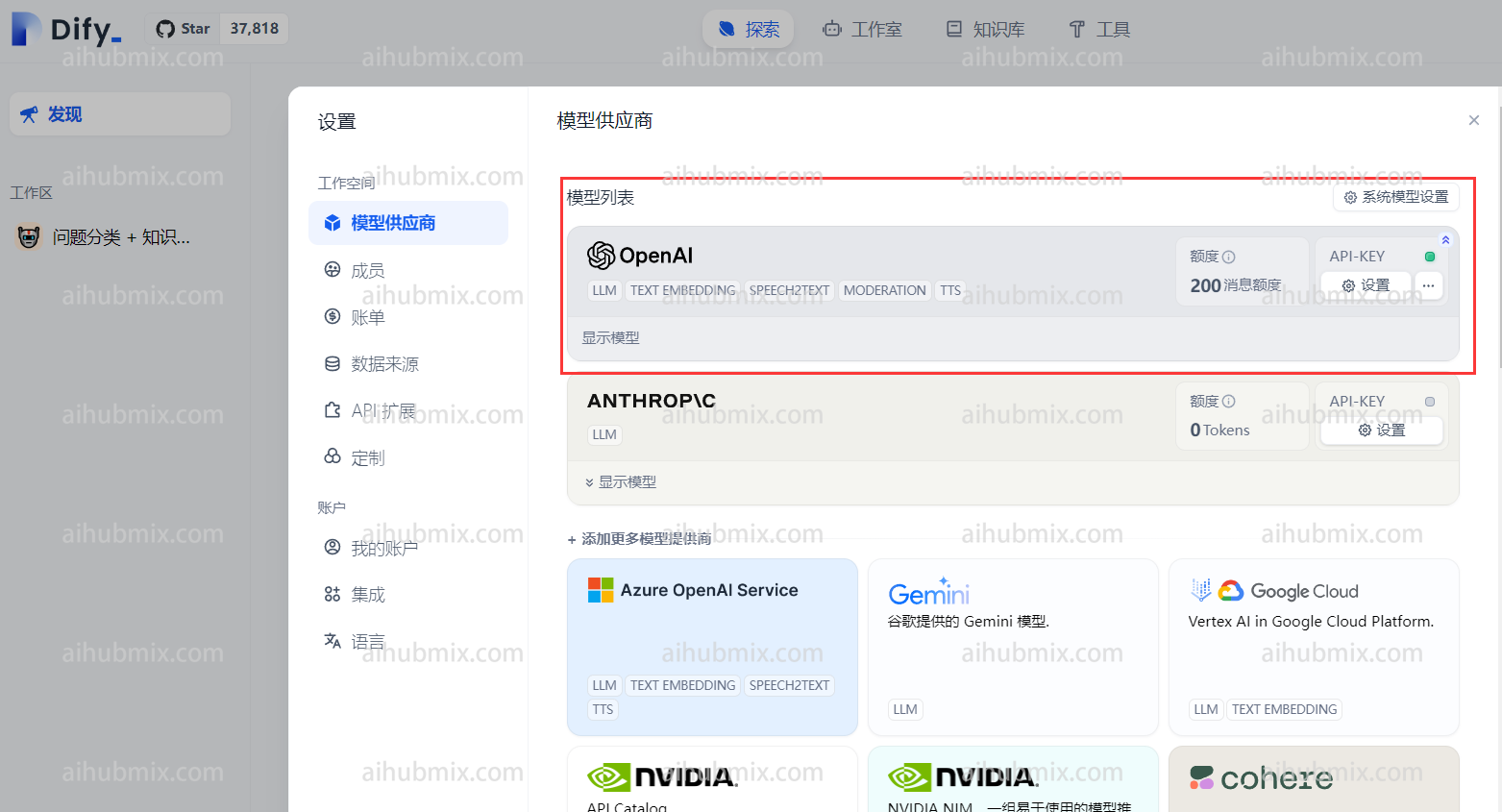
- Insira o Key from our site in a chave de API field.
- Insira o following no API Base field:
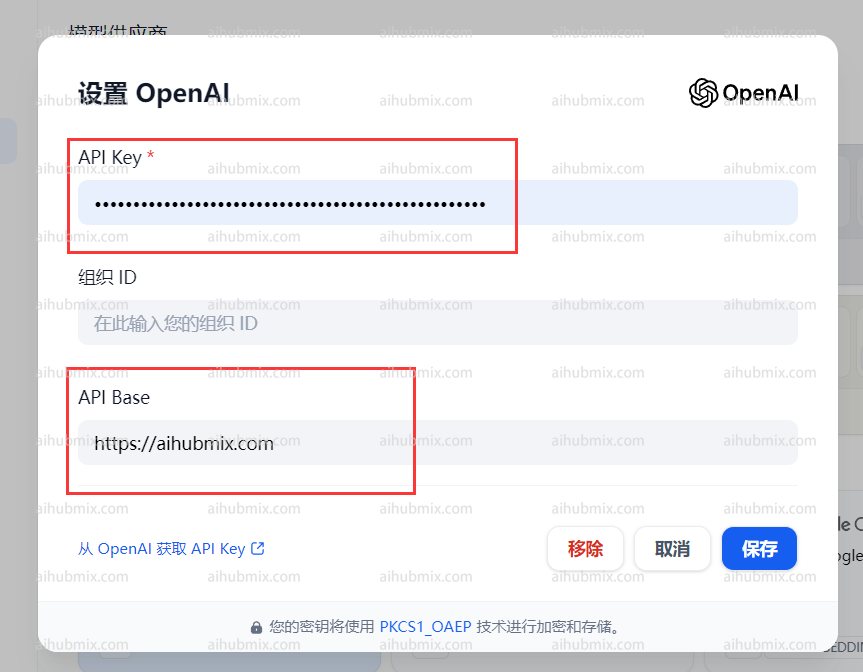
Using Non-OpenAI Models
Não model provider dropdown, find OpenAI-API-compatible and clique to add a model.\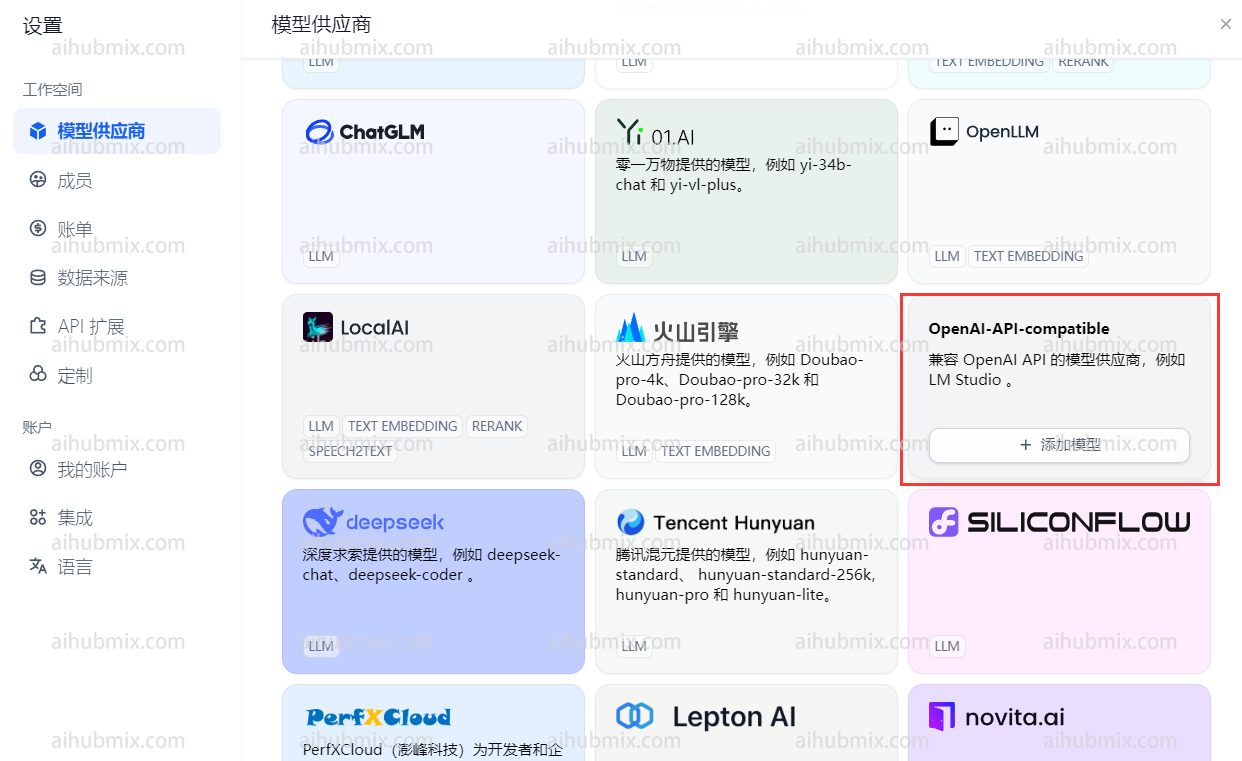
- Abra o website’s backend settings page and find the model list.
- Copy the name of the model you want to use (p. ex., gemini-pro or claude-3-opus-20240229).
- Insira o Key from our site in a chave de API field.
- Insira o following no API endpoint URL field:
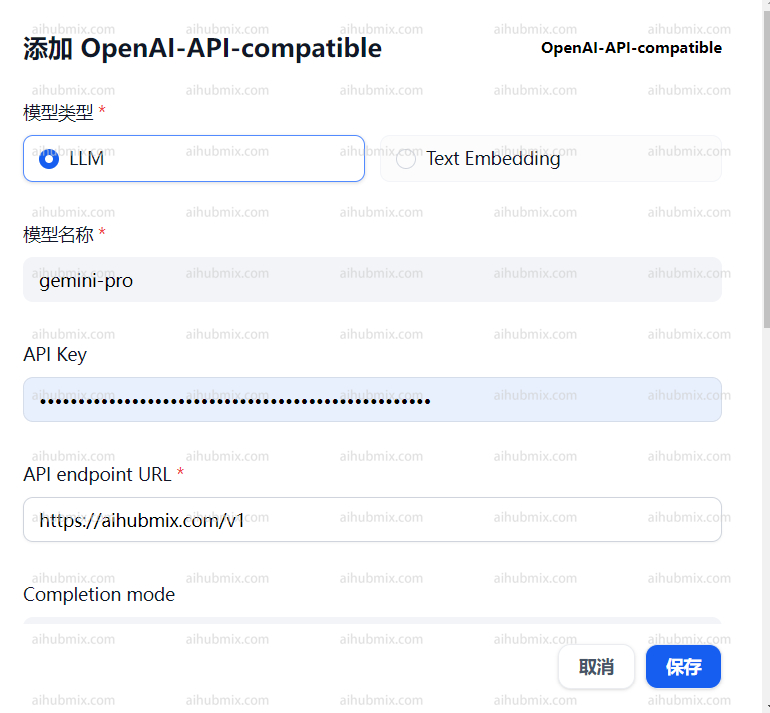
Image Generation Models
The platform currently suporta o seguinte image generation models:- Nano Banana Pro
- GPT-Image
- Google Imagen 4 Series
- Flux Kontext
How to Use
1. Instale o Plugin
Search for and instale o plugin: AIHubMix Image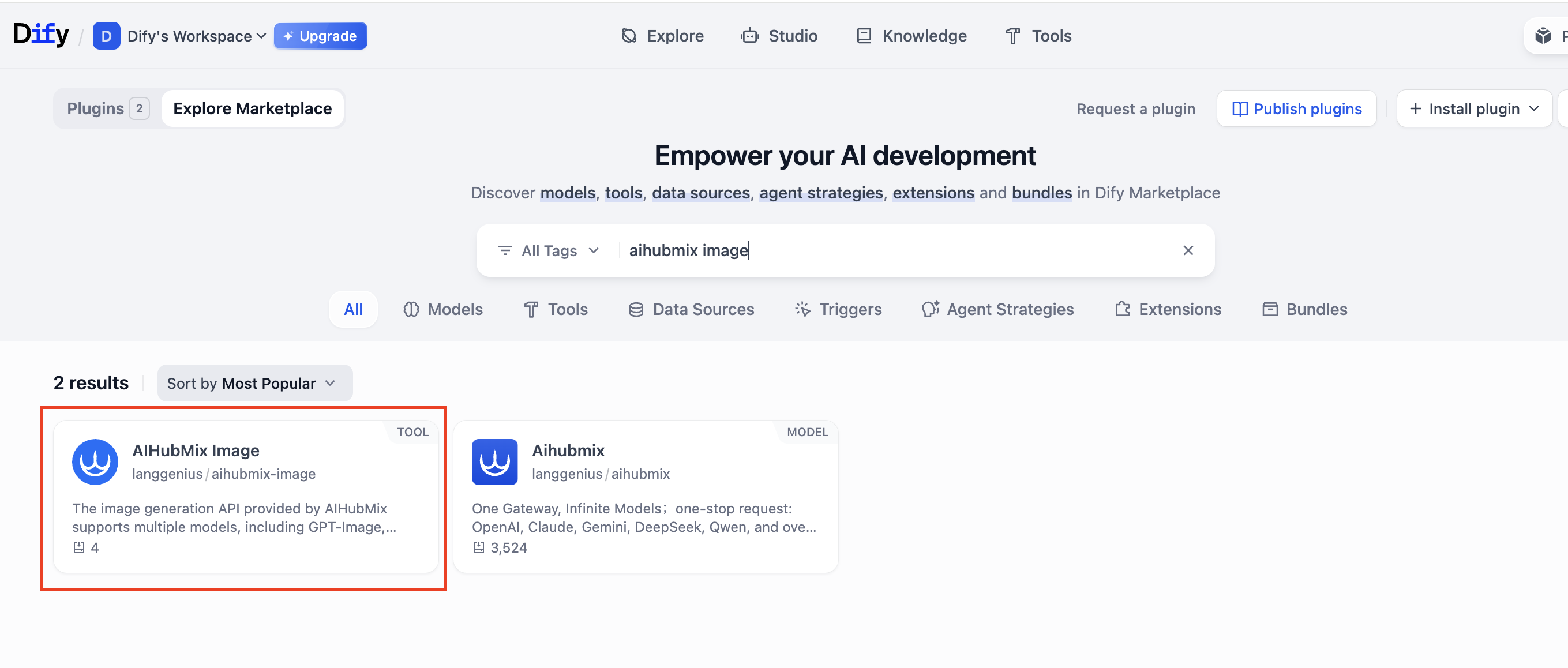
2. Configure o AIHUBMIX chave de API
Enter your chave de API no plugin configuration page.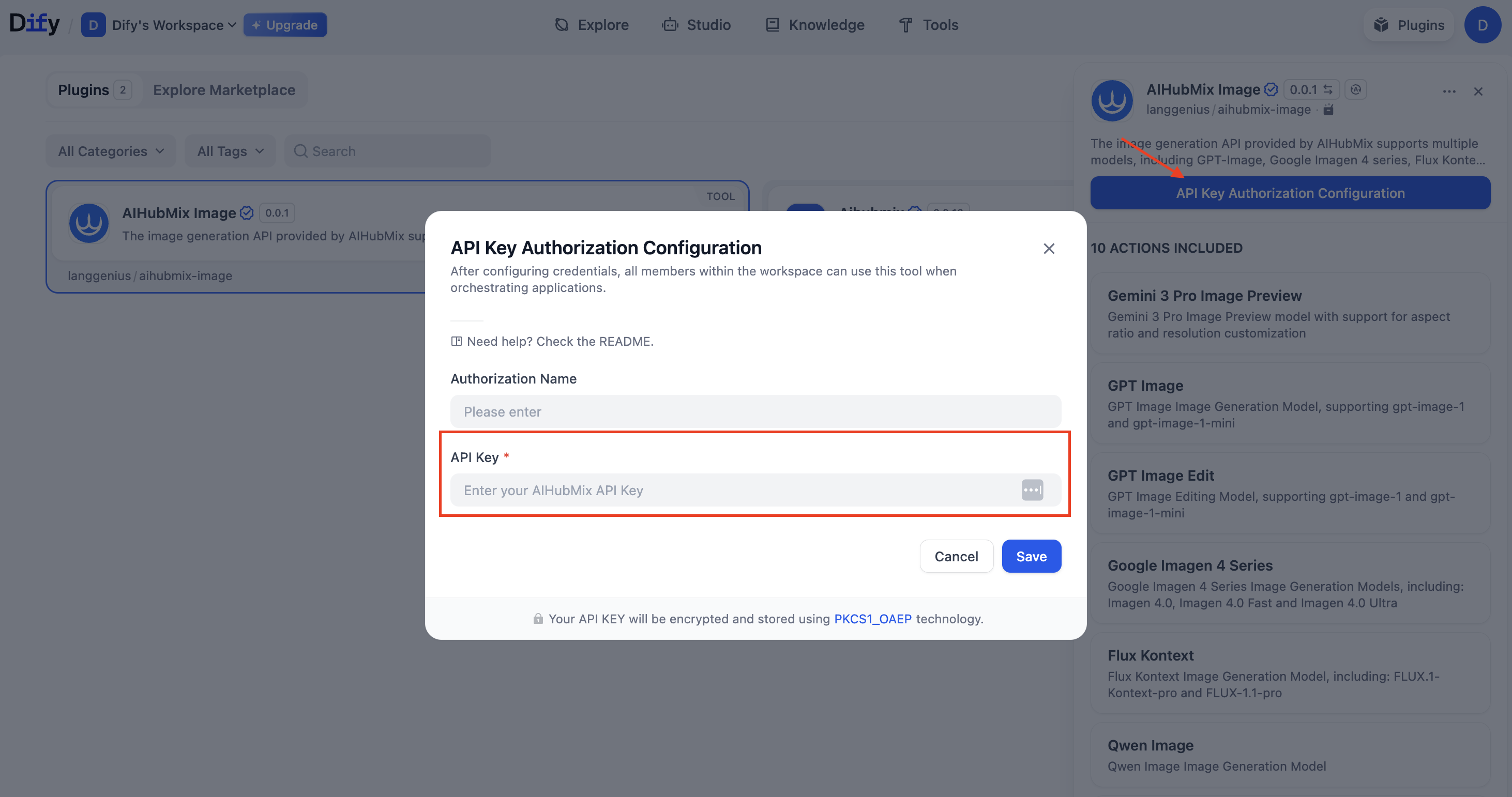
3. Add a Node
Go to: Workspace → Add Node → Tools → aihubmix-image, then selecione the model you want to use.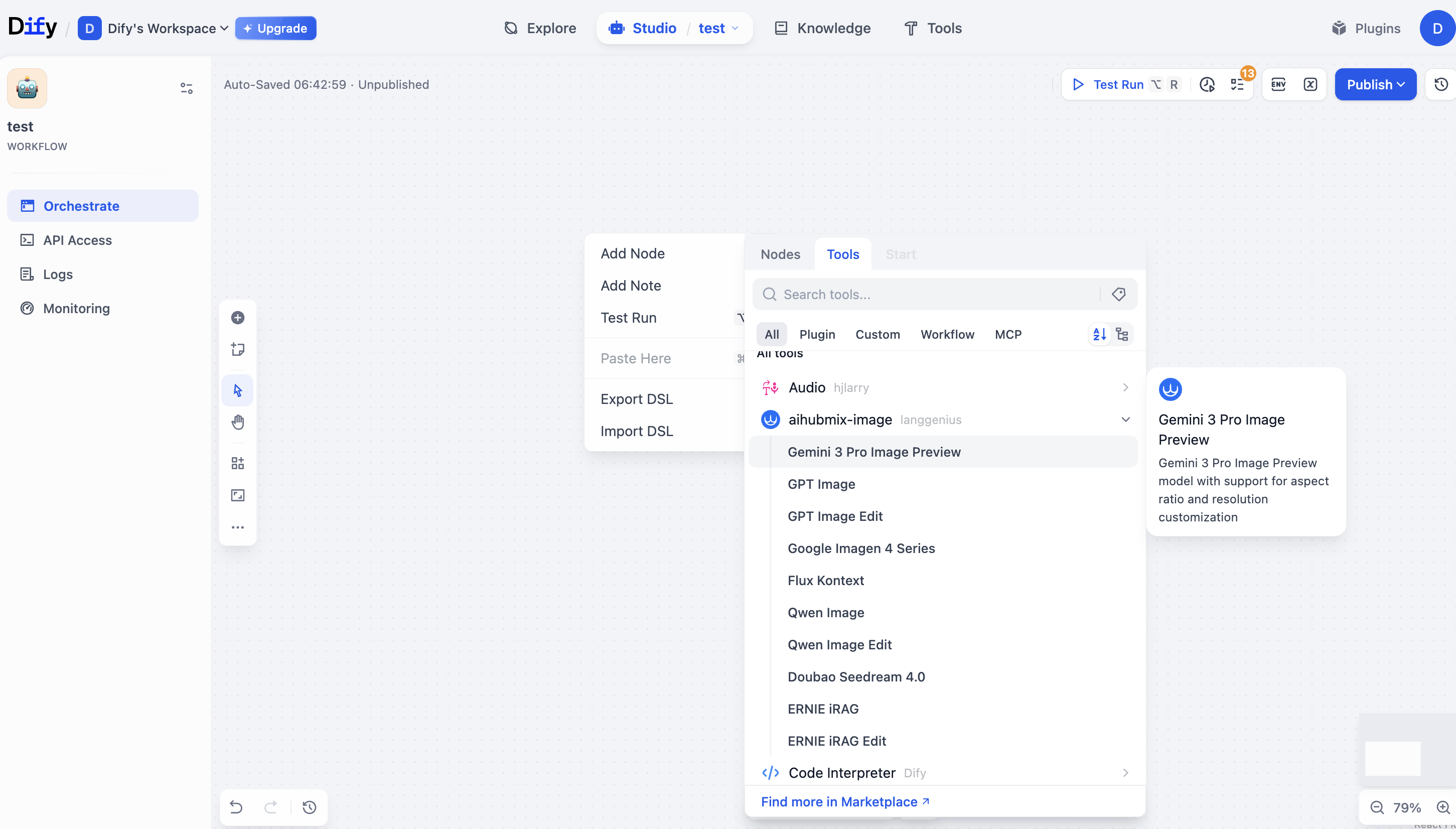
4. Model Configuration
Adjust the parameters based on your use case (p. ex., prompt, resolution, aspect ratio, etc.).5. Run the Workflow
After the configuration is complete, run the workflow to call the AIHUBMIX Image Generation API and generate images.Última atualização: 2026-06-01