

coding-minimax-m2.1-freecoding-glm-4.7-freeclaude-sonnet-4-5gpt-5gpt-5-codex
Antes de instalar, verifique se o seu sistema atende aos seguintes requisitos:
- Node.js ≥ 18.0.0
- Gerenciadores de pacotes opcionais para o seu sistema operacional:
- macOS / Linux:
brew - Arch Linux:
paru - Windows:
choco,wingetouscoop
- macOS / Linux:
1. Instalar o OpenCode
Escolha qualquer um dos métodos de instalação abaixo, de acordo com o seu sistema operacional e as ferramentas que você usa.1. Instalar via Node.js
2. Instalar via Homebrew (macOS / Linux)
3. Instalar via Paru (Arch Linux)
4. Instalação no Windows
2. Iniciar e fazer login no OpenCode
Após a instalação, siga os passos abaixo para concluir a autenticação e a configuração.1. Fazer login no OpenCode
Execute o seguinte comando no terminal:2. Selecionar o provedor de modelos
Na tela de login, selecione AiHubMix como provedor de modelos.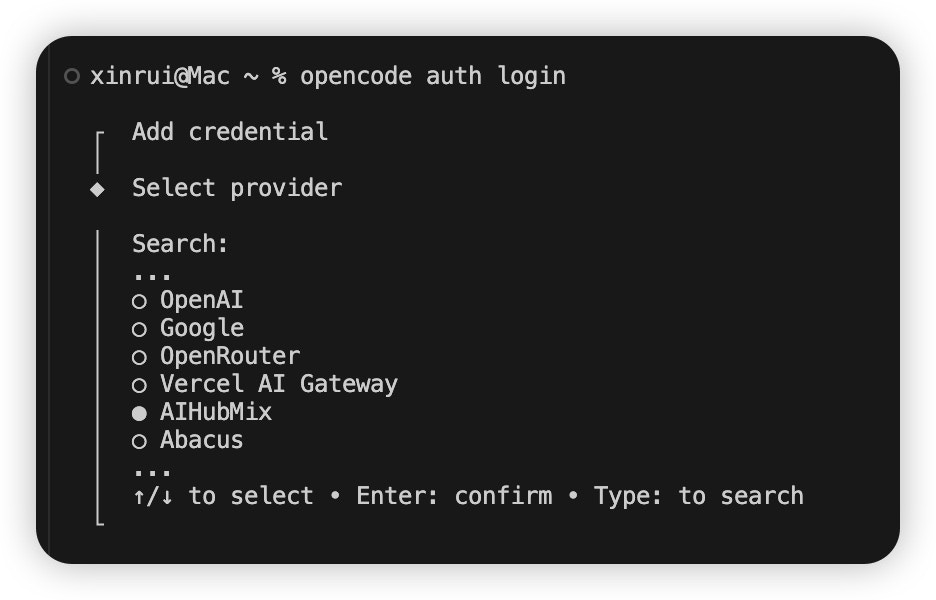
3. Autorização com a chave de API
Informe a sua chave de API da AiHubMix na página de login do OpenCode para concluir a autorização.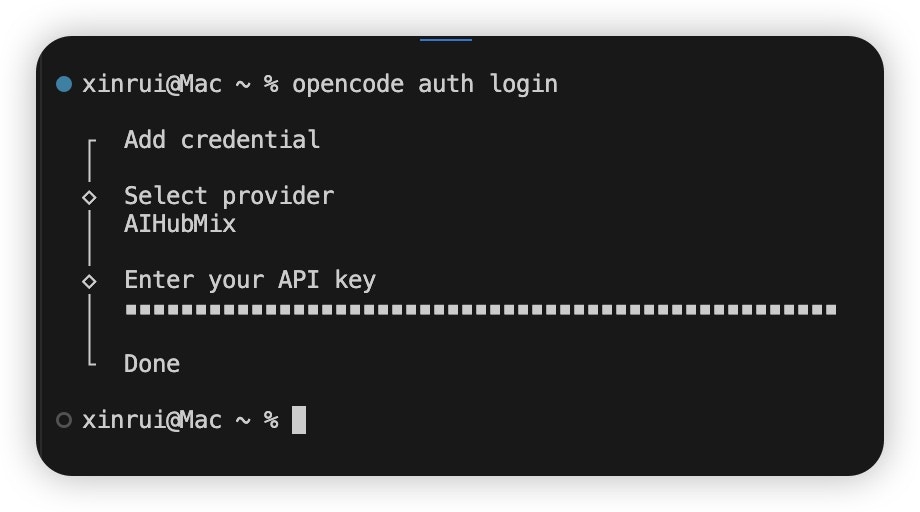
3. Usar os modelos
1. Verificação da instalação
Execute o comando a seguir para verificar se o OpenCode foi instalado e configurado corretamente: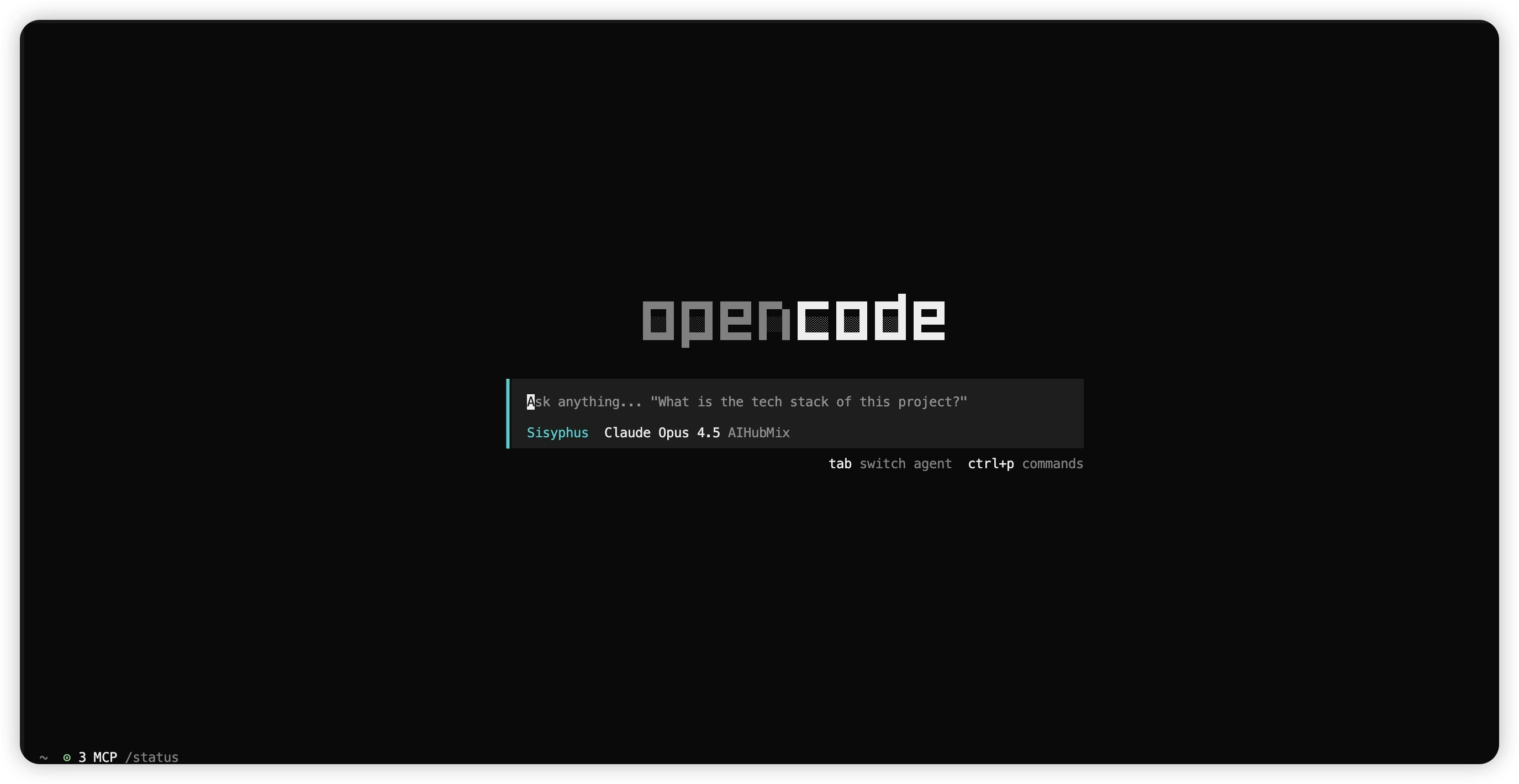
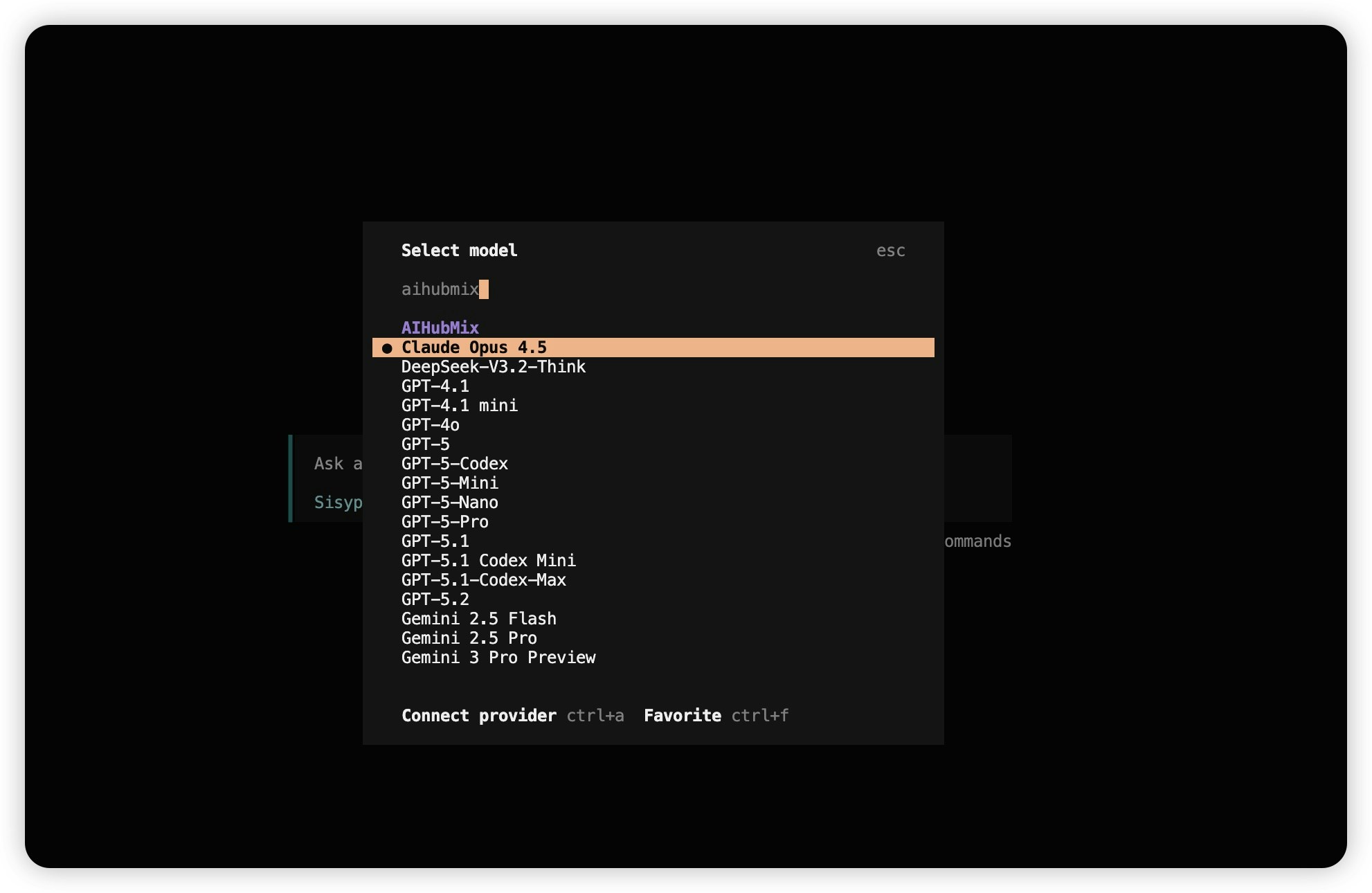
2. Selecionar um modelo
Digite/models, pesquise por aihubmix e selecione o modelo desejado.
4. Usar a AiHubMix no aplicativo desktop do OpenCode
- Baixe o aplicativo desktop do OpenCode: https://opencode.ai/download .
-
Abra o OpenCode e siga os passos:
/model→Connect provider→ pesquise poraihubmix→ informe a sua chave de API →Submit.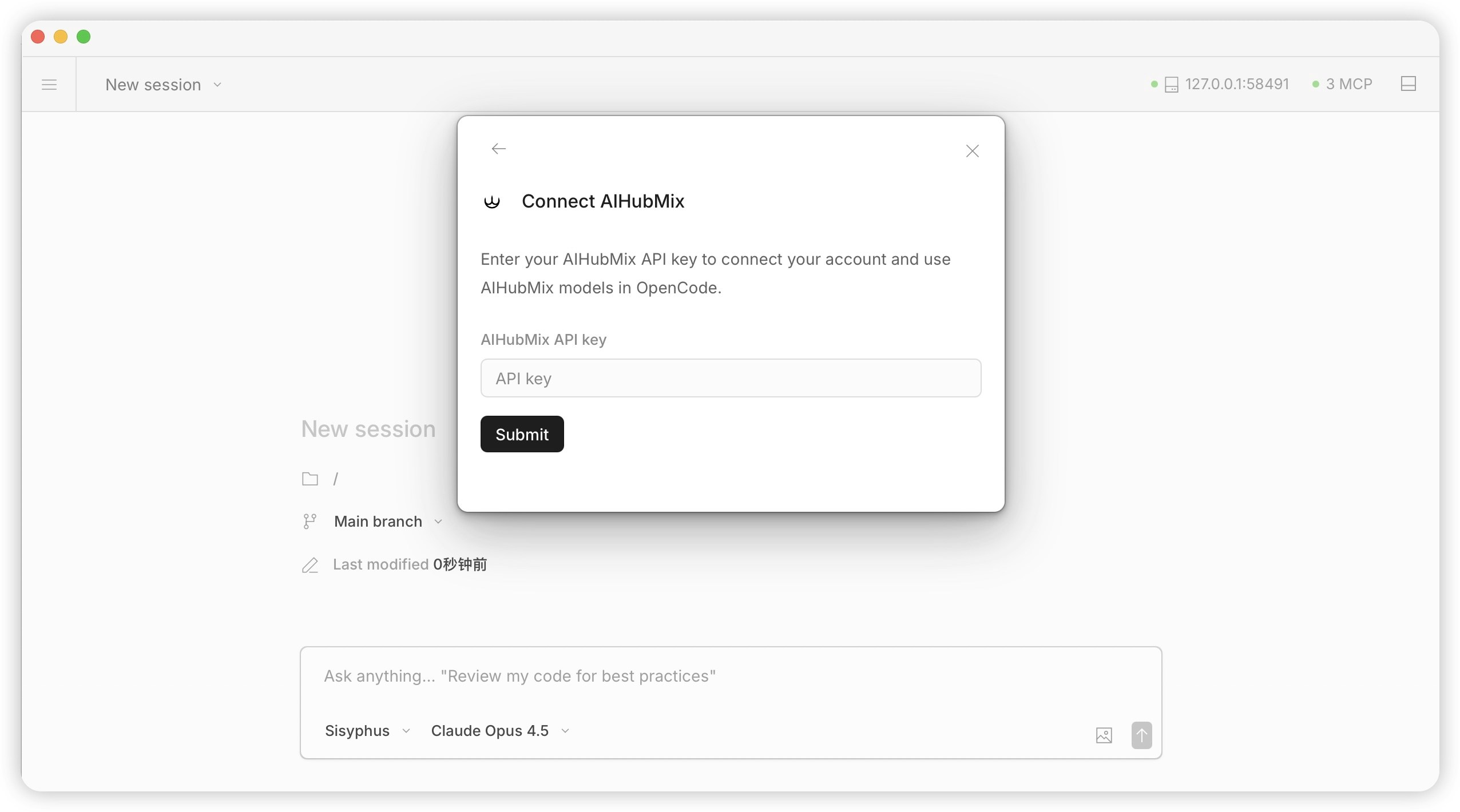
-
No painel de seleção de modelos, pesquise por
aihubmixe escolha o modelo que deseja usar.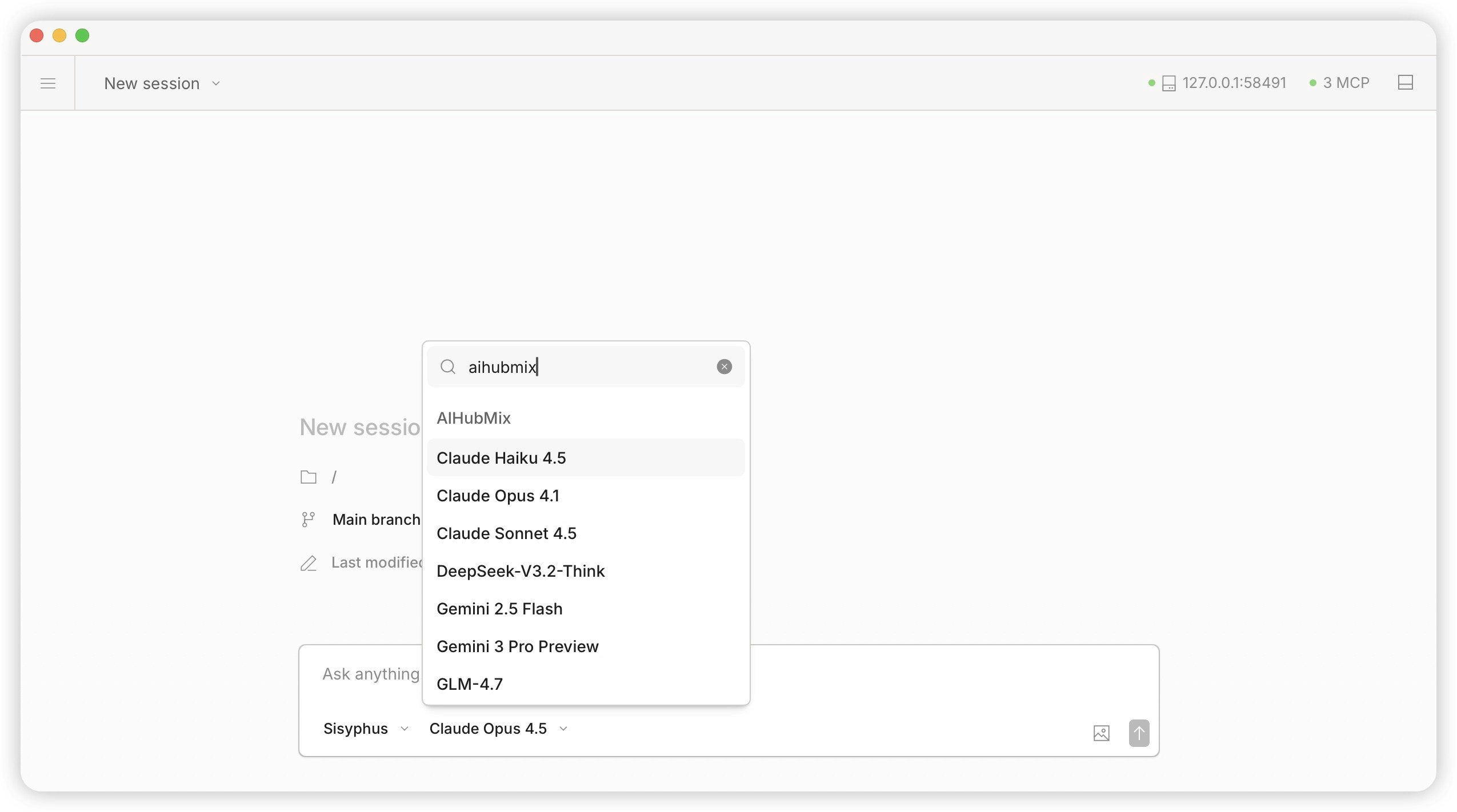
5. Configurar e atualizar modelos manualmente
Este exemplo adiciona o DeepSeek V4 Pro.Passo 1: Confirmar o ID do modelo
Localize o modelo desejado na página de modelos da AIHubMix e copie o ID. Você também pode consultá-lo diretamente pela API:Passo 2: Abrir o arquivo de configuração
Execute no terminal o comando correspondente ao seu sistema: MacPasso 3: Escrever a configuração
Se o arquivo estiver vazio, cole diretamente o conteúdo abaixo:"models", separando cada modelo por vírgula:
Observação: não coloque vírgula depois do último modelo, caso contrário o formato do arquivo ficará inválido.Salve o arquivo:
Command + S no Mac, Ctrl + S no Windows.
Descrição dos campos:
Passo 4: Reiniciar o OpenCode
Depois de salvar o arquivo de configuração, feche o OpenCode por completo e inicie-o novamente para que o novo modelo seja carregado.Passo 5: Verificar
Abra o seletor de modelos (atalho padrão;), pesquise por V4 ou DeepSeek e confirme que DeepSeek-V4-Pro aparece na lista.
6. URL base personalizada
Por padrão, o OpenCode envia as requisições da AIHubMix parahttps://aihubmix.com/v1. Se você precisar que as requisições passem por um gateway próprio, um proxy corporativo ou um nó de aceleração, é possível sobrescrever esse endereço por meio de options.baseURL, sem precisar modificar o código-fonte do OpenCode nem reinstalá-lo.
Passo 1: Abrir o arquivo de configuração
Abra~/.config/opencode/opencode.json conforme descrito na seção 5 (no Windows, %USERPROFILE%\.config\opencode\opencode.json).
Passo 2: Adicionar options.baseURL
Adicione options.baseURL no provider aihubmix. Basta incluir esse único campo: o OpenCode faz automaticamente um merge profundo com a configuração interna, então não é necessário reescrever o provider inteiro:
Observação: obaseURLsó precisa ser informado no nível do domínio (por exemplo,https://api.inferera.com). Caminhos como/v1e/chat/completionssão acrescentados automaticamente pelo SDK. Não adicione/v1manualmente (por exemplo,https://api.inferera.com/v1), pois o resultado seria/v1/v1/e retornaria 404.
Passo 3: Reiniciar e verificar
Feche o OpenCode por completo e inicie-o novamente. Você pode executar o comando abaixo para confirmar que a configuração entrou em vigor:provider.aihubmix.options.baseURL; a partir daí, todas as requisições de modelo serão enviadas para esse endereço.
Descrição dos campos:
7. Perguntas frequentes e dicas
- Se a chave de API não passar na validação, faça login novamente no Console da AiHubMix e verifique se a chave é válida: https://console.aihubmix.com/token
- Consultar a documentação de ajuda integrada:
opencode→/help - Documentação oficial do OpenCode: https://opencode.ai/docs/
Última atualização: 2026-07-29