

Add messages while the agent works
The input box stays available while the agent works. There are two ways to send a message:- Queue: The message waits above the input box and is sent in order after the agent finishes its current task.
- Steer: The message goes to the working agent immediately, and it continues with the new instructions.
⌘Enter (Ctrl+Enter on Windows) sends with the opposite of the default. To change the default, go to Settings › General and change Messages sent mid-turn.
Steer is currently supported only by Claude Code and Codex. With other agents, messages are always queued.
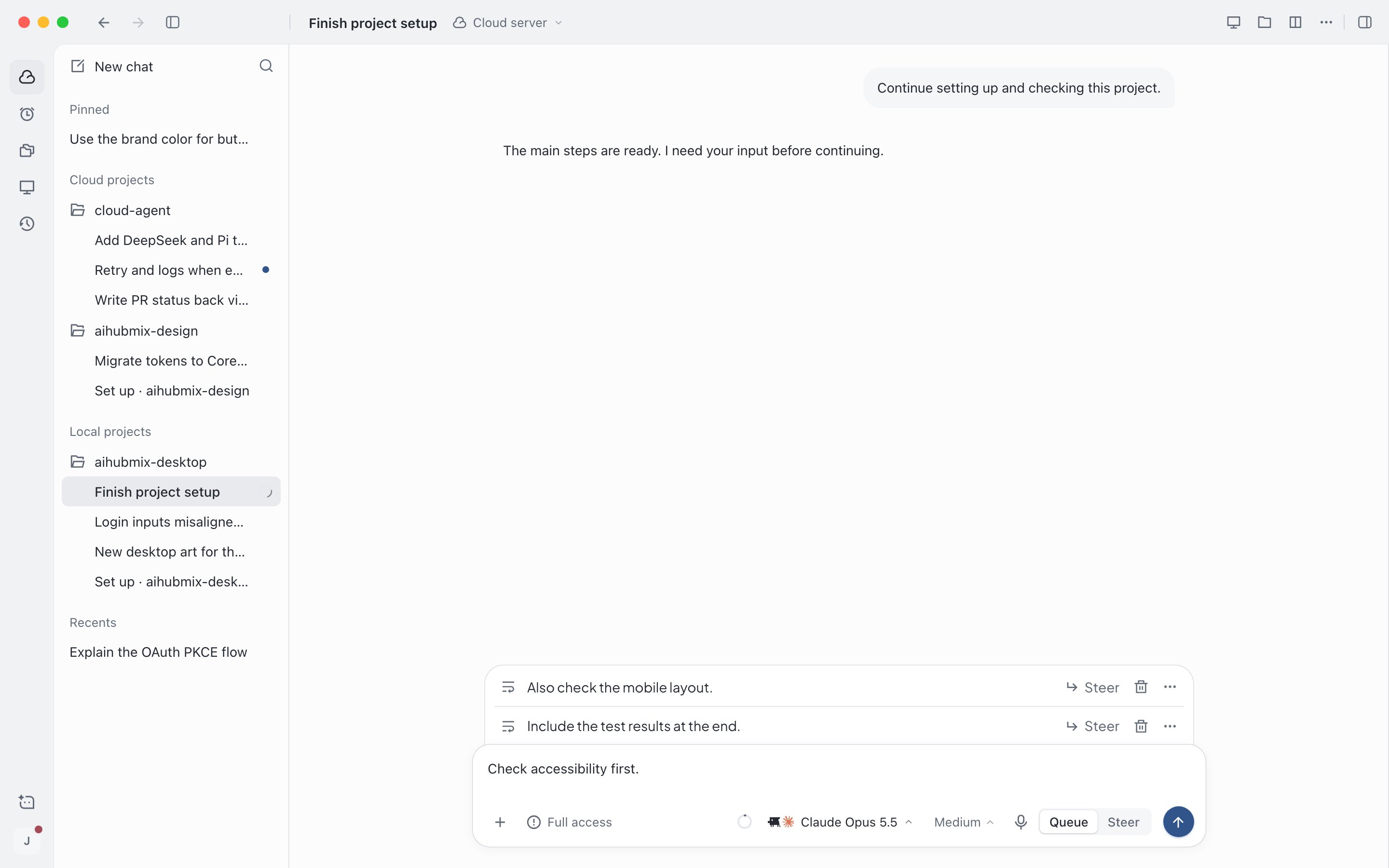
Queued messages appear above the input box and can be switched to steer at any time
Approve or deny the agent’s actions
When permissions are set to Ask for approval, or when Approve for me detects a potentially unsafe action, the agent asks for your approval before acting. The command it wants to run appears above the input box.- Allow: Approves this one time only.
- Allow for this task: Approves this time and automatically allows similar actions for the rest of this session.
- Deny: Doesn’t run it. The agent tries another approach.
- Something else…: Write your instructions and press
Enter. This denies the action and tells the agent what to do instead.
1 to allow, 2 to allow for this task, or 3 to deny. Changing permissions to full access midway doesn’t automatically approve requests that are already waiting. For how to choose permissions, see Start a session.
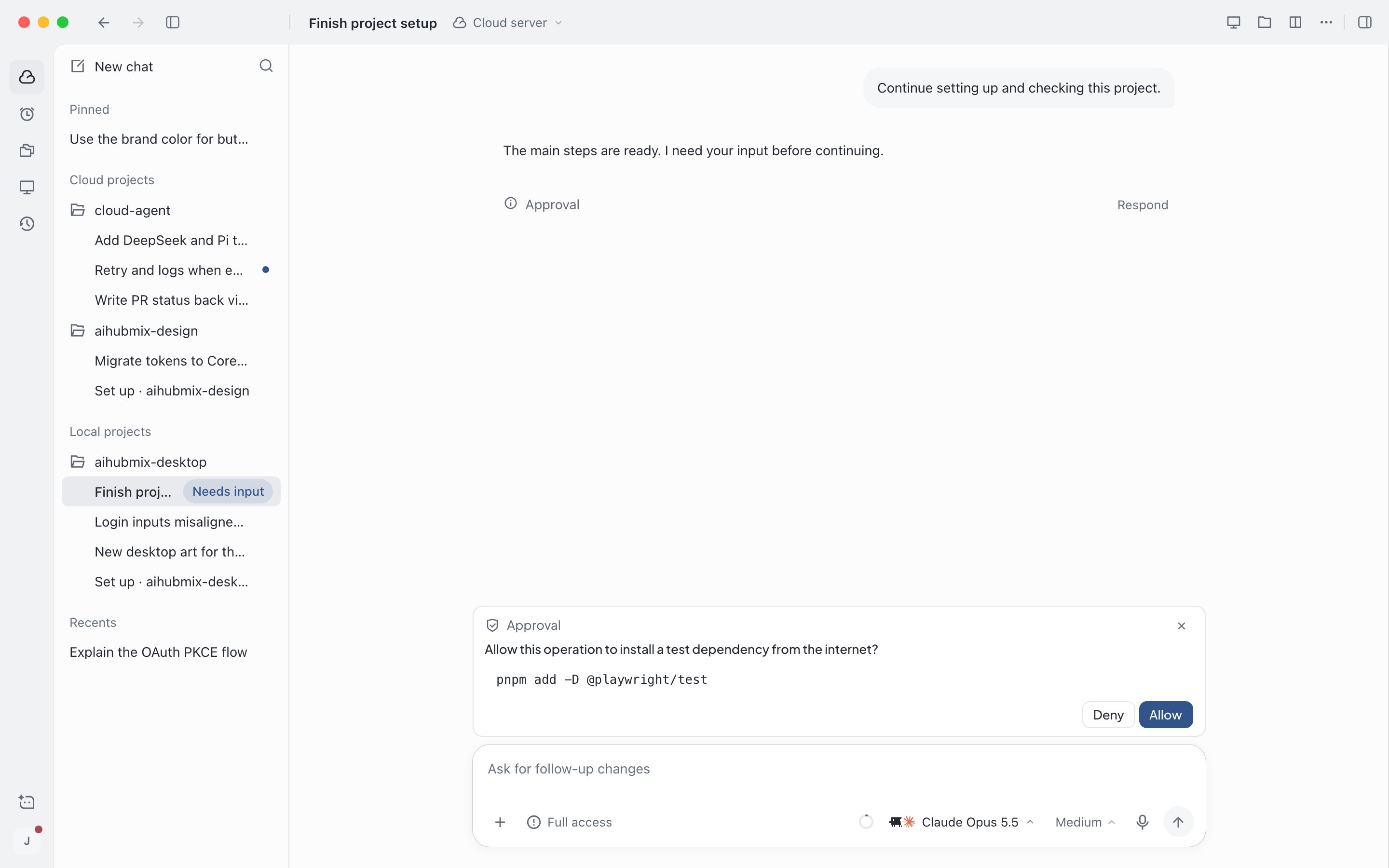
The agent asks for approval before installing dependencies from the internet
Esc to hide them for now, then click Needs your input above the input box to reopen them.
When you’re not in this session, Needs input appears next to the session in the sidebar, and you also get a system notification. Press ⌥⌘A (Ctrl+Alt+A on Windows) to jump to the next session waiting for you.
Answer the agent’s questions
When the agent is missing information, it asks you directly. When it needs you to pick an approach, it offers options.1
Answer
Type an answer or choose an option (you can press
1 to 9). When the options end with Other…, you can write your own.2
Go through each question
When there are several questions, one appears at a time. Click Continue after answering, or click Previous to look back.
3
Submit
On the last question, click Submit, and the agent continues working. If you don’t want to answer, click Skip.
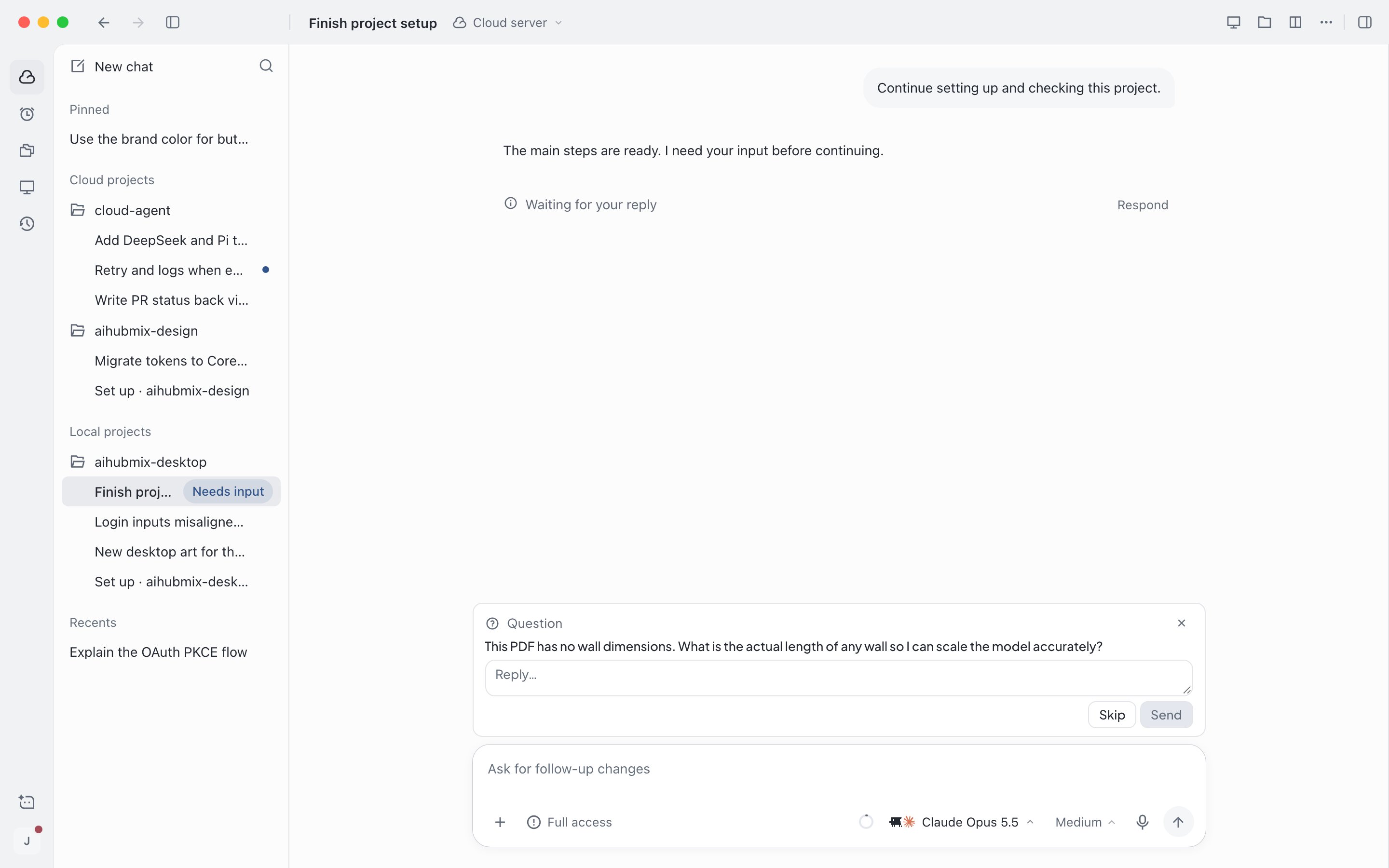
The agent asks you directly when it's missing information
Provide secrets
When the agent is missing a secret (for exampleSENTRY_AUTH_TOKEN), it explains why and asks you to enter it. The value you enter is used only in the current task and doesn’t appear in the conversation. For secrets you need long term, save them in the project’s secrets and environment variables. See Projects and environment setup.
Help manually on the cloud server
Some steps the agent can’t do for you, such as signing in to a website and entering a two-factor verification code. In that case, the request above the input box states what you need to do.1
Open the screen
Click Take control to open the cloud server desktop and take over the keyboard and mouse, or click View cloud server to watch without interacting. When the session runs on your device, do it directly on that computer.
2
Complete the step
Follow the prompt to sign in, verify, or complete other steps. The agent doesn’t pause while you work.
3
Tell the agent to continue
Go back to the session and click Resolved. If the step is no longer needed, click Not now, and the agent tries another approach.
Mobile web can only view the cloud server desktop and can’t take control. For more about the remote desktop, see Cloud server.
Stop the agent
While the agent works and the input box is empty, the send button becomes a stop button. Click it or pressEsc to stop. Completed steps and file changes are kept, and you can send another message to continue. Requests still waiting for you are canceled, and queued messages are sent in their original order.
Edit a message and rerun
If you notice your instructions were wrong, you can edit a message you sent and have the agent redo the work from that message.1
Start editing
Hover over your message and click Edit (pencil icon). When the input box is empty, press
↑ to edit your last message directly.2
Edit and rerun
After editing, click Rerun or press
Enter. Press Esc to discard. If the agent is working, it stops first and then reruns.Fork from a reply
Forking copies the session record up to a reply into a new session, where you can continue in a different direction. The original session stays unchanged. Hover over a completed reply and click the fork button below it. You can also choose Fork › Fork chat in same worktree from the … menu in the session’s top bar to fork from the latest completed reply. The new session opens automatically.- The new session copies only the record. It doesn’t copy tasks in progress, pending requests, or queued messages.
- Sessions running on your computer can’t be forked from the middle. Use Fork › New chat in this worktree from the … menu instead. It keeps the project, model, and permissions but doesn’t bring the conversation record.