

See what the agent did
The top of each reply shows the time taken, for example “Worked for 2m 48s”. While the agent works, you can see what it’s doing in real time. When it finishes normally, the process collapses automatically and only the summary remains.1
Expand the process
Click the time at the top of the reply to expand the agent’s steps. Consecutive file reads, searches, code edits, and commands are merged into one row, with the result on the right, such as the number of changed lines or “N failed”.
2
View specific commands and output
Click a step row to list each action in it. Click an action to view the full command and output.
3
Read the summary
The summary is the agent’s conclusion for you and is always visible. File paths in the summary open in Files in the right panel. Preview addresses such as
localhost:5173 open in the web preview in the right panel.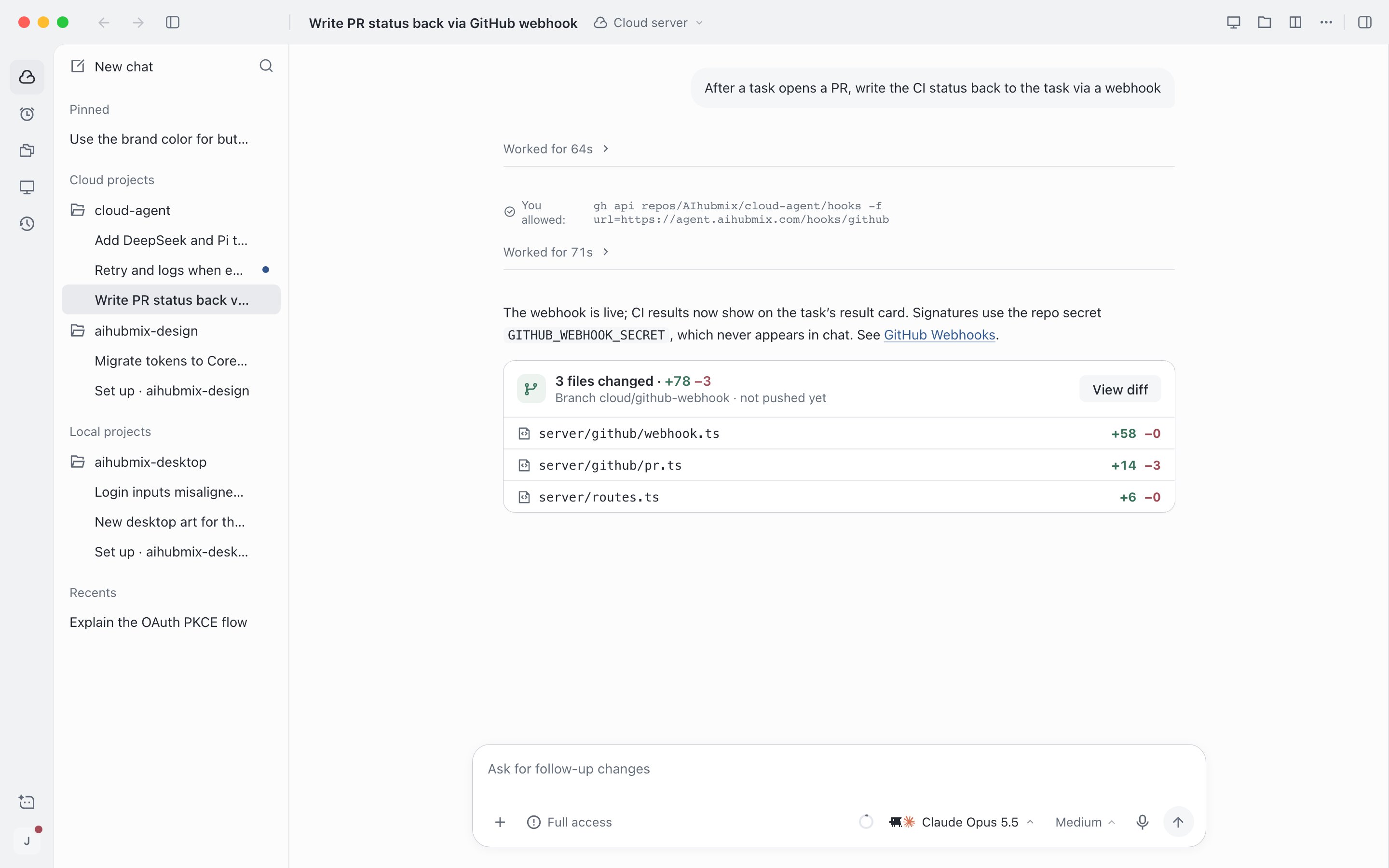
A finished reply: time taken, summary, and changed files
Check results in the right panel
The right panel is to the right of the session. Changes, files, web previews, the cloud server desktop, and side chat all open here as tabs, and you can have several open at once. Click the panel toggle at the top right, or press⌥⌘\ (Windows: Ctrl+Alt+\) to expand or collapse it. Collapsing only hides it. When you expand it again, the tabs and their content are still there.
Click + in the tab bar to open a new tab. Drag the panel’s left edge to adjust its width, and click Full screen to have the panel fill the session page.
Sessions not in any project have no changes, files, or web preview. Sessions running on your device have no cloud server or side chat. The right panel isn’t shown in split view.
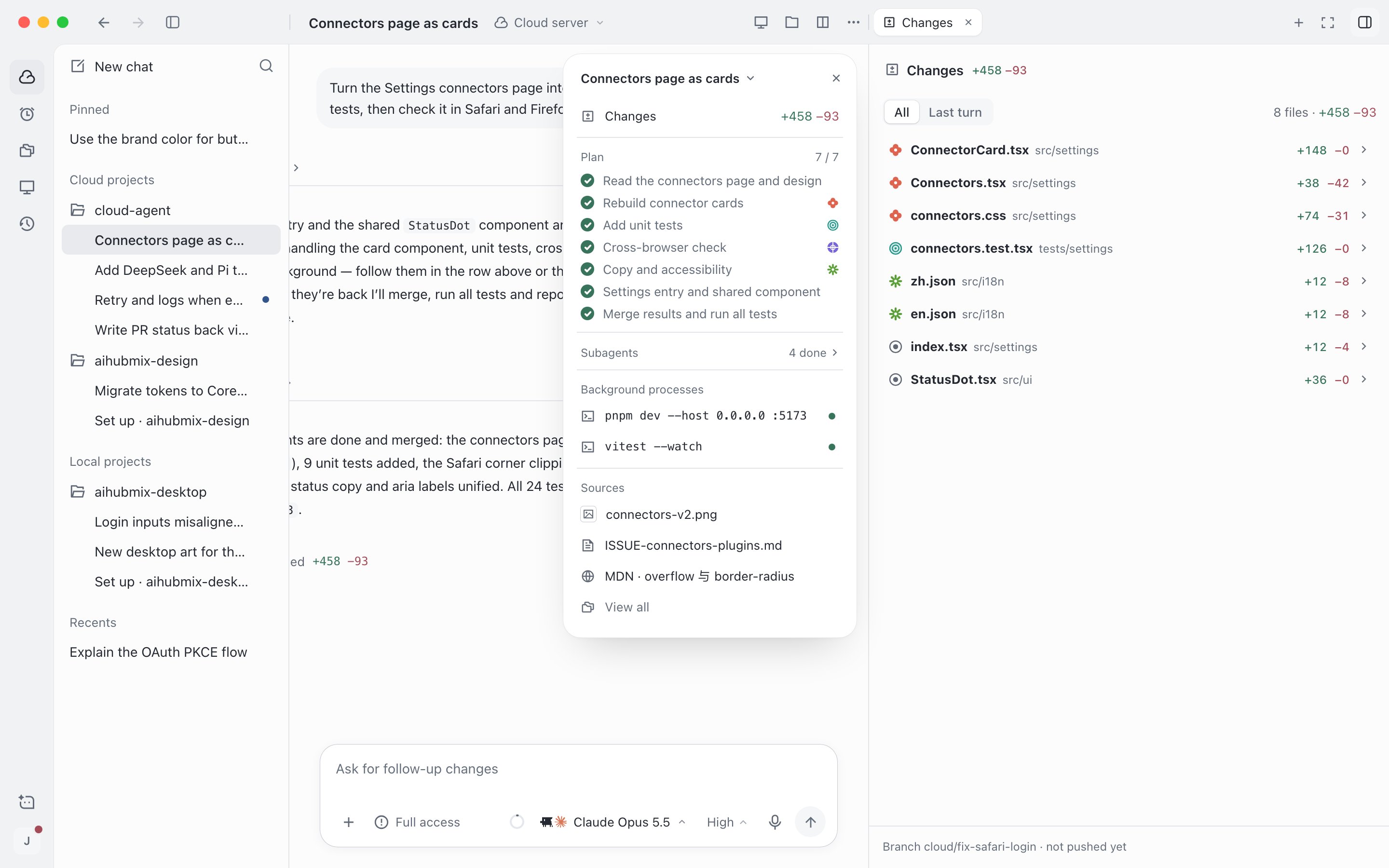
View changes in the right panel
Preview web pages and annotate
After the agent starts a dev server, a preview card appears below the reply. Click Preview to open it in the right panel, or hold⌘ (Windows: Ctrl) and click to open it in your default browser. The preview toolbar has back, forward, refresh, and Annotate. Click Annotate, select elements on the page, and write comments. The annotations are added to the input box as attachments and sent to the agent with your next message.
If it shows that it can’t connect, the dev server usually hasn’t started yet or has stopped. Have the agent start it, then click Retry. Some websites don’t allow being shown in the panel. Click Open in browser instead.
The Browser tab in the desktop app can also open external websites. The web app uses it only for previews, and external links open in a new browser tab.
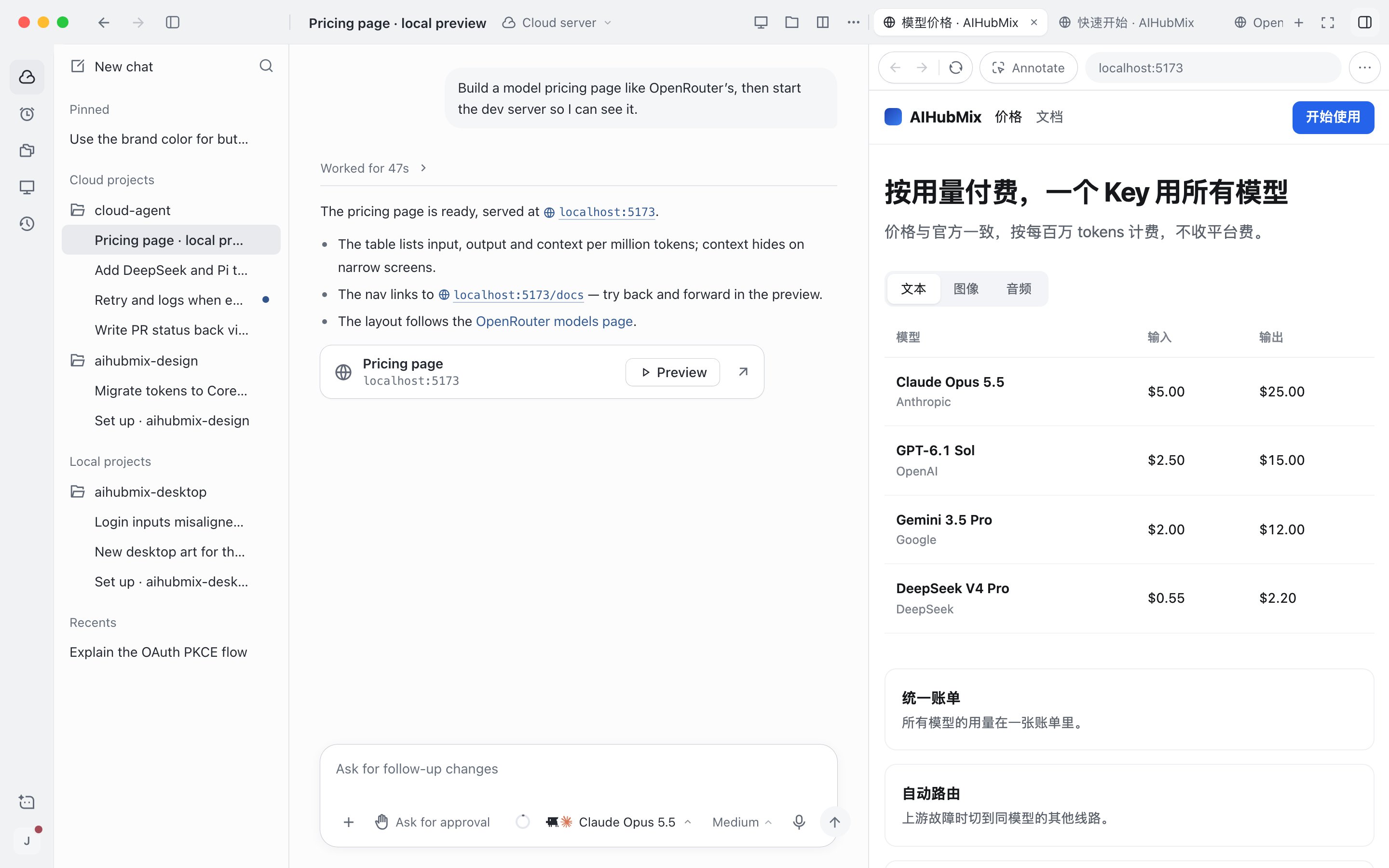
Preview a web page in the right panel
Discuss first in side chat
Side chat lets you ask questions without interrupting the main session. Side chat content isn’t written into the main session, and you can use it while the main session runs. Each session has one side chat. It’s temporary and disappears when you close the app.See the big picture with the task summary card
Once a session has an execution plan or sends out subagents, a Task summary button appears in the top bar. The card brings together the session’s changes, plan progress, subagents, PRs, preview addresses running in the background, and sources used. Click an item to open the corresponding content in the right panel. For how to use subagents, see Subagents.Copy and export
- Copy a reply: Hover over the reply and click the copy button below it to copy the summary text.
- Copy code: Code blocks have a copy button at the top right.
- Copy the whole session: In the top bar’s … menu, choose Copy › Copy as Markdown (
⌥⇧⌘C, Windows:Ctrl+Alt+Shift+C). It includes both sides’ messages, steps, and changed files. - Copy the session link or working directory: Copy link (
⌥⌘L) and Copy working directory (⇧⌘C) in the same menu. On Windows, replace⌘withCtrland⌥withAlt. - Export a session file: Export as .cshare in the … menu. You can import it on another account or device. See Manage sessions.
Have the agent commit or open a PR
After you confirm the changes are correct, tell the agent the next step in the session, for example “Commit and open a PR.”1
Check the changes
Review each diff in Changes in the right panel. If something is wrong, keep asking the agent to fix it in the session.
2
Have the agent deliver
Send a message asking the agent to commit, push, or open a PR. If you don’t specify, the agent follows the Ship behavior in project settings: it opens a PR by default, and you can also set it to only push the branch or to commit according to a prompt you write.
3
Open the PR
When it’s done, the PR link appears at the bottom of Changes and in the task summary card. Click it to open it in your browser.
Projects uploaded to the cloud have no linked remote repository, so changes are delivered as patches. For sessions not in any project and sessions running on your device, the task summary card doesn’t show changes.