

Choose the desktop app or the web app
- Desktop app (macOS / Windows): Use this computer as an execution device, link local folders, receive system notifications, and get automatic updates.
- Web app: Use all cloud features in your browser. Refreshing the page loads the latest version. When you open it in a mobile browser, it switches to the mobile layout automatically.
Download the desktop app
1
Sign in to the web app
Open the AIHubMix Cloud web app in your browser and sign in (see below).
2
Open the account menu
Click your avatar at the bottom of the icon bar on the left.
3
Download and install
Click Download the desktop app at the top of the menu, then download and install the package for your computer.
If there is no installer for your system yet, the menu shows “Currently macOS only”. If downloads are temporarily unavailable, it shows “Coming soon”.
Sign in
1
Click Continue with AIHubMix
The sign-in page has a single Continue with AIHubMix button. There is no separate sign-up link or password field. If you don’t have an account yet, sign up on the AIHubMix sign-in page.
2
Finish signing in in your browser
- Desktop app: Your system browser opens the AIHubMix authorization page. After you sign in and authorize, you return to the app automatically. While waiting, you can click Cancel to abandon this sign-in.
- Web app: The current page redirects to the AIHubMix sign-in page. When you finish, you return to the page you were on before signing in.
3
Enter the product
The web app goes straight to the home page. In the desktop app, the first time you sign in on an account without Plus, a welcome page appears once.
First sign-in: upgrade to Plus or explore first
The welcome page describes what Plus includes: a dedicated Linux cloud server, tasks that keep running when you close your laptop, and leading models from OpenAI, Anthropic, DeepSeek, and others.- Click Upgrade to Plus: Opens the subscription dialog, where you see the price, choose an egress region, and pay. After activation, click Get started to enter the product.
- Click Explore first: Goes straight to the home page. You can browse all features and change settings, and upgrade when you want to run a session.
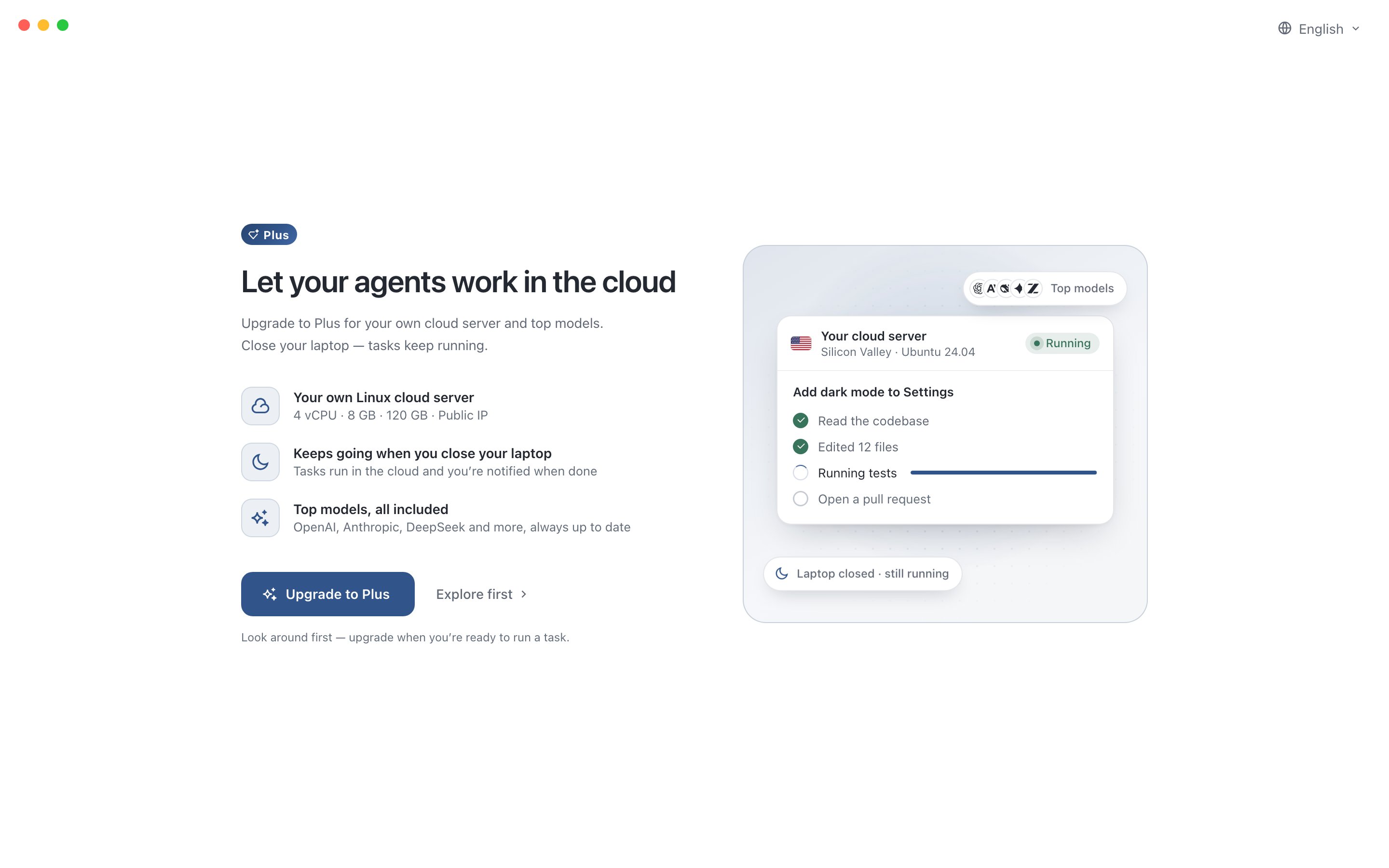
The welcome page on first sign-in to the desktop app
Without Plus, you can still write and send a task. The session doesn’t run yet and shows an upgrade option. After you activate Plus, the message you just wrote is sent automatically, so you don’t need to type it again. For plan details, see Plus plan.
Sign out
Click your avatar to open the account menu and select Sign out, or click Sign out in Settings › Security. Signing out needs no confirmation and returns you to the sign-in page immediately.- Sessions and scheduled tasks running in the cloud keep running. After you sign in again, you can see the full process and results.
- Unsent messages on this device are cleared, including sessions saved while you didn’t have Plus.