

⌘/ (Windows: Ctrl+/) to open the quick reference panel. Most features without a shortcut can be searched and run from the command menu ⇧⌘P (Windows: Ctrl+Shift+P).
Use the quick reference panel and command menu
- Quick reference panel: press
⌘/to open it. It lists every shortcut by group, with keys shown for your operating system. Click View in Settings at the bottom to go to Settings › Keyboard shortcuts. PressEscor⌘/again to close it. - Command menu: press
⇧⌘Pto open it, type to search, use↑↓to select, and pressEnterto run. It lists only commands you can run right now, and shows the keys on the right for commands that have a shortcut. Besides the actions in the shortcut tables, you can find Settings sections (such as “Settings · Account”), go to pages (such as “Go to · Cloud server”), switch language and theme, change the split view layout, choose where to run, check for updates, delete a chat permanently, and more.
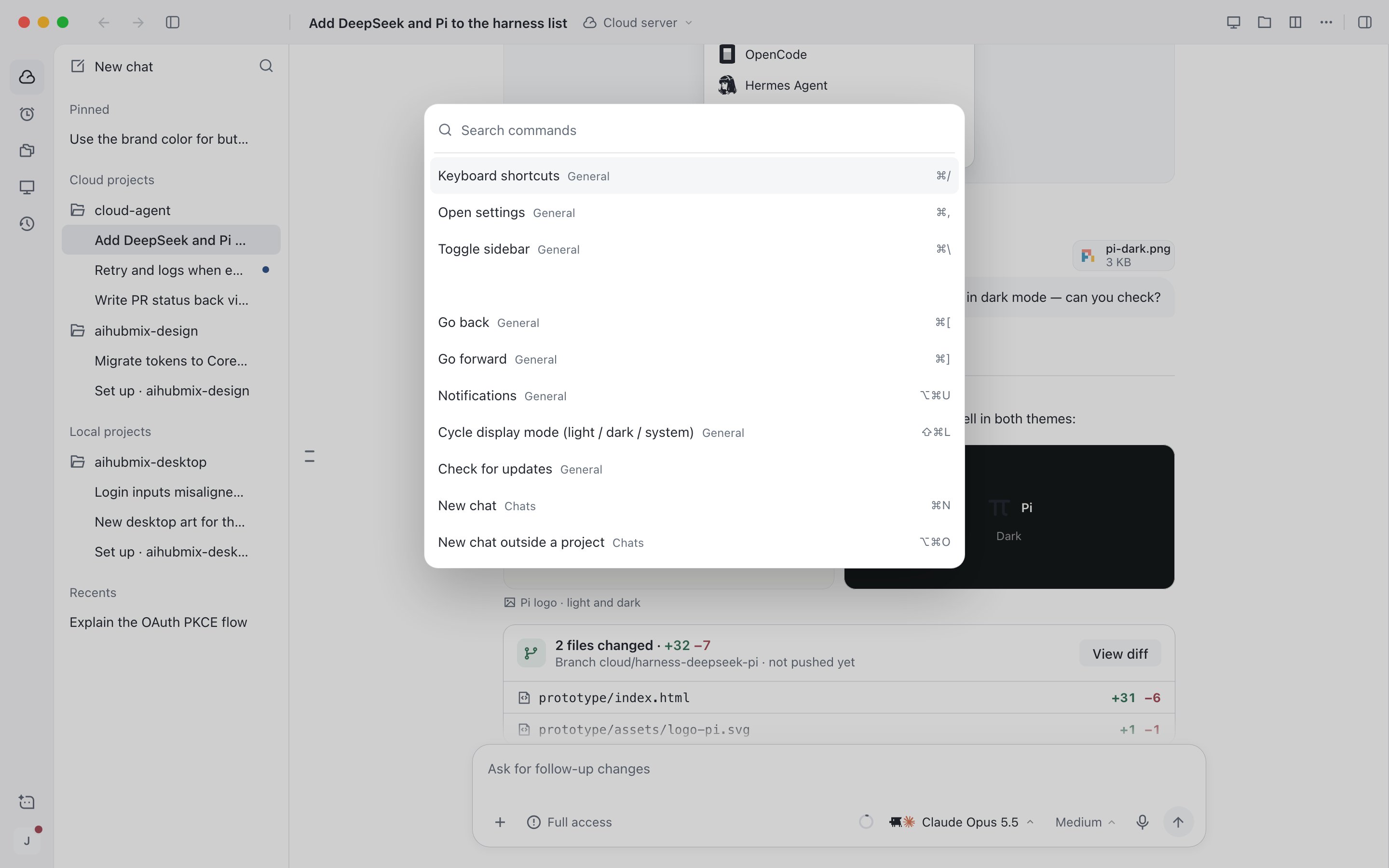
Command menu: search for commands, with shortcuts shown on the right
General
Sessions
Previous, next, and chats 1 to 9 follow the order of most recent activity. In split view, these keys switch between panes instead, and
⌘W closes the current pane.
Composer
Runs and approvals
Approval keys work only when there is a pending request and focus is not in the composer. To learn how to handle agent requests, see Work with the agent.
Right panel and split view
Files and Changes require the session to belong to a project. Press a panel key again to close the panel. Panel keys are not available in split view. Hold
⌥ (Windows: Alt) and click a chat in the sidebar to add it to split view.
When a shortcut does not work
- Focus is in a text field: single keys such as
Esc,Enter,↑, and number keys do not work. The exceptions are in the main composer:Escstill stops the session,⇧Escstill clears all unread, and↑edits your last message when the composer is empty. - A menu or dialog is open:
Esccloses it first. Press it again to stop the session or decline the request. - In the web app: key combinations the browser uses (such as
⌘N,⌘W,⌘1to⌘9, and⌘[) are not available. Where an alternative exists, the app shows it directly, for example⇧⌘Ofor a new chat, and⌥↑⌥↓to switch chats on macOS. Where there is no alternative, use the command menu.
Destructive actions such as permanent deletion have no shortcut. You can run them only from a menu or the command menu, and they still require confirmation.