

Cloud server and Plus
Each account has one cloud server. It is available only with a Plus subscription and is not sold separately. Subscribing to Plus sets up your cloud server, which usually takes a few minutes. For pricing, renewal, and cancellation, see Plus plan and usage. There is currently one configuration: Linux (for example Ubuntu 24.04 LTS, as shown in the app), 4 vCPU, and 8 GB of memory. Storage capacity and monthly outbound traffic are shown on the cloud server page. You cannot upgrade the configuration, add storage, or change the operating system.View and manage on the cloud server page
In the desktop app, click Cloud server in the left icon bar. In the web app, click Cloud server at the bottom of the sidebar. On this page you can:- See a thumbnail of the cloud server’s current screen, and click Open desktop to view it full screen.
- Check the system and specs, the running status, and how many sessions are running.
- Check the region and egress IP (copy it with one click), storage and traffic usage, the monthly fee, and the next renewal date.
- Click View billing. For subscriptions paid online, you can also click Payment & invoices to change your card or download invoices, or click Cancel renewal / Resume renewal.
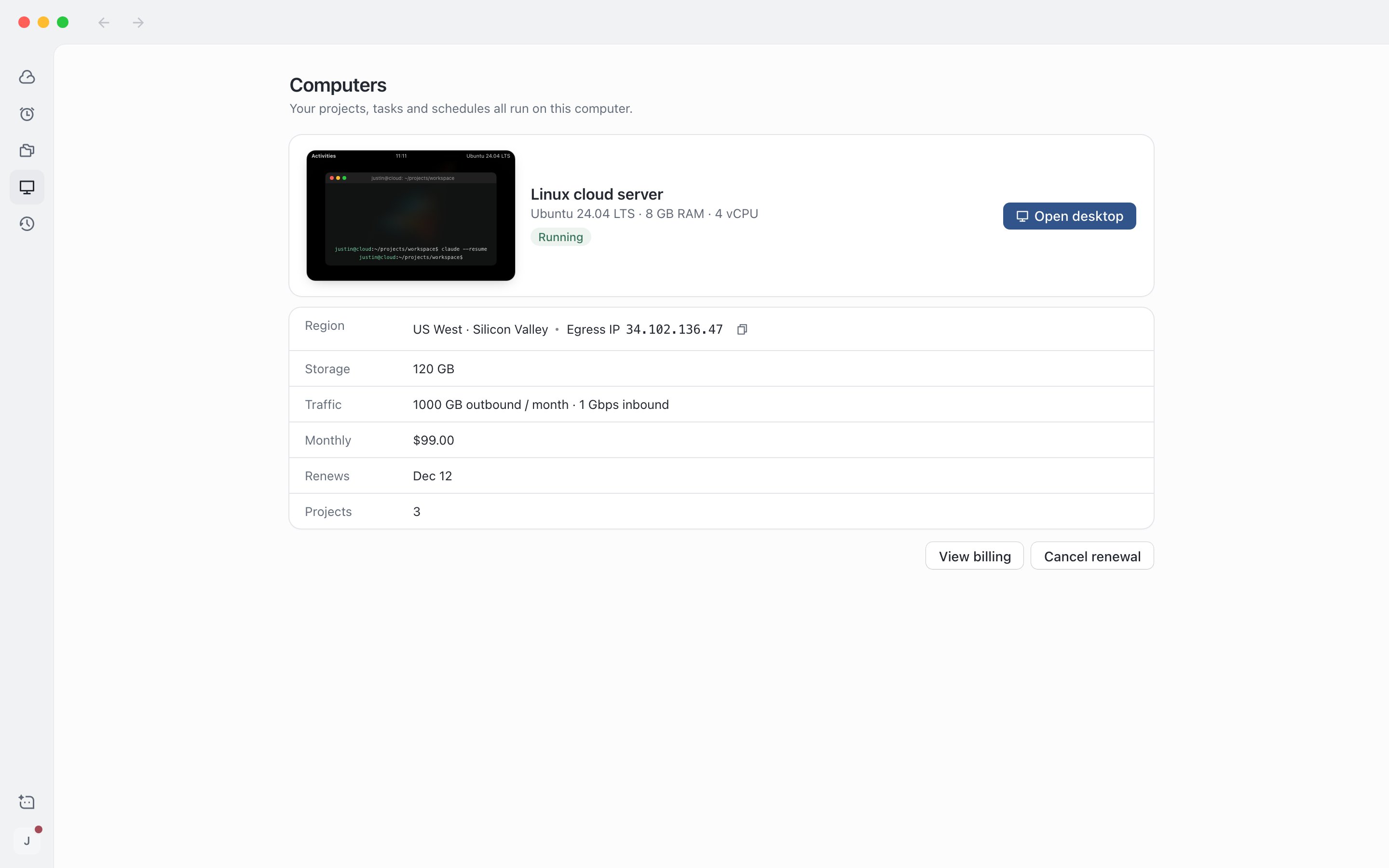
Cloud server page: specs, region and egress IP, usage, and renewal details
Choose an egress region
The egress region is where the egress IP is located when the Agent accesses the internet. It affects access speed and which services you can reach. You choose a region when you subscribe to Plus. Each region shows the latency measured from your current network, and regions that are temporarily sold out cannot be selected.Watch what the Agent does on the cloud server
The remote desktop shows what is happening on the cloud server’s screen in real time. By default it is view only.1
Open the remote desktop
In the session top bar, click the Cloud server button, or press
⌃` (Windows: Ctrl+`). The right panel shows the live screen, the egress IP, and the region.2
View full screen
Click the full-screen button in the right panel, or press
⇧⌘F (Windows: Ctrl+Shift+F). Clicking Open desktop on the cloud server page opens it full screen directly.3
Exit full screen
Press
Esc or click Exit full screen. When focus is inside the remote desktop, Esc is sent to the cloud server, so click Exit full screen instead.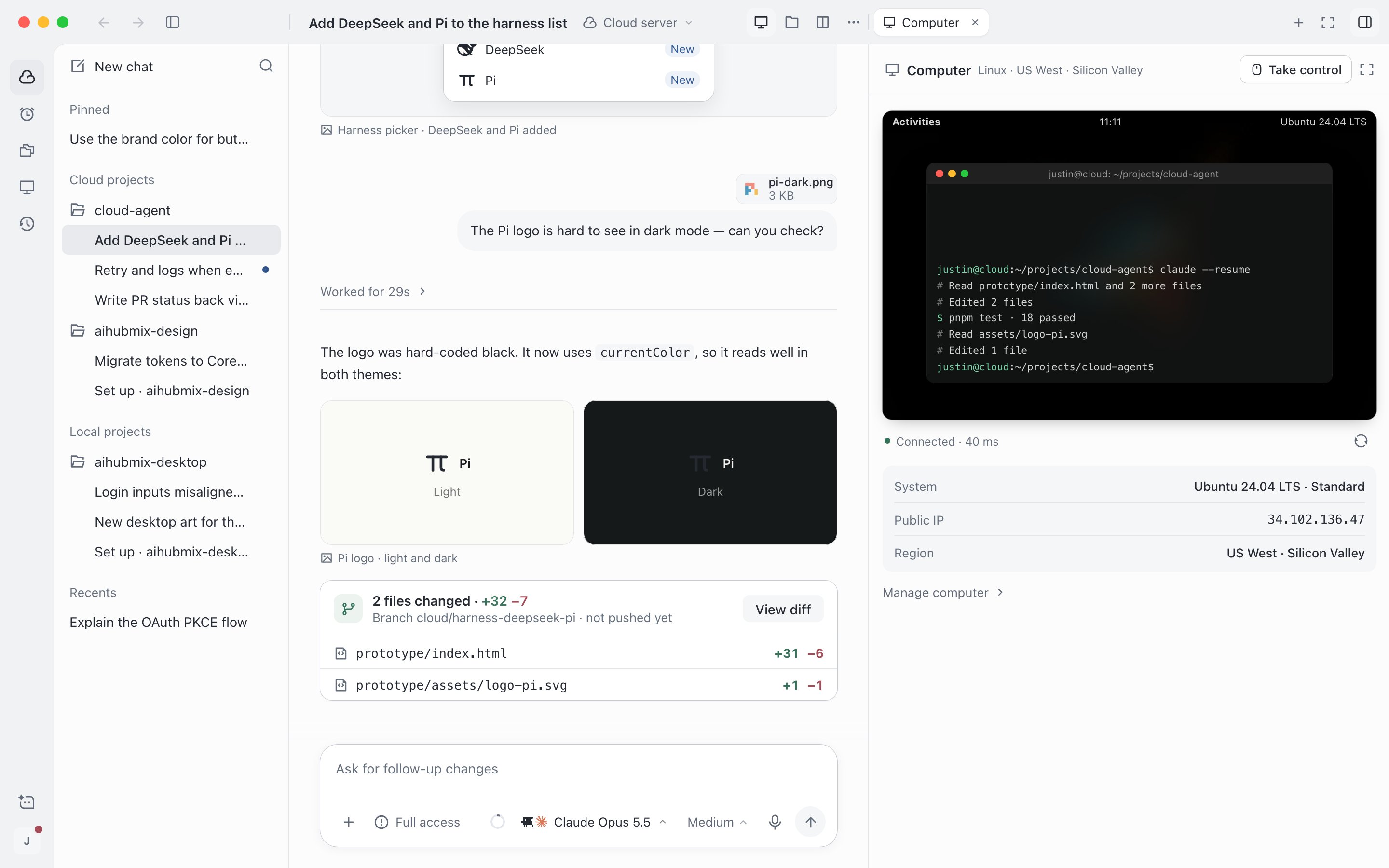
Viewing the cloud server desktop in the right panel
Take control of the cloud server
When you need to do something yourself (for example sign in to a website or enter a two-factor code), you can take control of the keyboard and mouse.1
Click Take control
Click Take control at the top of the right panel or the full-screen view. If any sessions are running on the cloud server, they are listed first for you to confirm.
2
Do what you need
Work directly in the screen. The top shows how long you have been in control.
3
Hand back keyboard and mouse
Click View only to return the screen to read-only. It also returns to read-only automatically after 30 minutes without input or when the connection drops.
- If you take control in another window or on another device, this view returns to read-only automatically. Click Take control again when you need it.
- When you finish, every session that ran during your control gets a record, and the Agent knows you used the desktop the next time you send a message.
- When the Agent reaches a step only you can complete, it asks you above the input box. Click Take control to take over directly, then click Resolved when you are done. See Work with the Agent.
The mobile web app can only view the remote desktop. It cannot take control.
Turn admin access on or off
Admin access on cloud server controls whether the Agent can install system software and change system settings on the cloud server. It is on by default and applies to the whole cloud server.1
Find the switch
Open Settings › Workspace › Overview and find Admin access on cloud server in the cloud server group.
2
Switch and confirm
Turning it on lists the risks. Click Got it, turn on to save. To turn it off, just switch it off.
3
Wait for it to apply
The actual status on the cloud server appears below the switch. It usually takes less than 1 minute. If applying fails, click Retry.