

Choose your device or the cloud server
Each session picks how it runs when you start it. You cannot change it afterward.
For tasks that need to keep running after you close your laptop, choose the cloud server.
Let a computer run sessions
1
Sign in to the desktop app on the computer
Install the desktop app and sign in with the same account. See Download and sign in. After you sign in, the computer joins your workspace automatically. The web app does not add a device.
2
Open the machine details
Go to Settings › Workspace › Machines and click the computer. The list shows each machine’s operating system, client version, and online status.
3
Turn on Allow execution
Turn on Allow execution (off by default for computers), and review what is being loosened in the confirmation dialog. Once on, it stays in effect for all future sessions that run on this computer.
4
Adjust authorization as needed
Set the access scope, sensitive locations, and permission limit. After you save, the changes apply to new sessions right away.
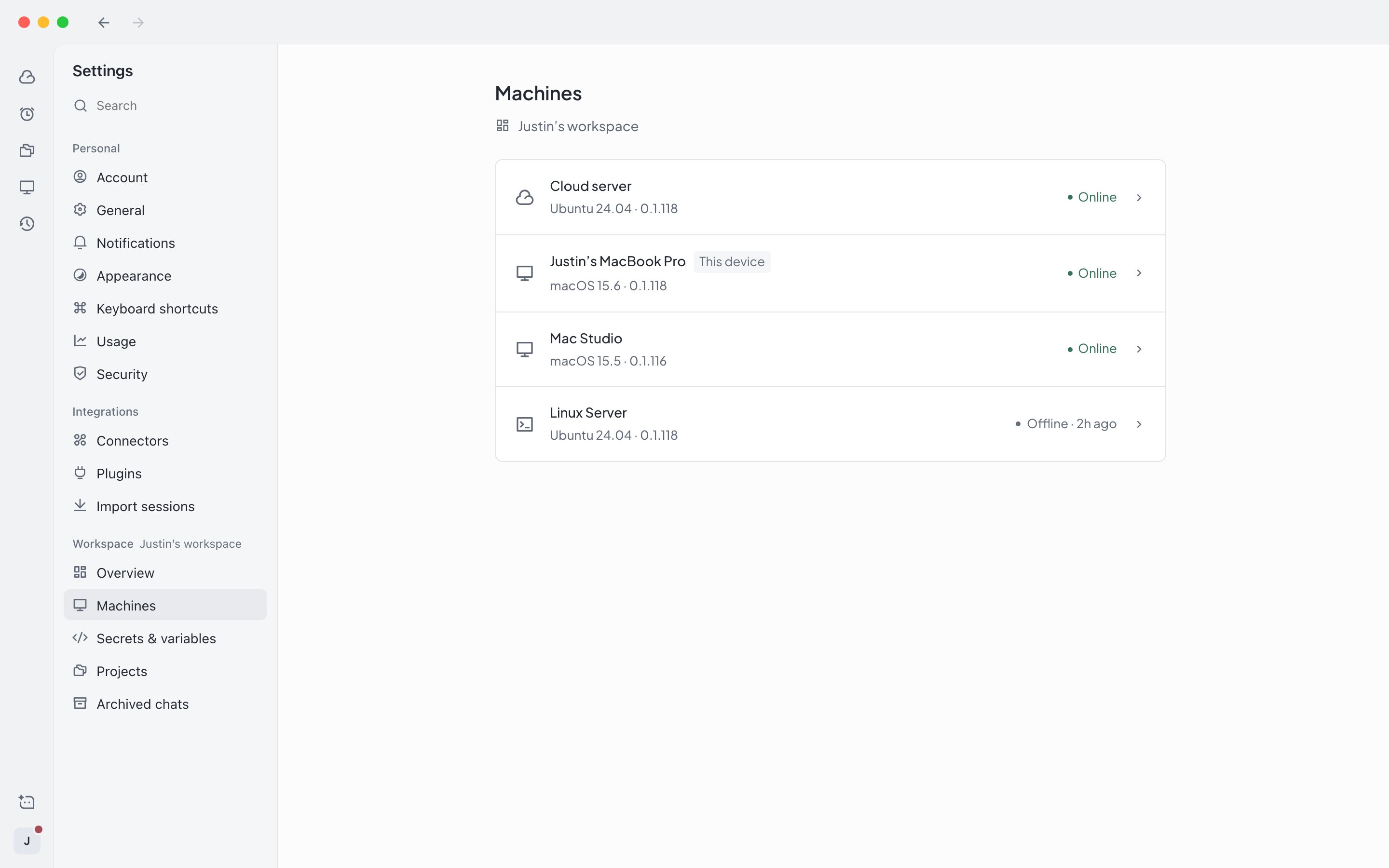
Settings › Workspace › Machines
- Access scope: Project folders only, selected folders, or the entire computer (default).
- Sensitive locations: For example SSH, Keychain, and system configuration. Choose Ask each time (default), Block access, or Allow access.
- Permission limit: Session permissions cannot exceed this. Choose No limit (default), Approve for me, or Ask for approval.
- Allowed secrets: Which workspace secrets can be used on this computer. All by default.
- Environment variable overrides: Environment variables to override when running on this computer. Do not put plain-text secrets here.
Execution authorization can only be changed in the desktop app on that computer. Other devices and the web app can only view it.
Choose a device to start a session
1
Open the run environment menu
Above the new session input box, click the run environment button next to the project.
2
Pick a device
Under Run on your device, choose a computer. Each device shows its access scope and permission limit below it.
3
Send the task
Write your task and send it. Once the session starts, it stays on this computer.
- Local projects default to the computer where the project lives. Everything else defaults to the cloud server.
- A device cannot be selected if it is offline, Allow execution is off, the project is not on that device, or the current Agent is not Claude Code. The menu states the reason.
- After you pick a device, permissions above its permission limit cannot be selected.
- To switch to another computer or the cloud server, start a new session.
Confirm access to sensitive locations
When sensitive locations are set to Ask each time, the client on the running device shows the reason and the path before the Agent accesses a location such as the SSH configuration.- Allow once: Allows this one time only, without changing the machine authorization.
- Deny: Does not allow it. If you do not respond for a while, it is treated as denied.
- Respond later: Hides the prompt for now, and the session is marked in the sidebar as needing your attention.