

⌘, (Windows: Ctrl+,) or click Settings in the account menu.
What the Account page shows
From top to bottom:- Profile: your name, email, and sign-in method.
- Plus card: without Plus, it shows an upgrade option. With Plus, it shows the specs, monthly price, and subscription status. Click Manage to go to the Cloud server page to renew, cancel, or get invoices. See Plus plan and usage.
- Your subscriptions and BYOK: connect your own subscription accounts or API keys. See Model sources.
- System task models: the models used by background tasks such as environment repair and session naming. View only.
- Billing history: the list of Plus orders. You can filter it and export CSV.
- Delete workspace data: at the bottom of the page.
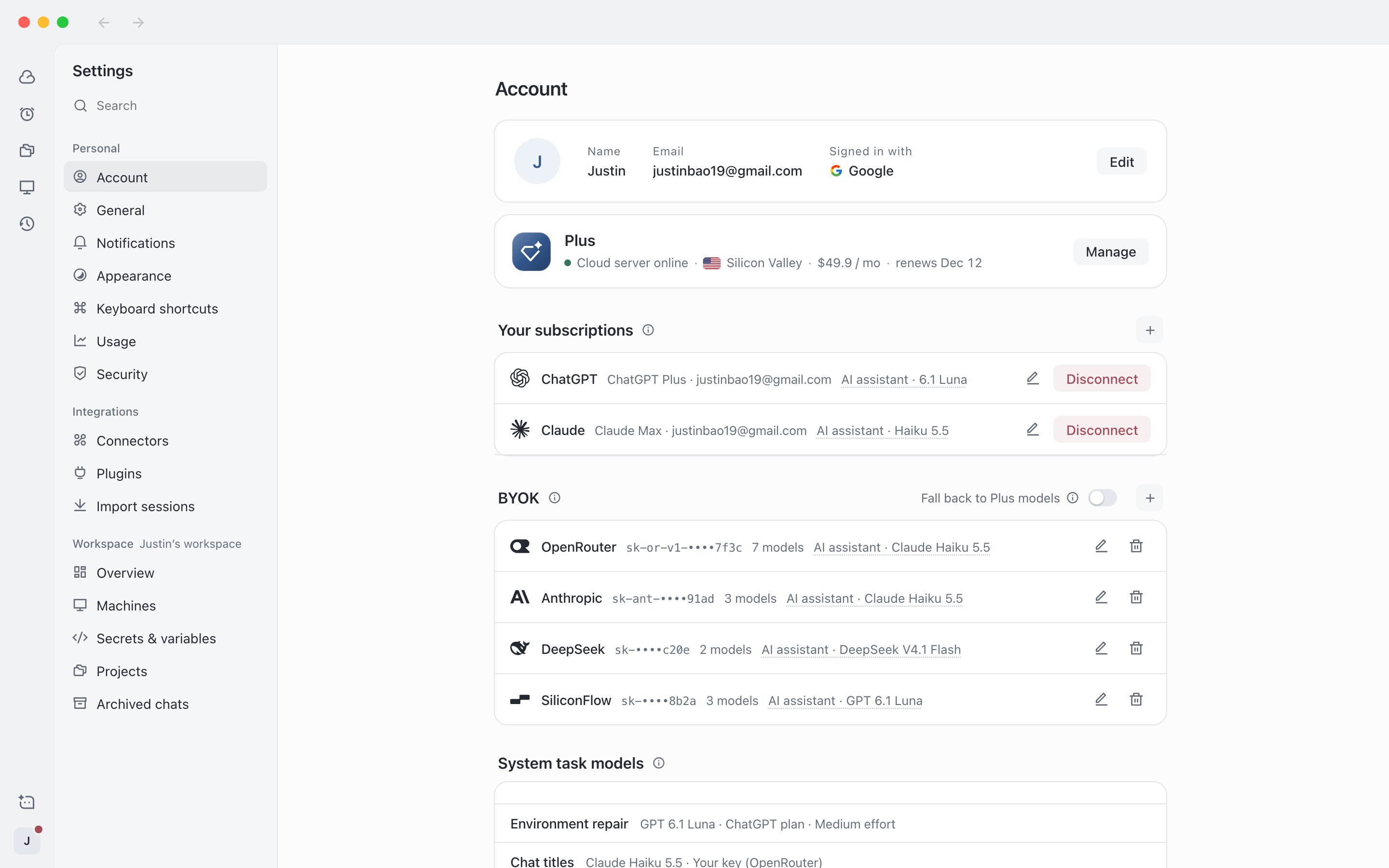
Settings › Account: profile, Plus card, and model sources
Change your display name
1
Open the Account page
Select Account on the left side of Settings.
2
Edit the name
Click Edit to the right of your profile, enter a new name (1 to 64 characters, cannot be empty), and save.
Sign-in methods
Cloud Agent uses only your AIHubMix account to sign in. The desktop app and web app use the same account and show the same projects, sessions, and Plus subscription. Signing in with Google or with email and password, and creating a new account, all happen on the AIHubMix sign-in page. Settings › Security shows your current sign-in method, for example Google plus email, or email and password. Your password belongs to your AIHubMix account. Cloud Agent does not offer password changes, password recovery, or signed-in device management. Handle these in your AIHubMix account settings or on the sign-in page. For first-time sign-in steps, see Download and sign in.Sign out
1
Find the sign-out option
Click Sign out in the account menu, or click Sign out on the Sign out row in Settings › Security.
2
Return to the sign-in page
Signing out needs no confirmation and takes you straight back to the sign-in page.
Delete workspace data
Deleting workspace data removes your cloud server, all projects, sessions and chat history, secrets, and settings in Cloud Agent. Your AIHubMix account itself is kept, and purchased subscriptions are not refunded.1
Start deletion
At the bottom of Settings › Account, click Delete workspace data….
2
Enter your email to confirm
In the confirmation dialog, enter your account email. You can continue only when it matches your account exactly.
3
Confirm deletion
Click Delete workspace data. When it finishes, you are signed out automatically.