

Before you start
- Install and open RikkaHub.
- Create an API key in the AIHubMix Console.
Configure AIHubMix
1. Open Providers
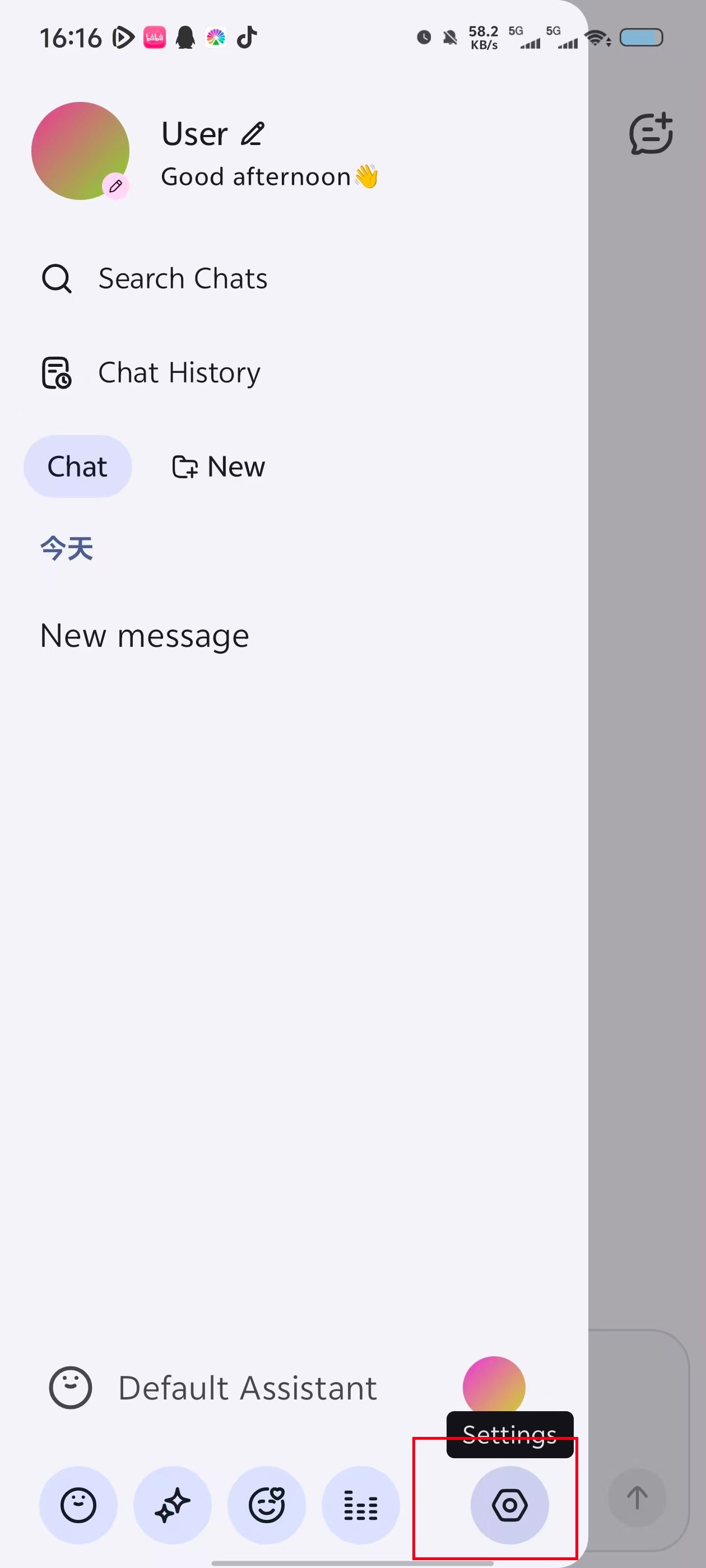
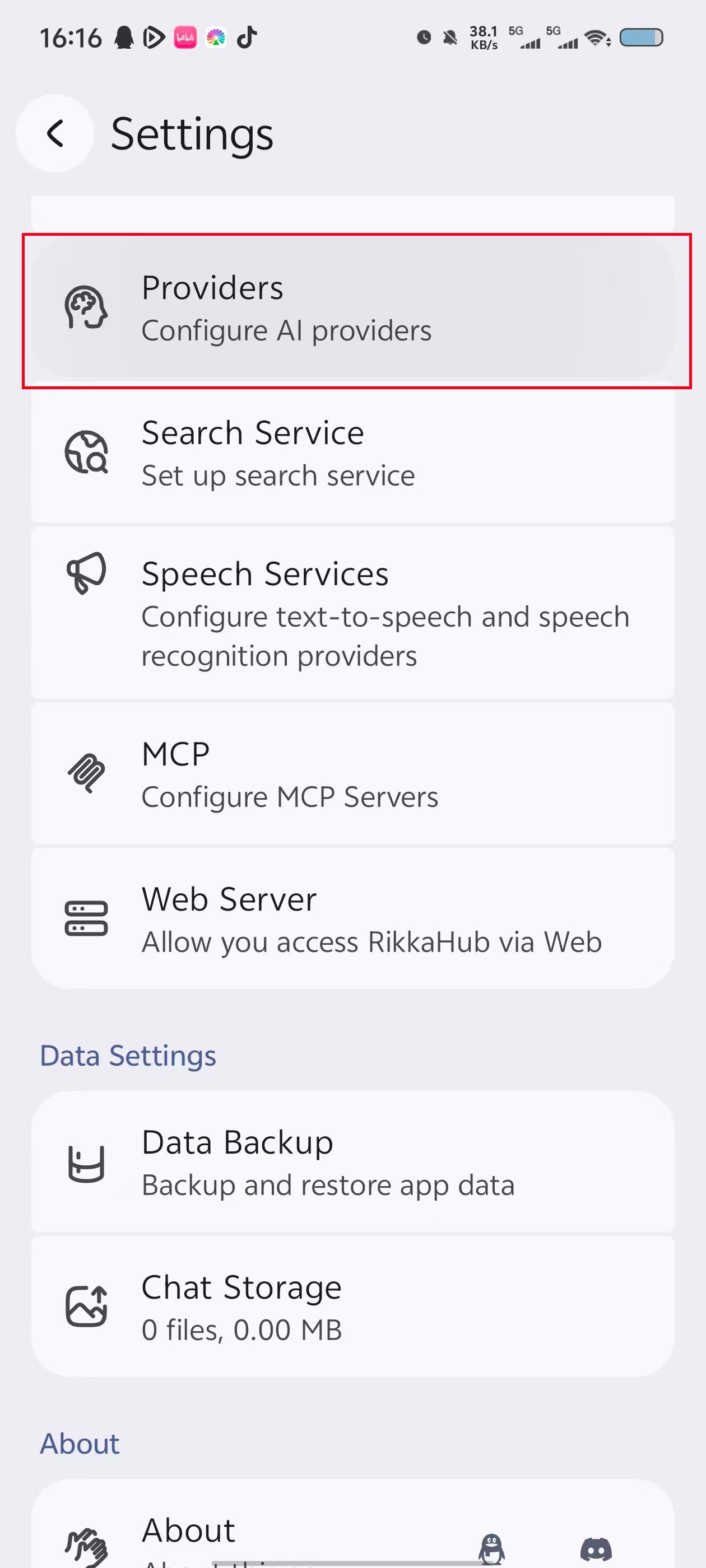
On the chat page, tap the menu button in the upper-left corner. Open the sidebar, tap the settings button at the bottom, and then select Providers.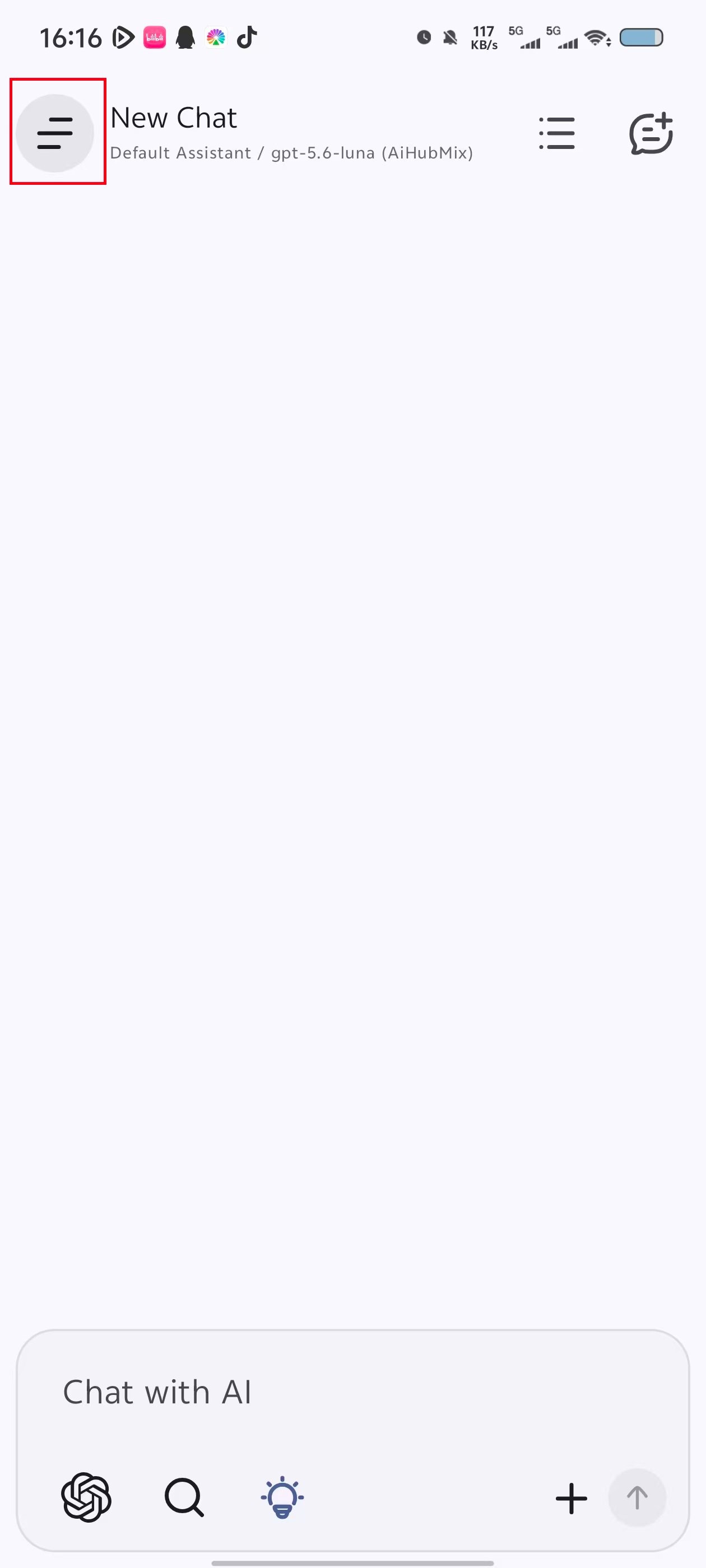
2. Enter and save the provider details
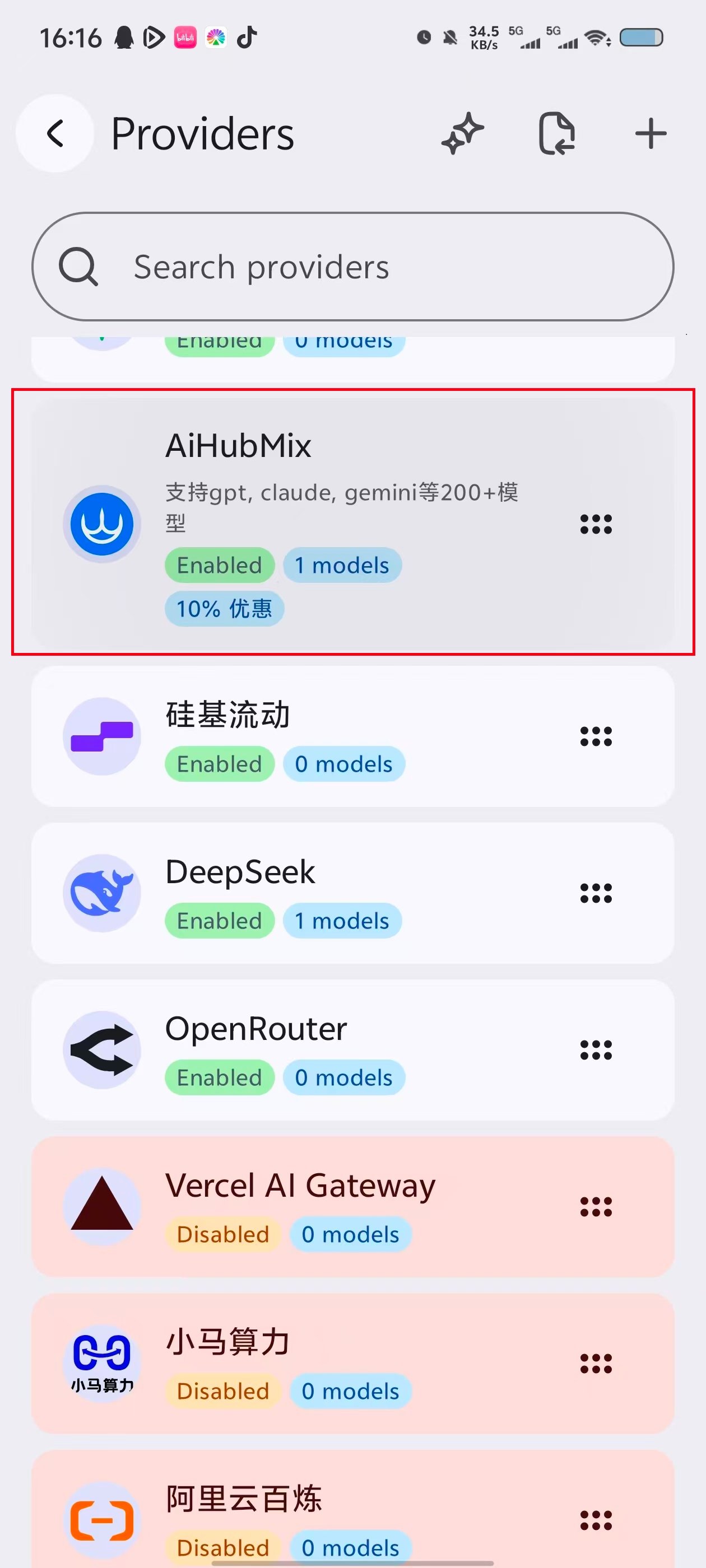
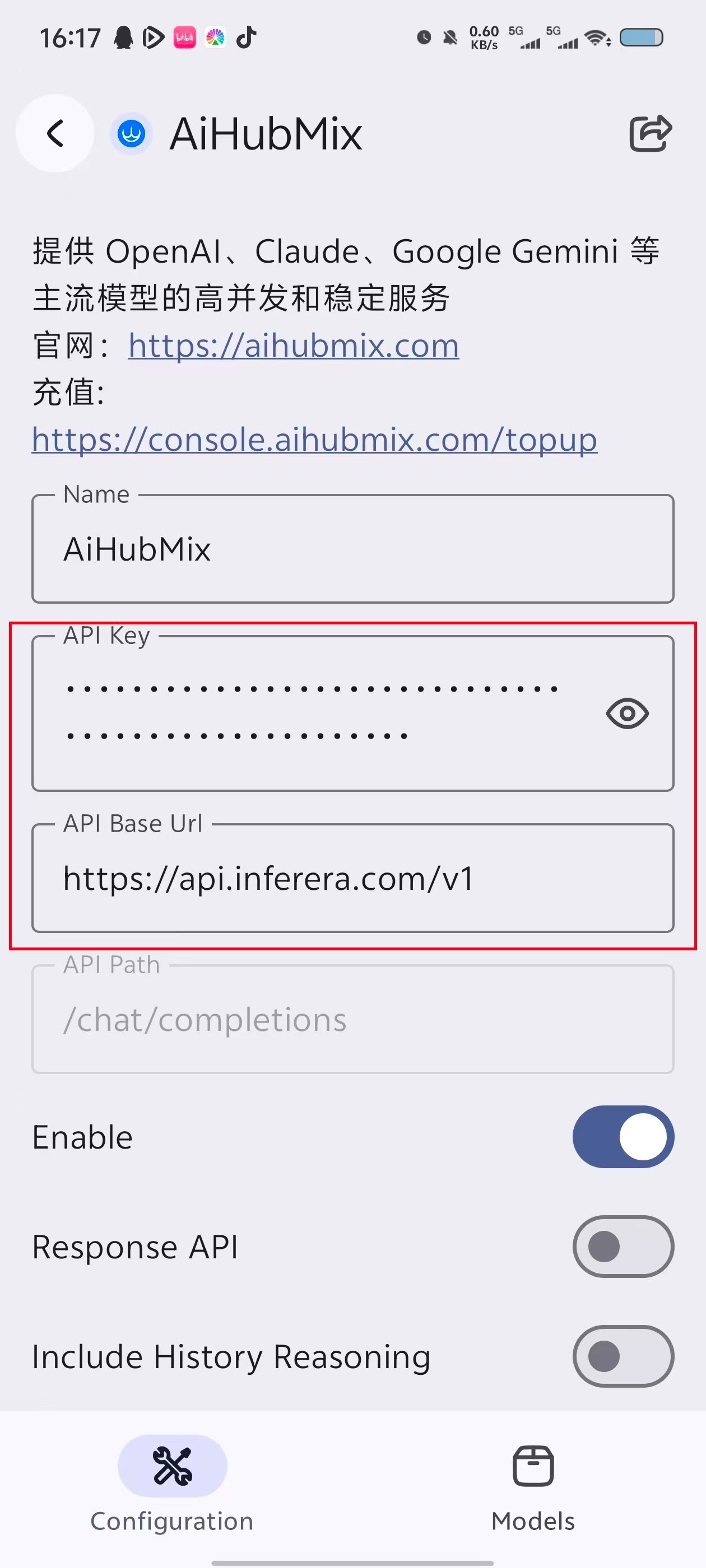
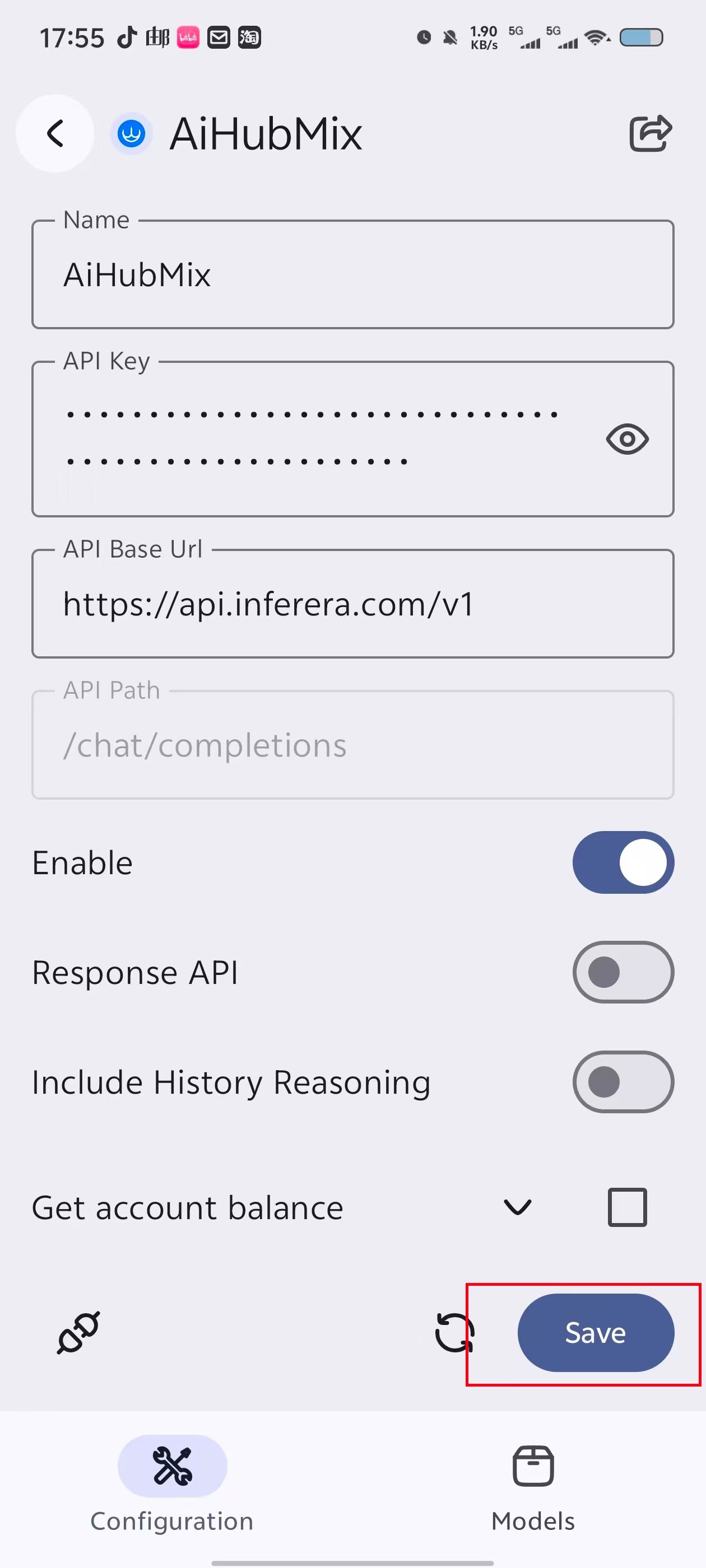
Select AiHubMix from the provider list, then enter the following details:- API Key: Enter the API key created in the AIHubMix Console.
- API Base Url: Enter
https://aihubmix.com/v1. If the primary address is temporarily unavailable, usehttps://api.inferera.com/v1. - API Path: Keep the default value
/chat/completions. - Enable: Turn it on.
- Response API: Leave it off.
Add models
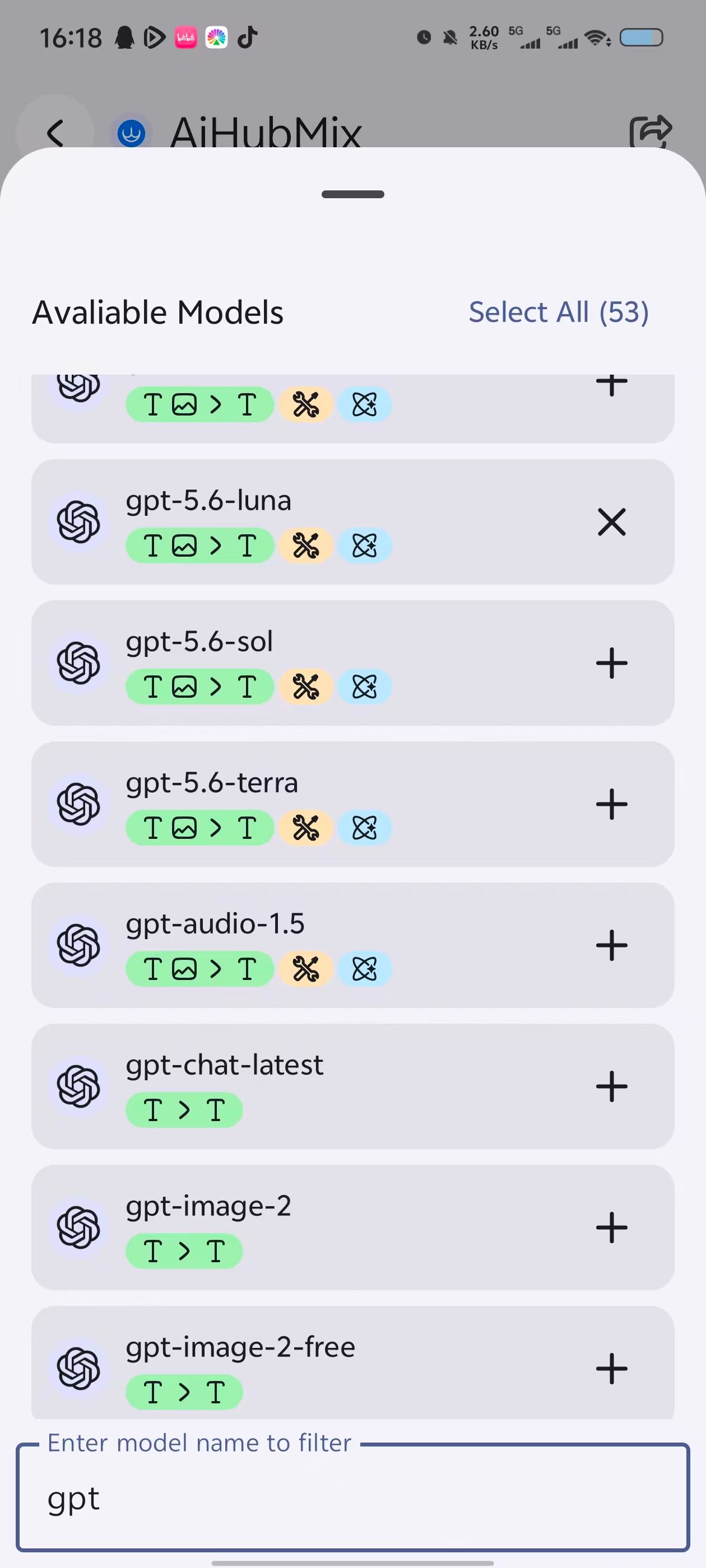
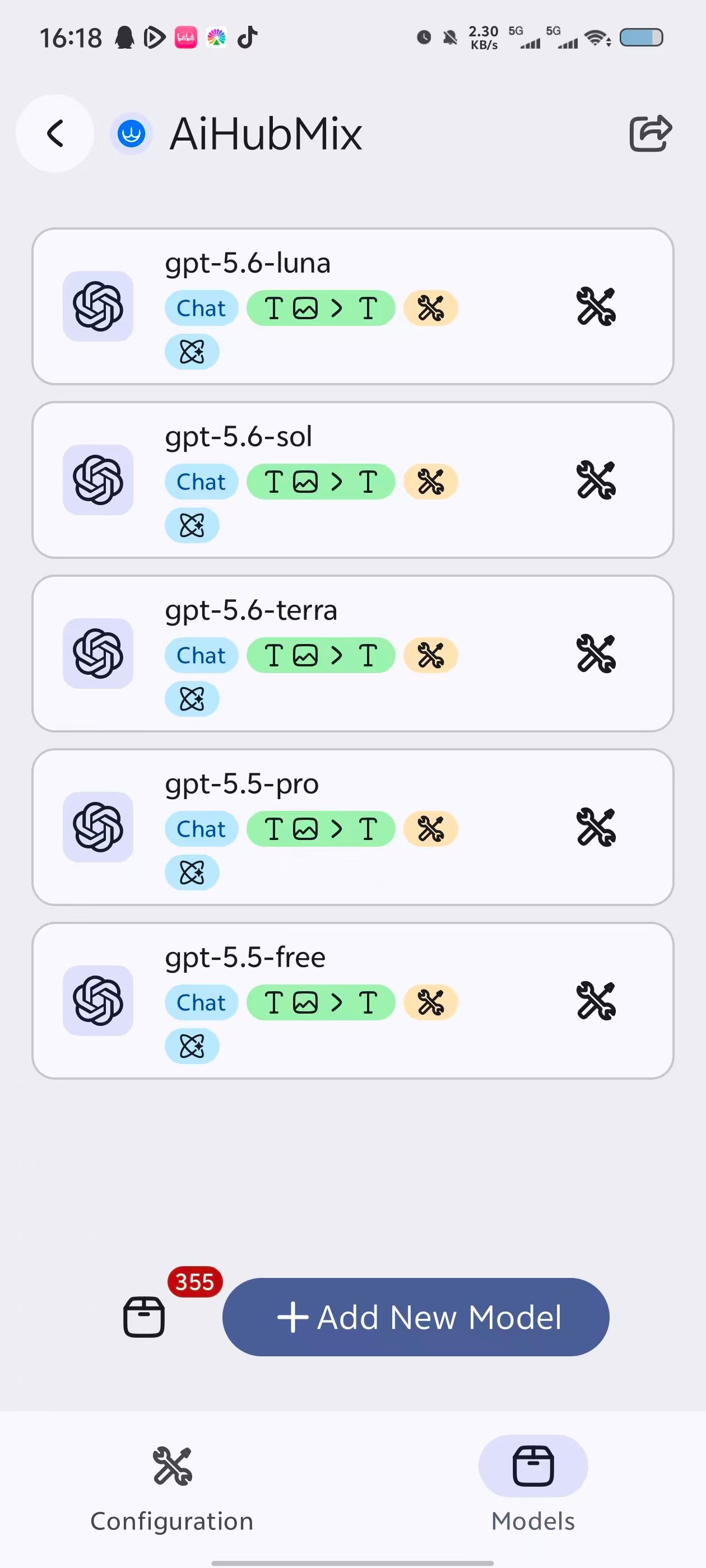
Switch to the Models tab. Tap Add New Model to define a model manually, or tap the model-list button to its left to choose a model directly from the list. In the model list, filter by name and tap + next to a model to add it. To add every model, tap Select All. Return to the model management page to review and manage the models you added.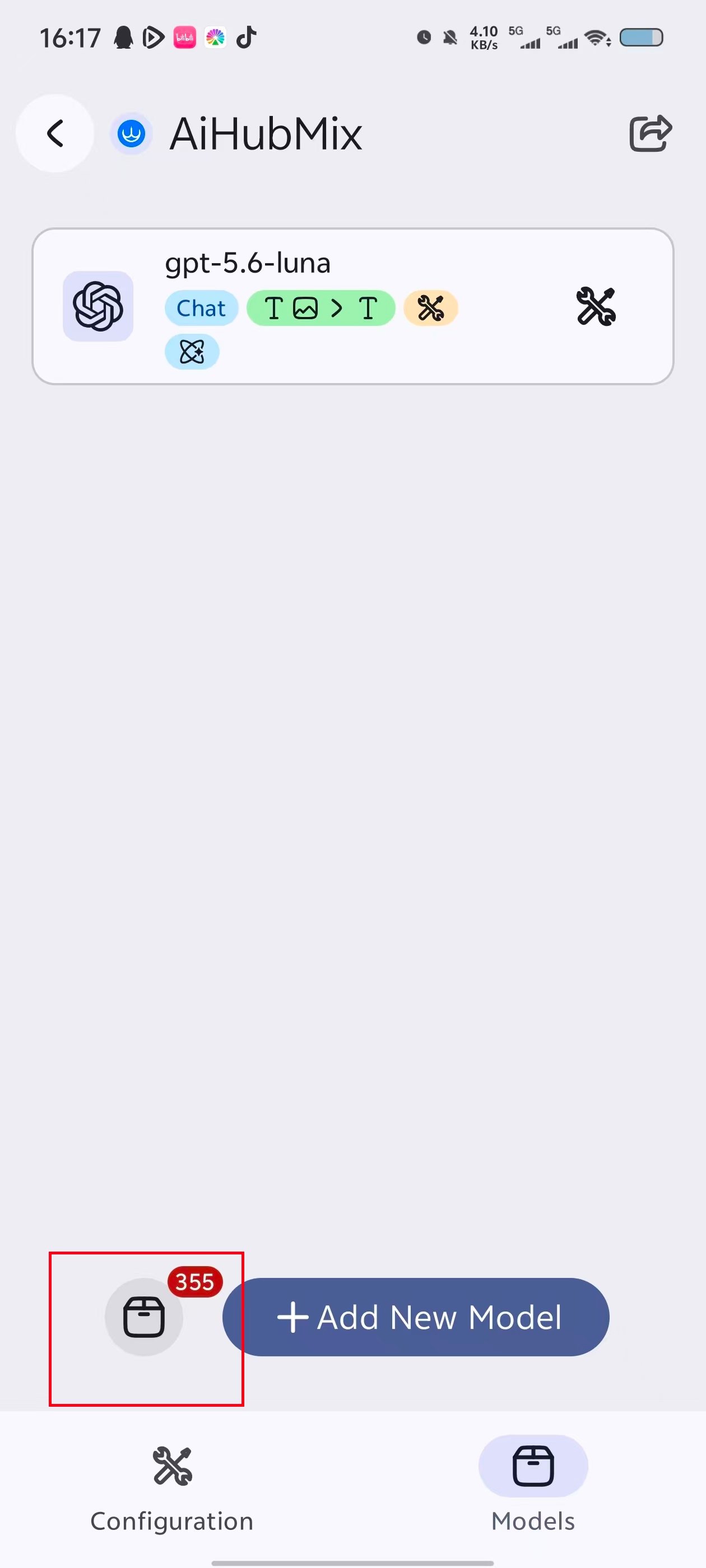
Test the connection
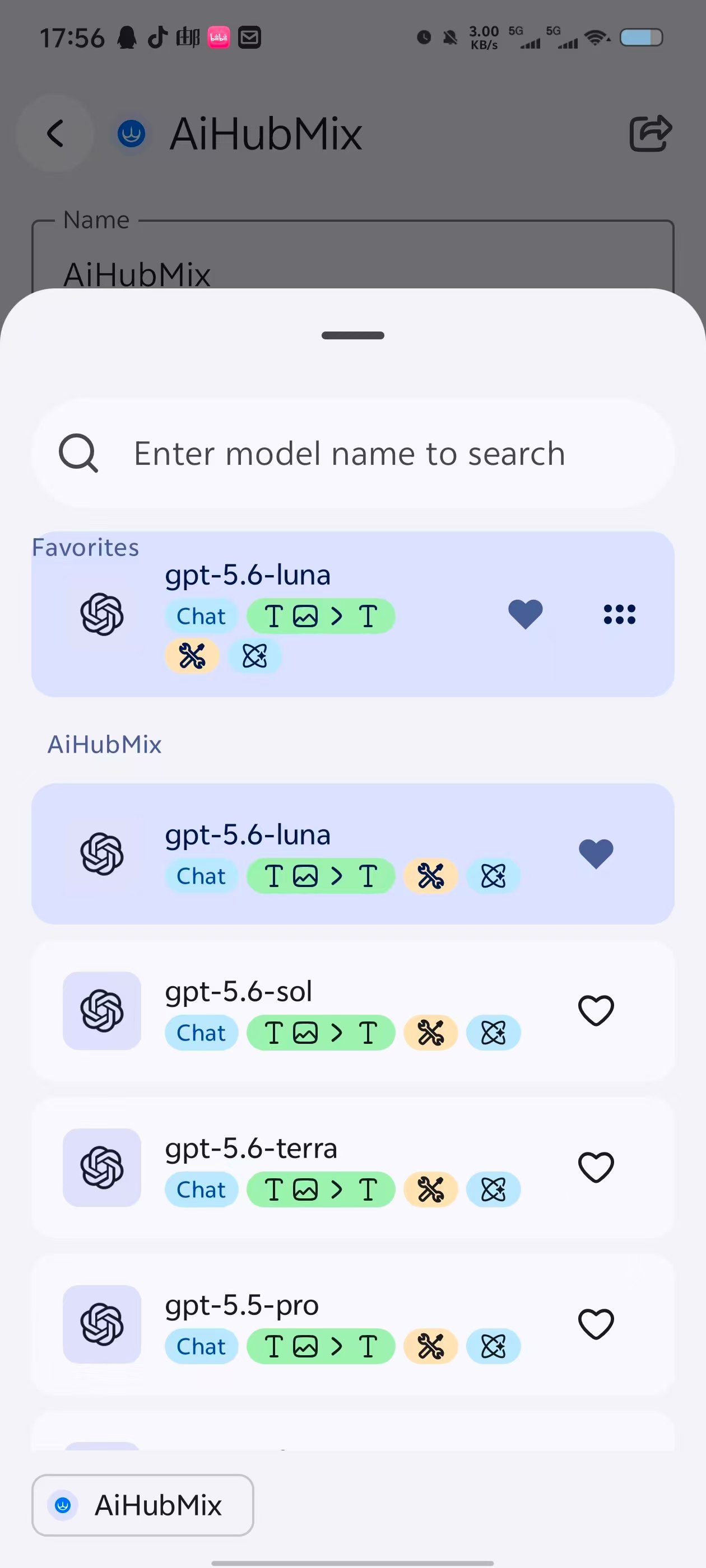
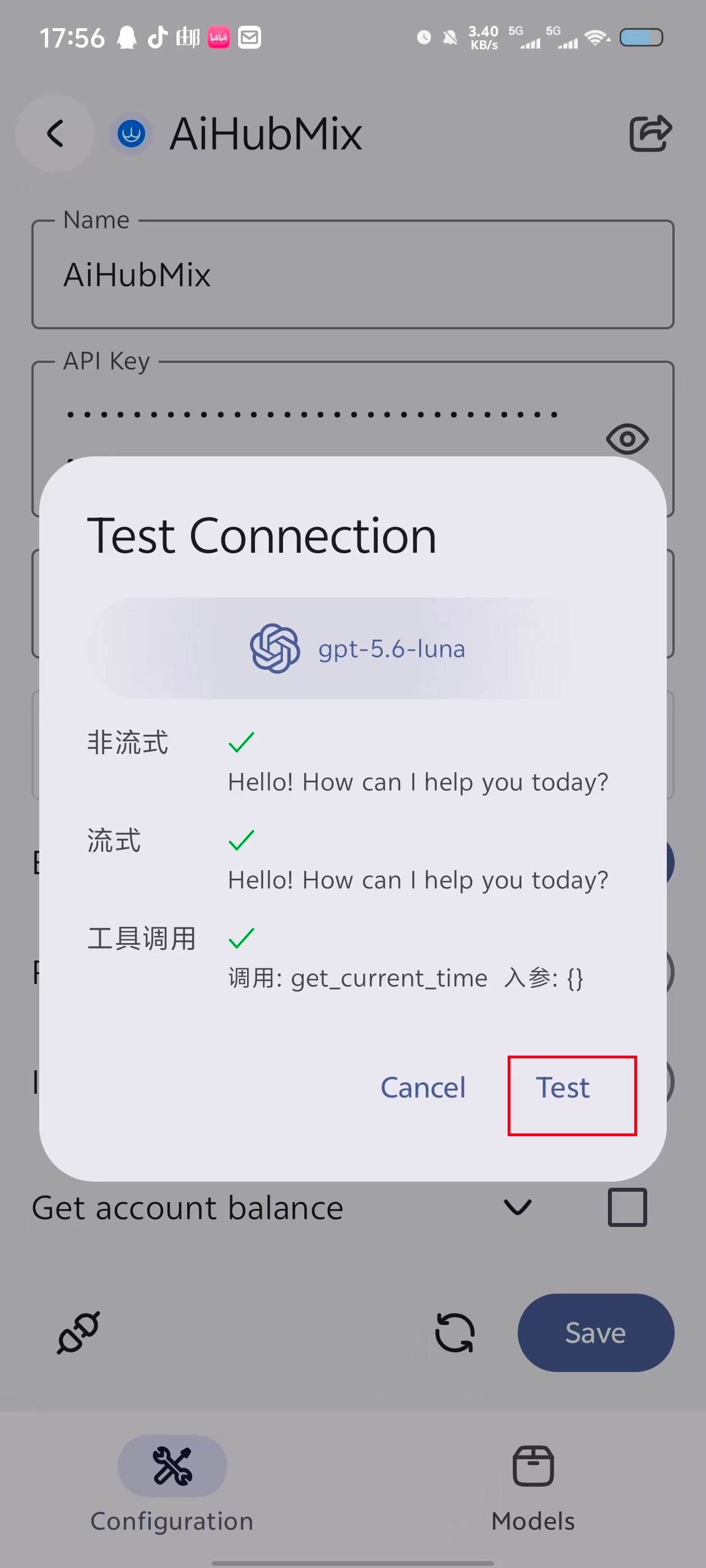
After adding the models, switch back to the Configuration tab and tap the connection-test button in the lower-left area. Select one of the models you added, then tap Test. The connection is working when the non-streaming, streaming, and tool-call tests all pass.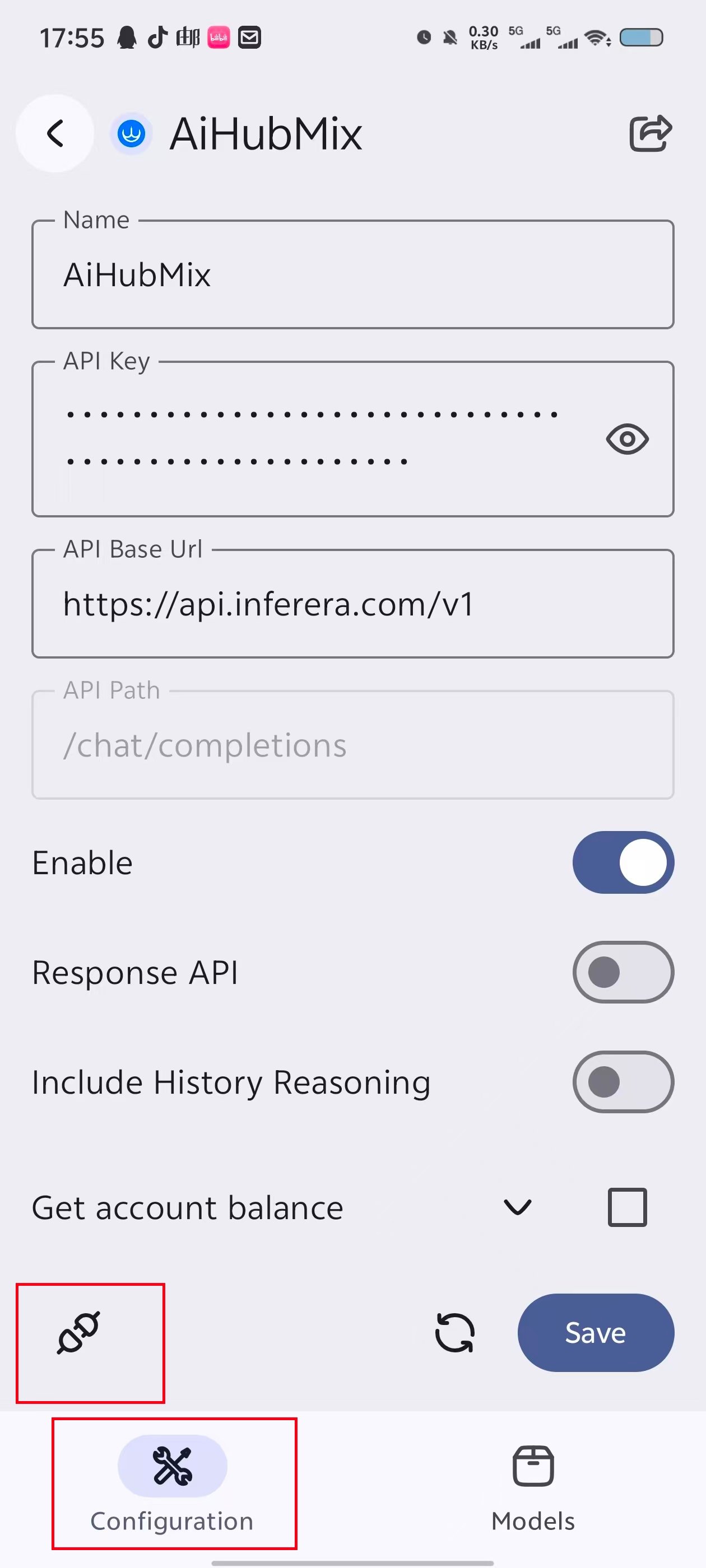
Select a model and verify
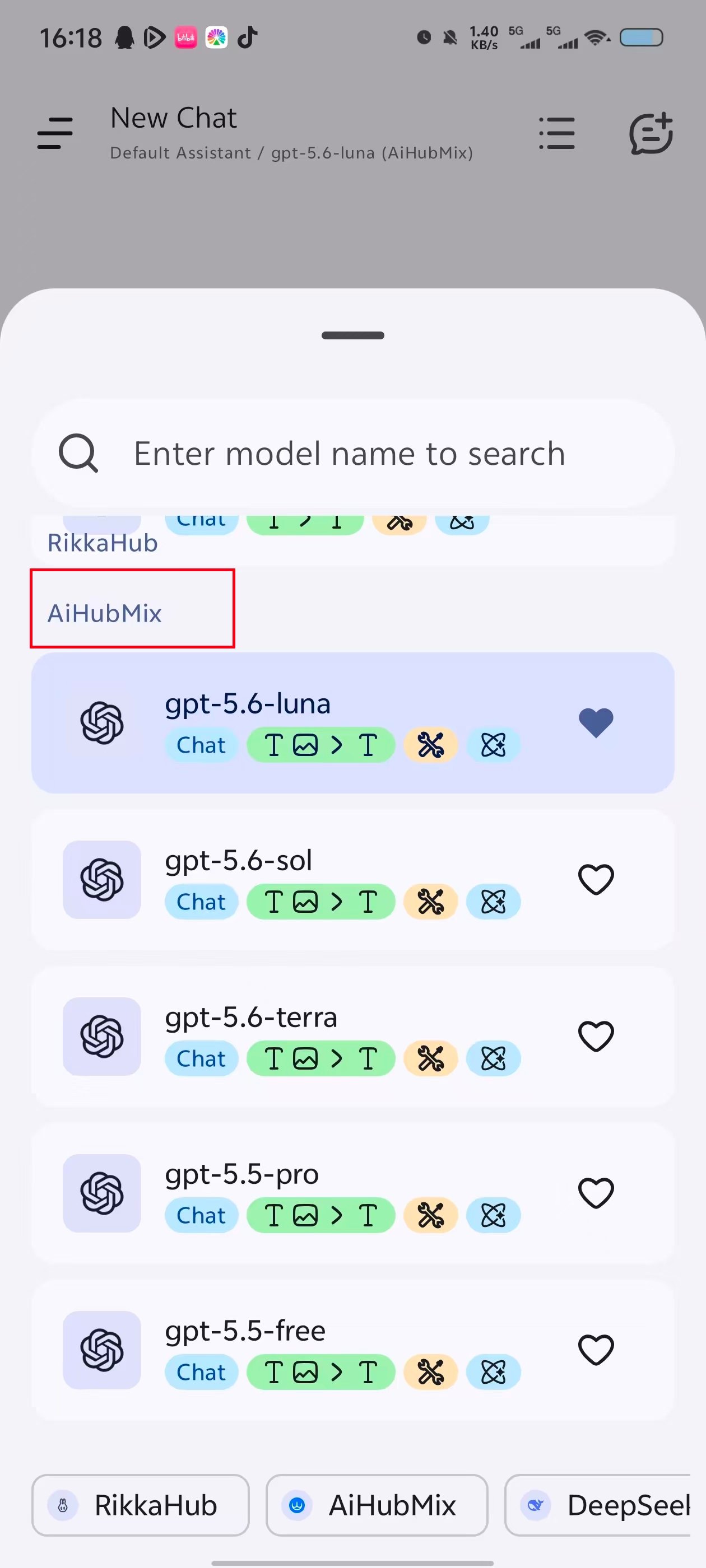
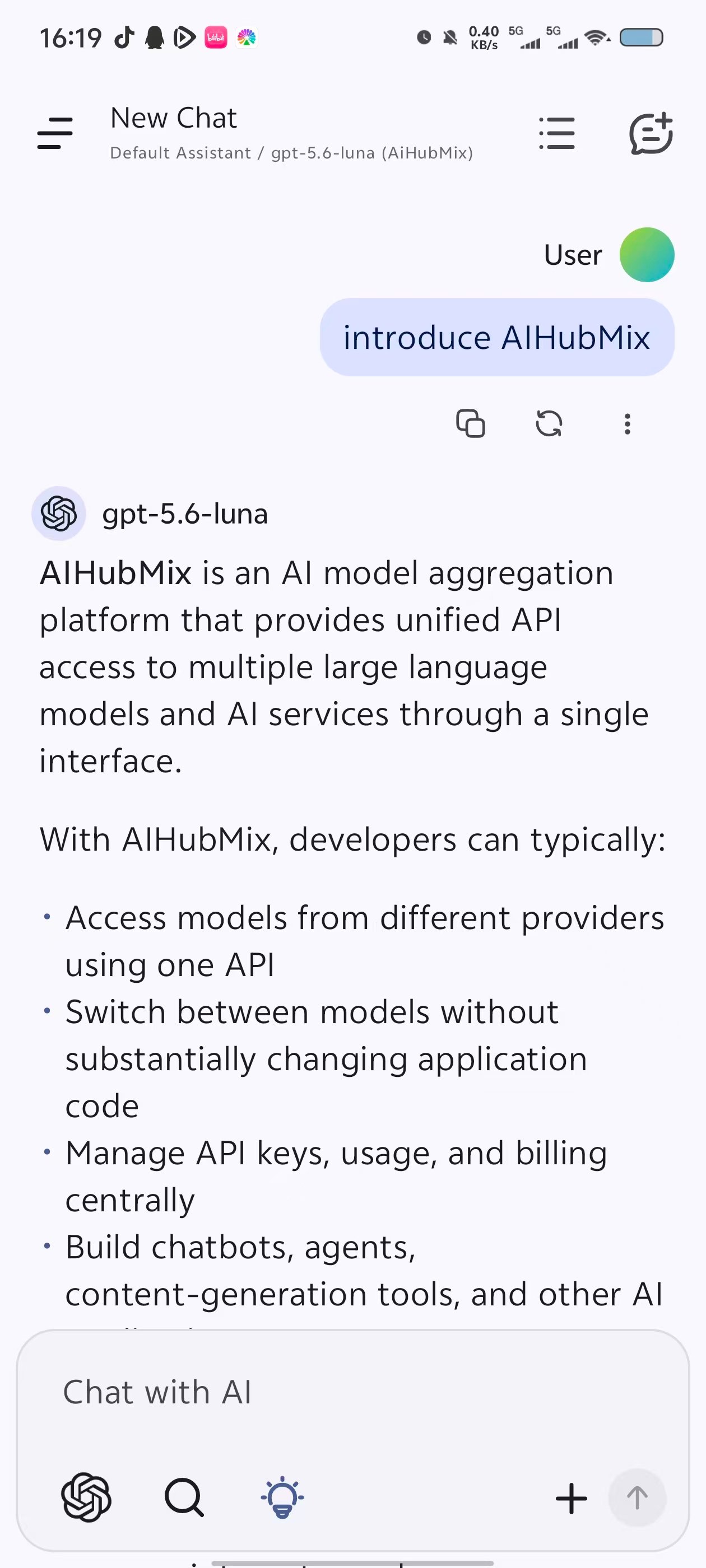
Return to the chat page and open the model picker in the lower-left corner. Select one of the models you added under AiHubMix. Send a message. A normal response confirms that the configuration works.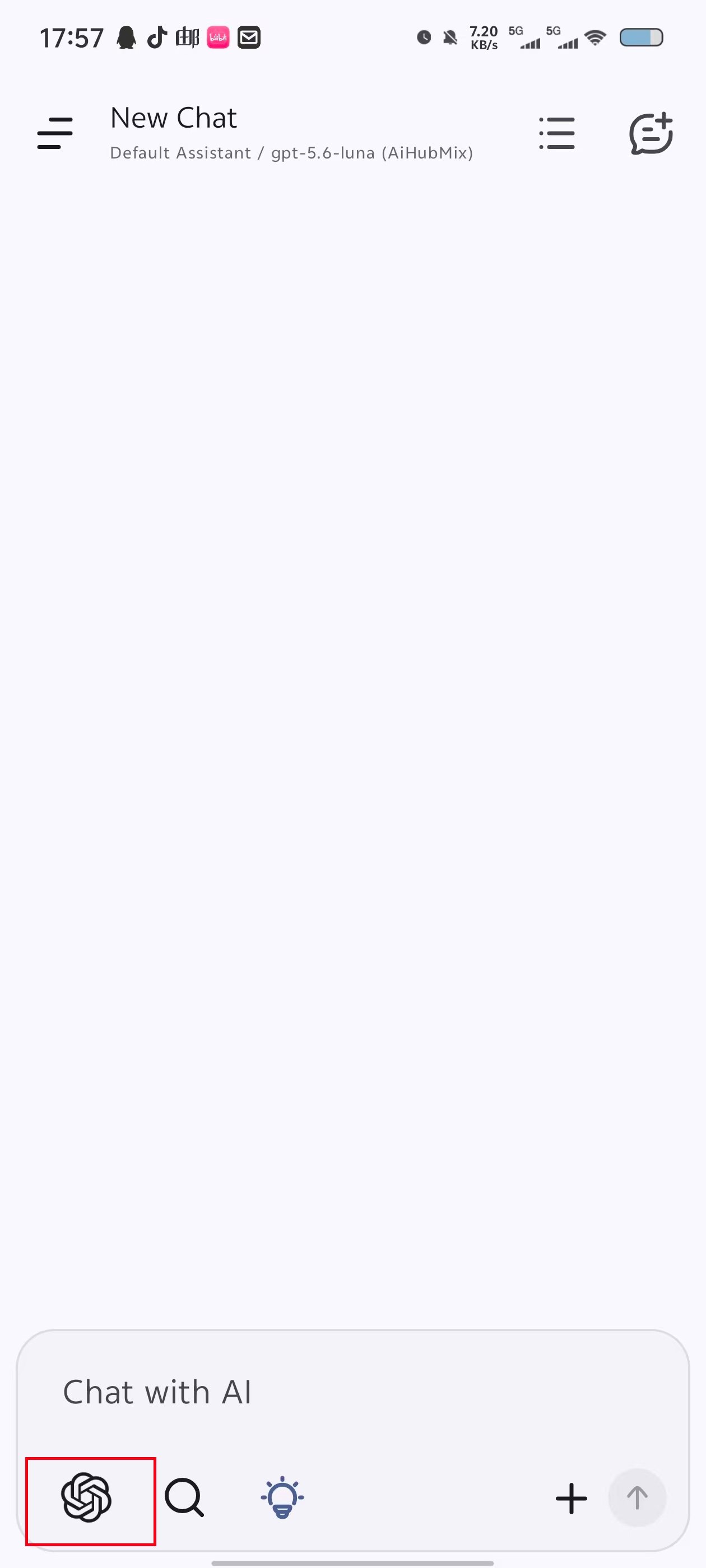
FAQ
Should API Base Url include the full request path? No. Set API Base Url to the address ending in/v1, and keep /chat/completions in the separate API Path field.
Why is an added model missing from the model picker?
Confirm that the provider is enabled and saved, then check that the model appears on the Models tab. If needed, return to the provider configuration and run the connection test again.
What should I check when a request fails?
Check the API key, API Base Url, and model selection. If the primary address is temporarily unavailable, change API Base Url to https://api.inferera.com/v1.
Last updated: 2026-07-17