

Before you start
- Install and open Chatbox. This guide uses Chatbox
1.21.1. - Create an API key in the AIHubMix Console. It usually starts with
sk-***. - Copy the model ID you want to use from the AIHubMix model list, for example
gpt-5.6-terra.
Configure AIHubMix in the interface
1. Open Model Provider settings
Click Settings in the lower-left corner of Chatbox, then select Model Provider.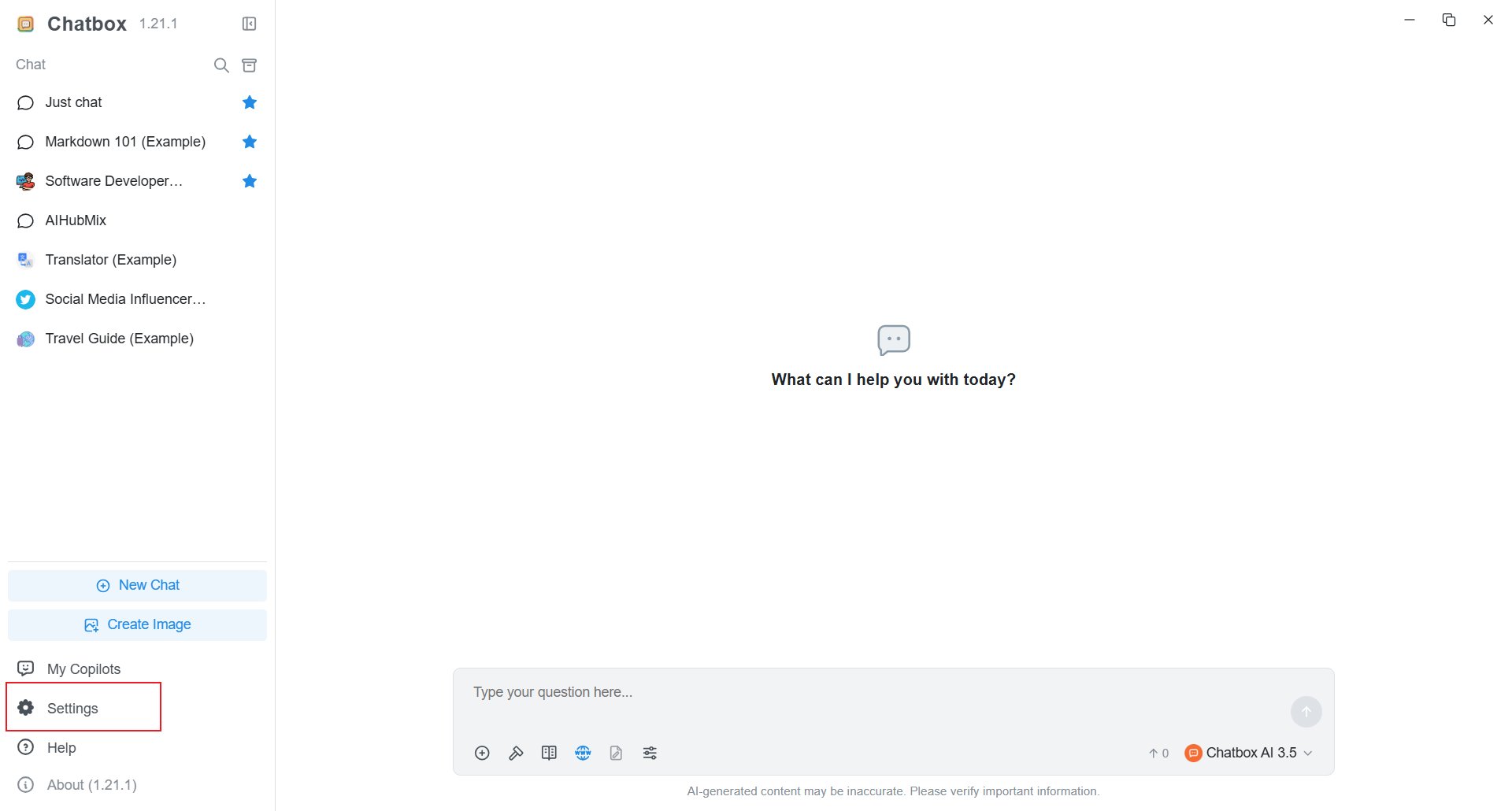
2. Enter the API Key and API Host
Enter the API key created in the AIHubMix Console. Set API Host to the full Chat Completions URL: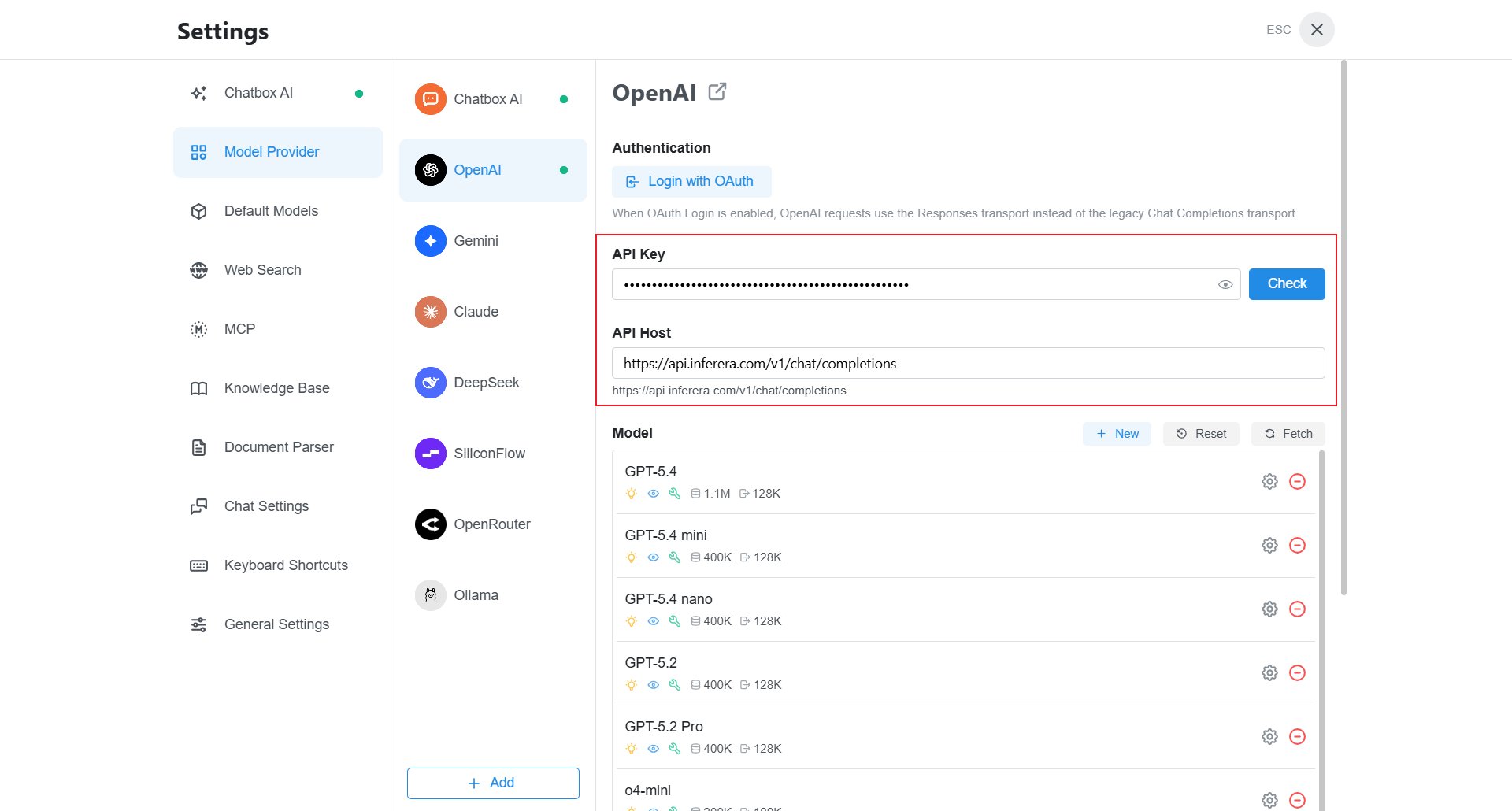
3. Add a model
Click New in the Model section. Existing models are listed here, and the gear icon opens their settings.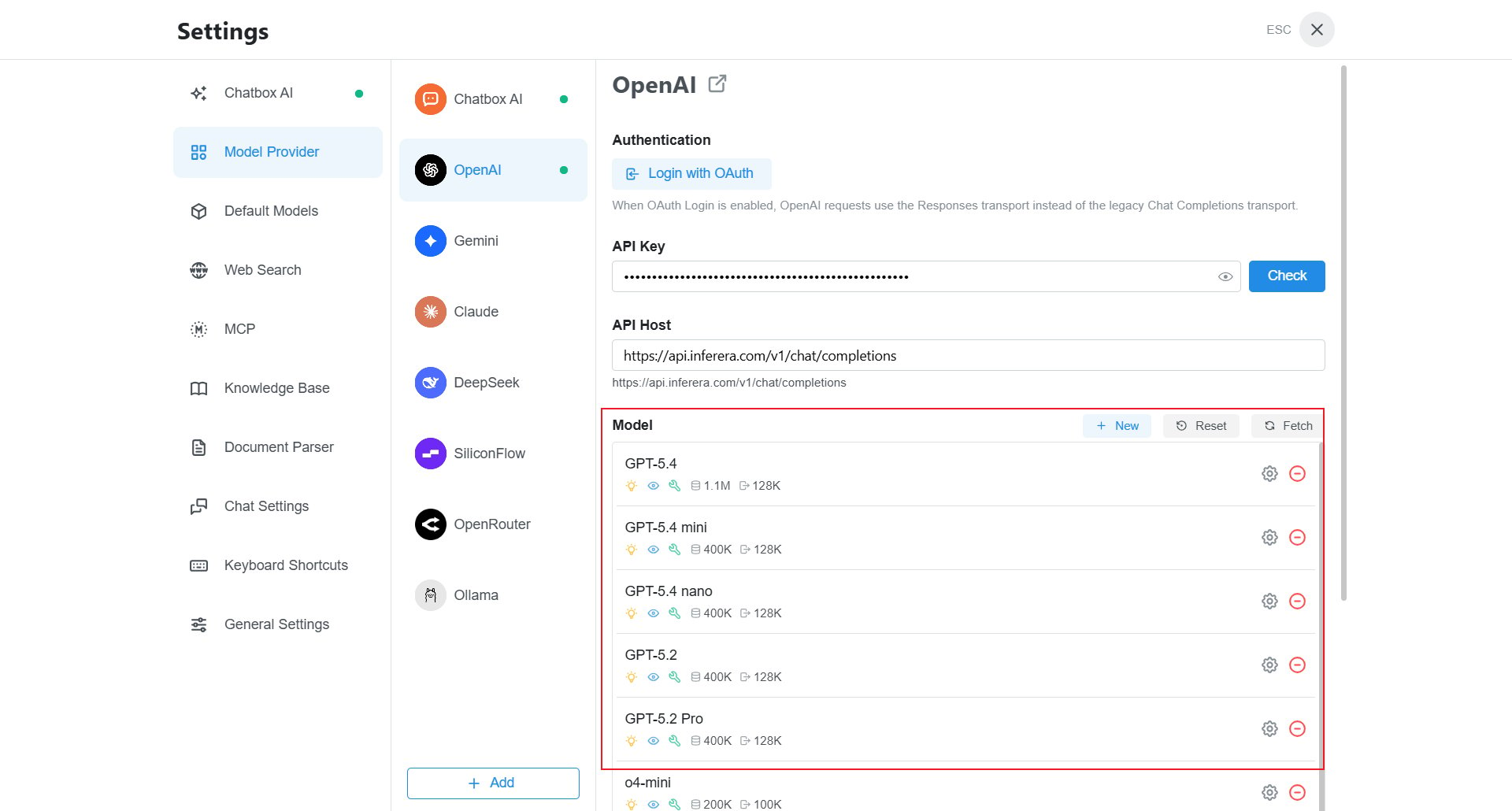
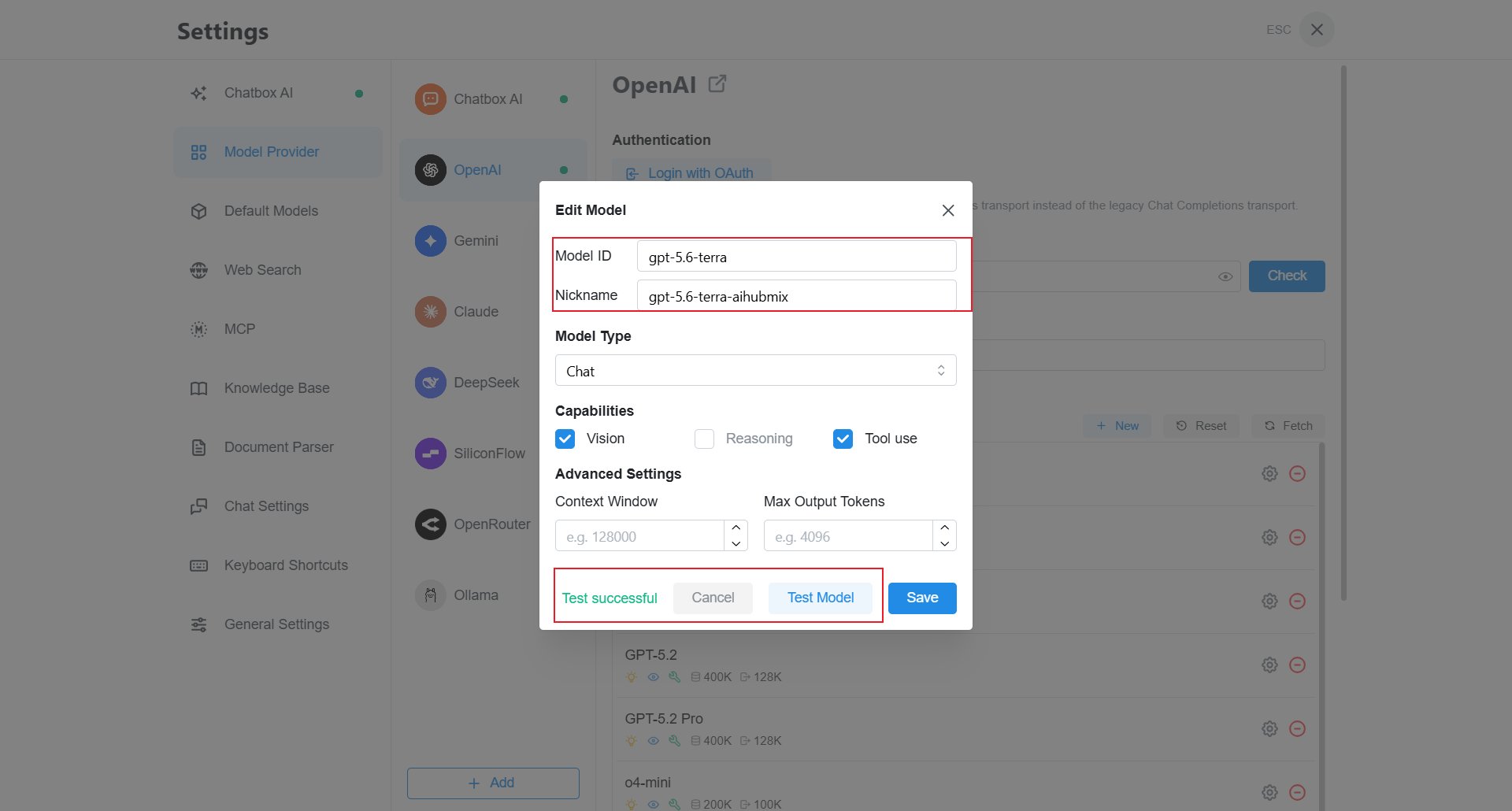
- Model ID: an AIHubMix model ID, such as
gpt-5.6-terra. - Nickname: a recognizable label, such as
gpt-5.6-terra-aihubmix. - Model Type: select Chat.
- Capabilities: enable Vision, Tool use, and Reasoning only when the model supports them.
- Context Window and Max Output Tokens: leave blank to use the default values unless you need custom limits.
4. Select the model and chat
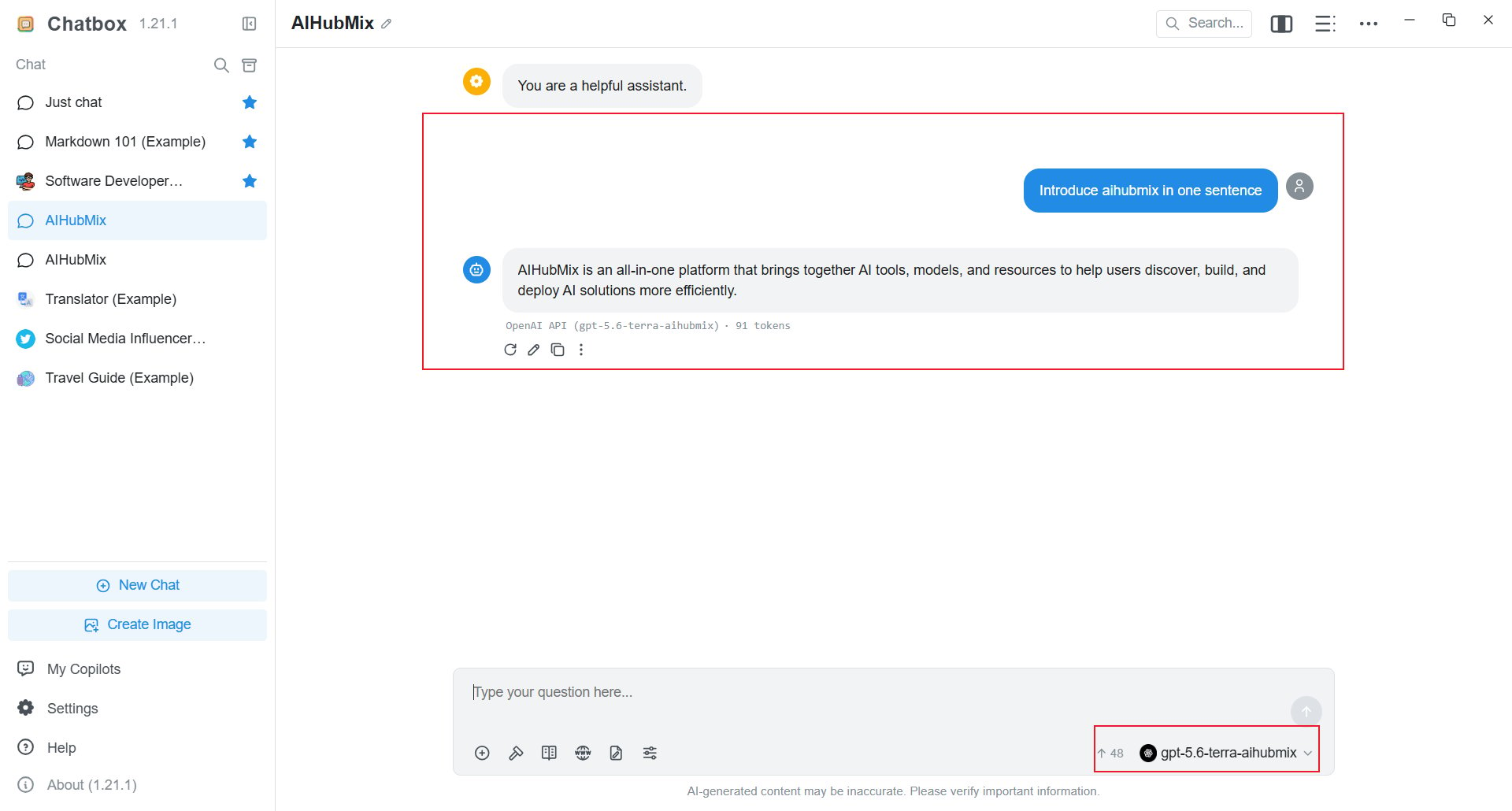
Return to the main page and click the model name in the lower-right corner of the input box. Search for and select the nickname you added.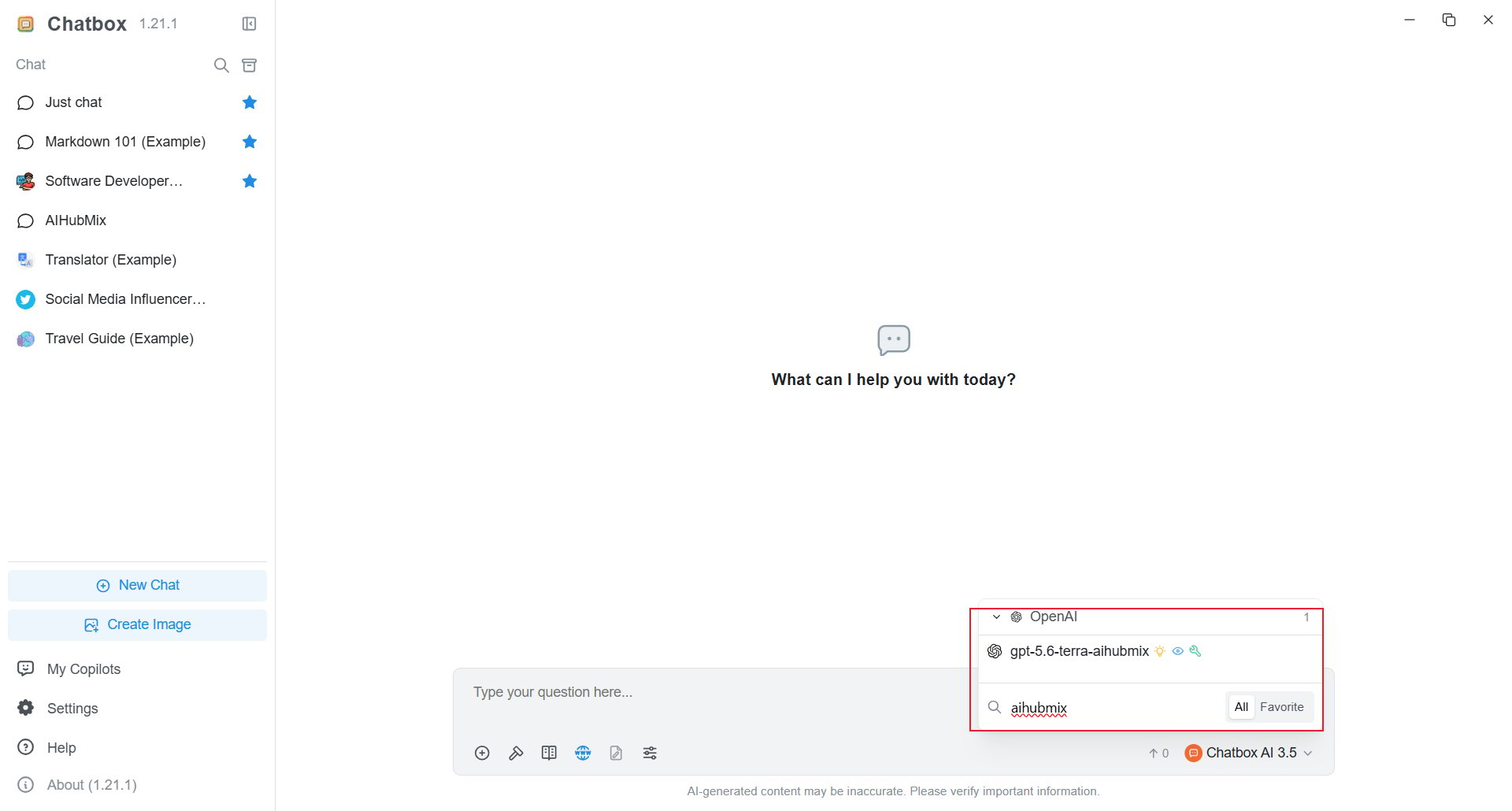
Import a model configuration
Chatbox1.15.1 and later supports importing JSON model-provider configurations. To add a preset model in one step, copy the following OpenAI-compatible configuration and import it in Chatbox:
FAQ
What should I enter for API Host? Chatbox’s OpenAI provider requires the full URLhttps://aihubmix.com/v1/chat/completions, not only the domain or /v1.
What should I check when the model test fails?
Confirm that the API key is complete, API Host is the full Chat Completions URL, and Model ID matches the AIHubMix model list. If needed, use https://api.inferera.com/v1/chat/completions.
Why is the model missing after import?
Reopen the model picker and search for the model nickname. If it is still missing, add the model through the interface.
Last updated: 2026-07-15