

Prerequisites
- Install and open NoteGen. This guide uses the NoteGen
0.38.2desktop app. - Create an API Key in the AIHubMix Console.
- Prepare the ID of the model you want to use, for example
gpt-5.6-terra. Copy model IDs from the model list to avoid typos.
Configure AIHubMix
1. Open Model Services
Click the settings button in the top-right corner of the NoteGen window. In the settings sidebar, select Model Services under the AI group.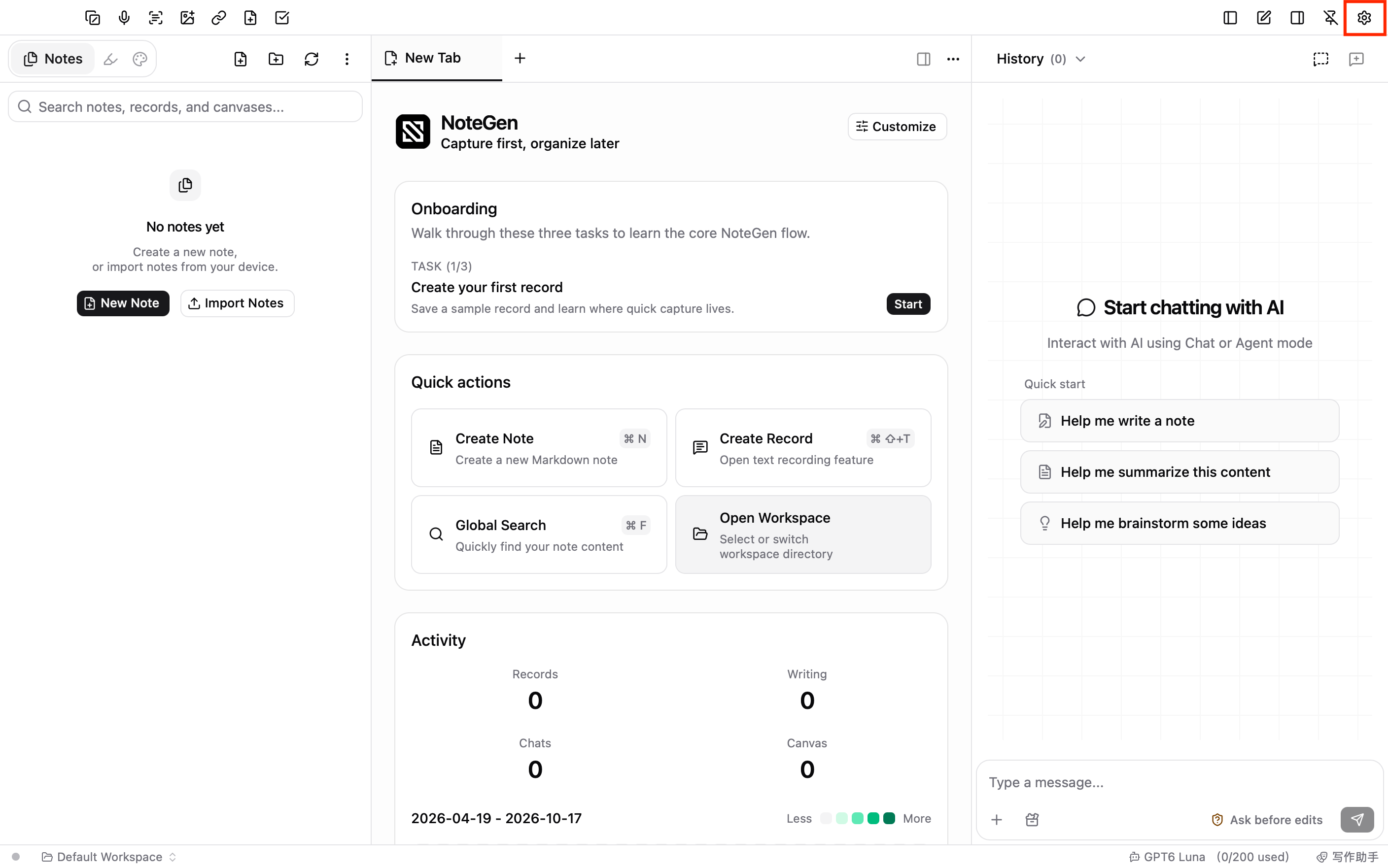
2. Select the AIHubMix platform
In the Model platforms list, click AIHubMix. This platform is built into NoteGen and shows a Sponsor badge next to its name.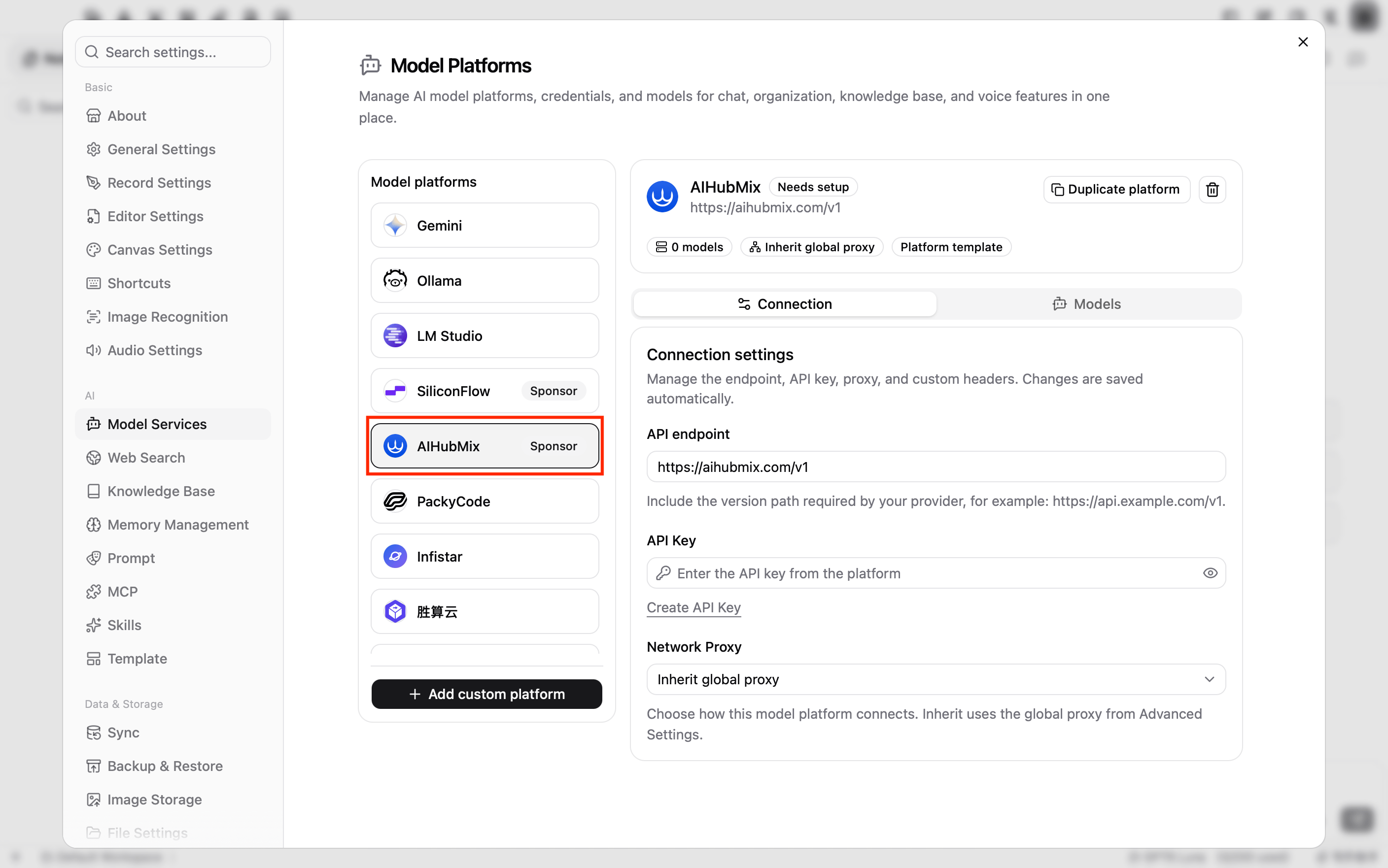
3. Enter the connection settings
On the Connection tab, enter the following:- API endpoint: Preset to
https://aihubmix.com/v1. Keep it unchanged. If the primary endpoint is temporarily unavailable, change it to the backup endpointhttps://api.inferera.com/v1. - API Key: Enter the API Key created in the AIHubMix Console.
- Network Proxy: Keep the default, Inherit global proxy.
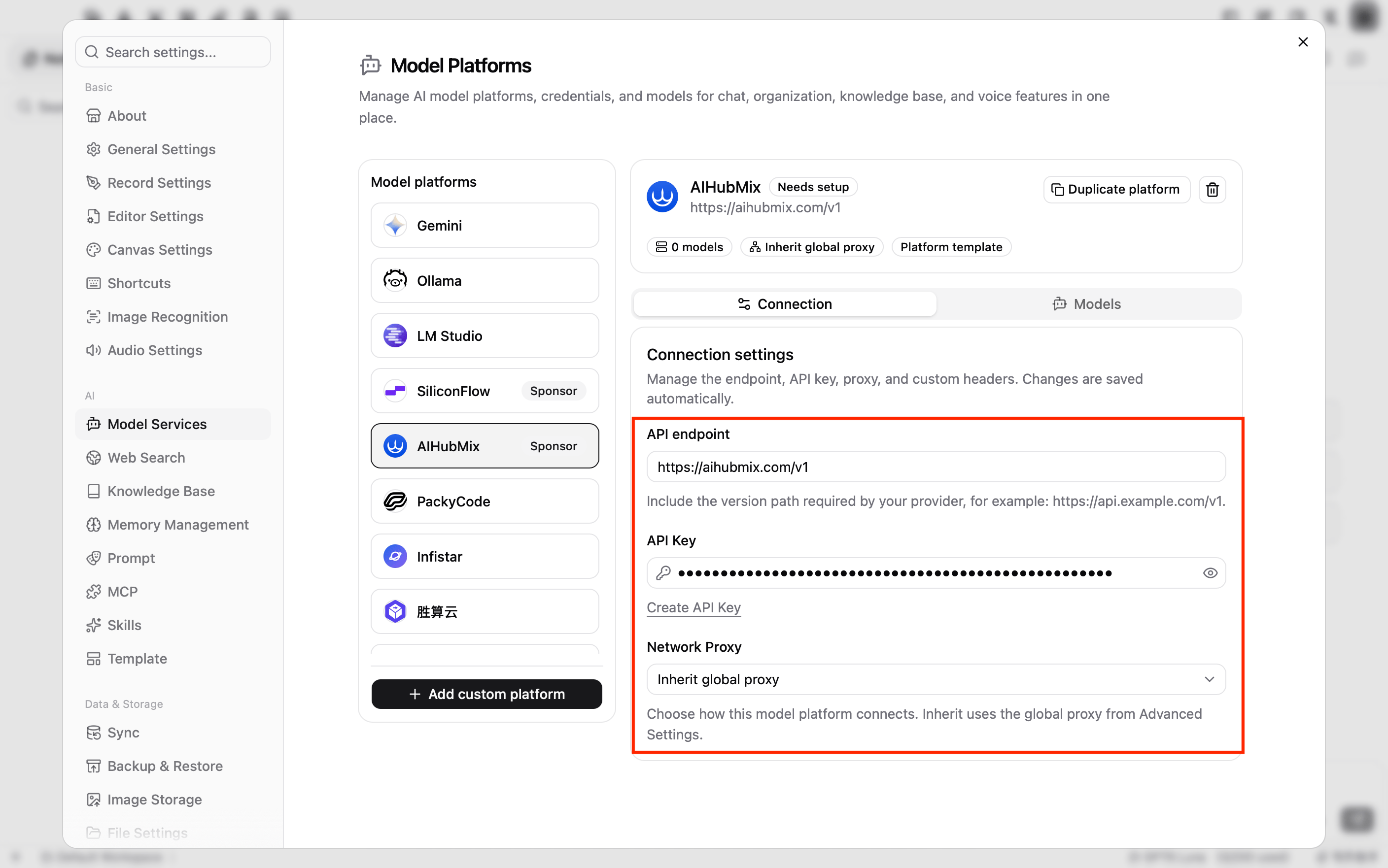
Enter the API endpoint up to
/v1, for example https://aihubmix.com/v1. NoteGen adds API paths such as /chat/completions and /embeddings based on the model type.4. Add a chat model
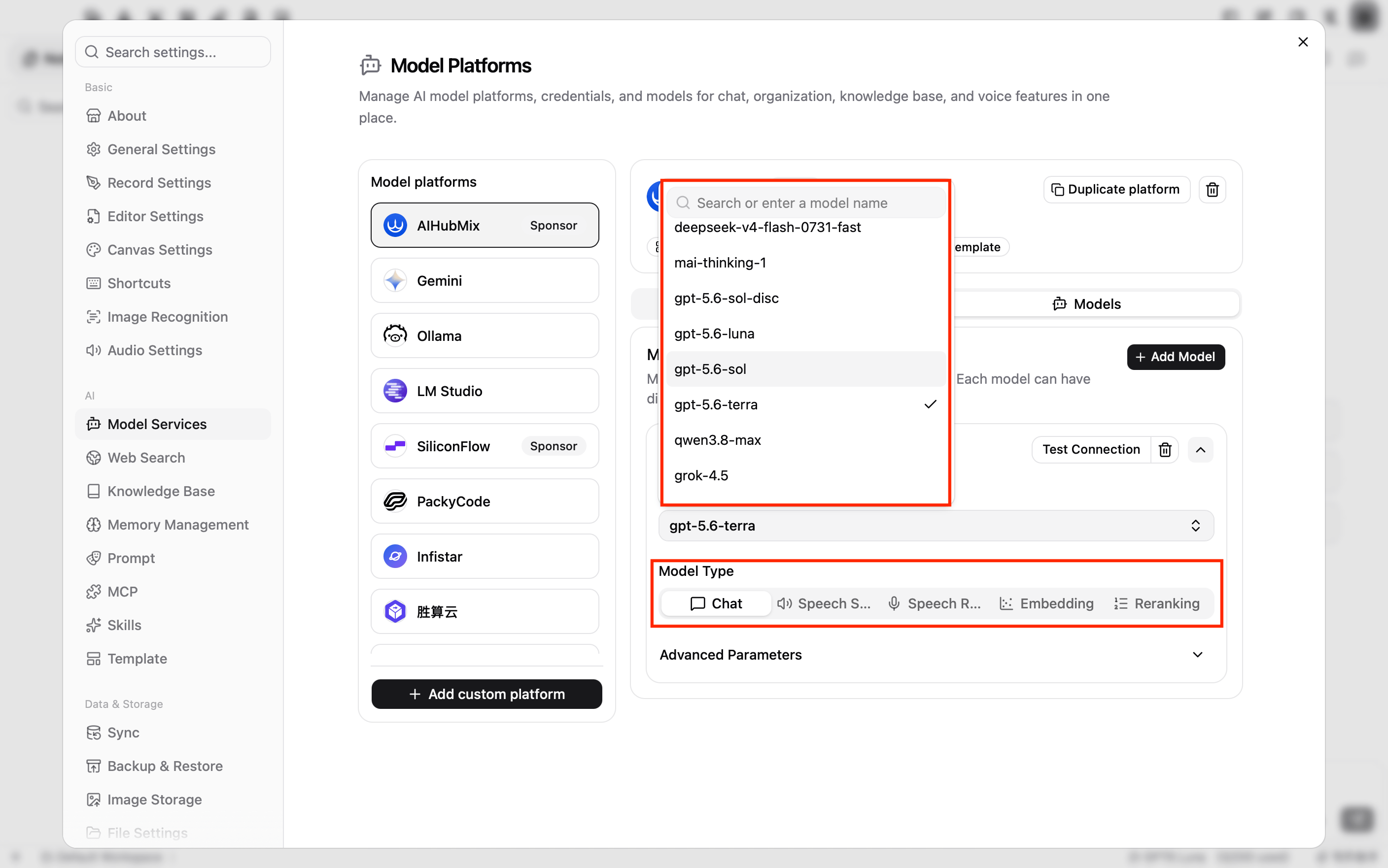
Switch to the Models tab and click Add Model.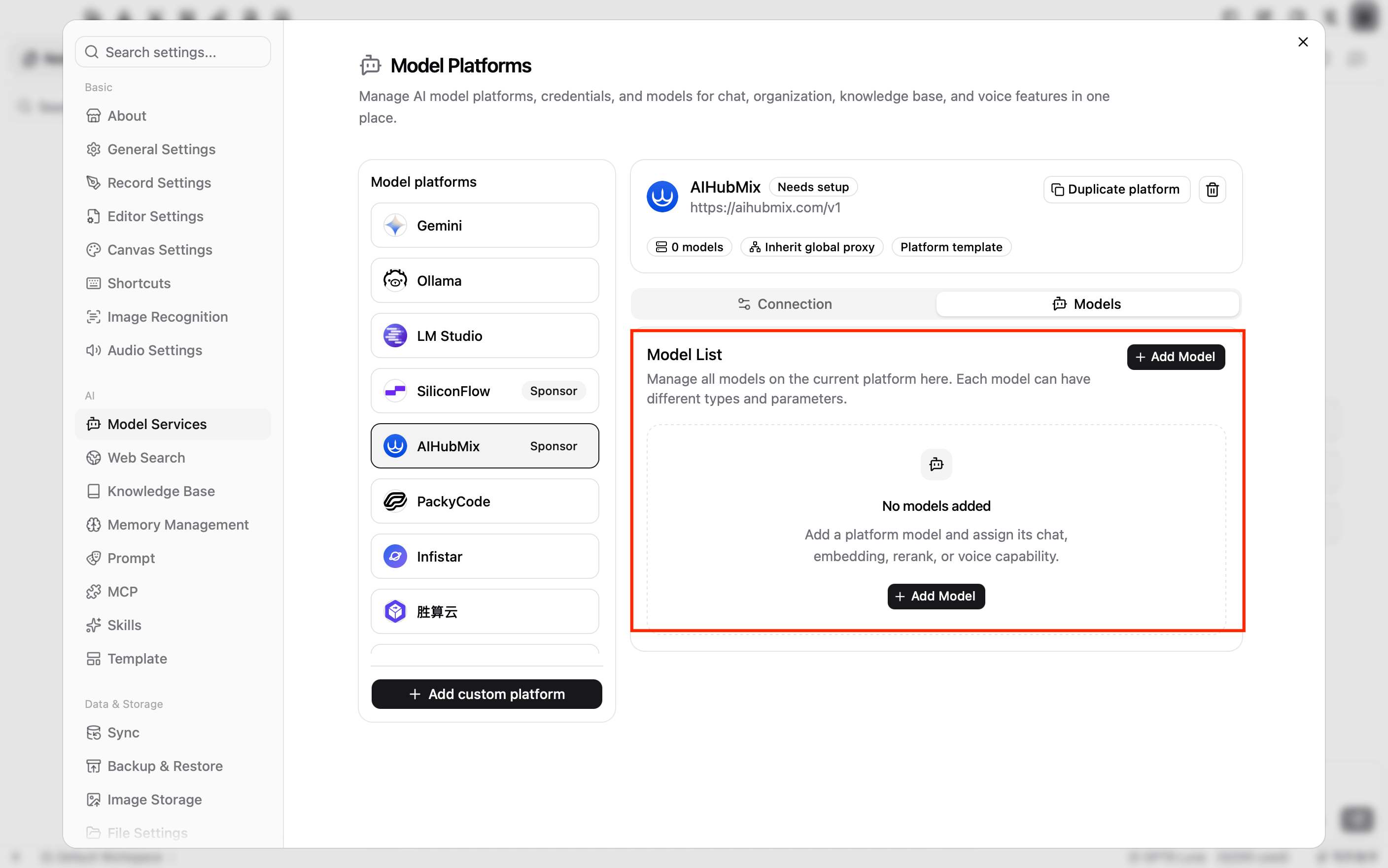
- Model: Click Please select a model, type the model ID in the search box, for example
gpt-5.6-terra, and select it. If the model is not in the list, type the full model ID and click Use “model ID”. If a text box appears here instead, enter the model ID directly, or click the refresh button on the right side of the text box to fetch the model list again. - Model Type: Select Chat. New models use Chat by default.
5. Test the connection
Click Test Connection in the upper-right corner of the model card. If AI connection test passed appears, the API Key, API endpoint, and model ID are working. To add more models, repeat step 4 and step 5.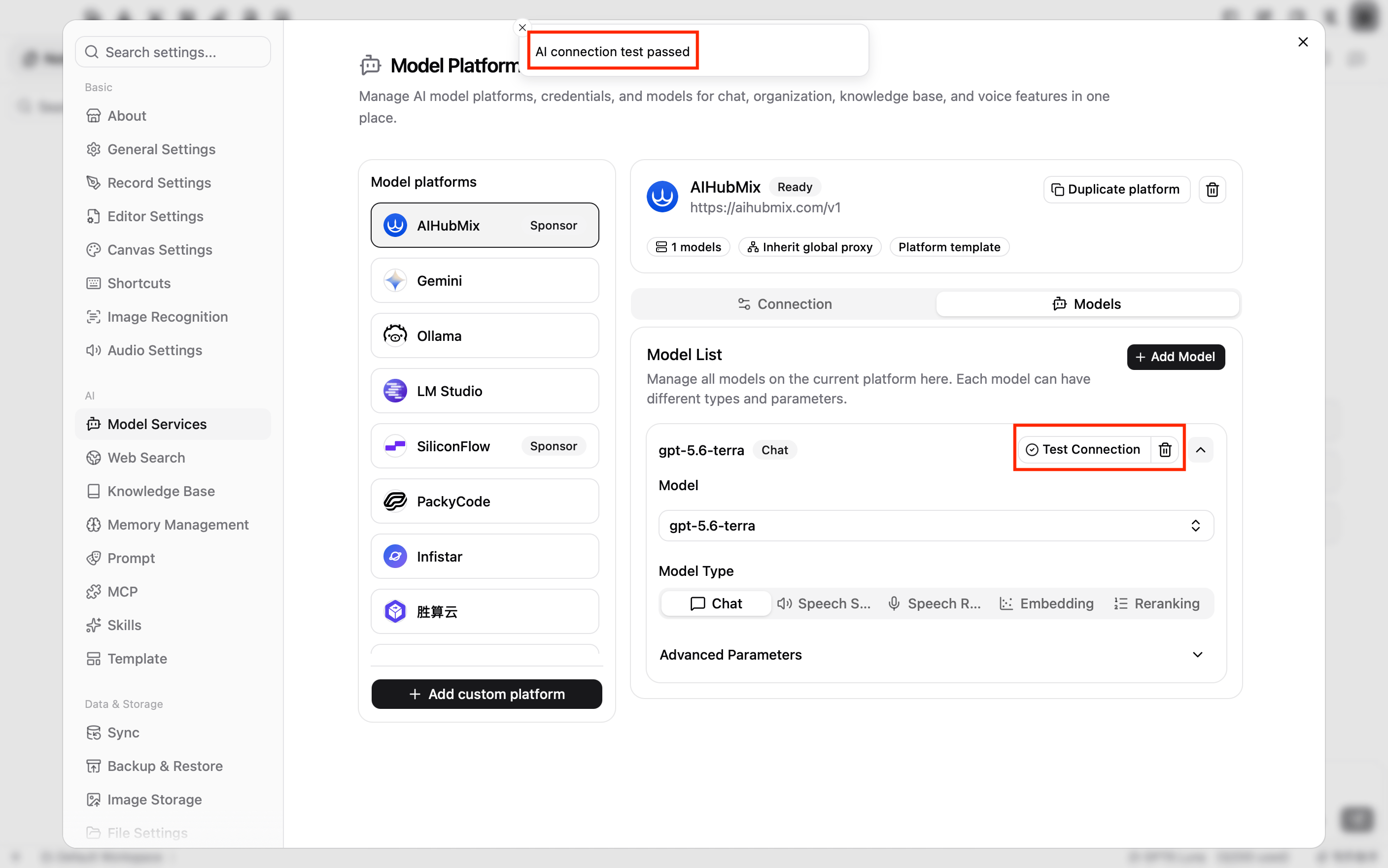
Use AIHubMix models
Select a model in AI chat
Click the close button in the top-right corner to return to the main window. In the status bar at the bottom of the window, click the current model name on the right, then select the model you added under the AIHubMix group.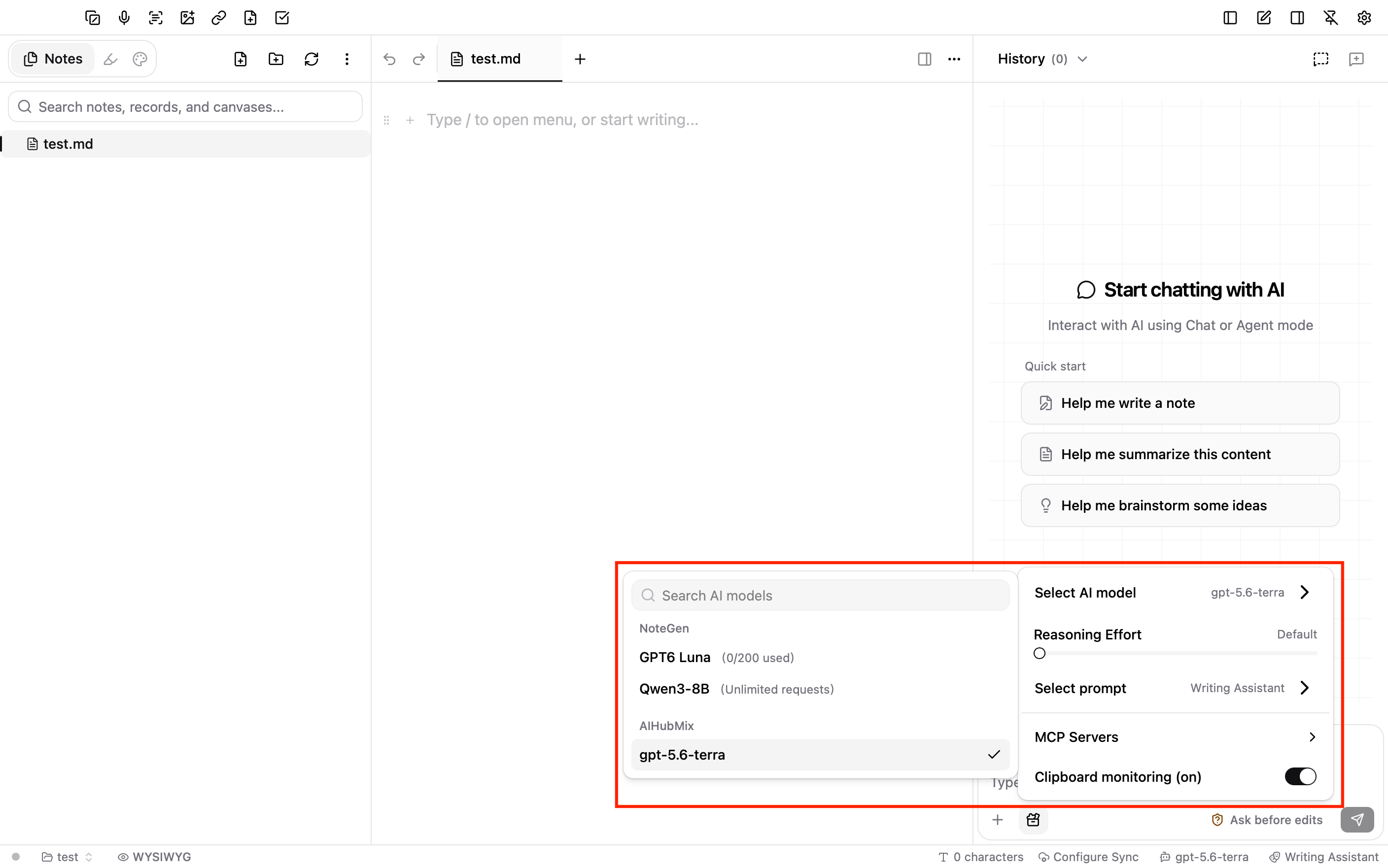
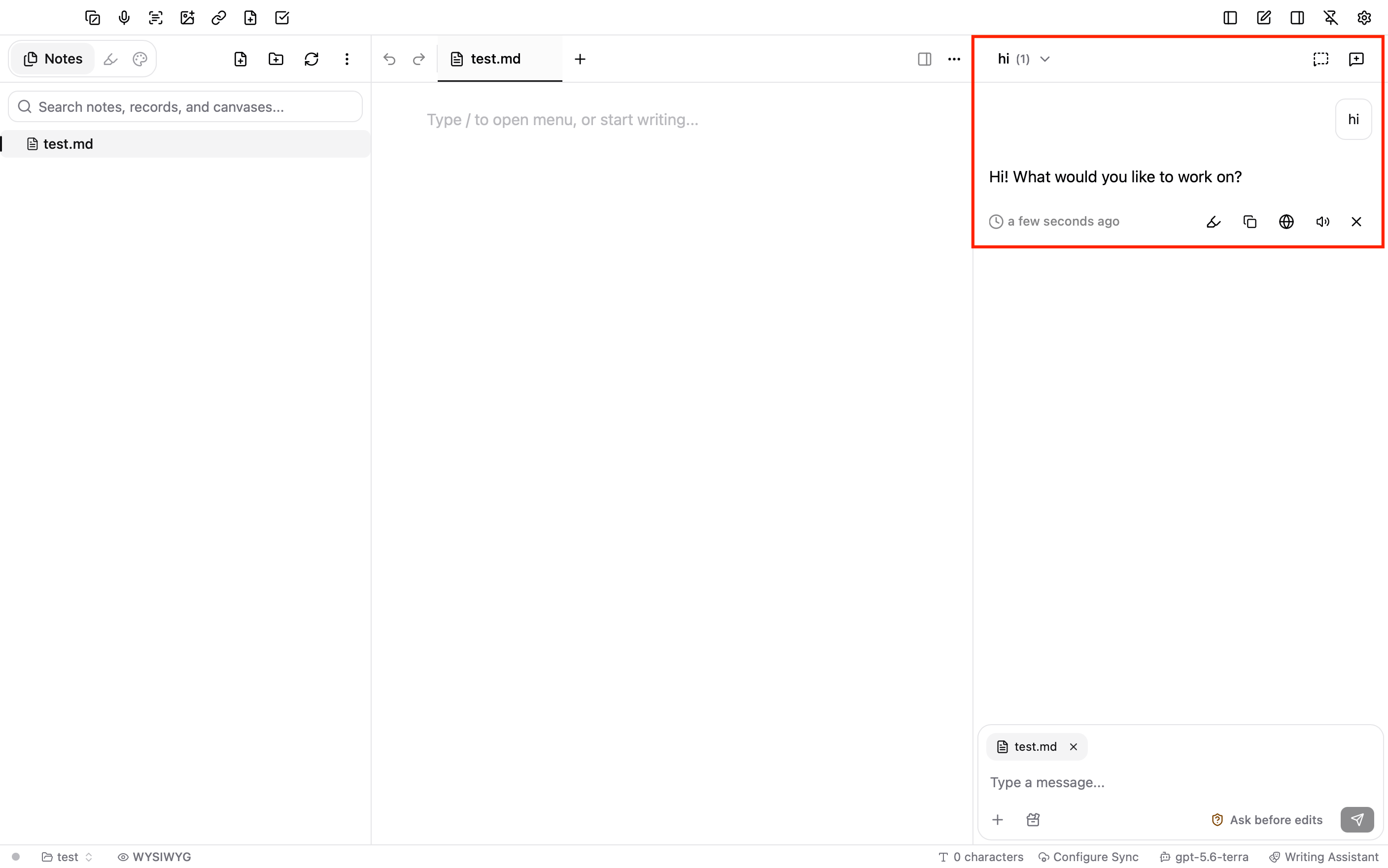
Use AI in the editor
If no separate model is set for the editor, the editor’s AI features use the chat model you selected. Select some text in a note, click the AI button in the floating toolbar, then choose Polish, Concise, Expand, or Translate. You can accept or discard the generated result. To set a separate model for the editor, go to Settings → Editor Settings and choose one for Editor model in the Default Models section.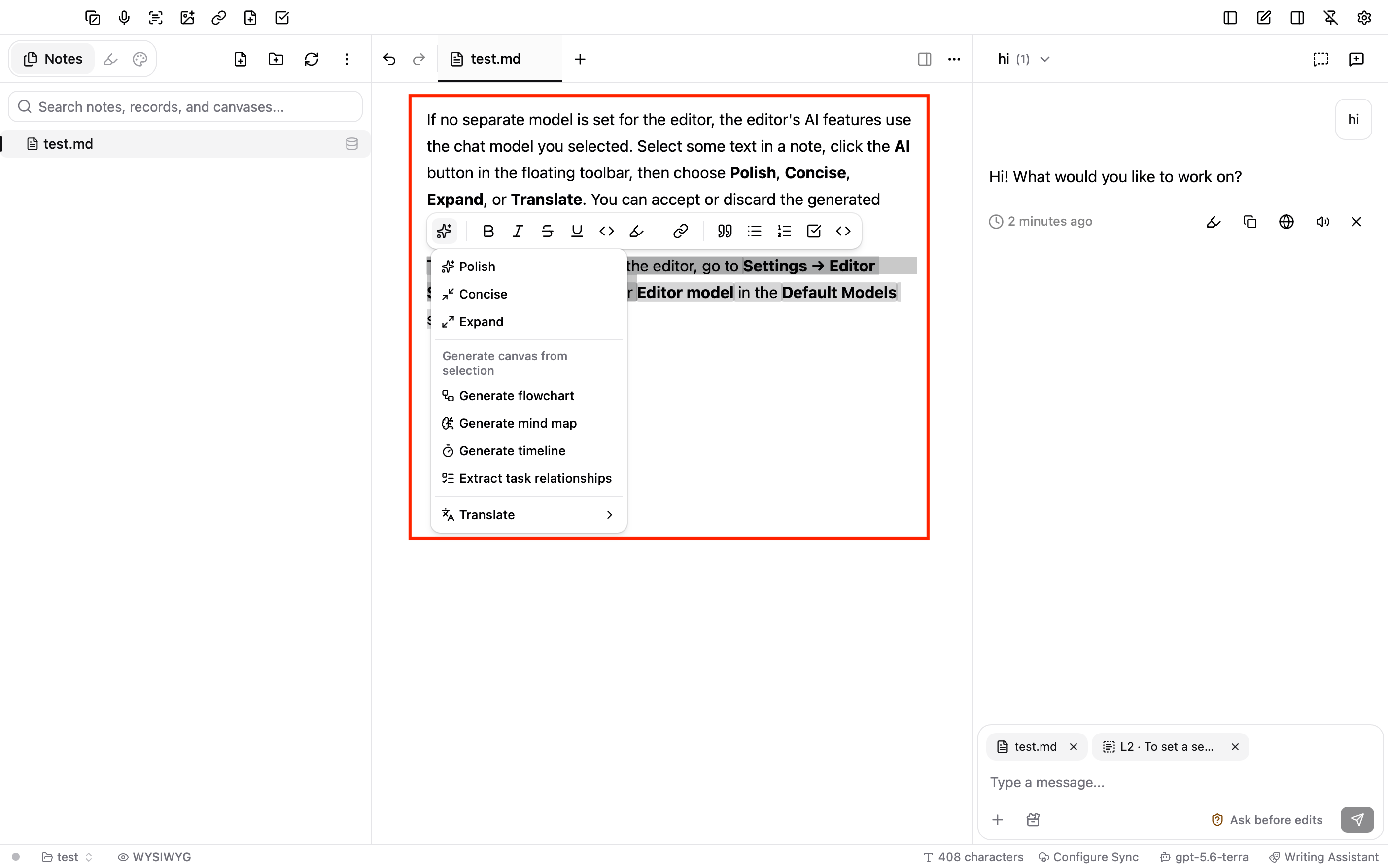
Configure knowledge base models (optional)
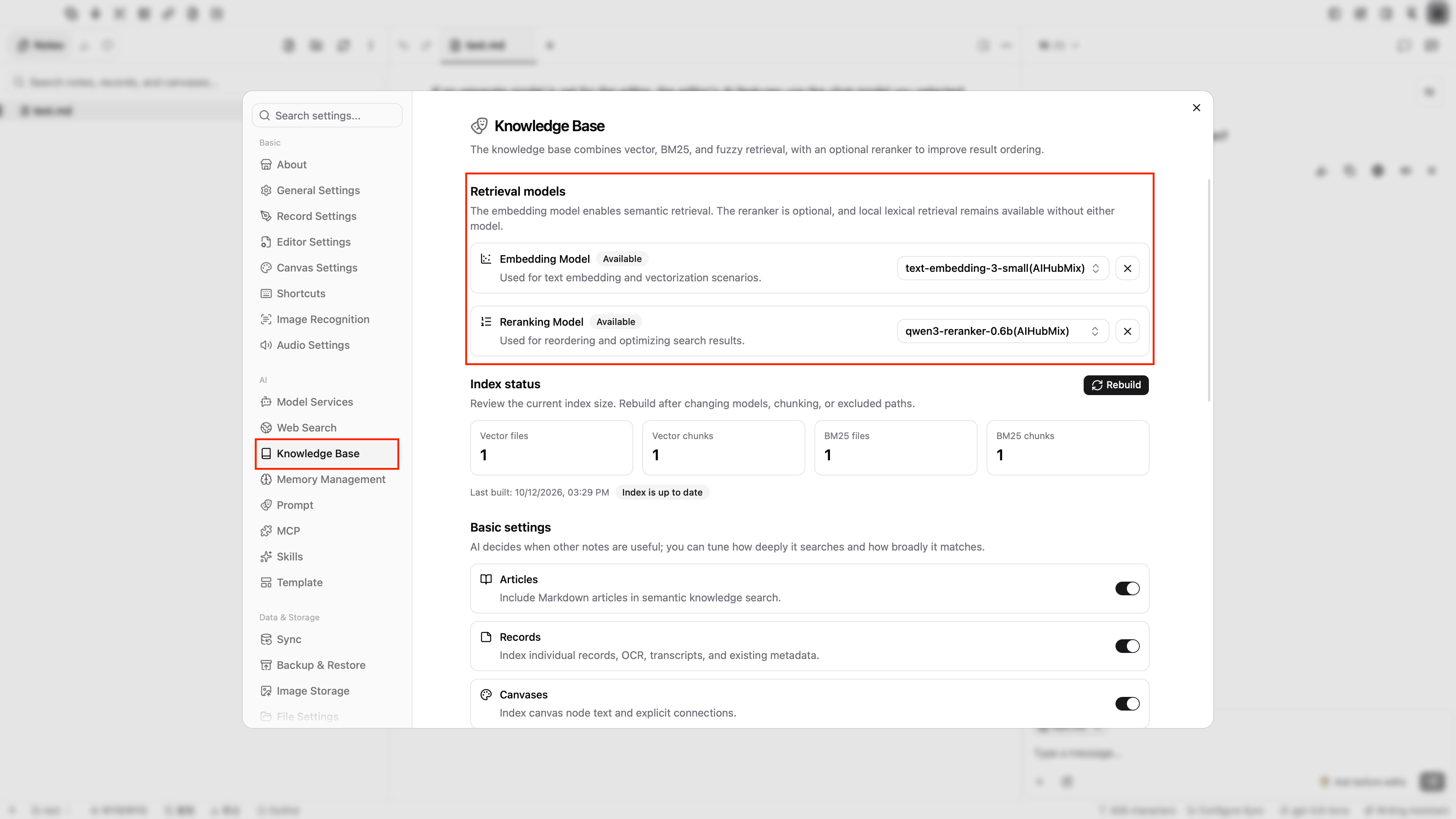
NoteGen’s knowledge base uses an embedding model for semantic retrieval. A reranking model is optional and improves the order of retrieval results.- On the Models tab of the AIHubMix platform, click Add Model. Enter an embedding model ID, for example
text-embedding-3-small, set Model Type to Embedding, then click Test Connection. - To use reranking, add a reranking model, for example
qwen3-reranker-0.6b, set Model Type to Reranking, then click Test Connection. - Open Settings → Knowledge Base. Under Retrieval models, set Embedding Model to the embedding model you added. If you added a reranking model, set Reranking Model to it as well.
FAQ
What should I do if AIHubMix is missing from the model platform list? Check your network connection, then close the settings window and reopen Model Services. NoteGen fetches the platform list again. You can also click Add custom platform at the bottom of the Model platforms list, rename the platform toAIHubMix, set API endpoint to https://aihubmix.com/v1, then enter your API Key and add models.
What should I do if the connection test fails?
Check that the API Key is complete, the API endpoint is https://aihubmix.com/v1, the model ID matches the AIHubMix model list, and the Model Type matches the model’s capability. For a 401 or 403 error, check the API Key and account permissions. For a 404 error, check the API endpoint and model ID. If the primary endpoint is temporarily unavailable, change the API endpoint to https://api.inferera.com/v1.
What should I do if a model I added does not appear in the model selector at the bottom?
The model selector only shows models whose Model Type is Chat. Go back to Settings → Model Services and confirm that the model has a model ID and that its Model Type is Chat.
What should I do if the chat input shows “No primary model configured, can’t use AI chat…”?
Click the model name on the right side of the status bar at the bottom of the window, then select a chat model under the AIHubMix group.
Last updated: 2026-10-12