

dsh) is DeepSeek’s open-source coding agent harness. It provides workspaces, a terminal, file editing, Skills, planning, and a Web UI. Its OpenAI Chat Completions compatibility lets it connect to AIHubMix.
This guide was tested on August 14, 2026 with DeepSeek Harness
0.1.0-rc.6. Harness is still a developer preview, so later releases may change fields or UI details.Quick summary
The integration requires four values:
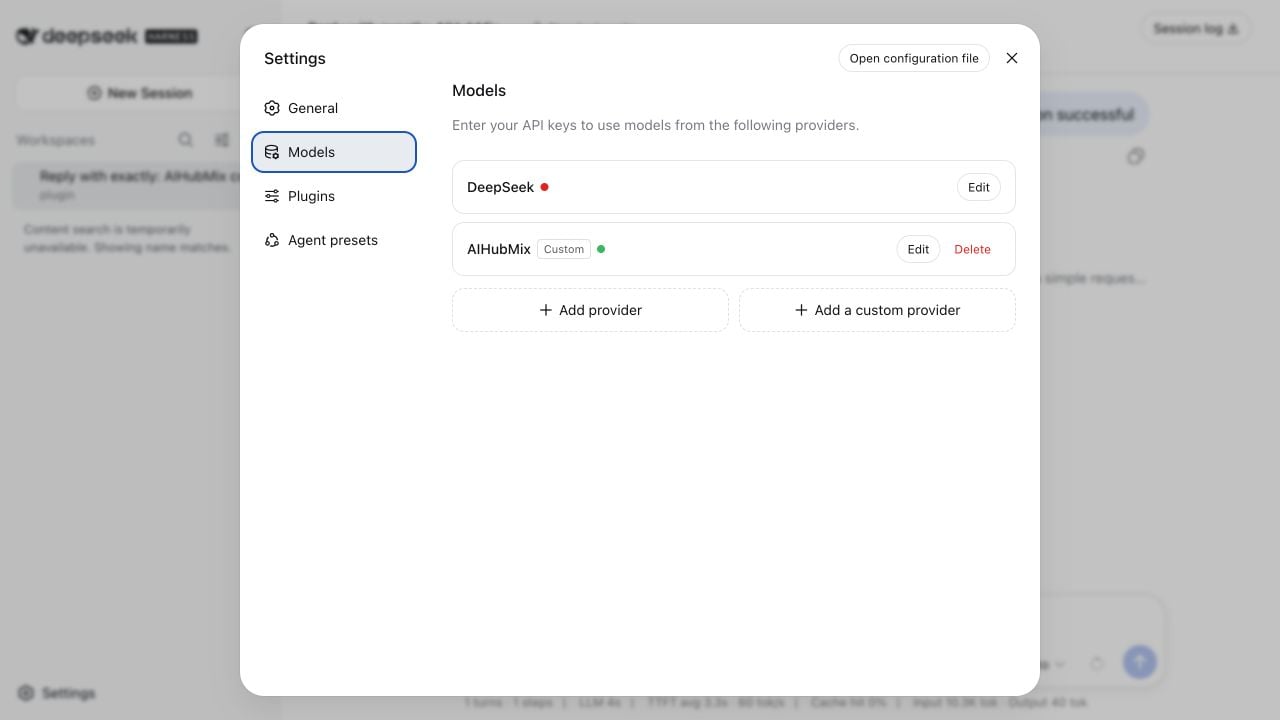
After configuration, the Models page shows AIHubMix as configured.
What do you need?
Before you begin, prepare:- An active AIHubMix API key
- Node.js
22.19.0or later, including Node.js 24+ - Network access to the npm registry and
https://aihubmix.com
How do you install DeepSeek Harness?
Install the published npm package without cloning the source repository:dsh: command not found, run npm config get prefix and make sure its bin directory is included in PATH.
How do you start the Web UI?
Run the following command from the directory you want to use as the workspace:How do you configure the AIHubMix provider?
Open Settings > Models > Add a custom provider, then enter the following values: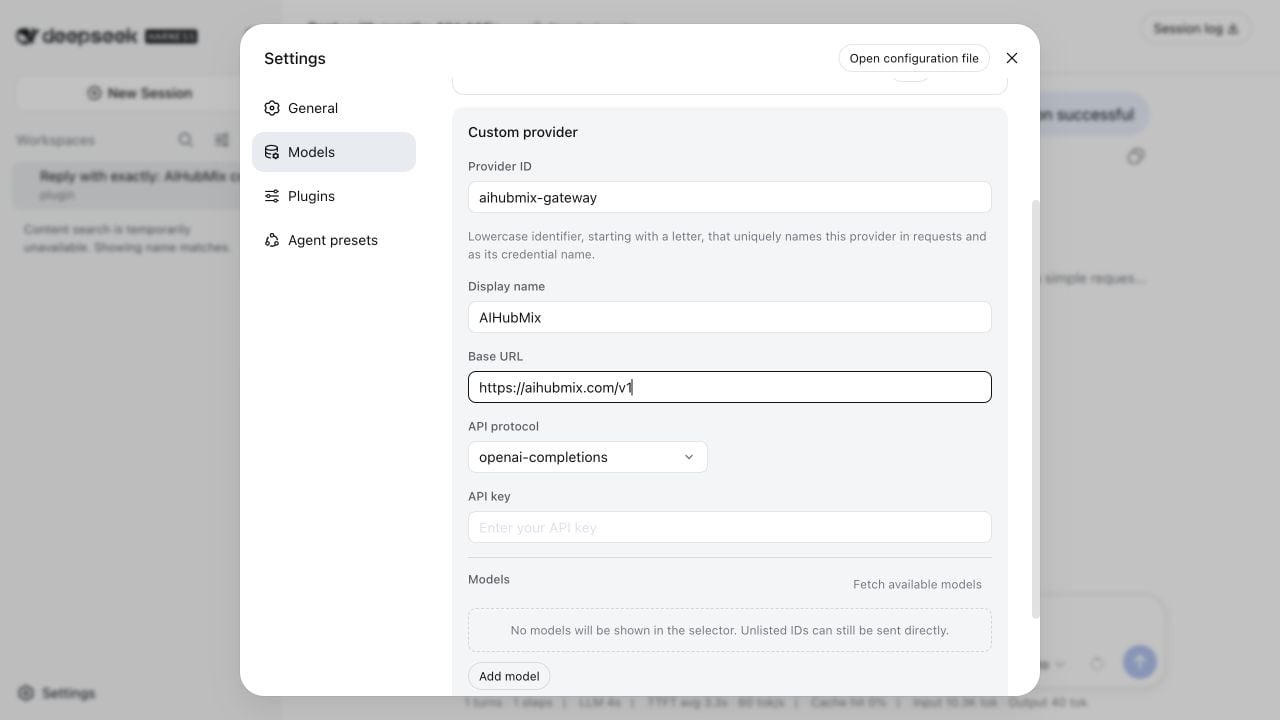
Harness appends
/chat/completions to the Base URL. The resulting endpoint is:
Add auto or another model
After entering the Base URL and API key, select Fetch available models. Harness requestsGET https://aihubmix.com/v1/models and shows the currently available model IDs.
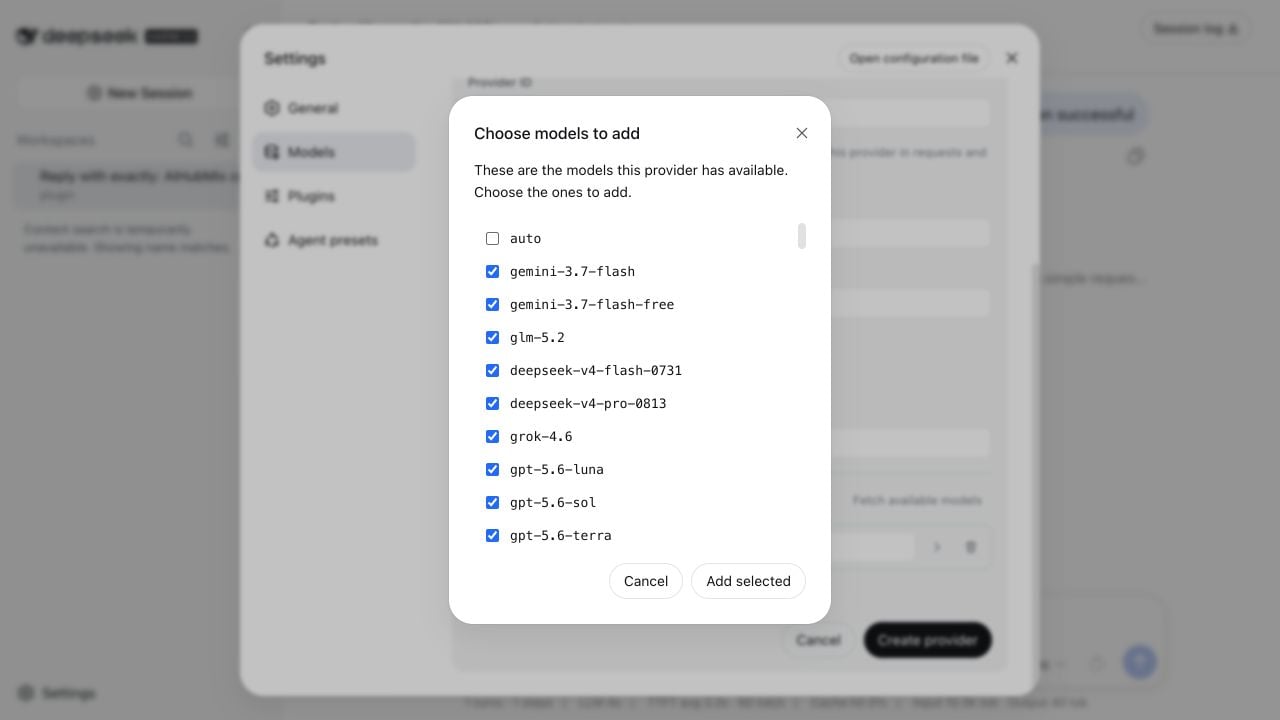
auto and set its display name to Auto. auto is AIHubMix’s automatic model selection entry point.
To use a specific model, select it from the fetched list or choose Add model and enter the exact model ID. The graphical model selector only shows models registered in the current provider catalog.
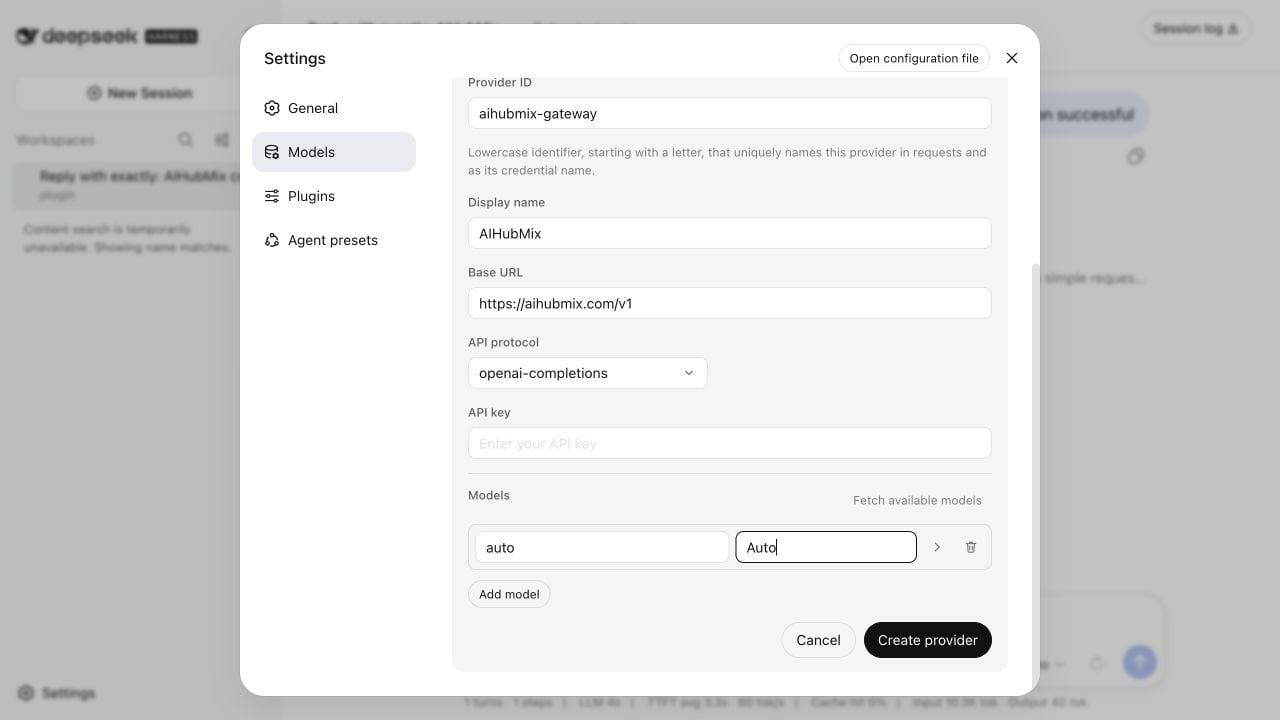
auto vs specific models
Both choices use the same provider, Base URL, and API key. Switching models does not require creating the provider again.
Store the API key in an environment variable
For development machines and CI, Harness can reference an environment variable. Edit$HOME/.dsh/settings.yaml:
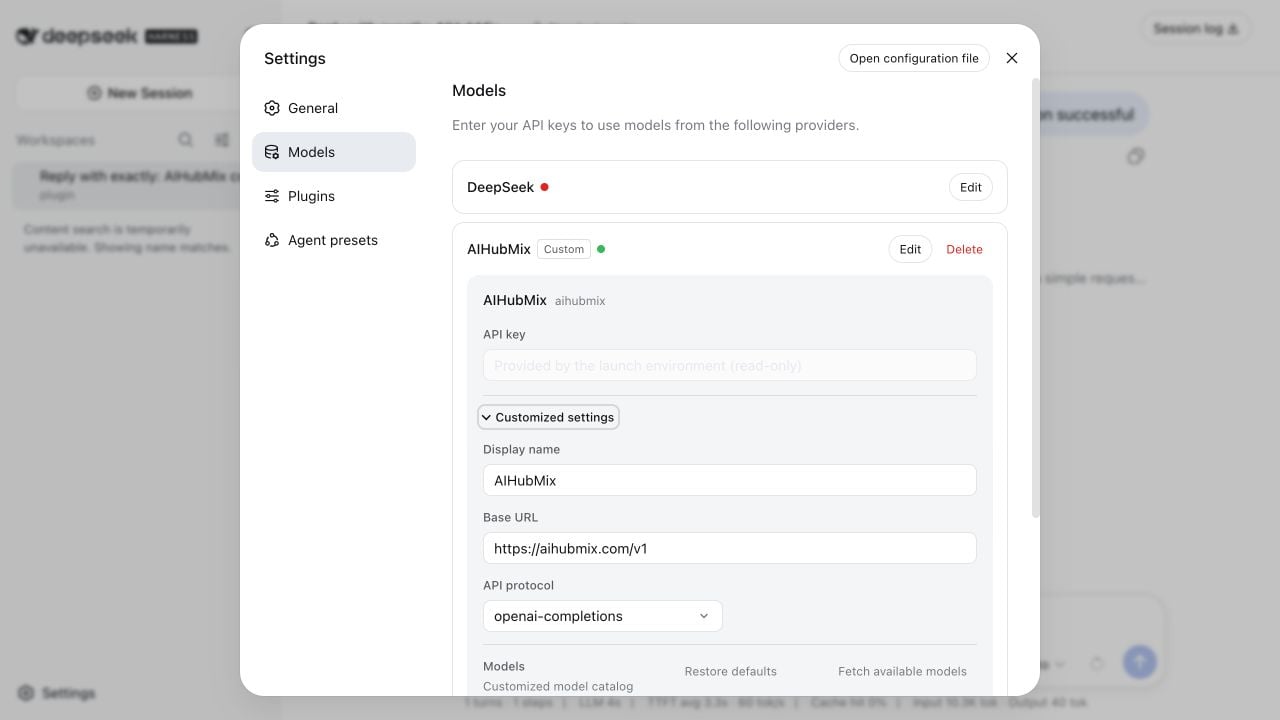
Select a model and test a conversation
Close Settings, open the model selector at the lower right of the prompt box, and choose Auto or another model you added.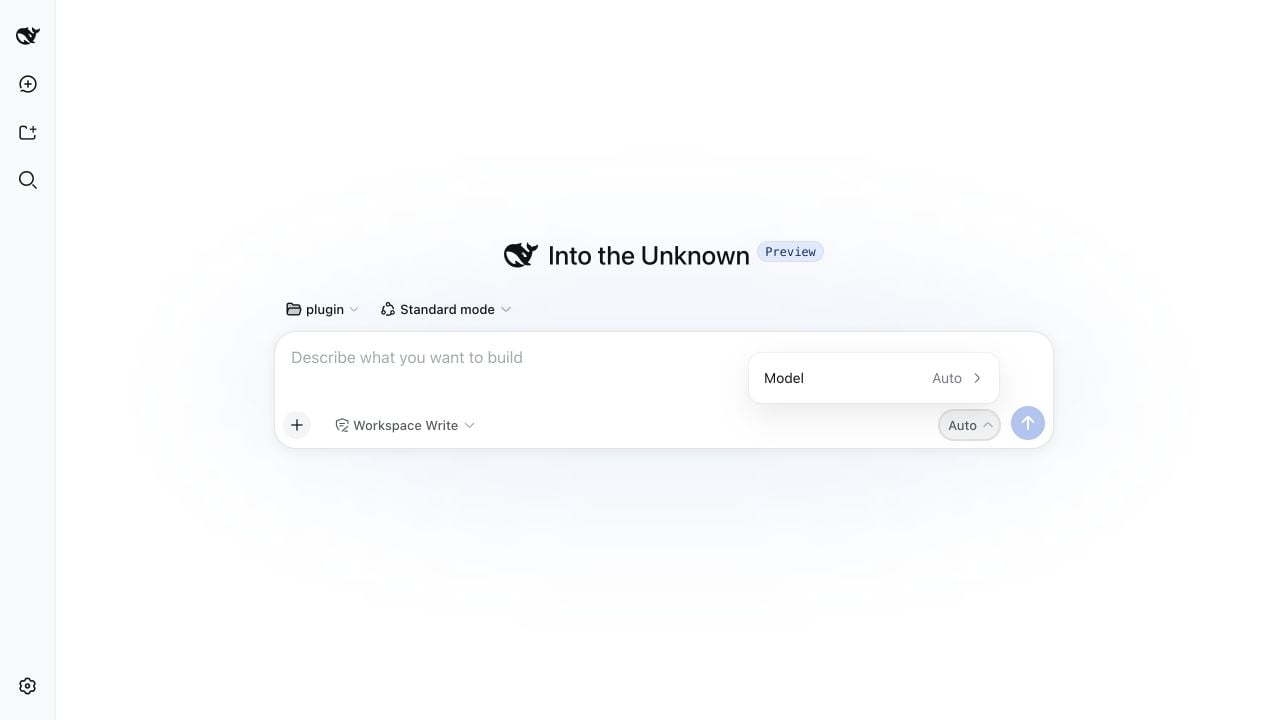
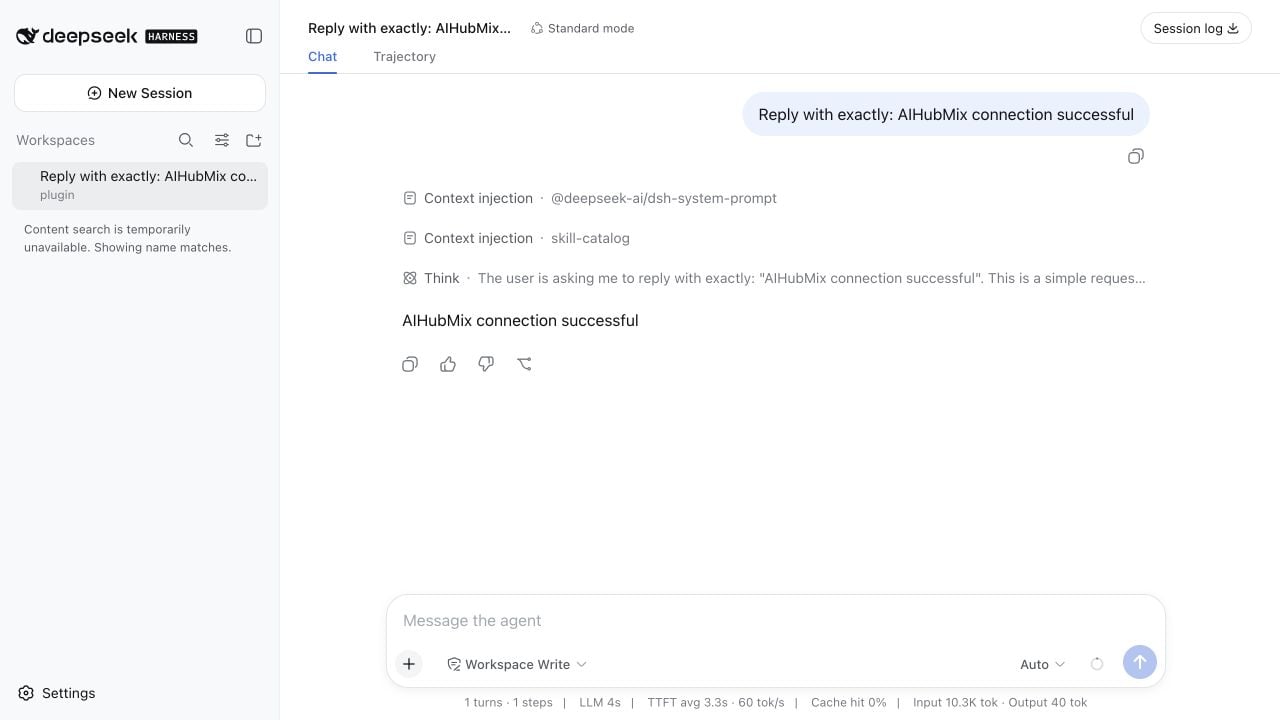
Run a headless test
You can also test without the Web UI:DSH_AIHUBMIX_OK.
FAQ
Why does Harness show MISSING_CREDENTIAL?
Harness did not receiveAIHUBMIX_API_KEY from its launch environment. Set the variable and launch Harness from the same terminal:
Why does model discovery return 401?
Check that the API key is valid and does not contain extra spaces or line breaks. The model discovery request uses Bearer authentication.Why is Auto the only model in the selector?
The selector shows only models registered in the current provider catalog. Open Settings > Models > AIHubMix > Edit, then use Fetch available models or add an exact model ID manually.Why does Harness report UNKNOWN_MODEL?
The current provider catalog does not contain that model ID. Model IDs are case-sensitive, so use the exact value returned by model discovery.Why does the connection time out?
Check DNS, your organization network, and local proxy settings. If the browser uses a system proxy but the terminal does not, configureHTTP_PROXY, HTTPS_PROXY, and NODE_USE_ENV_PROXY=1 in the terminal that launches dsh.
Security guidance
- Do not commit API keys to Git or include them in screenshots and shared scripts
- Prefer Harness credential storage or the
AIHUBMIX_API_KEYenvironment variable - Do not print a complete API key while troubleshooting
- Use the CI platform’s secret management feature to inject environment variables
Last updated: August 14, 2026