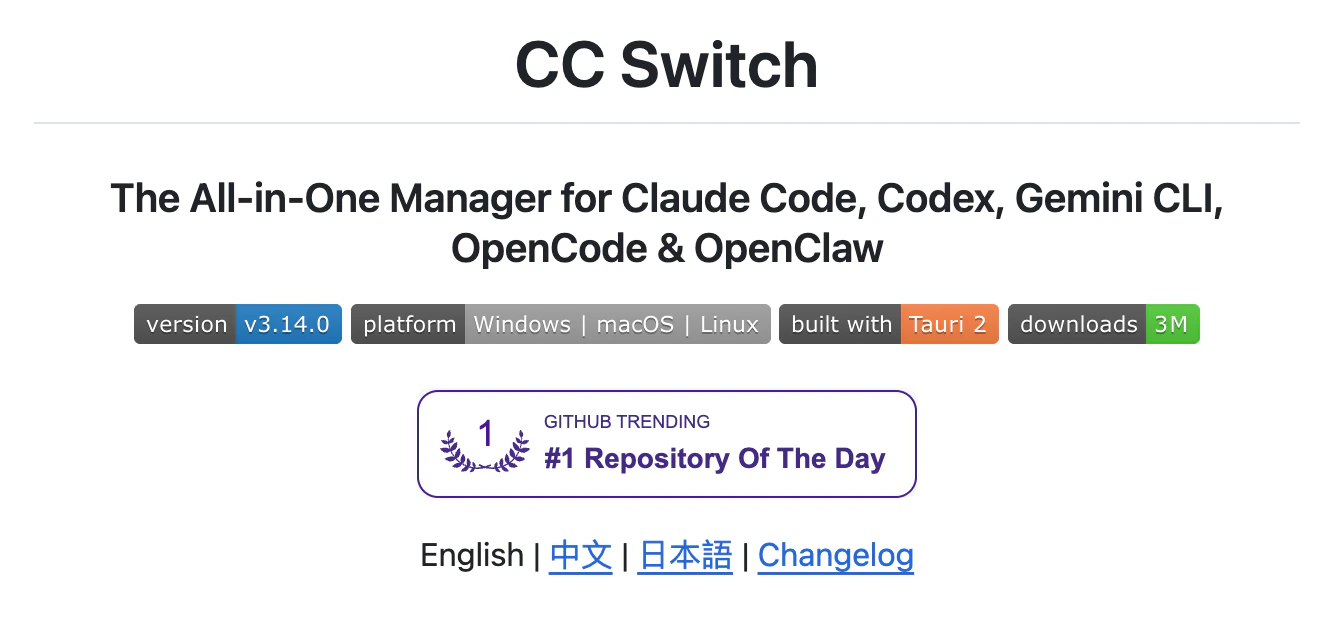
CC Switch is a free desktop app built to manage and switch configurations across AI coding tools. Paired with AIHubMix, you can move between Claude Code, Codex, Gemini CLI, OpenCode, and OpenClaw without ever touching a config file, environment variable, or API setting by hand. For developers juggling multiple models and CLI workflows, CC Switch cuts configuration overhead significantly — making onboarding, switching, and day-to-day use across different tools feel unified and effortless.
1. What Is CC Switch?
CC Switch (project: github.com/farion1231/cc-switch) is an open-source, cross-platform desktop app developed by Jason Young (farion1231). It works as a unified manager for AI coding CLI tools. If you use more than one AI coding tool, these frustrations probably sound familiar:- Switching providers means manually editing
~/.claude/settings.jsonor resetting environment variables every time - Configs don’t follow you across machines — every new device is a fresh start
- WSL and Windows each need their own config setup, and the maintenance burden compounds over time
CLI (Command Line Interface) tools are programs you operate through text commands rather than a graphical interface — common in development environments. CC Switch can manage the configurations for all of the tools below from one place.
| Tool | Developer | Description |
|---|---|---|
| Claude Code | Anthropic | An AI coding assistant powered by Claude — chat, write code, and fix bugs directly in your terminal |
| Codex | OpenAI | OpenAI’s code generation tool with autocomplete and generation across multiple languages |
| Gemini CLI | The command-line interface for Google’s Gemini model, great for developers in the Google ecosystem | |
| OpenCode | Open Source | An open-source AI coding CLI that connects to multiple AI models |
| OpenClaw | Open Source | An open-source AI CLI with flexible provider switching |
2. Core Features
2.1 Provider Management
CC Switch ships with 50+ preset configurations covering major AI API providers — Anthropic, OpenRouter, AIHubMix, AWS Bedrock, and more. You can:- Create multiple provider configurations per CLI tool
- Drag to reorder, keeping your most-used providers at the top
- Switch the active provider in one click, no CLI restart required
- Use Shared Config Snippets to carry over plugin data and custom settings when switching providers — a new API doesn’t mean losing everything you’ve configured
2.2 Unified MCP Server Management
If you run MCP (Model Context Protocol) servers across multiple CLI tools, CC Switch offers a unified management panel with cross-app config sync. No more duplicating the same entries in each tool’s config file.2.3 Skills Installation
CC Switch supports installing skill packages from GitHub repositories or ZIP files, mounted via symlinks — easy to share across a team and straightforward to version.2.4 Usage Dashboard
A built-in dashboard to track:- Daily and weekly API spend
- Request count and token usage
- Trend visualizations over time
2.5 Cloud Sync
Sync your configurations to:- Dropbox
- OneDrive
- iCloud (macOS)
- WebDAV (self-hosted)
3. Installation
3.1 Windows
Option 1: Winget (Recommended).msi installer or portable .zip from the GitHub Releases page. Extract and run.
Requires: Windows 10 or later
3.2 macOS
Option 1: Homebrew (Recommended).dmg from Releases, mount it, and drag CC Switch into Applications.
Requires: macOS 12 (Monterey) or later
3.3 Linux
Pick the package format for your distro:3.4 WSL Integration (Windows Users)
CC Switch has dedicated WSL support. Install it on the Windows side, and you can manage Claude Code and other CLI tools running inside WSL directly — no separate installation in WSL needed. Once configured, CC Switch bridges network requests between WSL and Windows through a local proxy for seamless unified management.4. Connecting Claude Code to AIHubMix
Why AIHubMix?
AIHubMix is operated by AIHubMix, LLC in the United States — an officially authorized, compliant model aggregation platform with partnerships from Microsoft Azure, AWS, GCP, Alibaba Cloud, Baidu Cloud, and other major inference providers. All services run on clustered infrastructure on Google Cloud US, delivering high-concurrency, stable, and reliable AI model APIs trusted by developers and enterprises worldwide. For Claude Code users, routing through AIHubMix meaningfully reduces costs while keeping the flexibility you’d expect from a platform like OpenRouter.4.1 Adding AIHubMix as a Provider
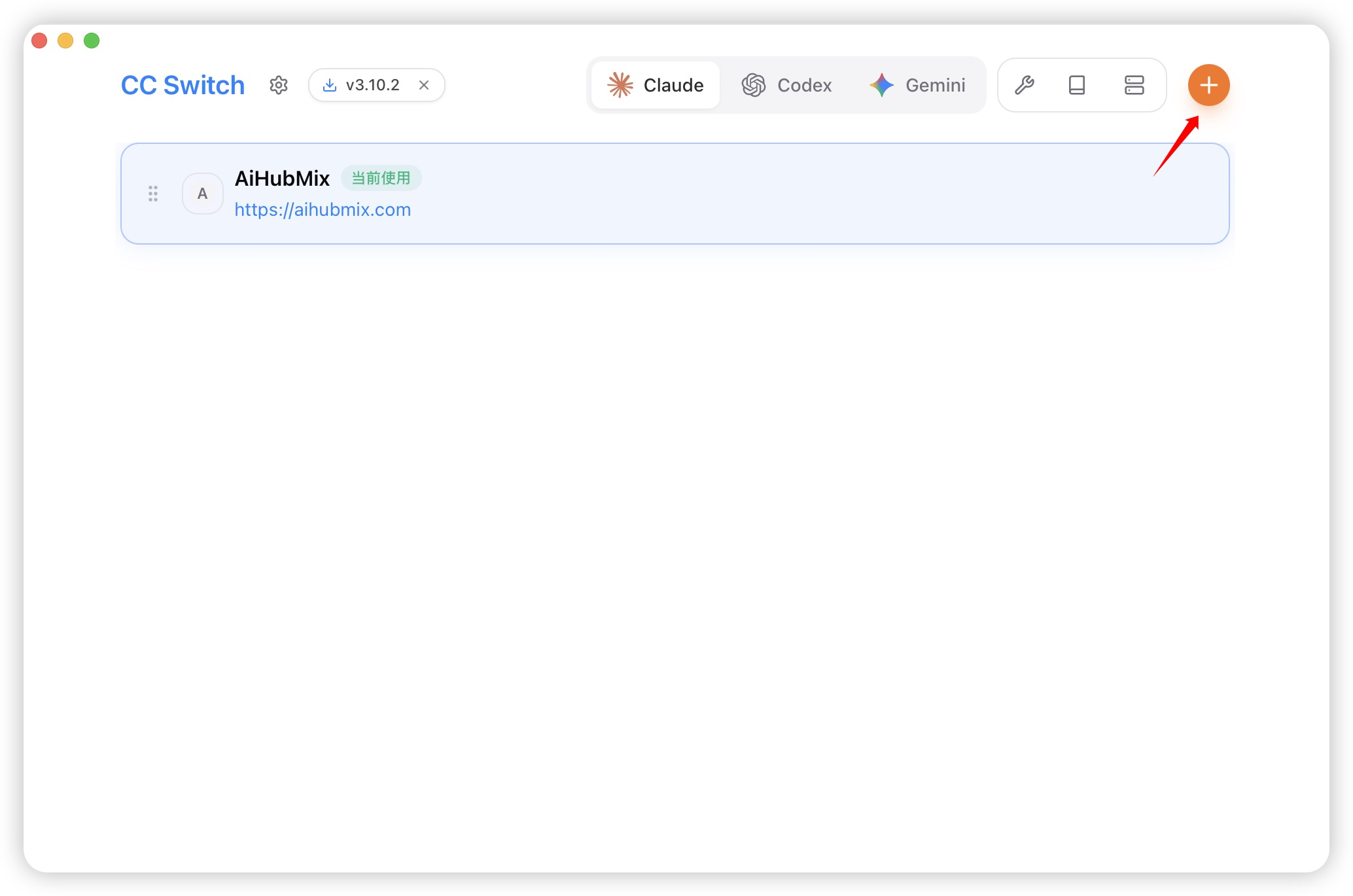
Open CC Switch and navigate to the Provider management page for Claude Code:- Click ”+ Add Provider” in the top-right corner
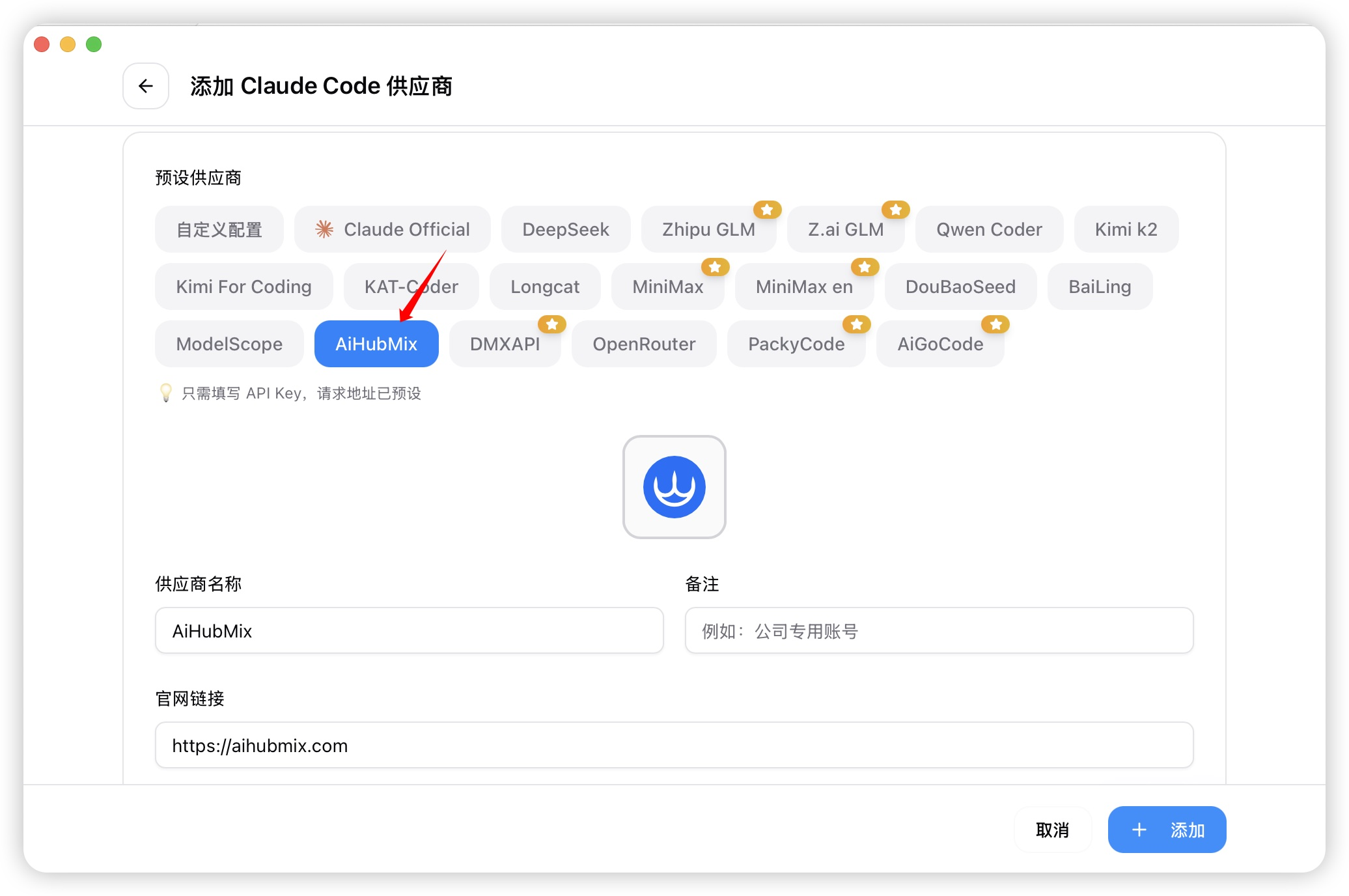
- Select “AiHubMix” from the preset list and click the link to get your API key
- Paste your key into the “API Key” field
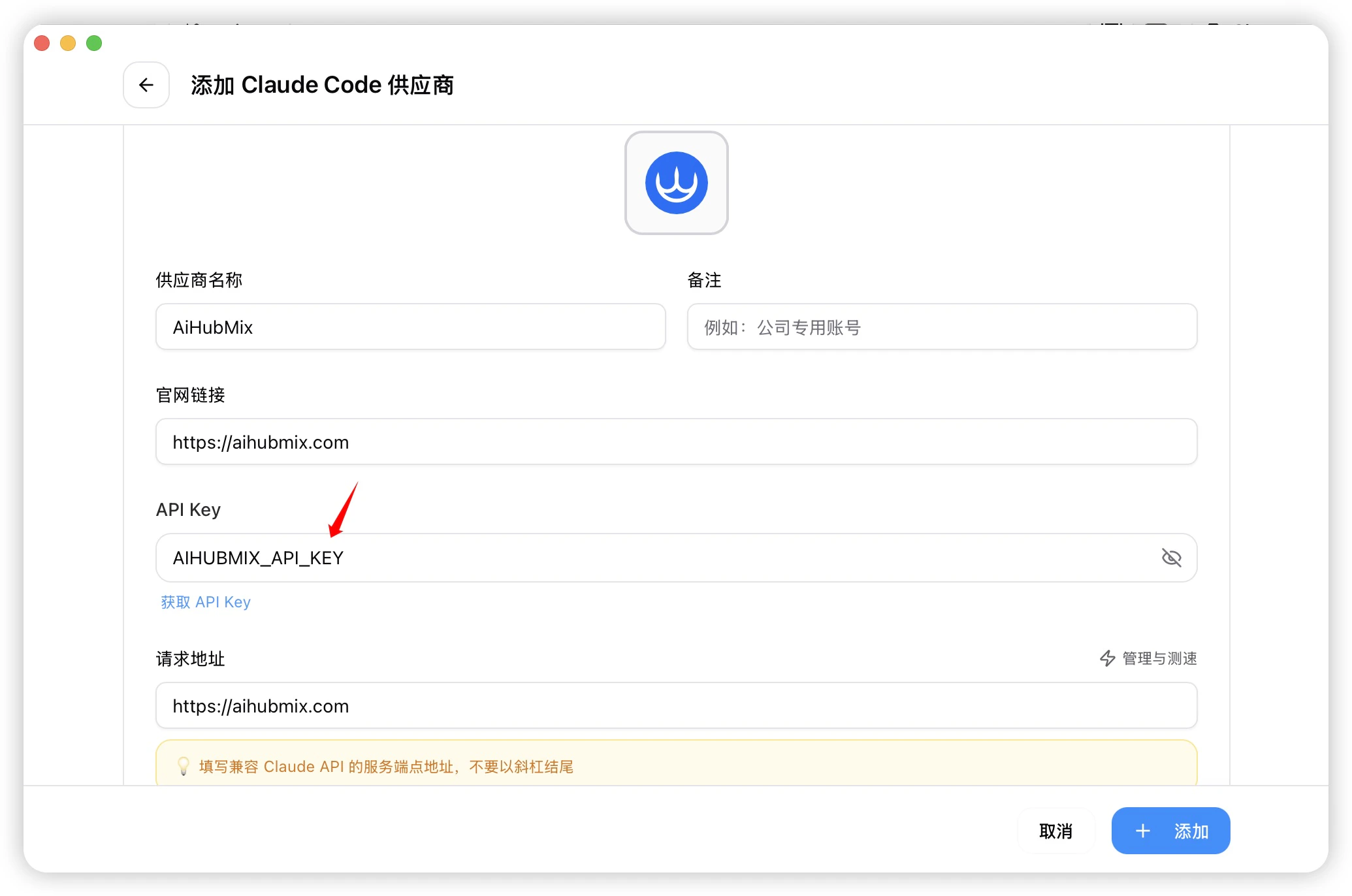
- Copy the model ID you want to use (e.g.
claude-opus-4-7), then click “Add” to save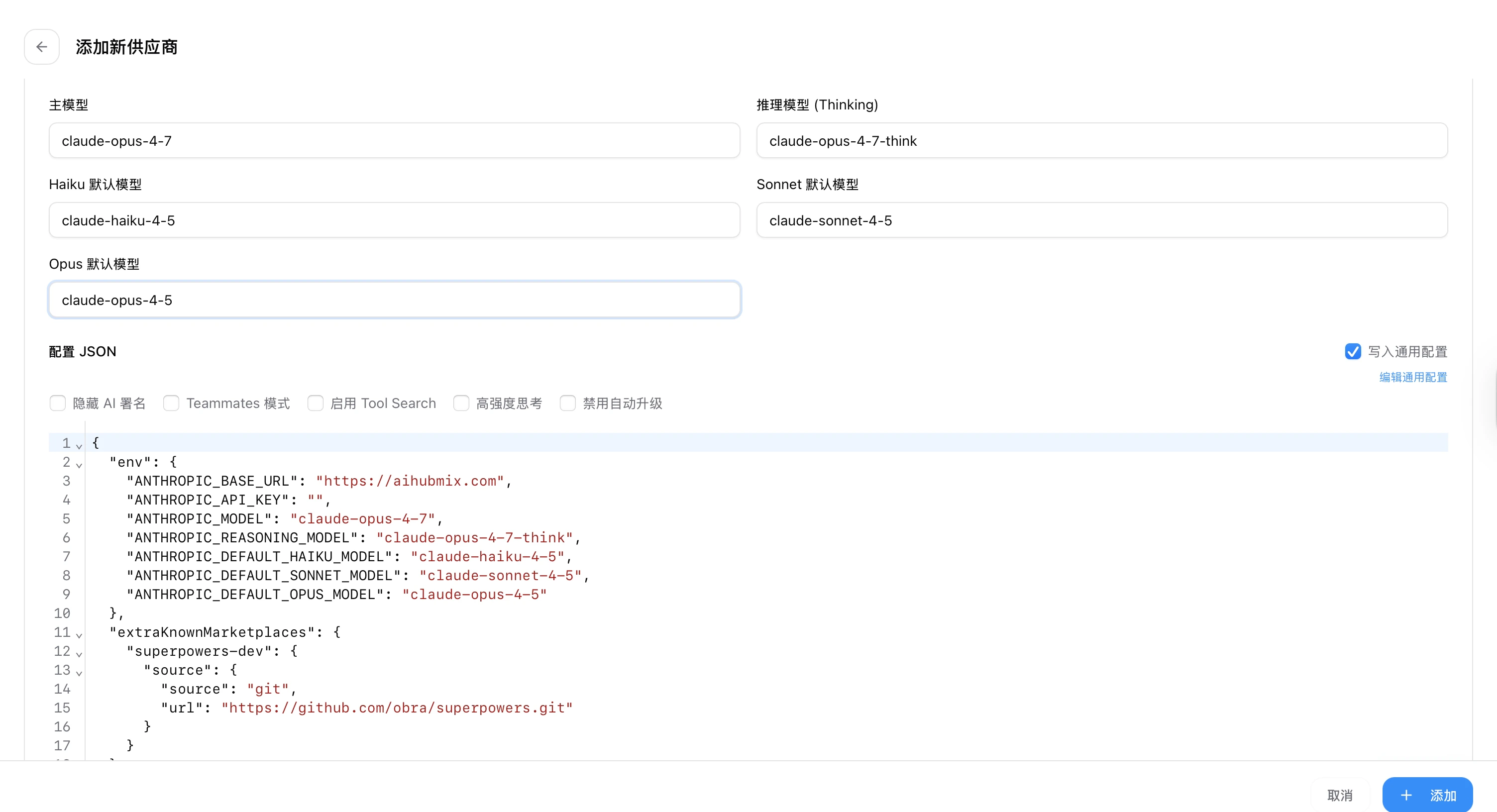
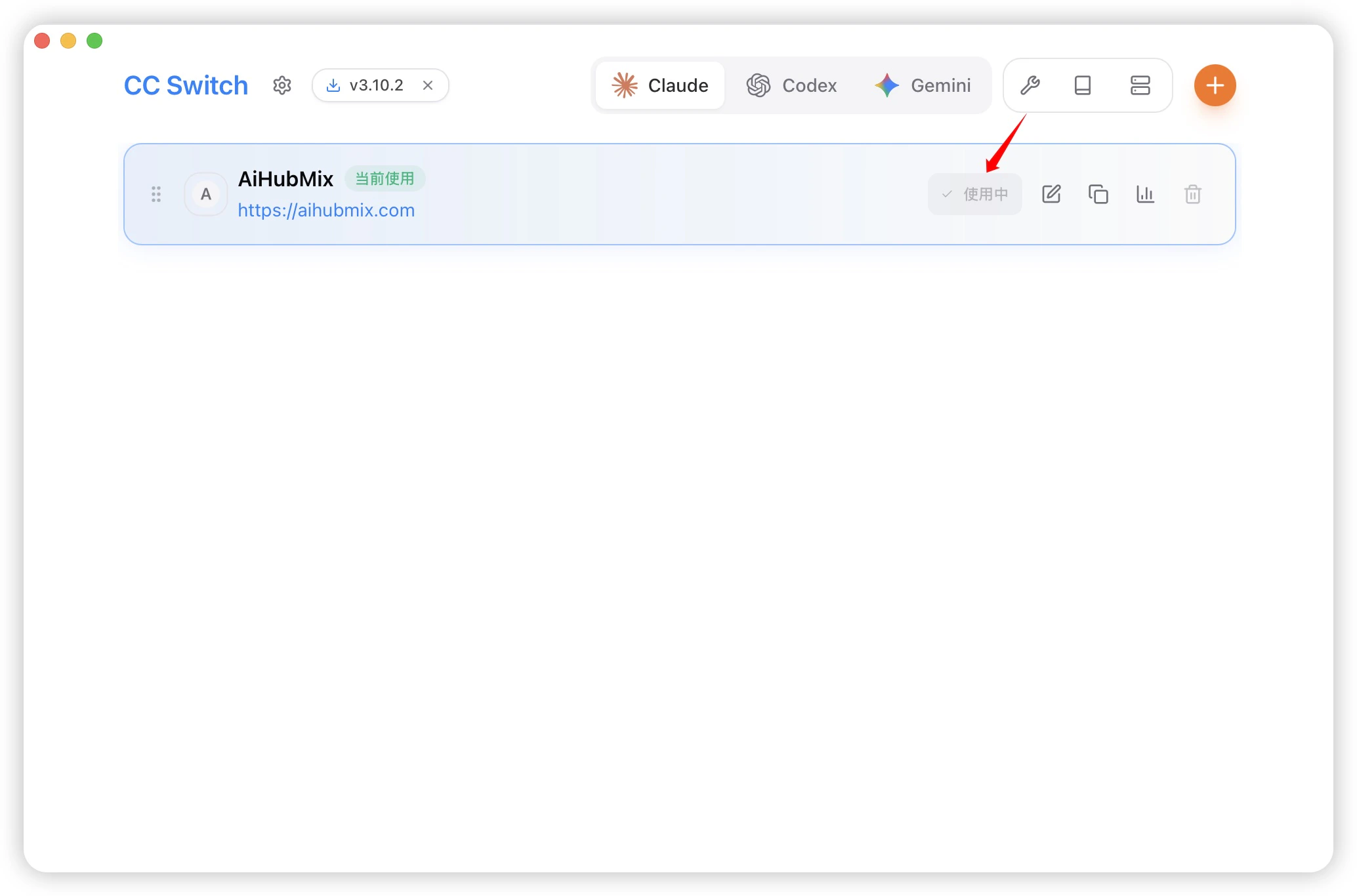
- Back on the home screen, select “AiHubMix” from the provider list and click “Activate”
4.2 Verify the Connection
Run Claude Code in your terminal and send a simple prompt. A normal response confirms you’re successfully connected through AIHubMix.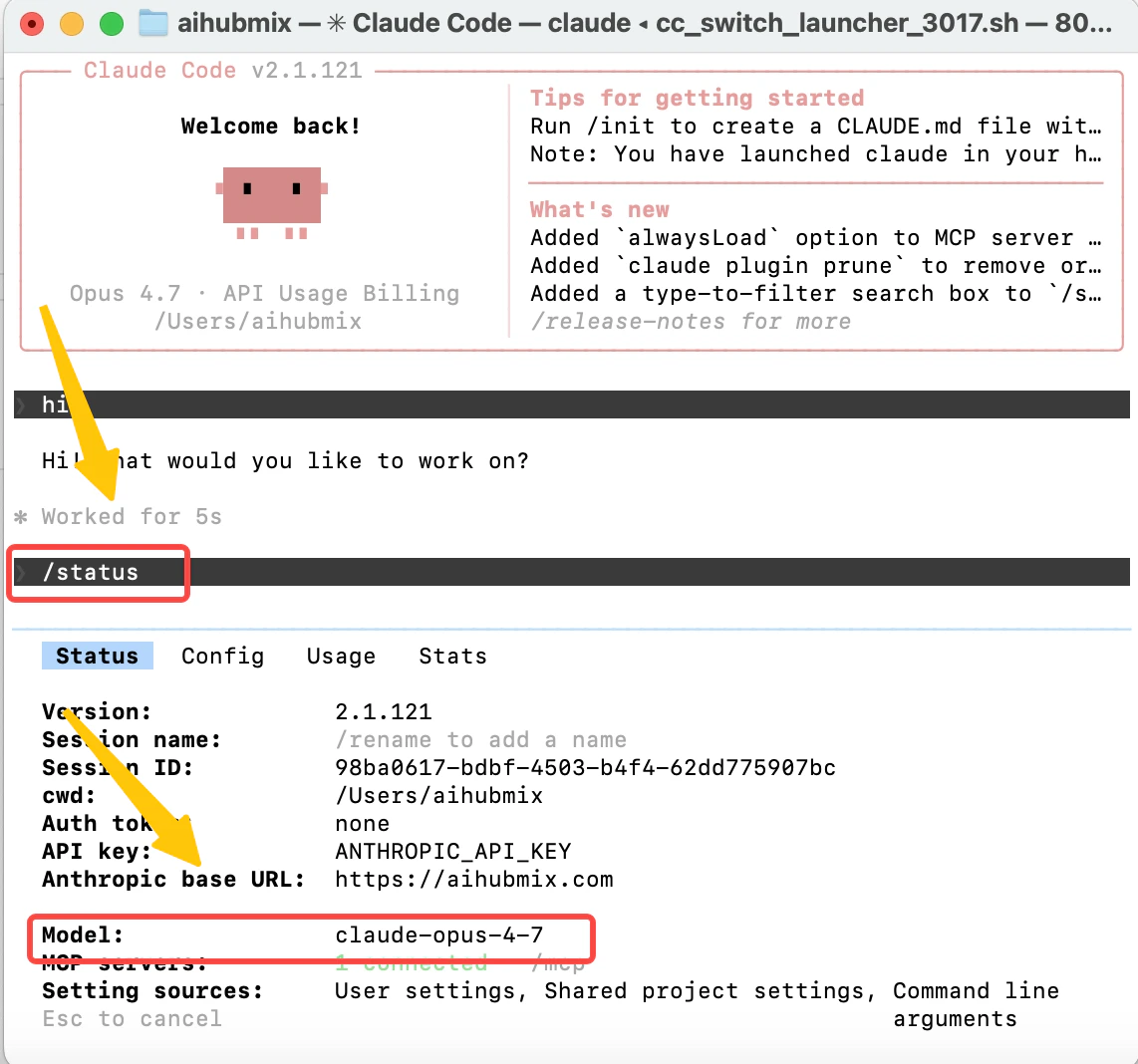
Tip: Inside Claude Code, type/statusto check your active model ID, or/modelsto switch to another configured model.
5. Using with VSCode
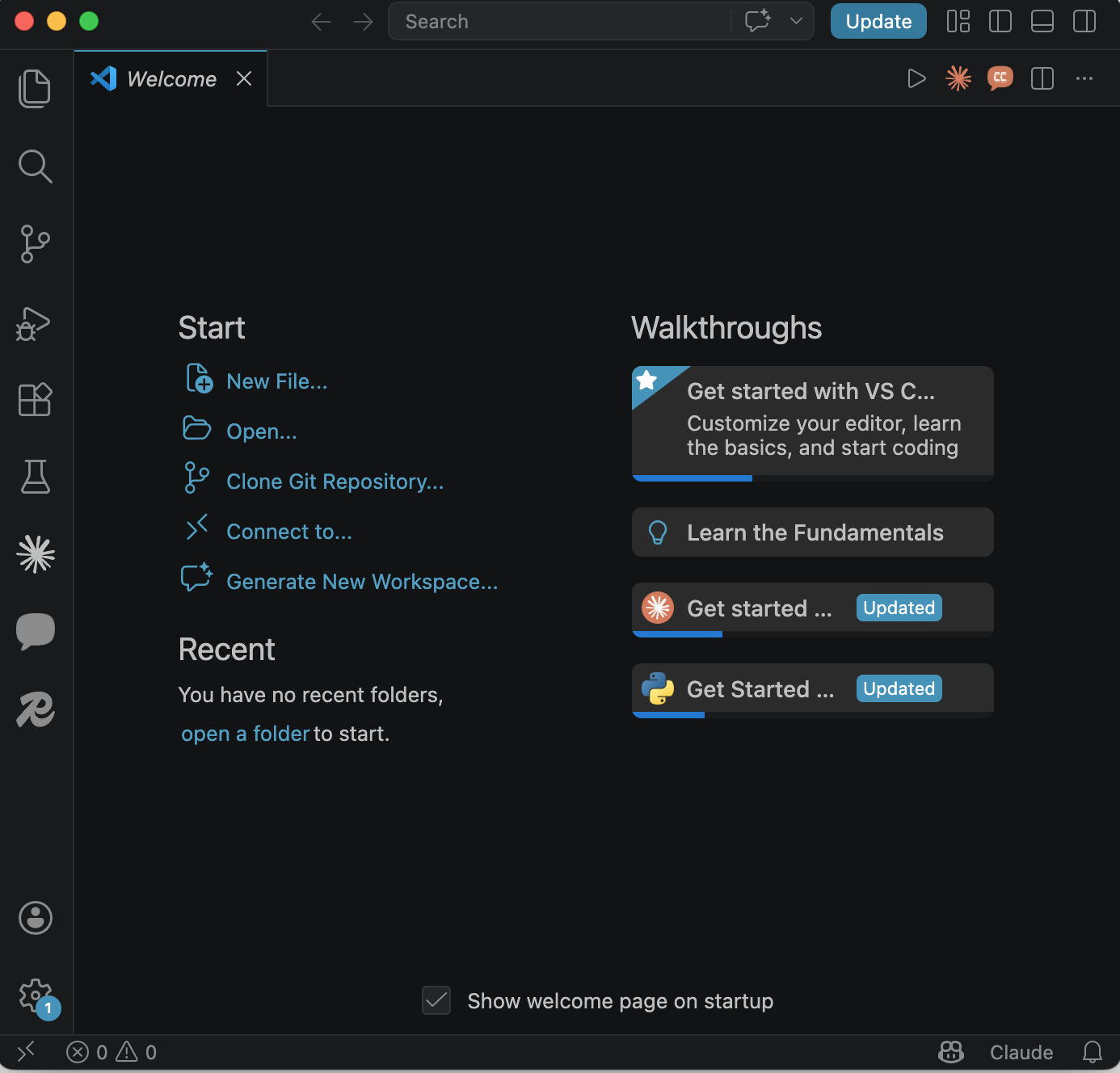
Claude Code has an official VSCode extension, and CC Switch is fully compatible with it.5.1 Install the Claude Code Extension
Search for “Claude Code” in the VSCode Extensions Marketplace and install it.5.2 Using with CC Switch
5.3 Multiple Workspaces
If you have several VSCode workspaces open at once, they all share the same CC Switch configuration. Switch providers once — it applies everywhere.6. Other CLI Tools + AIHubMix
CC Switch isn’t just for Claude Code. It has full support for four other mainstream AI coding CLI tools as well.6.1 Codex + AIHubMix
Codex CLI users can manage their provider configuration separately in CC Switch and connect it to AIHubMix. For the full Codex setup guide, see: → https://docs.aihubmix.com/en/api/Codex-CLI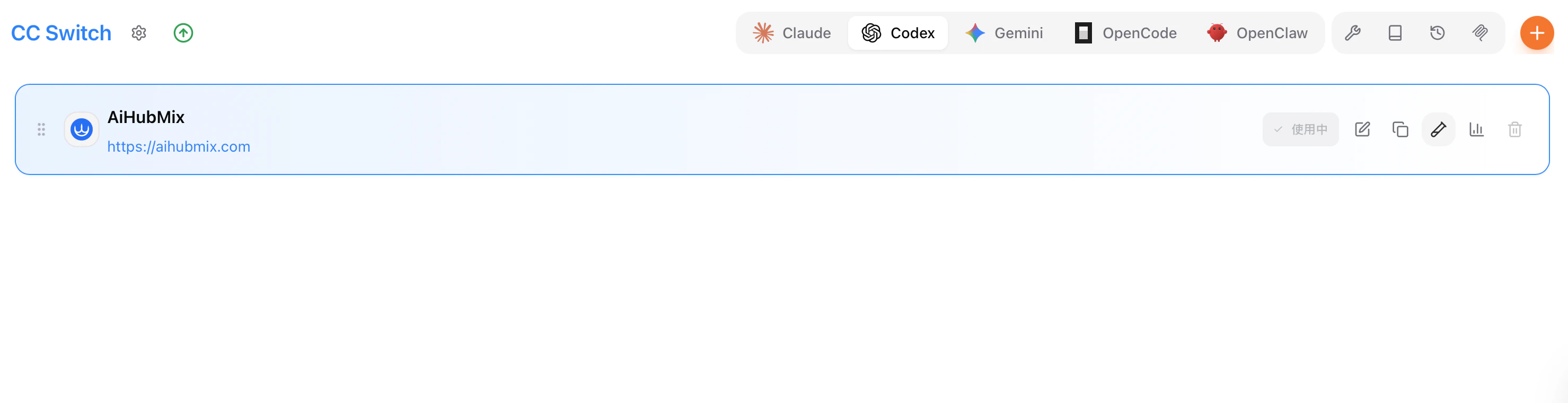
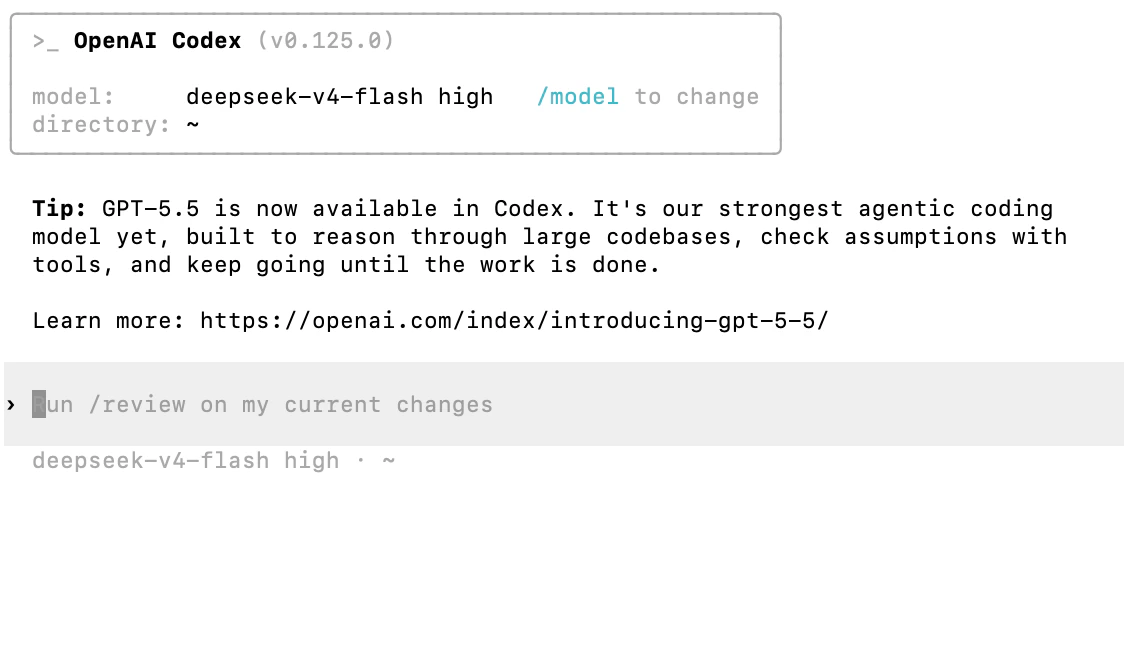
Example: Configure your AIHubMix API key in CC Switch, and you can use deepseek-v4-flash — or any other supported model — directly inside Codex.
6.2 Gemini CLI + AIHubMix
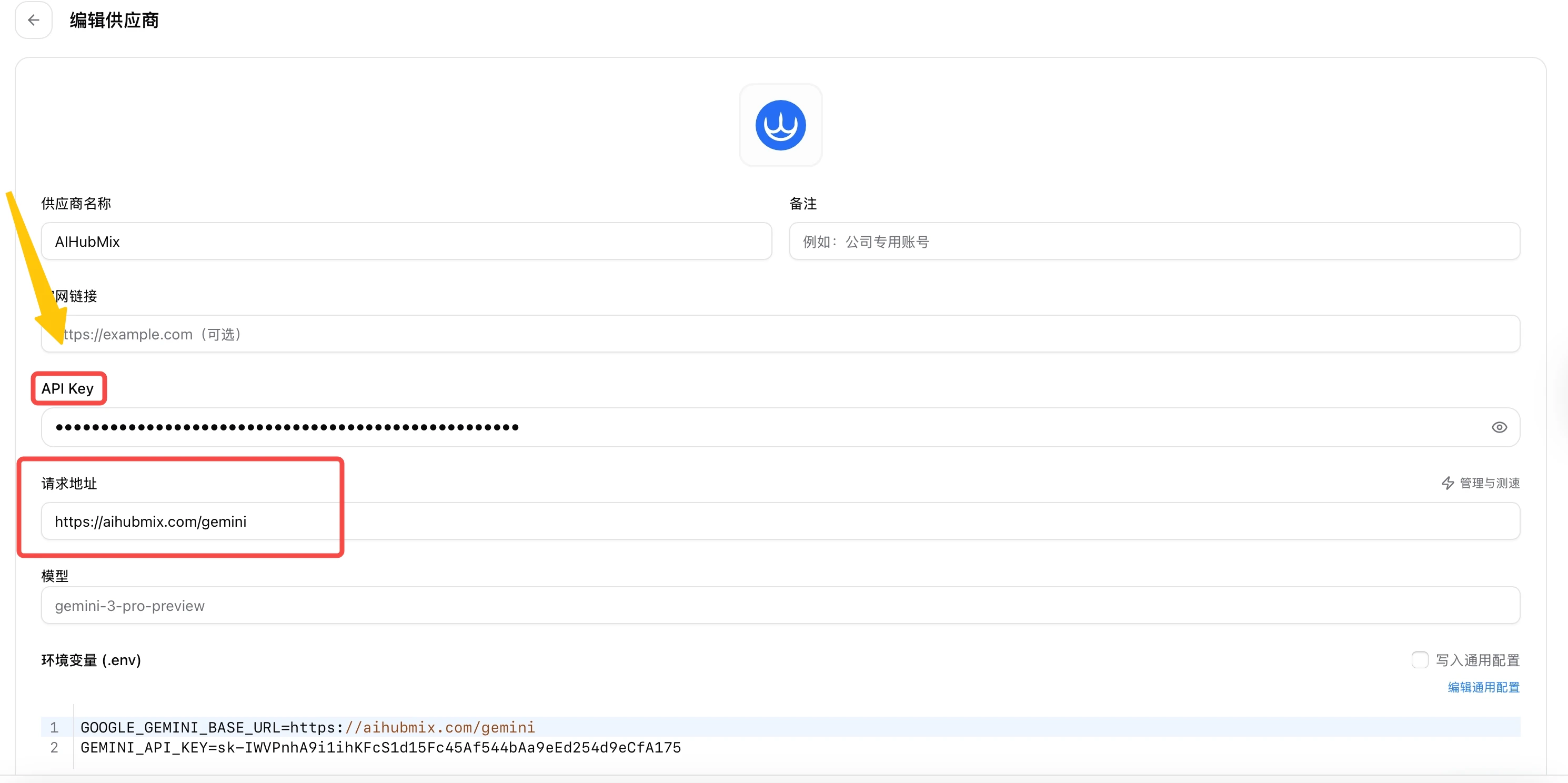
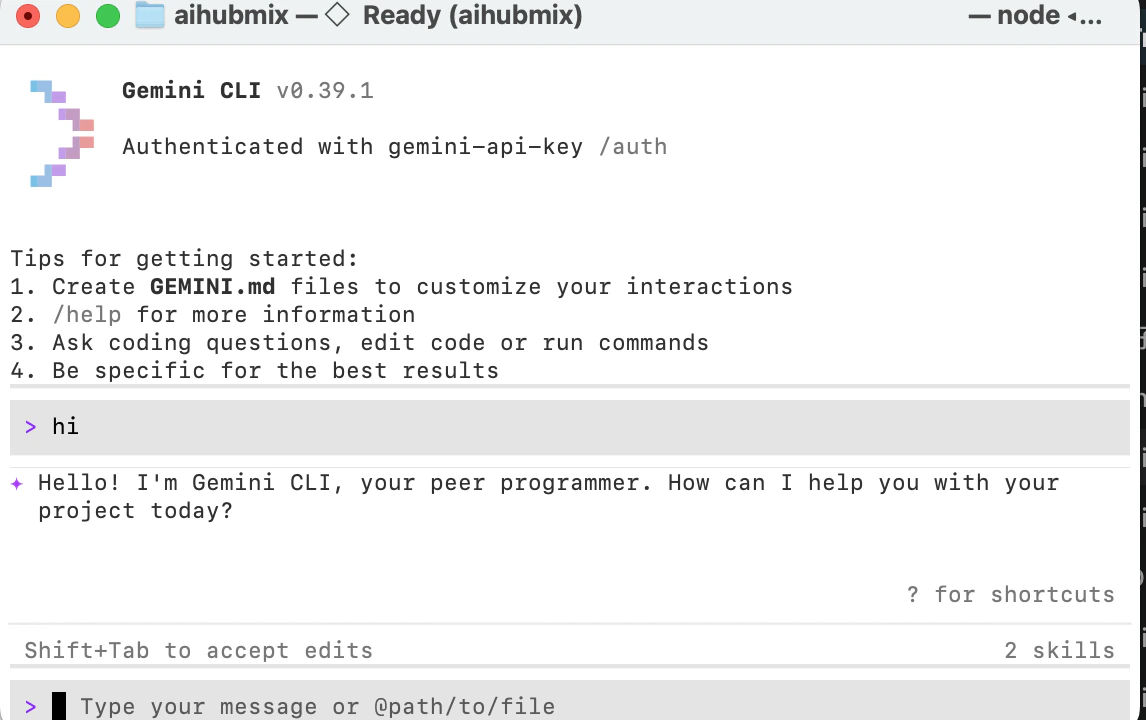
Google Gemini CLI configuration tends to be spread across multiple places. CC Switch brings it all into a single interface, with quick switching between multiple Google accounts or Gemini API keys — handy for teams moving between projects frequently. Install Gemini CLI Make sure Node.js ≥ 18 is installed. If not:- Open CC Switch and click Add Provider
- Manually add AiHubMix
- API Key: your
sk-prefixed key (get one at aihubmix.com/token) - Base URL:
https://aihubmix.com/gemini
6.3 OpenCode + AIHubMix
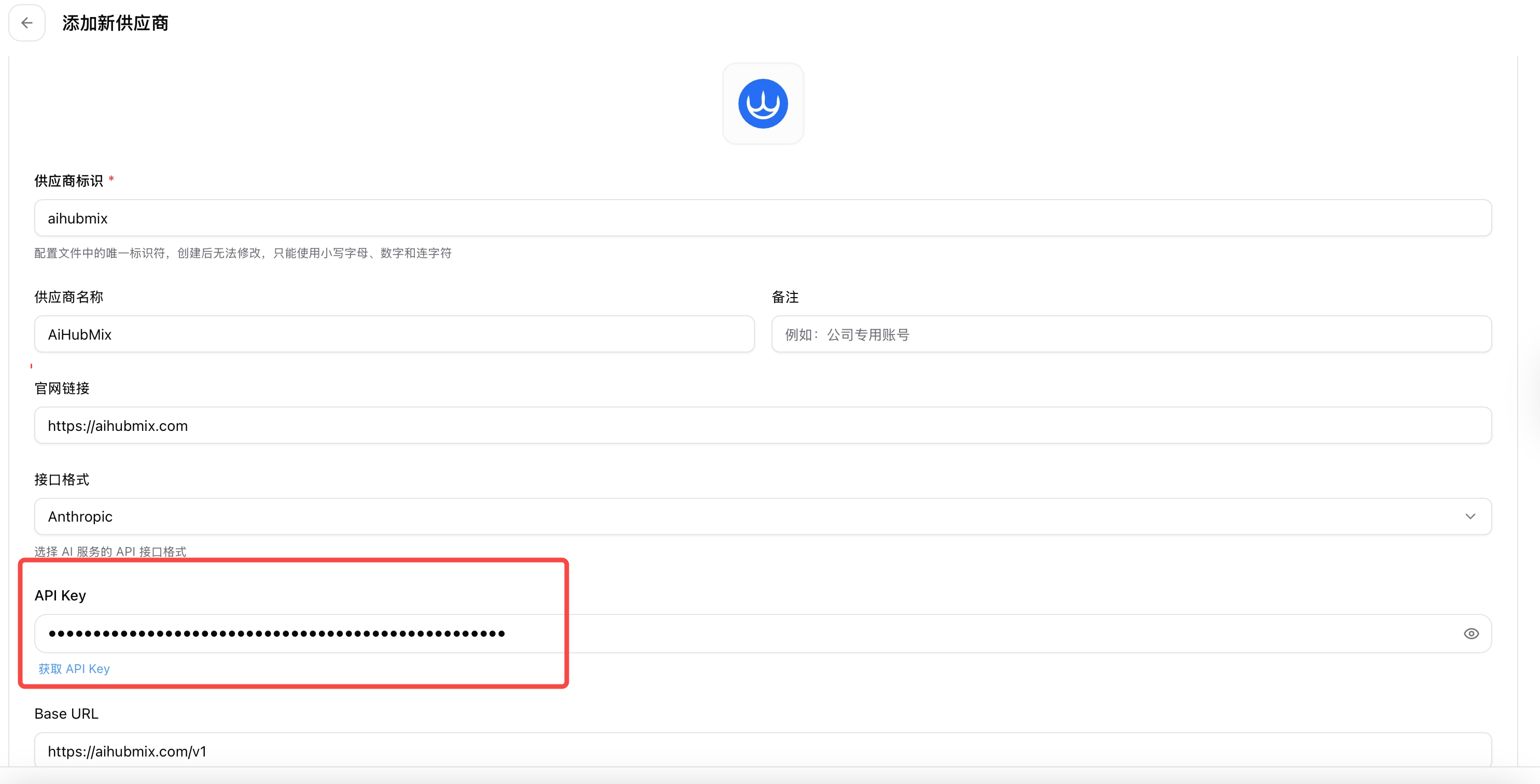
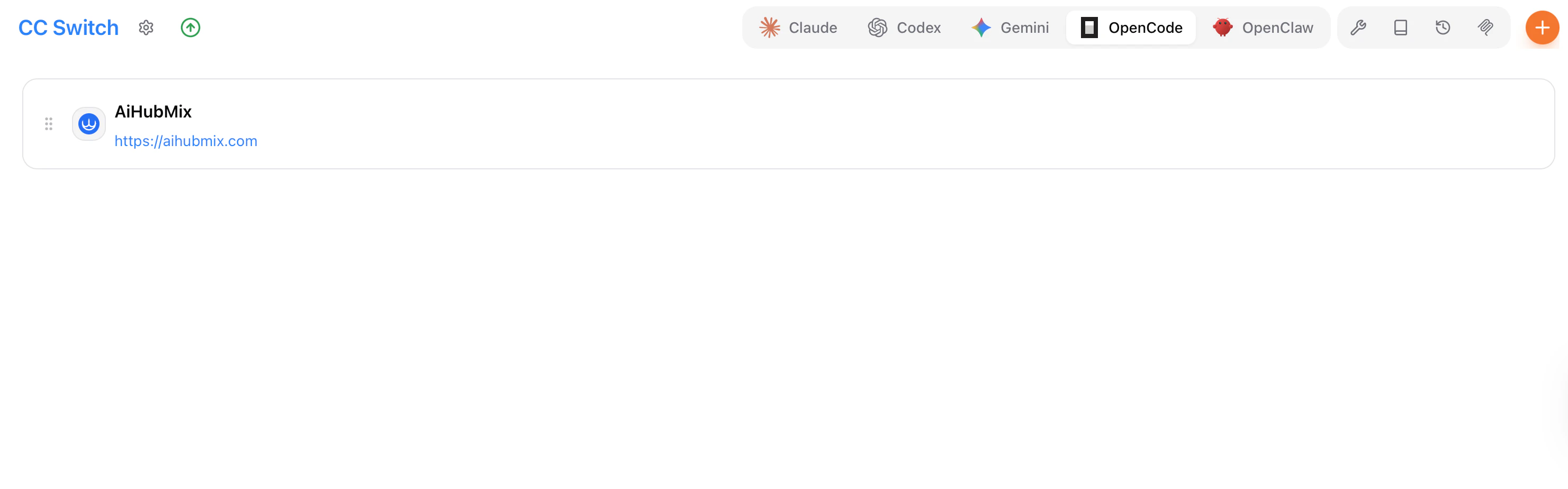
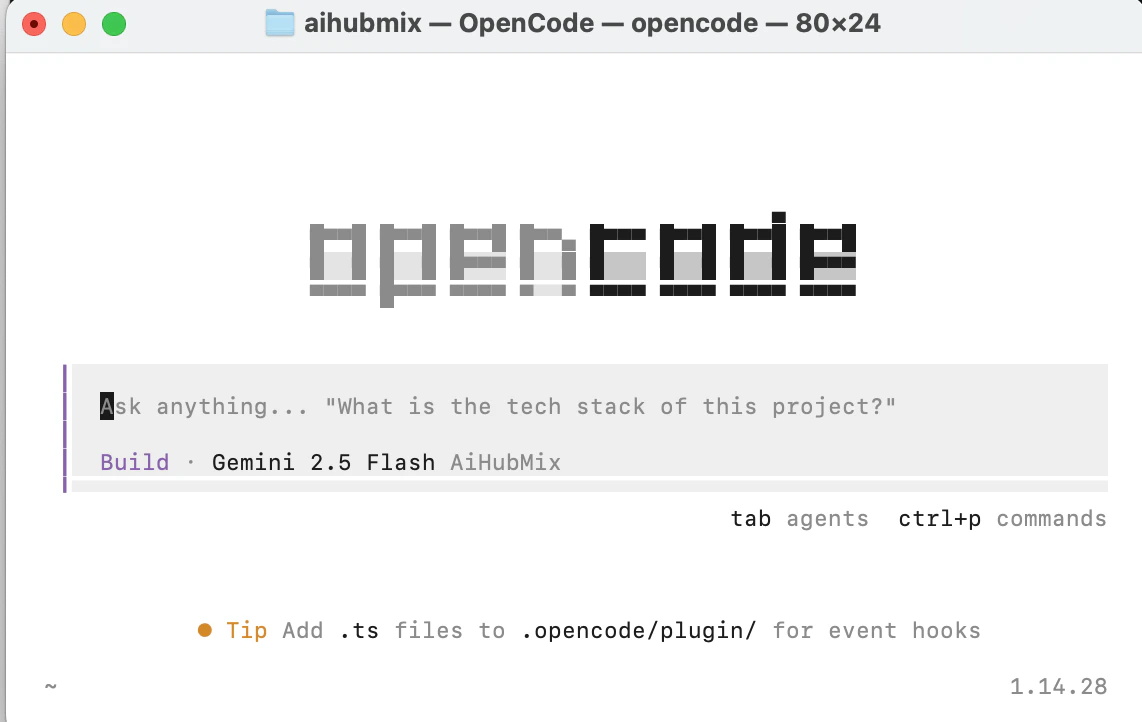
OpenCode is an open-source AI coding CLI that supports multiple providers. CC Switch has built-in support for OpenCode and can manage its config files directly — no manual TOML or JSON editing required. For the full setup guide, see: https://docs.aihubmix.com/en/api/Opencode Setup- Open CC Switch and click Add Provider
- Select AiHubMix
- API Key: your
sk-prefixed key (get one at aihubmix.com/token)
6.4 OpenClaw + AIHubMix
OpenClaw is an open-source CLI compatible with the OpenAI API, suited for advanced users who need custom model routing. Full setup guide: https://docs.aihubmix.com/en/api/OpenClaw How CC Switch and OpenClaw work together:- Create a dedicated provider group for OpenClaw in CC Switch
- Set AIHubMix, OpenRouter, or other aggregation platforms as OpenClaw’s upstream
- Use CC Switch’s hot-switch to jump between upstreams instantly
7. CC Switch vs. Claude Code Router
Claude Code Router is another commonly mentioned tool. Here’s how they compare:| CC Switch | Claude Code Router | |
|---|---|---|
| Type | Desktop GUI app | CLI / config tool |
| Supported tools | 5 (Claude Code, Codex, Gemini, OpenCode, OpenClaw) | Primarily Claude Code |
| Provider presets | 50+ | Manual configuration |
| Local proxy | Built-in, hot-switching + failover | Manual configuration |
| MCP management | Unified UI | Not supported |
| WSL support | Dedicated support | Limited |
| Cloud sync | Dropbox / iCloud / WebDAV | Not supported |
| Usage dashboard | Built-in | Not available |
| Learning curve | Low (GUI) | Medium (config files) |
| Best for | Multi-tool users, efficiency-focused devs | Lightweight needs, CLI purists |
8. FAQ
Q: Is CC Switch free? Yes, completely. It’s MIT licensed and open source on GitHub. Any API costs depend on the provider you connect to. Q: How do I make CC Switch work inside WSL? CC Switch runs on the Windows side and bridges WSL requests through a local proxy. Point WSL’s proxy settings to CC Switch’s local listening port — you can find the exact port in CC Switch’s proxy settings page. Q: Does Claude Code need to restart after switching providers? No. Hot-switching takes effect immediately. Your current terminal session keeps running without interruption. Q: Where is my data stored? The local database lives at~/.cc-switch/cc-switch.db, with settings at ~/.cc-switch/settings.json. CC Switch automatically keeps the 10 most recent backups.
Q: Can I share a provider configuration with my team via a link?
Yes. CC Switch supports Deep Links (ccswitch:// protocol), so teammates can import a shared provider configuration by clicking a single URL — useful for standardizing API access across a team.
Q: Does CC Switch support AWS Bedrock?
Yes — there’s a built-in Bedrock preset with Cross-Region Inference support, making it a solid option for enterprise users accessing Claude through Bedrock.
Closing
CC Switch takes the AI coding tool management that used to be scattered across a dozen config files and pulls it into one lightweight desktop app. Whether you’re deep into Claude Code or splitting time between Codex, Gemini CLI, and others, it keeps your workflow clean. The latest release v3.12.0 is stable and ready. Head to github.com/farion1231/cc-switch for full documentation and release notes.