

nexu-io/open-design) is an open-source, local-first “Claude Design alternative.” It ships no model of its own. Instead, it treats the AI you connect as a design engine and directly produces web / desktop / mobile prototypes, interactive dashboards, slide decks, images, and videos, exporting them as HTML / PDF / PPTX / MP4 — what it delivers is runnable output built from real CSS and real components, not pixels on a canvas. It’s Apache-2.0 open source, and your project data stays on your own machine.
AIHubMix is now a built-in BYOK gateway in Open Design: pick AIHubMix in its API (BYOK) mode, and a single Key powers chat, image generation, video generation, and voiceover all at once. This guide covers how to wire it up and how to use it.
Open Design offers two execution modes (Settings → Execution mode):
- Local CLI — calls a CLI agent already installed on your machine (Claude Code / Codex, etc.) as the design engine, with the ability to read and write your project’s code files directly.
- API provider (BYOK, bring your own key) — installs no CLI and points directly at an OpenAI / Anthropic-compatible endpoint. This guide takes this path with AIHubMix.
Why drive it with AIHubMix
One Key wires up chat, images, video, and voiceover all at once. Open Design’s native media generation often requires integrating each provider separately — image generation, video, and voiceover may each demand a Key from a different vendor. AIHubMix is an OpenAI-compatible aggregation gateway: behind a single Key it simultaneously connects OpenAI / Anthropic / Google Gemini / DeepSeek along with mainstream image, video, and speech models. Open Design picks AIHubMix’s corresponding native-protocol endpoint by model name —claude* goes to Anthropic, gemini* / imagen* go to Gemini, everything else goes to the OpenAI-compatible interface — so Claude’s chain of thought and Gemini’s native image generation lose nothing, while you only have to manage a single Key.
Compared with common tools
The dimensions below are taken from the Comparison table in Open Design’s official README:| Dimension | Closed-source tools like Claude Design / Figma / Lovable / v0 | Open Design + AIHubMix |
|---|---|---|
| Open source | ❌ | ✅ Apache-2.0 |
| Self-hosting / desktop | ❌ | ✅ macOS · Windows · Vercel |
| Runs on your own agent, bring your own Key (BYOK) | ❌ locked to their respective backends | ✅ 22 CLIs + BYOK |
| Mix Claude / GPT / Gemini / DeepSeek with one Key | ❌ | ✅ |
DESIGN.md design system | proprietary / restricted | ✅ 150 built in |
| Skills / plugins | closed | ✅ 100+ skills · 261 plugins |
| HyperFrames (HTML→MP4 motion) | ❌ | ✅ |
| Billing | subscription (Pro / Team) | BYOK, by each model’s usage |
Three-step setup
Prerequisite: get an AIHubMix Key
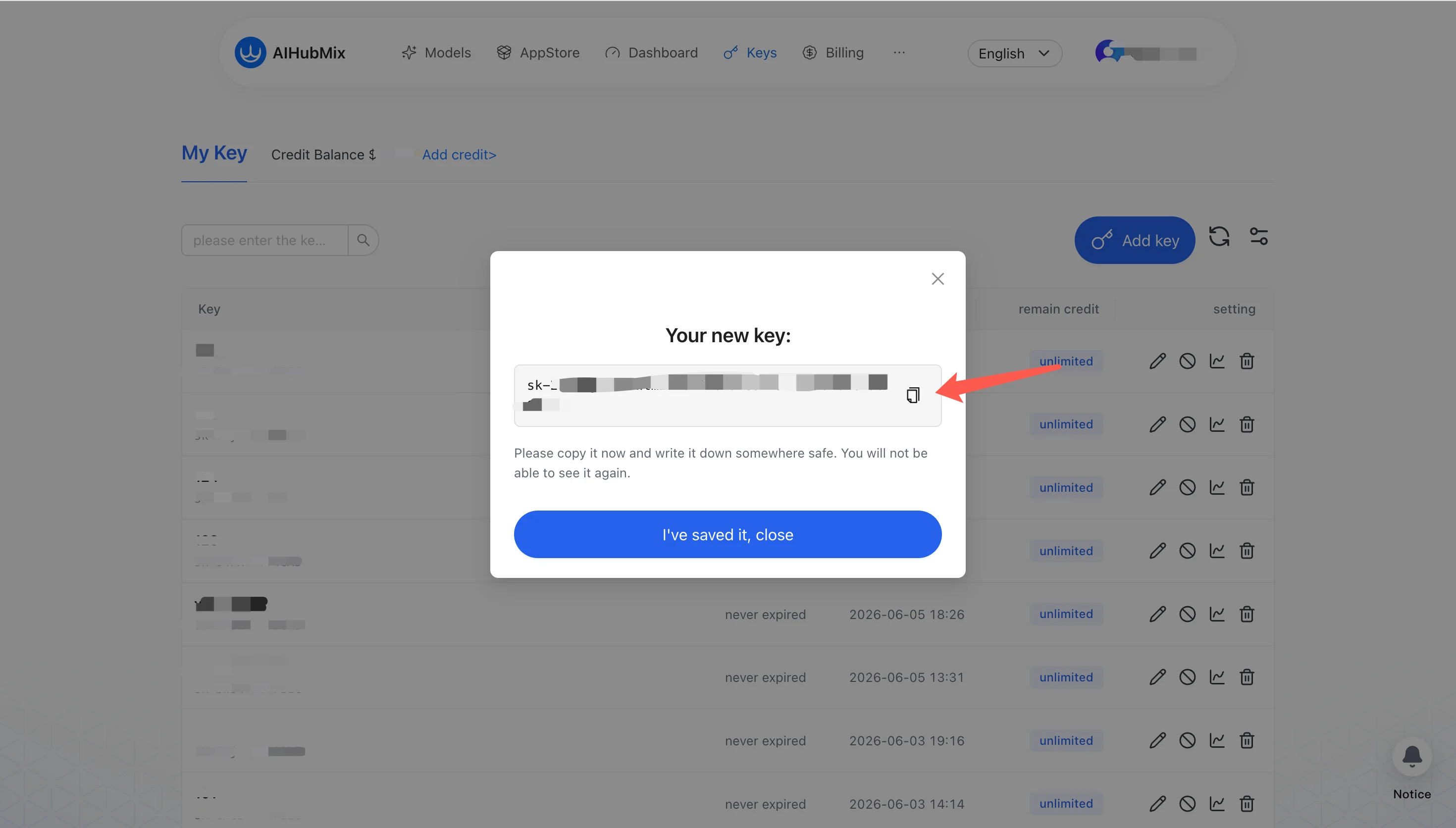
Sign in at aihubmix.com and create an API Key on the console’s Keys page (formatted likesk-...). Copy and save it right after creating it — once you close the dialog, you won’t be able to see the full plaintext again. We recommend pre-loading a little credit — image and video generation will use it later (video is especially credit-hungry).
Step 1: choose the execution mode and protocol
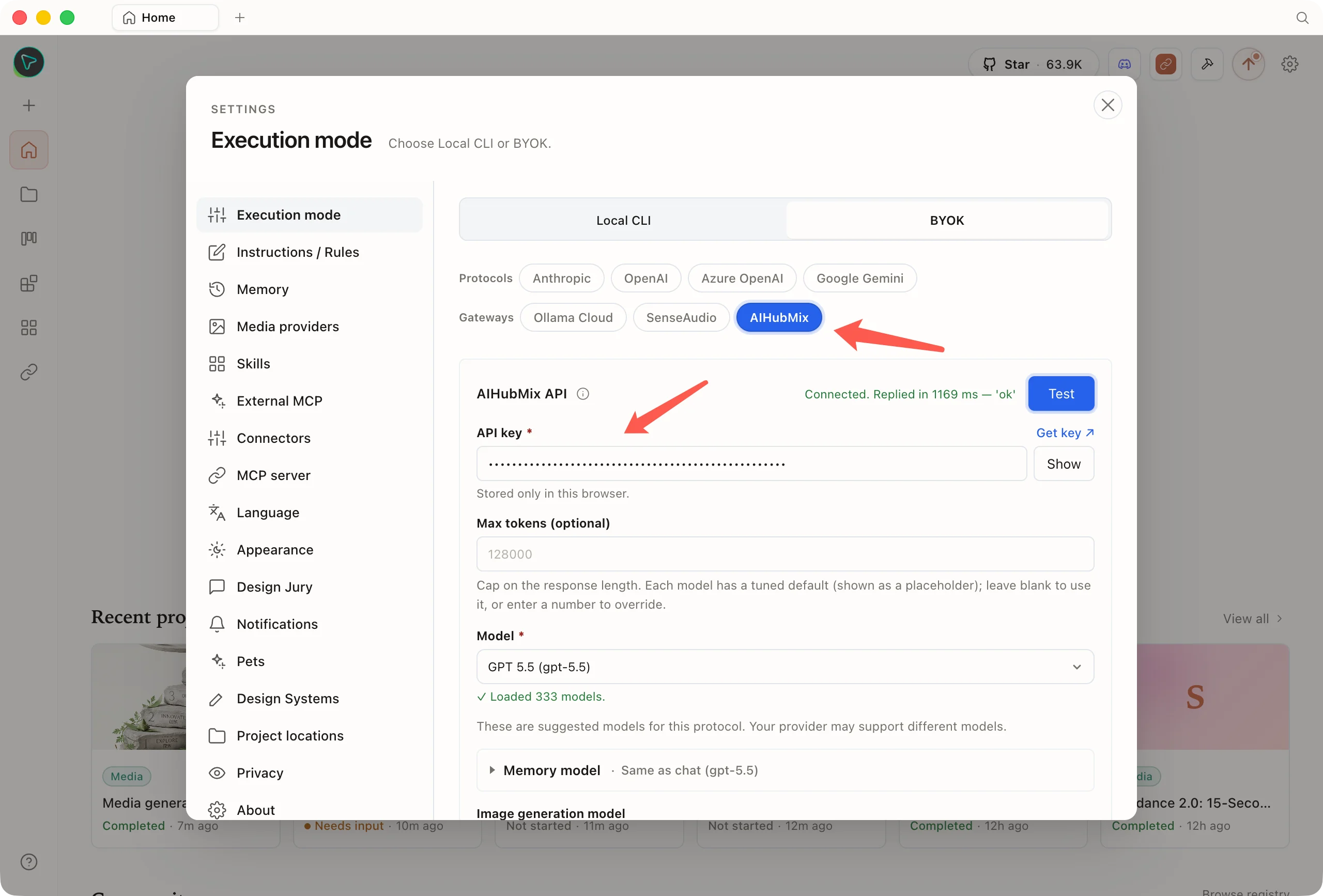
Open Design, click the gear in the top-right corner to enter Settings → Execution mode → choose BYOK, then in the Gateways row select AIHubMix.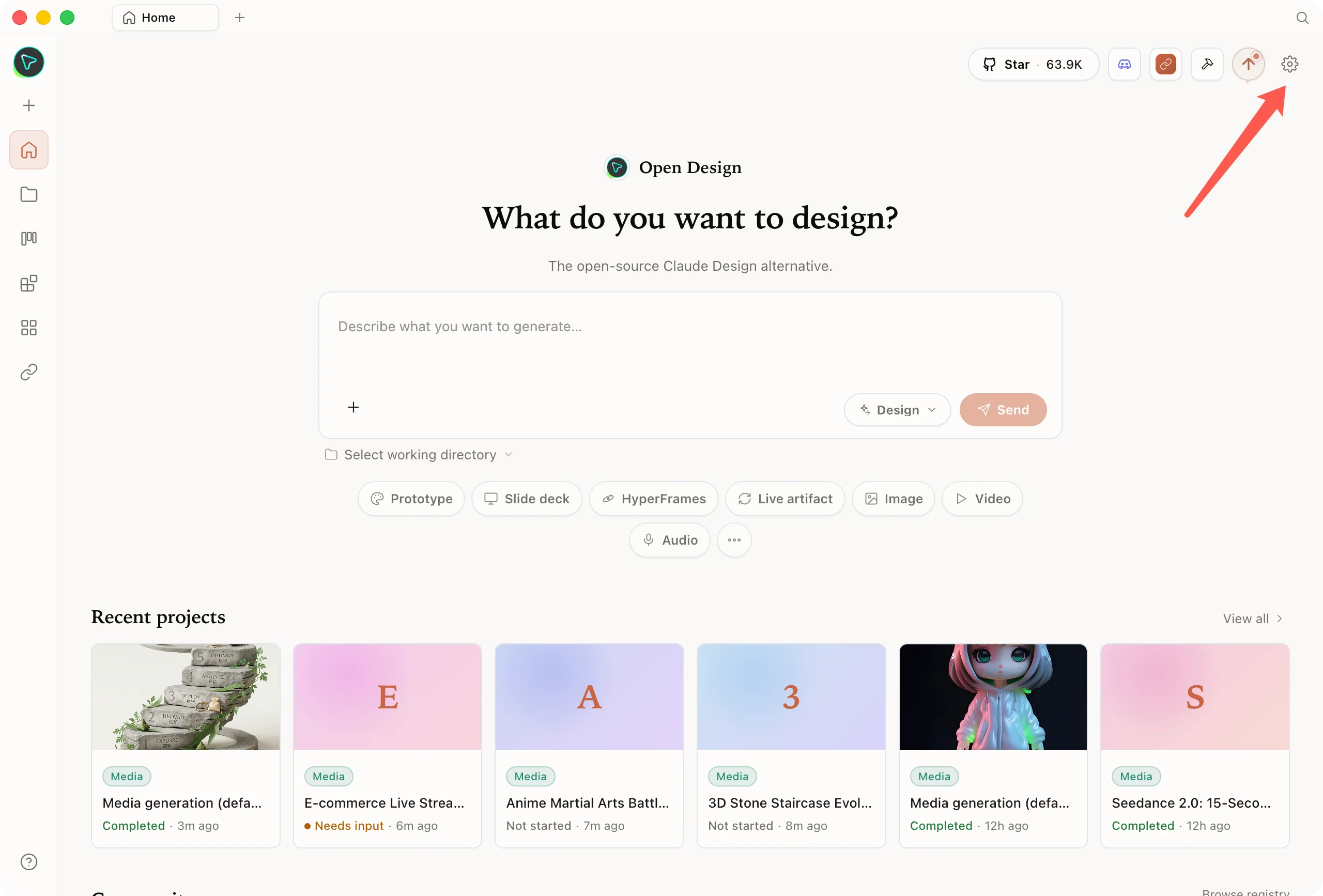
Step 2: paste the Key (the address is fixed, no need to type it)
In the same dialog shown above, paste your Key into the API key field (the placeholder issk-...) and click Test to verify connectivity (the screenshot shows Connected. Replied in … 'ok').
Unlike other providers: AIHubMix is a gateway with a single fixed entry point, and its address (https://aihubmix.com/v1) is already built in and hidden from you in the form — you don’t, and can’t, type it in, which means one less field you might fill in wrong.
Step 3: pick a model and get going
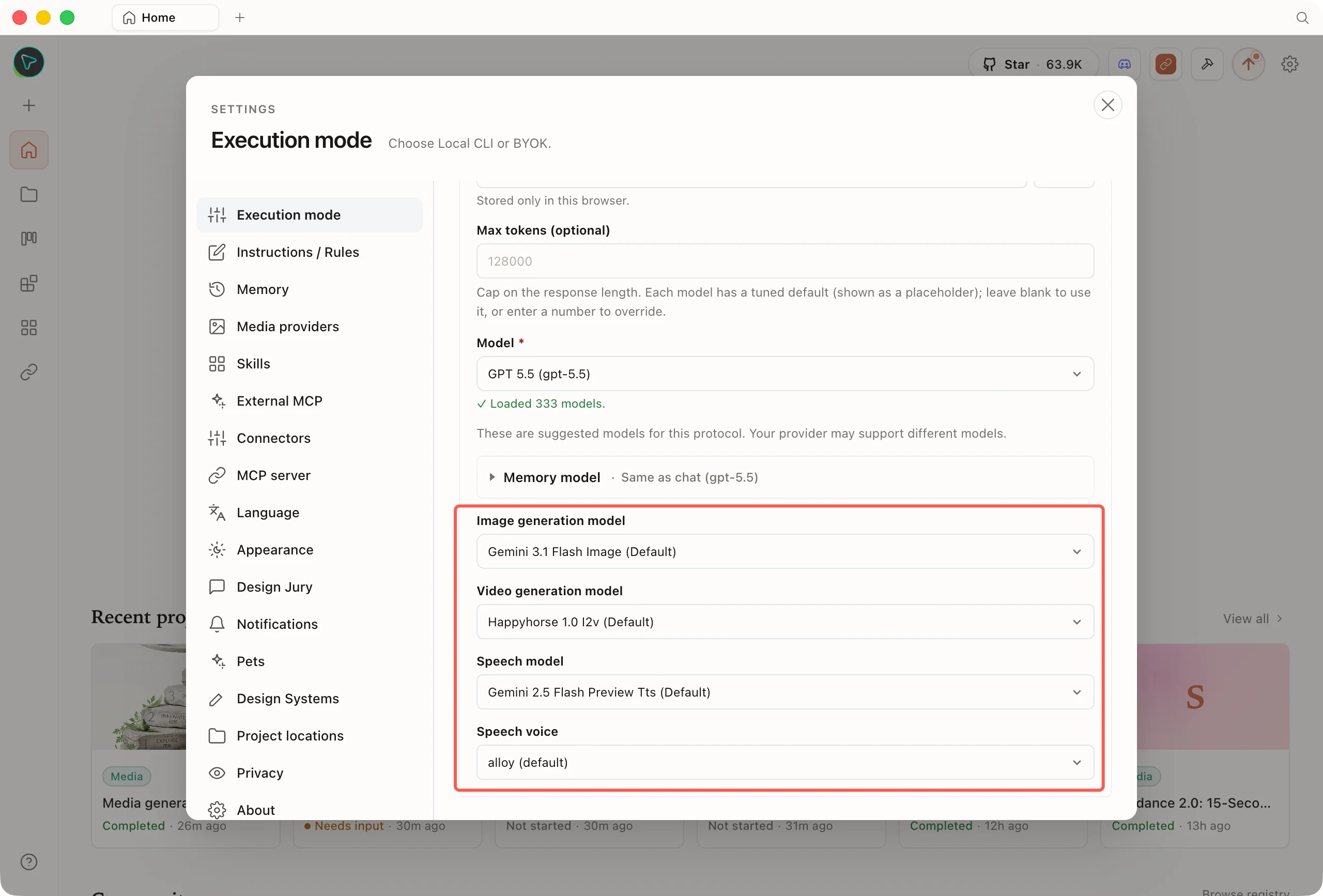
Chat, image, video, and speech models are all chosen in this BYOK panel: the chat model is in the Model dropdown (once the Key passes verification you can search AIHubMix’s live catalog; it defaults togpt-5.5 out of the box), and the image / video / speech models are in the corresponding selectors lower down the panel. You can pick by use case against the various Arena leaderboards; the models below have all been confirmed available on AIHubMix.
| Use case | Recommended models |
|---|---|
| Design reasoning / web prototypes (workhorse) | gpt-5.5, claude-opus-4-8, claude-fable-5 |
| Strict instruction following / stable tool calls | claude-fable-5 (tops the Steerability board), kimi-k2.6 (low hallucination) |
| Speed / batch / cost savings | gpt-4o-mini, claude-haiku-4-5, deepseek-v4-flash |
Media generation relies on tool calls: generating an image / video / voiceover in chat is a function call initiated by the model, so for your workhorse prefer one that supports function calling (② Image models · See the Text-to-Image Arena High on the leaderboard and available on AIHubMix:gpt-5.5and the Claude Opus family are the most reliable), otherwise you’ll get “chat works fine but no images.”claude-fable-5ranks near the top of both the WebDev and Agent boards, but the catalog currently flags its official-channel access as restricted, so actual availability is what counts.
gpt-image-2, gemini-3.1-flash-image (a.k.a. nano-banana-2), gemini-3-pro-image (nano-banana-pro).
③ Video models · See the Video Arena
High on the leaderboard and available on AIHubMix: doubao-seedance-2-0-260128, happyhorse-1.0-i2v (Open Design’s default), veo-3.1-generate-preview, wan2.7-i2v.
Rankings and available models change fast: rankings follow the latest Arena standings, and model IDs follow AIHubMix’s live catalog (just search the dropdown).
What you can do after connecting AIHubMix
Once connected, AIHubMix drives both Open Design’s main line — generating prototypes and design output with chat models — and additionally lights up three kinds of media generation: image, video, and speech.Design and prototype generation (core capability)
This is Open Design’s home turf. The chat model you select handles understanding the requirements and generates web / desktop / mobile prototypes, interactive dashboards, and slide decks / presentations, writes design systems, and revises and reviews drafts — what it delivers is runnable output built from real CSS and real components. You can switch models from the top bar anytime during a session, hopping between vendors seamlessly with the same Key.The capability boundary of BYOK mode: in API (BYOK) mode, chat plus image / video / speech generation are all available, but the AI will not directly read, write, or edit your project’s code files — it only produces artifacts. When you need the agent to edit local code directly, switch to Local CLI mode.
Image / video / speech generation (companion media)
Beyond prototypes, AIHubMix also lets Open Design generate images, videos, and voiceovers directly. All three media model types are configured inside the BYOK panel, and each comes with a pre-selected default model markedDefault (for specific model suggestions, see “Step 3: pick a model” above).
Image generation
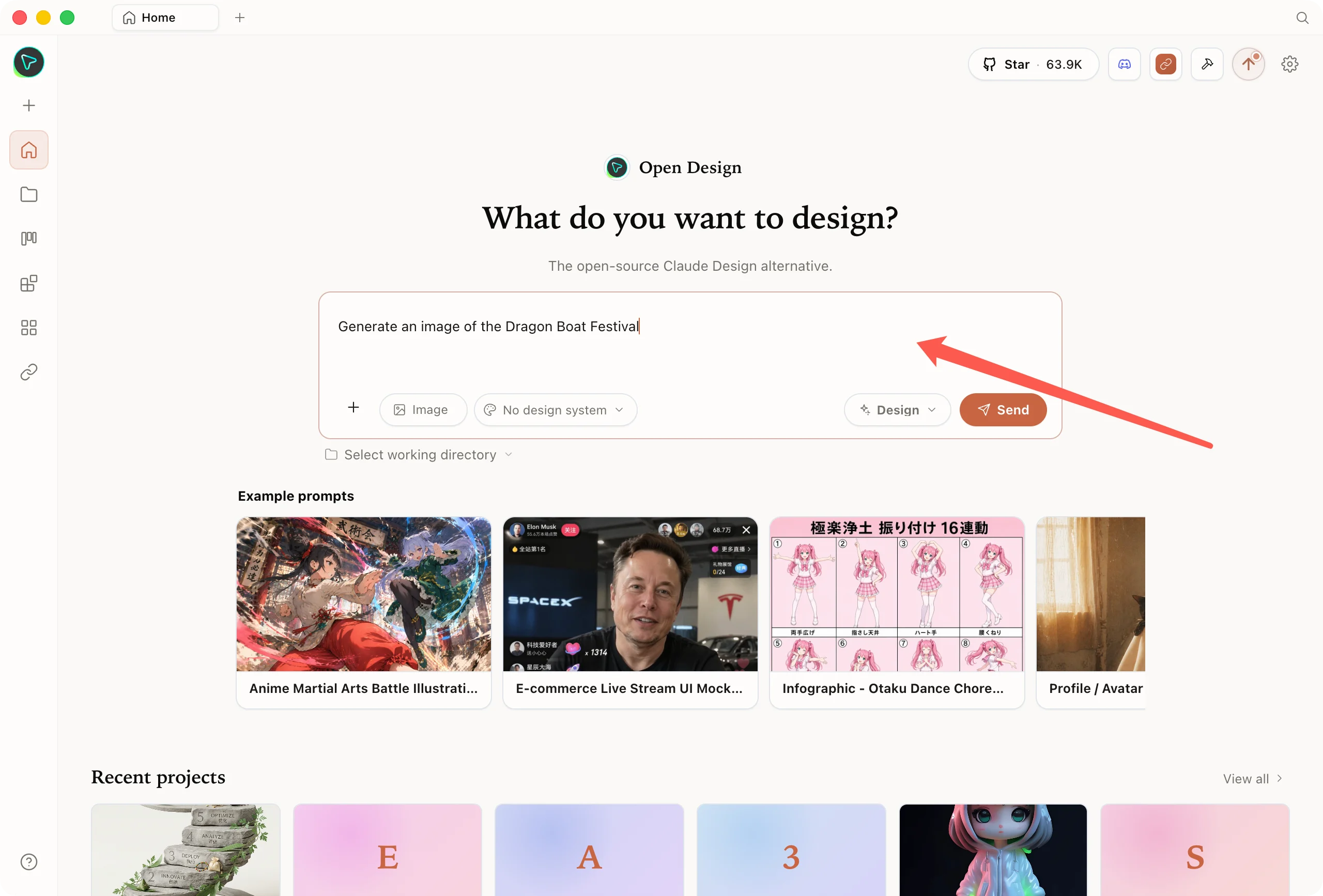
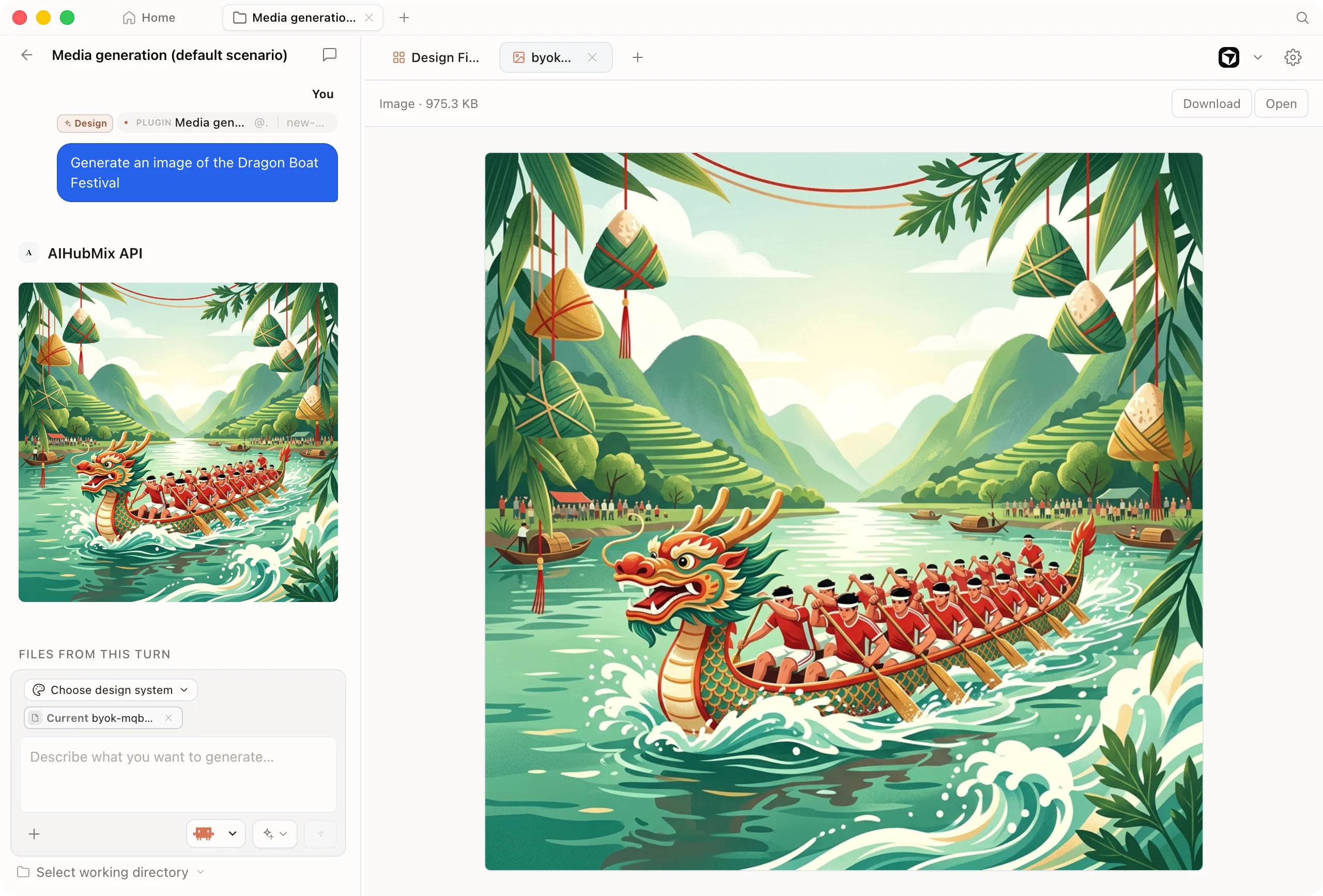
In chat, switch the mode to Image and just describe what you want, e.g. “Generate an image of the Dragon Boat Festival” — the model calls the built-ingenerate_image tool to produce the image, supporting a range of aspect ratios (1:1, 16:9, 9:16, etc.). The Gemini / Imagen family automatically routes through Gemini’s native image-generation interface.
Video generation
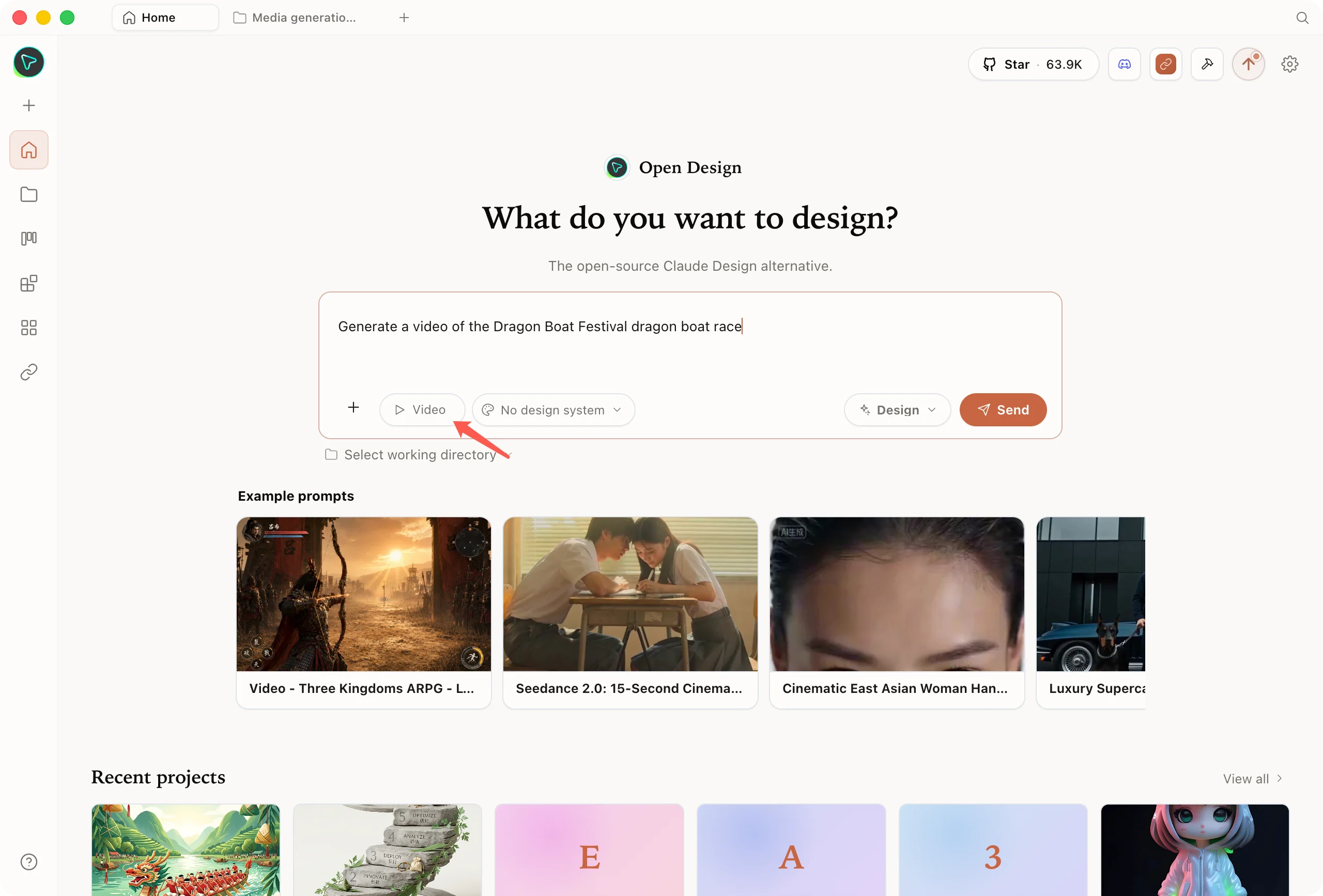
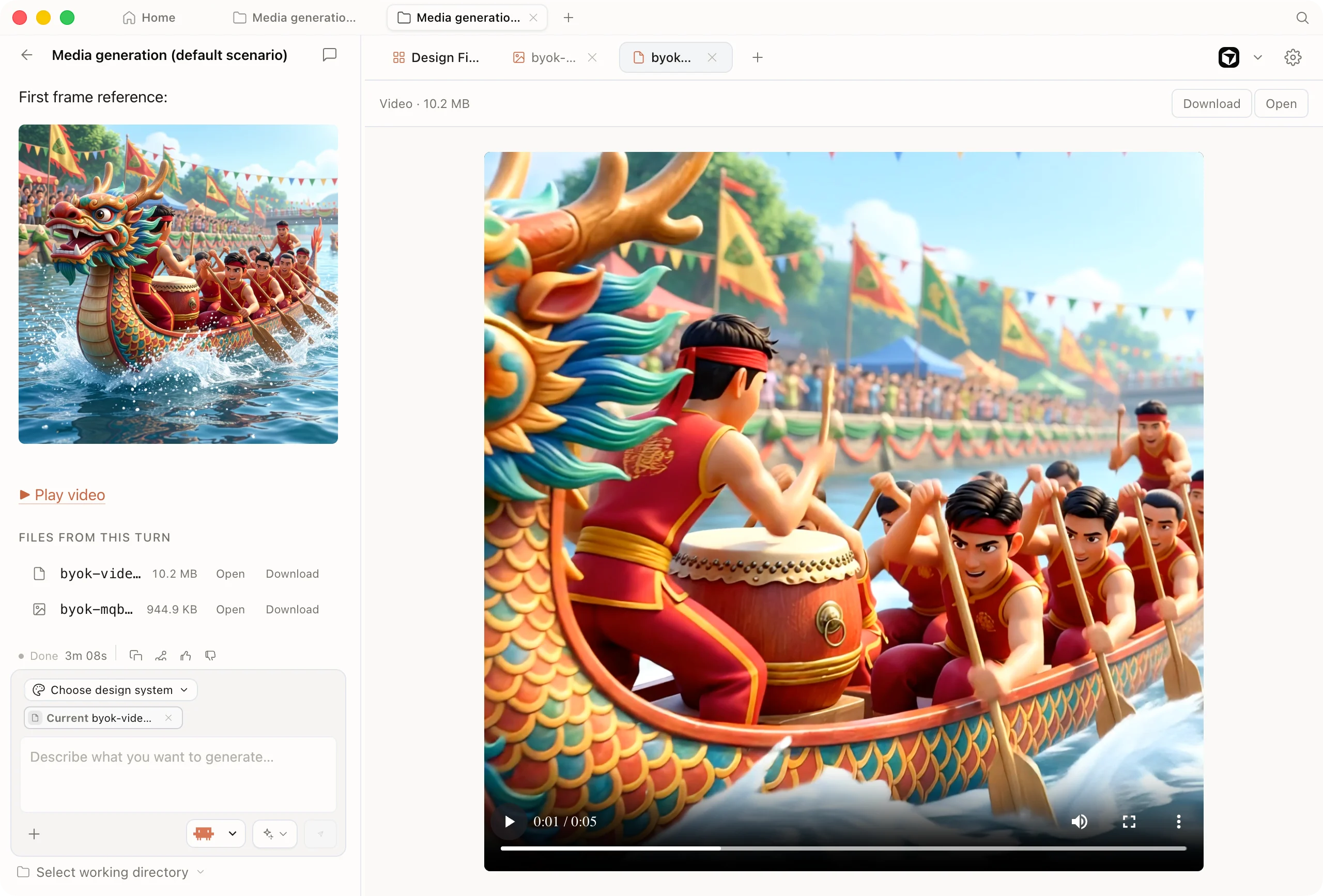
The video family covers Seedance (Doubao), Wan (Tongyi Wanxiang), Veo (Google), Sora (OpenAI), and more (for model suggestions, see “Step 3: pick a model” above; the specific support for text-to-video / image-to-video, duration, aspect ratio, and audio for each provider follows the live catalog and the respective official docs). In chat, switch the mode to Video and describe a single line to triggergenerate_video, with support for setting duration and aspect ratio. Image-to-video (i2v) models need a reference image — if you don’t specify one, the app automatically takes the most recent image in the project (specify a reference image explicitly for precise control), which makes the “generate an image first, then a video” flow very smooth. Videos are generated asynchronously; the app polls automatically and embeds the result directly into the conversation once it’s done.
Speech / voiceover
The speech model and voice also come with pre-selected defaults in the BYOK panel (the voice defaults toalloy, with echo / fable / onyx / nova / shimmer also available), so you can use generate_speech in chat to turn any copy into a voiceover — adding narration directly to prototype demos and video voiceovers.
Frequently asked questions (FAQ)
Open Design's built-in Local CLI mode is more powerful, so why use BYOK?
Open Design's built-in Local CLI mode is more powerful, so why use BYOK?
Local CLI (calling an agent already installed on your machine) can edit local code directly, but it requires you to install the corresponding CLI first. API (BYOK) mode installs no CLI — set up a single AIHubMix Key and you get the full set of chat + image / video / speech right away, so it’s the fastest to get started. You can switch between the two modes as needed.
Can BYOK mode let the AI edit my local code files directly?
Can BYOK mode let the AI edit my local code files directly?
No. In BYOK mode the AI only produces artifacts; it doesn’t read, write, or edit project files. When you need the agent to edit local code directly, switch to Local CLI mode. Chat and image / video / speech generation are not subject to this limitation.
Do I need to fill in a Base URL?
Do I need to fill in a Base URL?
No need to type it. In Open Design, AIHubMix is a gateway with a single fixed entry point, and its address (
https://aihubmix.com/v1) is already built in and hidden from you in the form. You only fill in the API Key — the address is fixed and unique, which means one less field you might fill in wrong.What if I can't find the model I want?
What if I can't find the model I want?
Once the Key connects successfully, you can search AIHubMix’s live model catalog (hundreds of models) in the Model dropdown. The dropdown also presets a few common flagship models for quick onboarding. As long as AIHubMix supports the model name, you can select it; currently available models follow the live catalog.
What if I can't connect / can't generate images?
What if I can't connect / can't generate images?
- Test fails, can’t connect: check that the API Key is entered correctly, that your AIHubMix account has a balance, and that your machine’s network can reach
aihubmix.com. - Chat works but no images / videos: most likely the current chat model didn’t initiate a tool call. Switch to a model that supports function calling (such as
gpt-5.5orclaude-opus-4-8) and media generation will trigger. - A model is reported as unsupported: go by the models you can actually find in AIHubMix’s live catalog.
Will Claude's thinking or Gemini's native capabilities be weakened?
Will Claude's thinking or Gemini's native capabilities be weakened?
No. Open Design routes to AIHubMix’s corresponding native-protocol endpoint by model name:
claude* goes to Anthropic, gemini* / imagen* go to Gemini, everything else goes to the OpenAI-compatible interface. The native protocol is preserved faithfully, so exclusive capabilities like the chain of thought and native image generation come through in full.Are my Key and data safe?
Are my Key and data safe?
Open Design is a local-first app: the API Key and project data are all stored on your own machine (local SQLite, with project files under
.od/projects/). Telemetry is off by default and opt-in. Requests are forwarded by a local daemon to AIHubMix, and AIHubMix only does model routing and forwarding.Get started now
- Sign up at aihubmix.com, create an
sk-Key in the console, and pre-load a little credit (image / video generation will use it) - In Open Design → Settings → Execution mode → API provider(BYOK), select AIHubMix and paste the Key
- Pick a model in the Model dropdown and have it build a landing page + key visual to start creating