> ## Documentation Index
> Fetch the complete documentation index at: https://docs.aihubmix.com/llms.txt
> Use this file to discover all available pages before exploring further.
# 在 Dify 中使用
## 通常使用情況(使用OpenAI模型)
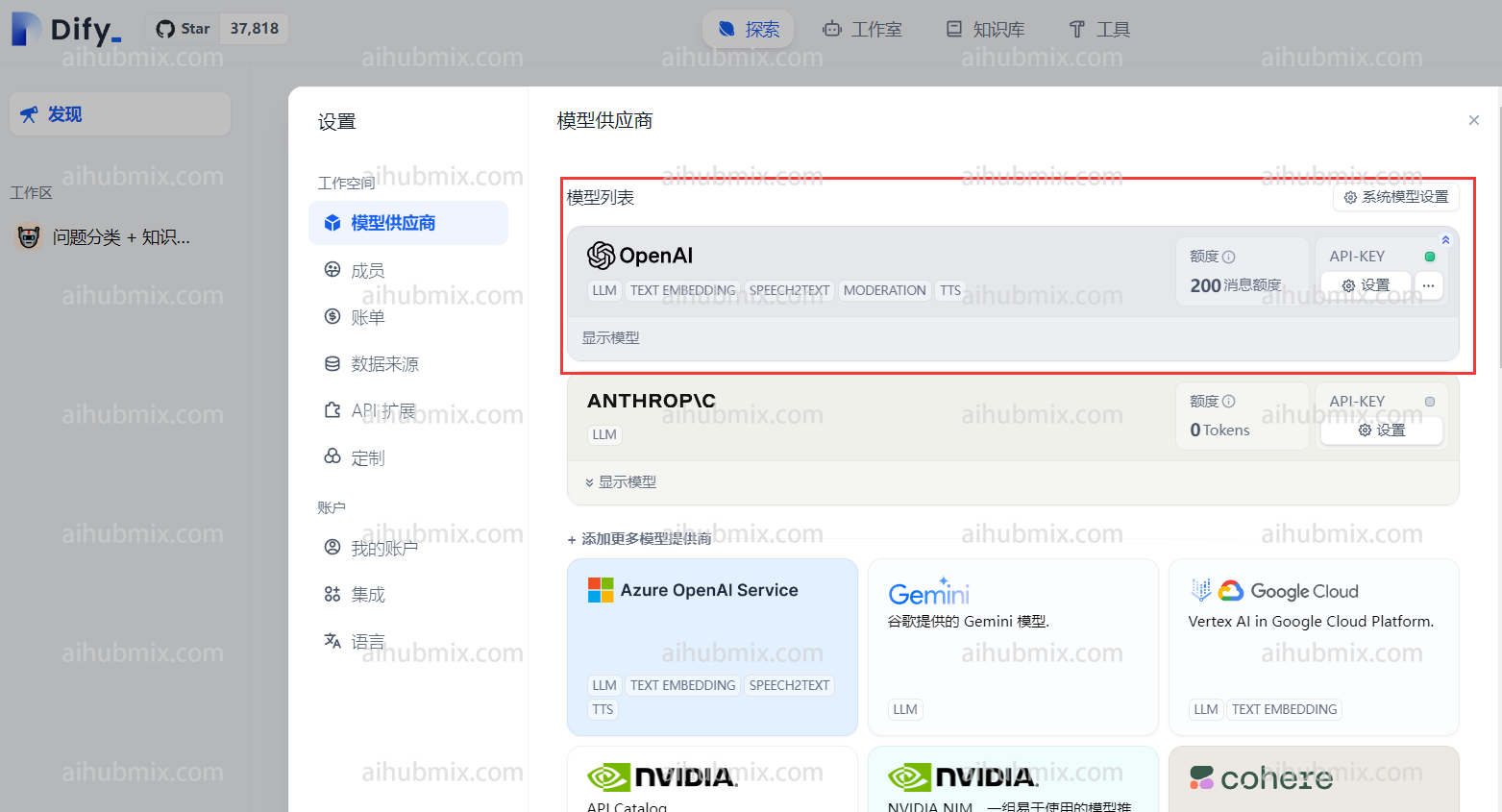
網頁右上角點擊自己的使用者名稱,進入設定介面。\
在模型供應商中選擇ApenAI並開啟設定。\\
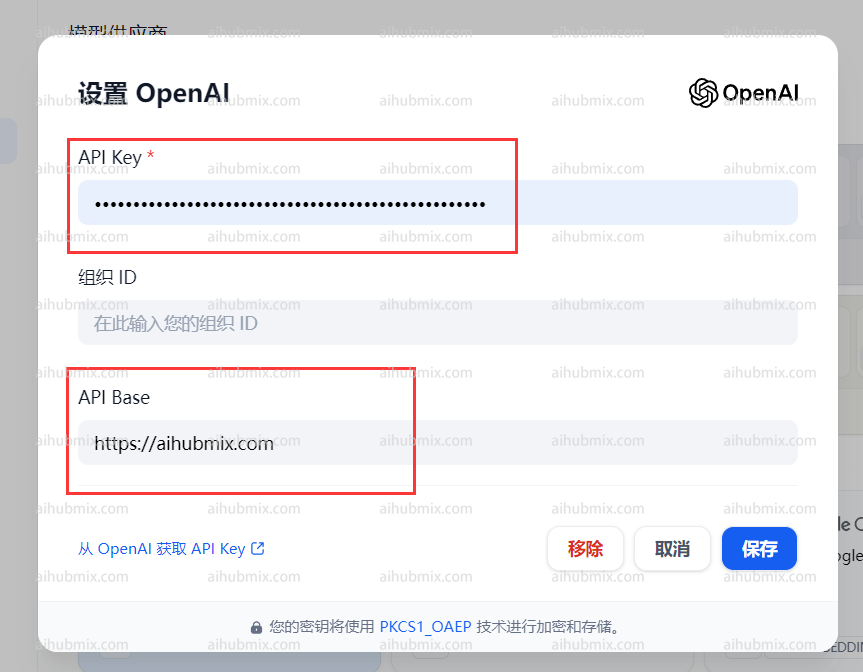
 * 在API Key一欄輸入[本站的Key](https://aihubmix.com/token)。
* 在API Base一欄輸入:
```
https://aihubmix.com
```
* 在API Key一欄輸入[本站的Key](https://aihubmix.com/token)。
* 在API Base一欄輸入:
```
https://aihubmix.com
```
 ## 使用非OpenAI模型方法
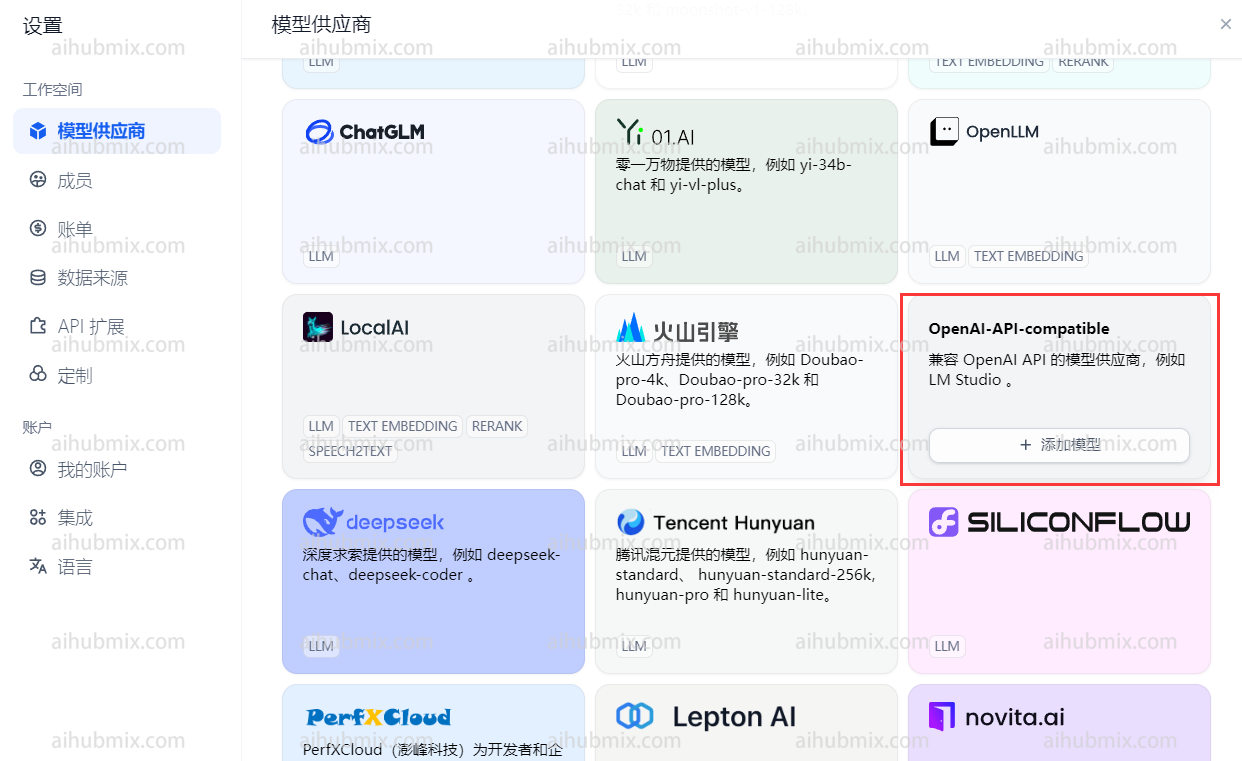
在模型供應商下拉找到OpenAI-API-compatible並點擊新增模型。\\
## 使用非OpenAI模型方法
在模型供應商下拉找到OpenAI-API-compatible並點擊新增模型。\\
 * 開啟網站後台設定頁面,找到模型清單。
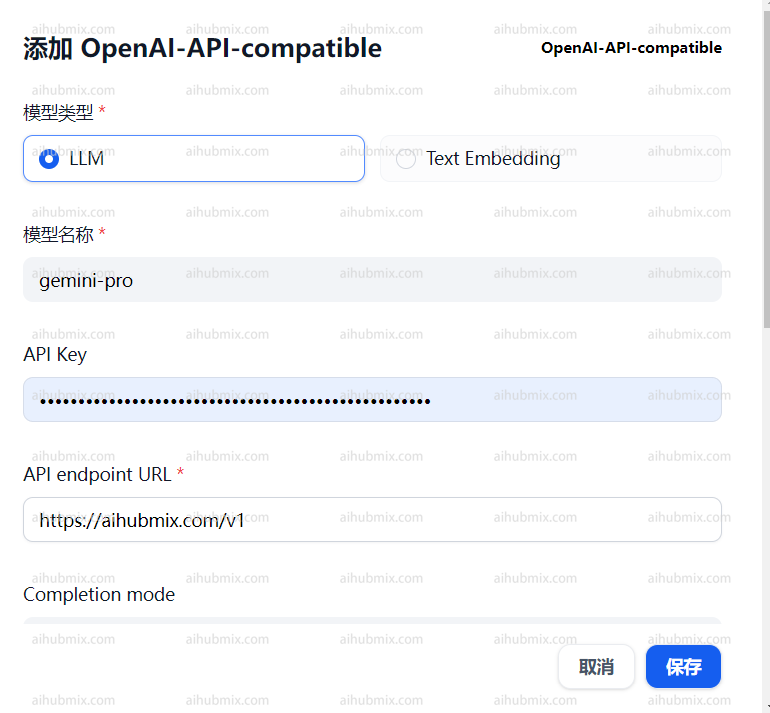
* 複製你想要使用的模型名稱(如gemini-pro或claude-3-opus-20240229)。
* 在API Key一欄輸入[本站的Key](https://aihubmix.com/token)。
* 在API endpoint URL一欄輸入:
```
https://aihubmix.com/v1
```
##
* 開啟網站後台設定頁面,找到模型清單。
* 複製你想要使用的模型名稱(如gemini-pro或claude-3-opus-20240229)。
* 在API Key一欄輸入[本站的Key](https://aihubmix.com/token)。
* 在API endpoint URL一欄輸入:
```
https://aihubmix.com/v1
```
##  最後更新:2026-06-01