> ## Documentation Index
> Fetch the complete documentation index at: https://docs.aihubmix.com/llms.txt
> Use this file to discover all available pages before exploring further.
# CodeBuddy
> 在 CodeBuddy 中設定 AIHubMix,使用 AIHubMix 支援的任意模型。
CodeBuddy 支援自訂 OpenAI 相容模型。設定 AIHubMix 後,可在 CodeBuddy 中使用 GPT、Claude、Gemini、DeepSeek、GLM 等 AIHubMix 模型。
## 準備工作
* 安裝並開啟 [CodeBuddy](https://www.codebuddy.cn/)。
* 在 [AIHubMix 控制台](https://aihubmix.com/token) 建立 API Key,格式通常為 `sk-***`。
* 從 AIHubMix 模型清單複製要使用的模型 ID,例如 `gpt-5.5`、`gemini-3.5-flash` 或 `deepseek-chat`。
## 前端介面設定 AIHubMix 模型
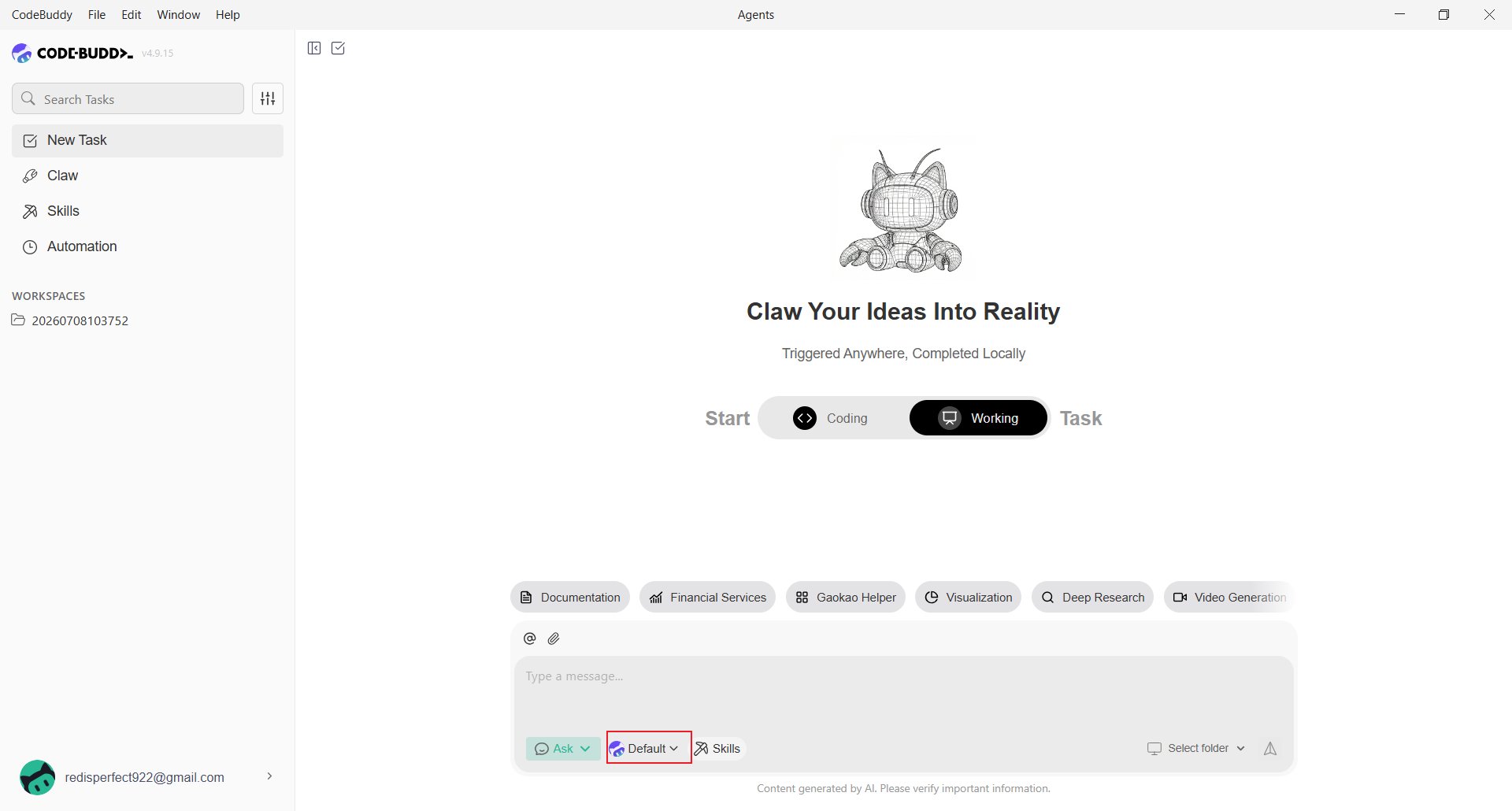
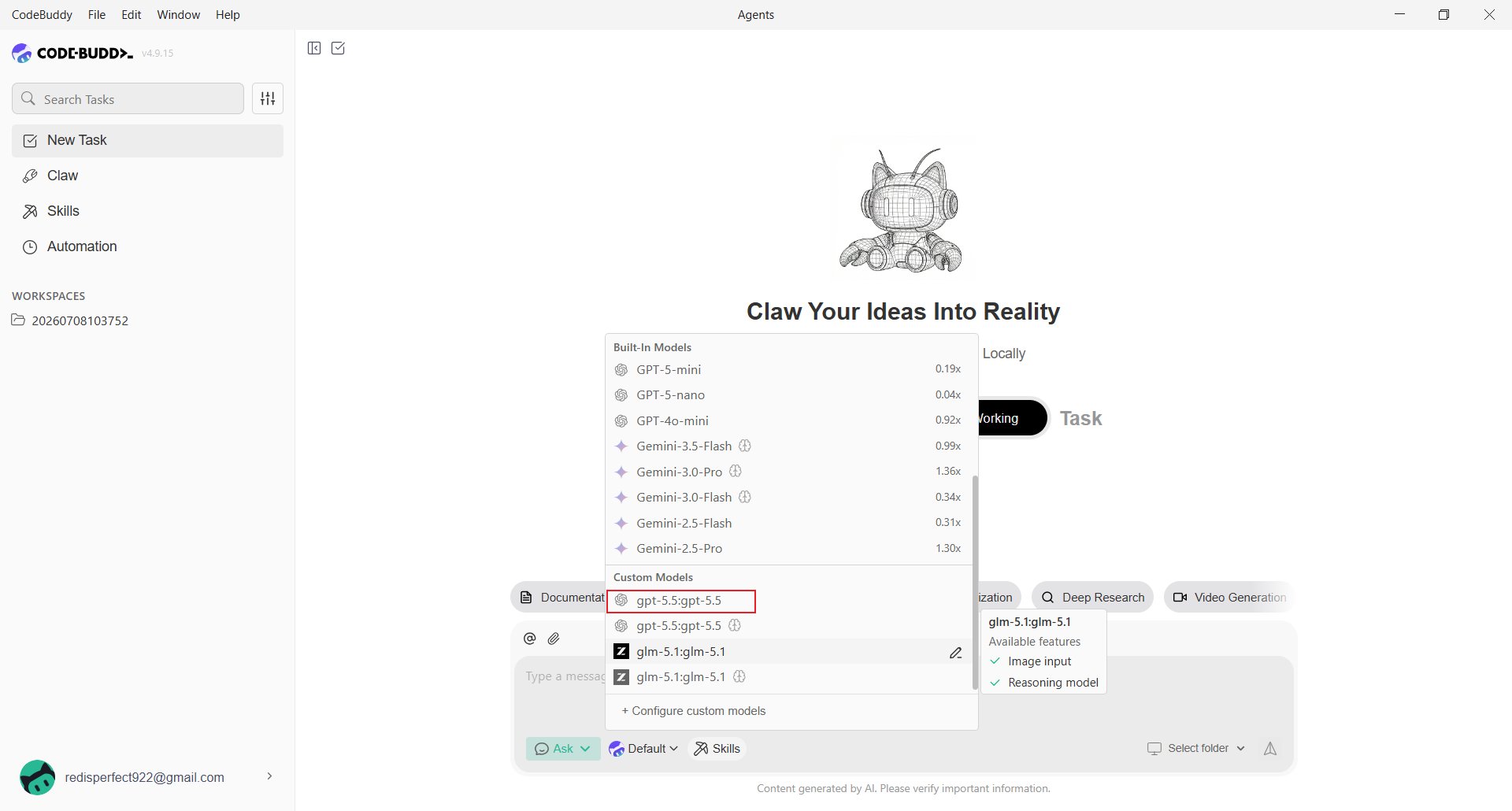
在 CodeBuddy 輸入框下方點擊目前模型名稱,例如 **Default**。
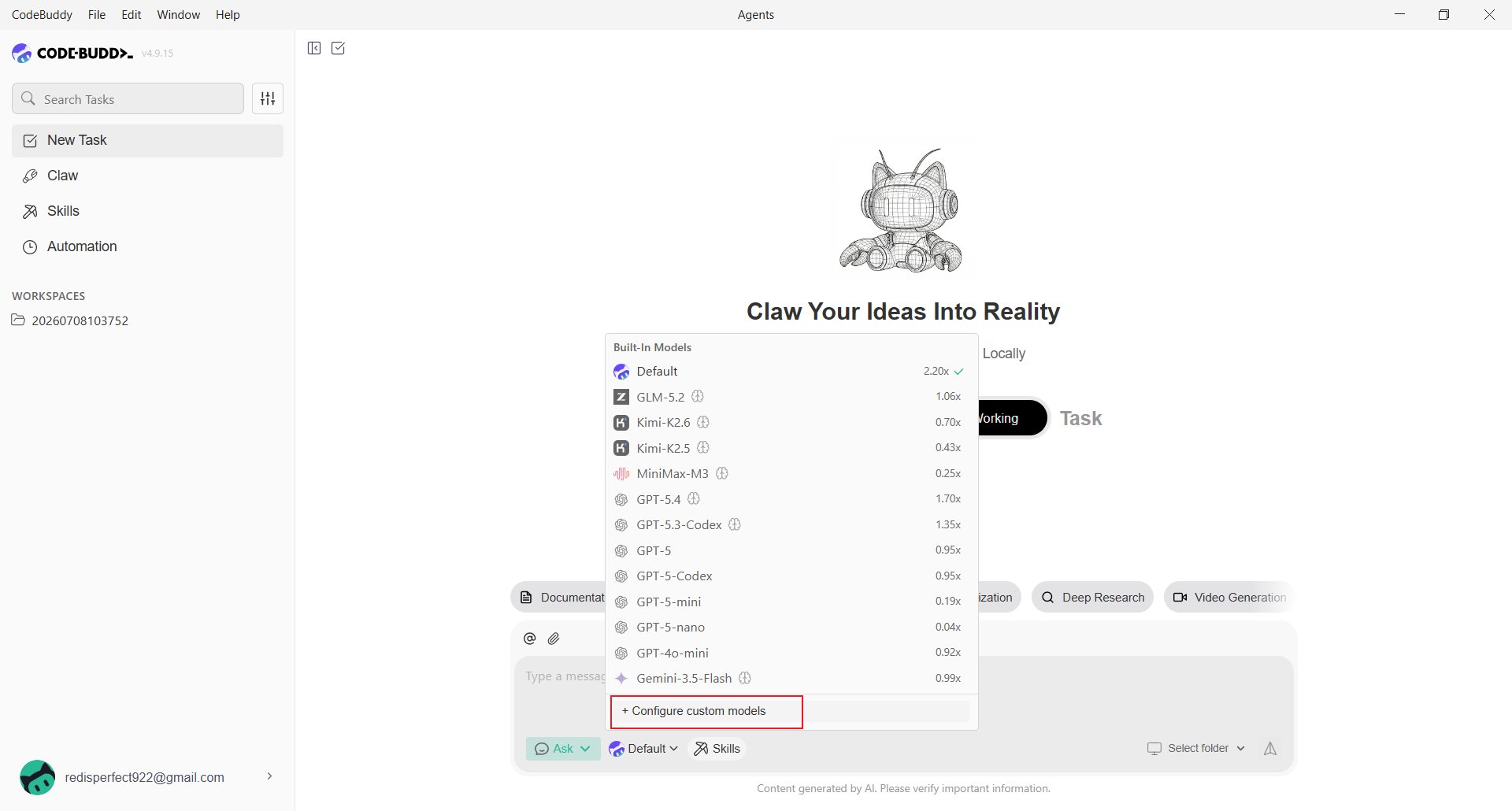
 將模型清單捲動至底部,點擊 **Configure custom models**,再點擊 **Add Model**,並在 **Provider** 選擇 **Custom**。
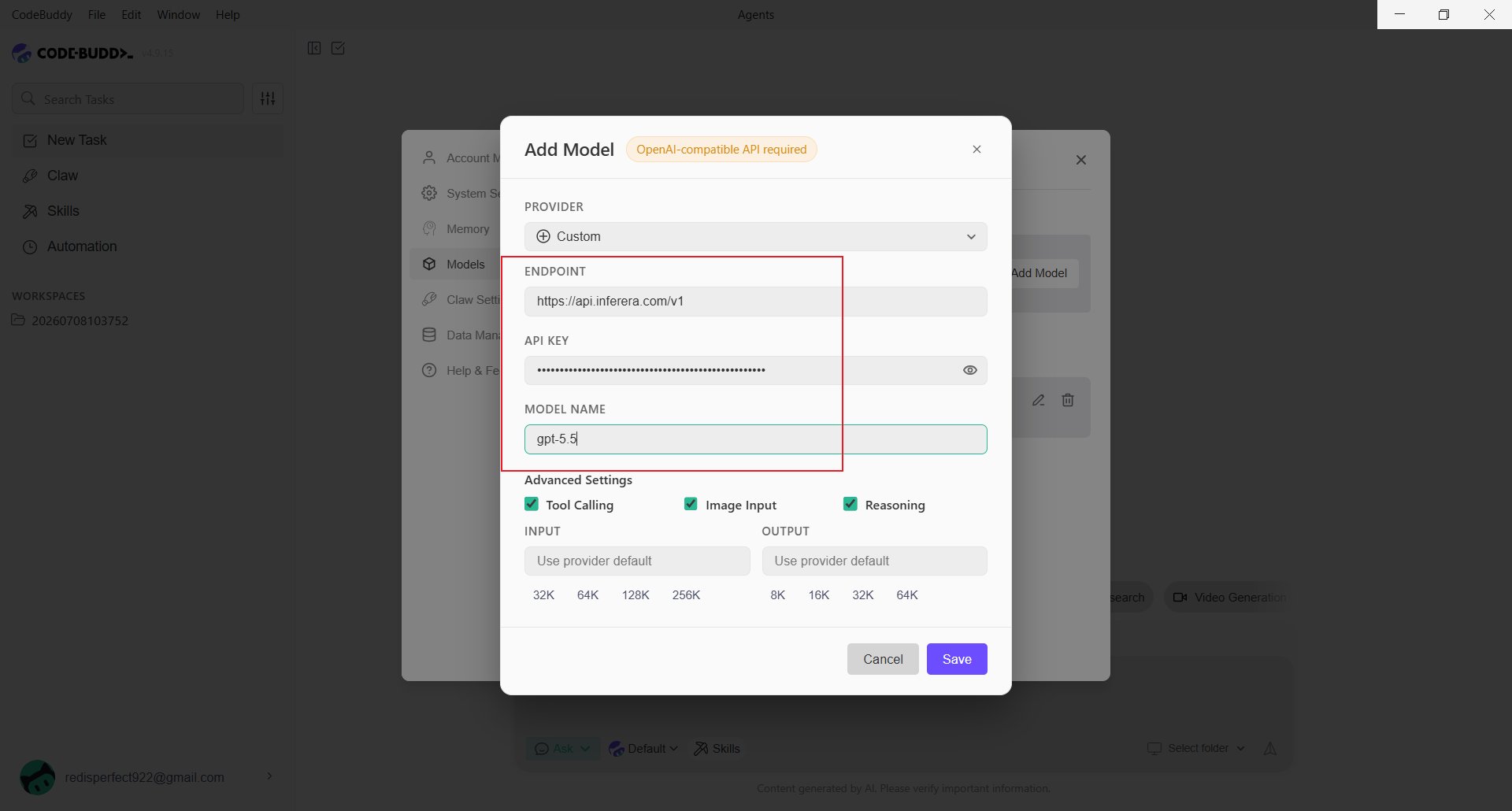
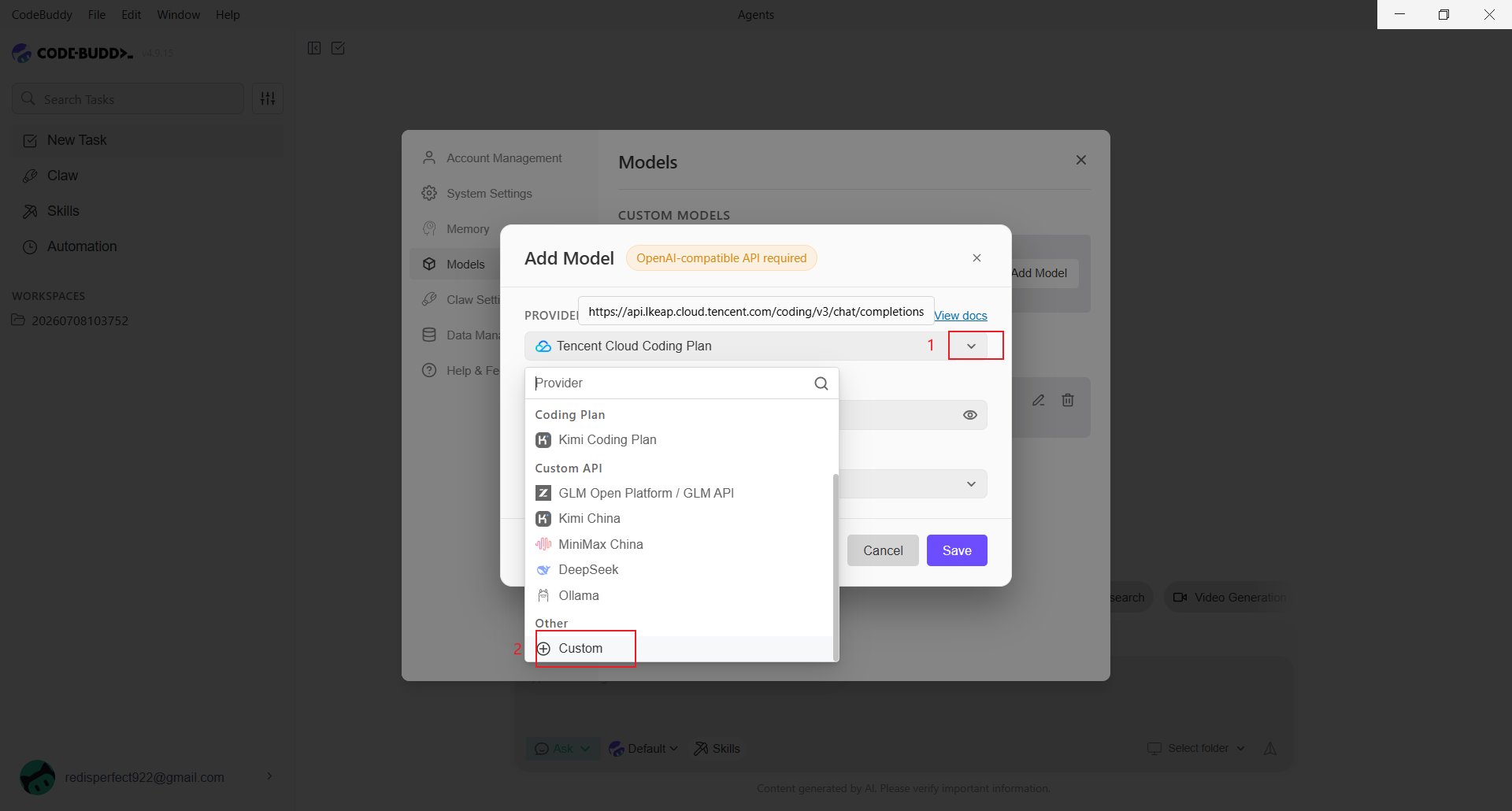 * **Endpoint**:填入 `https://aihubmix.com/v1`。主地址暫時無法使用時,改用備用地址 `https://api.inferera.com/v1`。
* **API Key**:填入在 [AIHubMix 控制台](https://aihubmix.com/token) 建立的 Key。
* **Model Name**:填入模型 ID,例如 `gpt-5.5`。
* **Advanced Settings**:僅依模型能力開啟 **Tool Calling**、**Image Input** 或 **Reasoning**。
填妥後點擊 **Save**,並在 **Custom Models** 中選擇剛新增的模型。
* **Endpoint**:填入 `https://aihubmix.com/v1`。主地址暫時無法使用時,改用備用地址 `https://api.inferera.com/v1`。
* **API Key**:填入在 [AIHubMix 控制台](https://aihubmix.com/token) 建立的 Key。
* **Model Name**:填入模型 ID,例如 `gpt-5.5`。
* **Advanced Settings**:僅依模型能力開啟 **Tool Calling**、**Image Input** 或 **Reasoning**。
填妥後點擊 **Save**,並在 **Custom Models** 中選擇剛新增的模型。
 ## 透過設定檔新增模型
直接編輯本機檔案:
```text theme={null}
%USERPROFILE%\.codebuddy\models.json
```
專案層級設定的位置是 `你的專案目錄\.codebuddy\models.json`,且優先順序較高。`models.json` 使用完整的 Chat Completions 地址:
```json theme={null}
{"models":[{"id":"gpt-5.5","name":"gpt-5.5","vendor":"AIHubMix","url":"https://aihubmix.com/v1/chat/completions","apiKey":"sk-***","maxInputTokens":128000,"maxOutputTokens":8192,"supportsToolCall":true,"supportsImages":true,"supportsReasoning":true}],"availableModels":["gpt-5.5"]}
```
主地址無法使用時:
```json theme={null}
"url": "https://api.inferera.com/v1/chat/completions"
```
前端介面只需填至 `/v1`;`models.json` 需要完整的 `/chat/completions`。儲存後重新啟動 CodeBuddy,或重新開啟模型選擇器。若不想明文保存 Key:
```json theme={null}
"apiKey": "${AIHUBMIX_API_KEY}"
```
## CodeBuddy CLI
命令列版本稱為 **CodeBuddy Code**。使用 npm 安裝後,以 `codebuddy` 啟動:
```shell theme={null}
npm install -g @tencent-ai/codebuddy-code
```
AIHubMix 的 Anthropic 相容介面在 `CODEBUDDY_BASE_URL` 使用根地址:
```powershell theme={null}
$env:CODEBUDDY_API_KEY="sk-***"
$env:CODEBUDDY_BASE_URL="https://aihubmix.com"
$env:CODEBUDDY_MODEL="glm-4.7"
codebuddy
```
需要固定設定時,寫入 `%USERPROFILE%\.codebuddy\settings.json`:
```json theme={null}
{"env":{"CODEBUDDY_API_KEY":"sk-***","CODEBUDDY_BASE_URL":"https://aihubmix.com","CODEBUDDY_MODEL":"glm-4.7"}}
```
CLI 使用 Anthropic 相容協定,桌面端自訂模型使用 OpenAI 相容地址。遇到 404 時,確認 `CODEBUDDY_BASE_URL` 沒有誤填成 `/v1/chat/completions` 等 OpenAI 路徑。
## 驗證效果
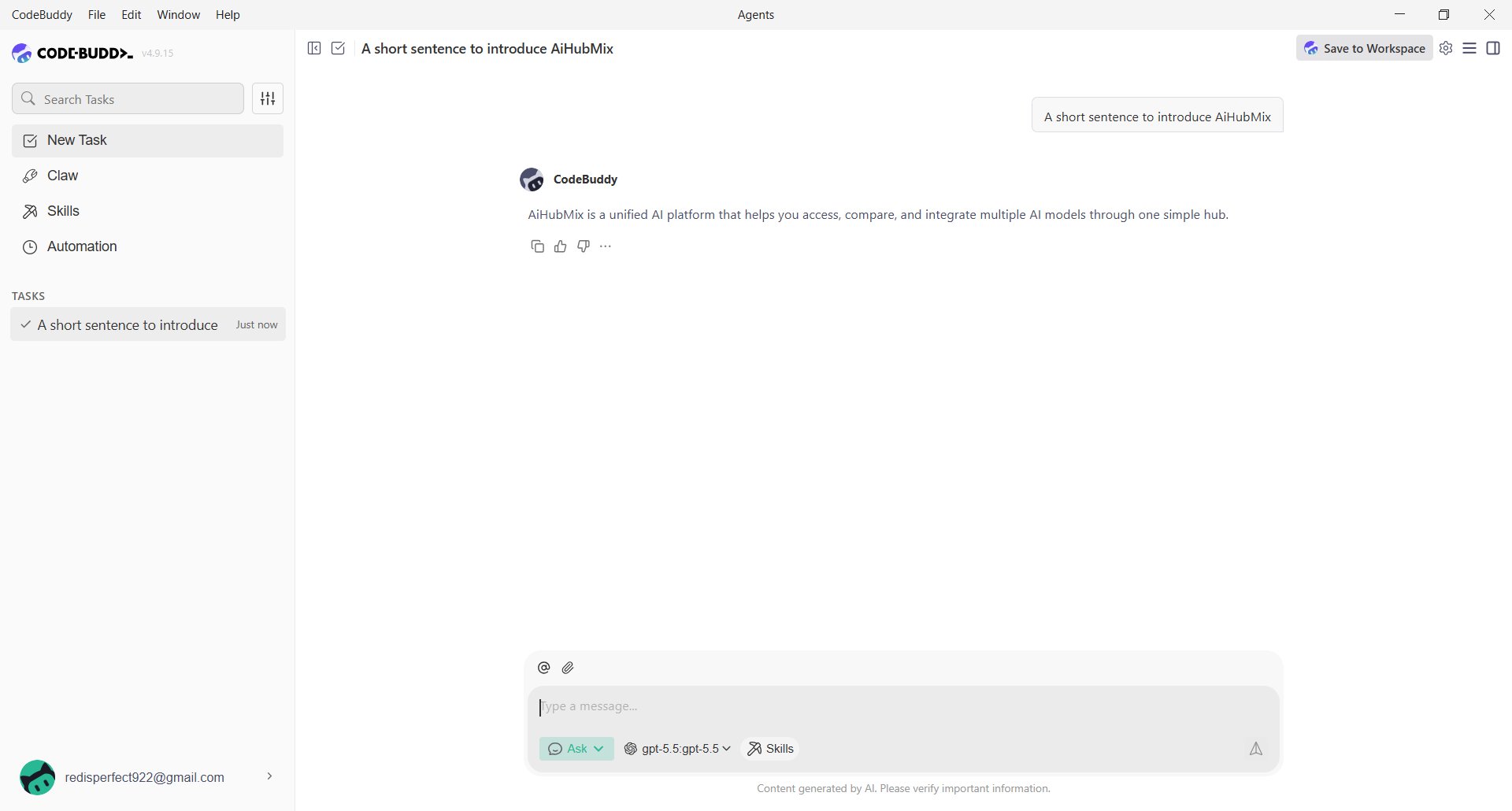
選擇自訂模型並傳送簡短訊息;能正常回覆即表示設定完成。
## 透過設定檔新增模型
直接編輯本機檔案:
```text theme={null}
%USERPROFILE%\.codebuddy\models.json
```
專案層級設定的位置是 `你的專案目錄\.codebuddy\models.json`,且優先順序較高。`models.json` 使用完整的 Chat Completions 地址:
```json theme={null}
{"models":[{"id":"gpt-5.5","name":"gpt-5.5","vendor":"AIHubMix","url":"https://aihubmix.com/v1/chat/completions","apiKey":"sk-***","maxInputTokens":128000,"maxOutputTokens":8192,"supportsToolCall":true,"supportsImages":true,"supportsReasoning":true}],"availableModels":["gpt-5.5"]}
```
主地址無法使用時:
```json theme={null}
"url": "https://api.inferera.com/v1/chat/completions"
```
前端介面只需填至 `/v1`;`models.json` 需要完整的 `/chat/completions`。儲存後重新啟動 CodeBuddy,或重新開啟模型選擇器。若不想明文保存 Key:
```json theme={null}
"apiKey": "${AIHUBMIX_API_KEY}"
```
## CodeBuddy CLI
命令列版本稱為 **CodeBuddy Code**。使用 npm 安裝後,以 `codebuddy` 啟動:
```shell theme={null}
npm install -g @tencent-ai/codebuddy-code
```
AIHubMix 的 Anthropic 相容介面在 `CODEBUDDY_BASE_URL` 使用根地址:
```powershell theme={null}
$env:CODEBUDDY_API_KEY="sk-***"
$env:CODEBUDDY_BASE_URL="https://aihubmix.com"
$env:CODEBUDDY_MODEL="glm-4.7"
codebuddy
```
需要固定設定時,寫入 `%USERPROFILE%\.codebuddy\settings.json`:
```json theme={null}
{"env":{"CODEBUDDY_API_KEY":"sk-***","CODEBUDDY_BASE_URL":"https://aihubmix.com","CODEBUDDY_MODEL":"glm-4.7"}}
```
CLI 使用 Anthropic 相容協定,桌面端自訂模型使用 OpenAI 相容地址。遇到 404 時,確認 `CODEBUDDY_BASE_URL` 沒有誤填成 `/v1/chat/completions` 等 OpenAI 路徑。
## 驗證效果
選擇自訂模型並傳送簡短訊息;能正常回覆即表示設定完成。
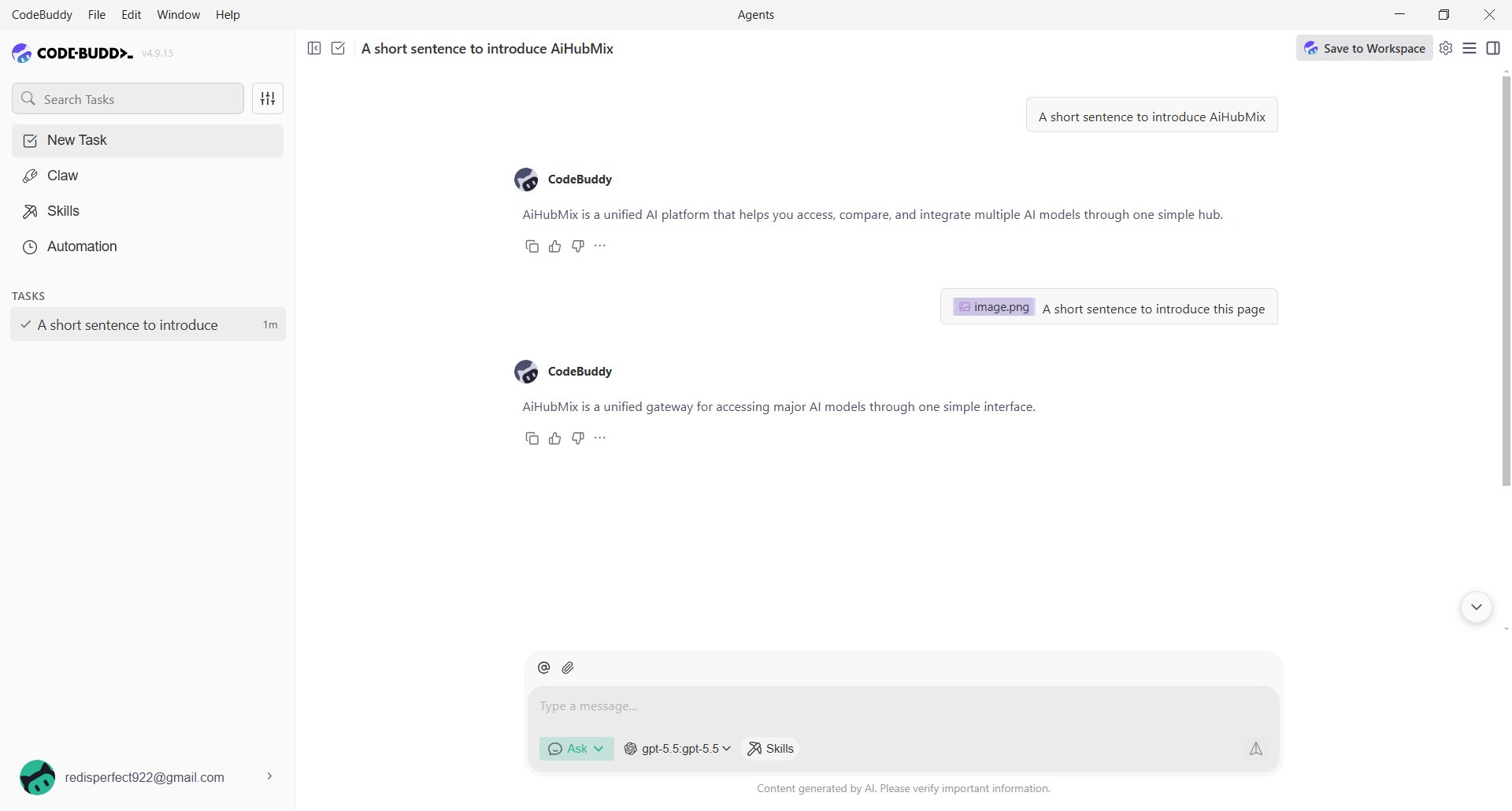
 若模型支援圖片輸入,可上傳圖片測試。
 ## 常見問題
**儲存後模型無法使用?**
確認 Endpoint 包含 `/v1`、API Key 完整且模型名稱與 AIHubMix 模型 ID 一致。手動設定時,`url` 還必須包含 `/chat/completions`。
**CLI 與桌面端使用相同設定嗎?**
不完全相同。桌面端使用 `models.json`;CLI 讀取環境變數或 `settings.json` 的 `env`。
更新時間:2026-07-10
## 常見問題
**儲存後模型無法使用?**
確認 Endpoint 包含 `/v1`、API Key 完整且模型名稱與 AIHubMix 模型 ID 一致。手動設定時,`url` 還必須包含 `/chat/completions`。
**CLI 與桌面端使用相同設定嗎?**
不完全相同。桌面端使用 `models.json`;CLI 讀取環境變數或 `settings.json` 的 `env`。
更新時間:2026-07-10