> ## Documentation Index
> Fetch the complete documentation index at: https://docs.aihubmix.com/llms.txt
> Use this file to discover all available pages before exploring further.
# 在 Cherry Studio 中使用
> 在 Cherry Studio 桌面客戶端中接入 AIHubMix,調用 Claude、GPT、Gemini 等模型,並為 Claude 開啟提示詞緩存以降本提速。
**[Cherry Studio AI 下載地址](https://easys.run/cherry-studio/)**
## 通常使用方法
1. 應用左下角開啟設定。\\
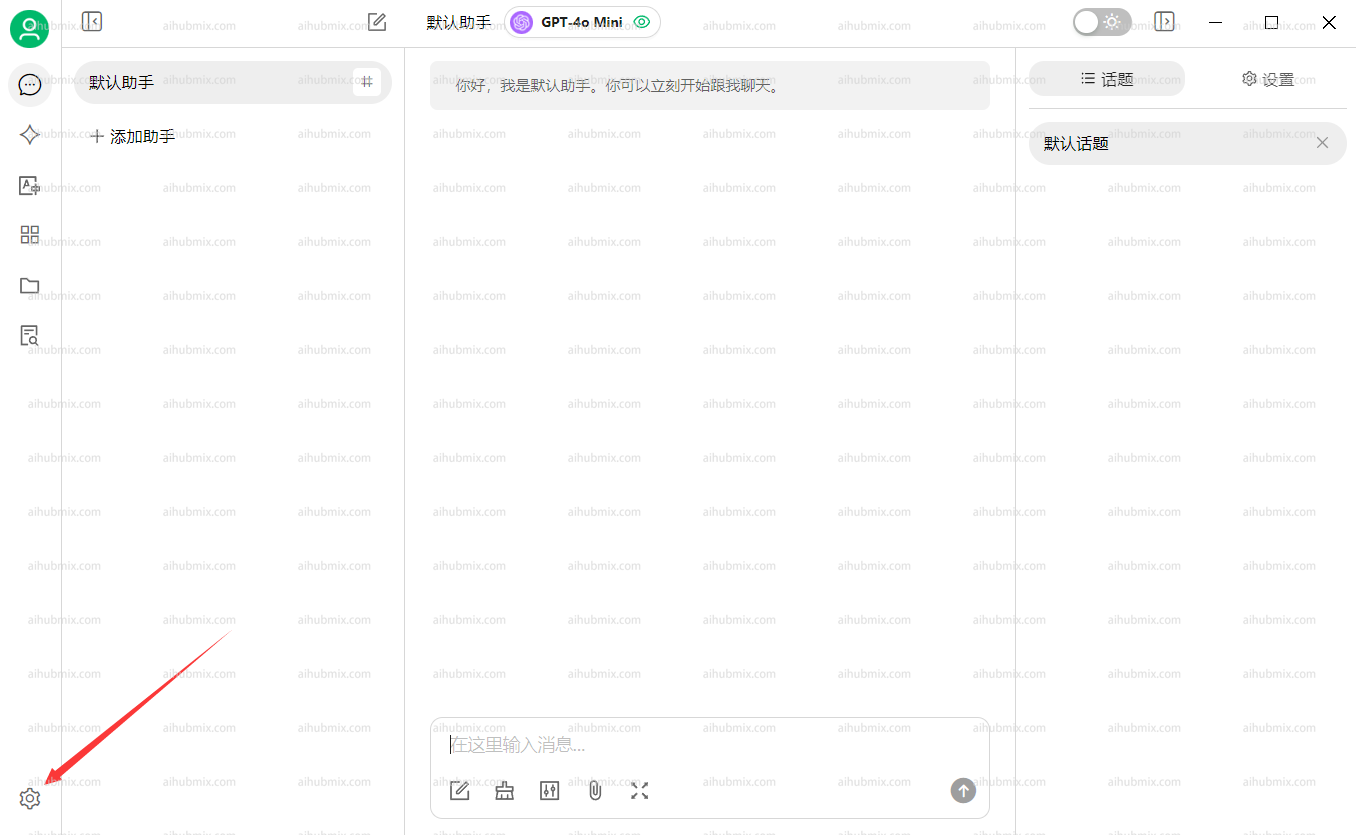 2. 在模型供應商介面選擇我們的 AiHubMix,點擊右上角按鈕啟用。
3. API 密鑰一欄輸入[本站的 Key](https://aihubmix.com/token),API 地址一欄不用修改。\
**注:如果檢查不通過嘗試關閉 vpn**\\
2. 在模型供應商介面選擇我們的 AiHubMix,點擊右上角按鈕啟用。
3. API 密鑰一欄輸入[本站的 Key](https://aihubmix.com/token),API 地址一欄不用修改。\
**注:如果檢查不通過嘗試關閉 vpn**\\
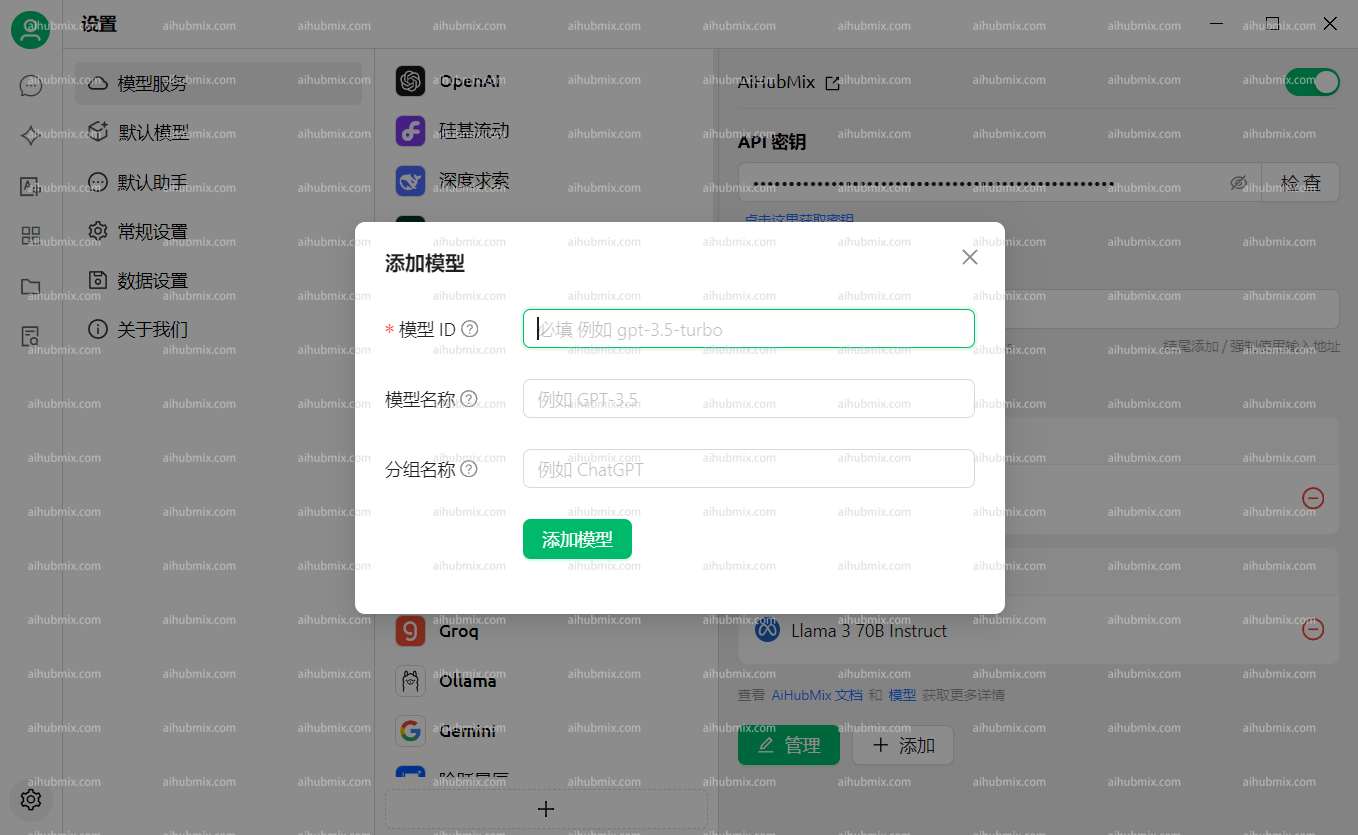
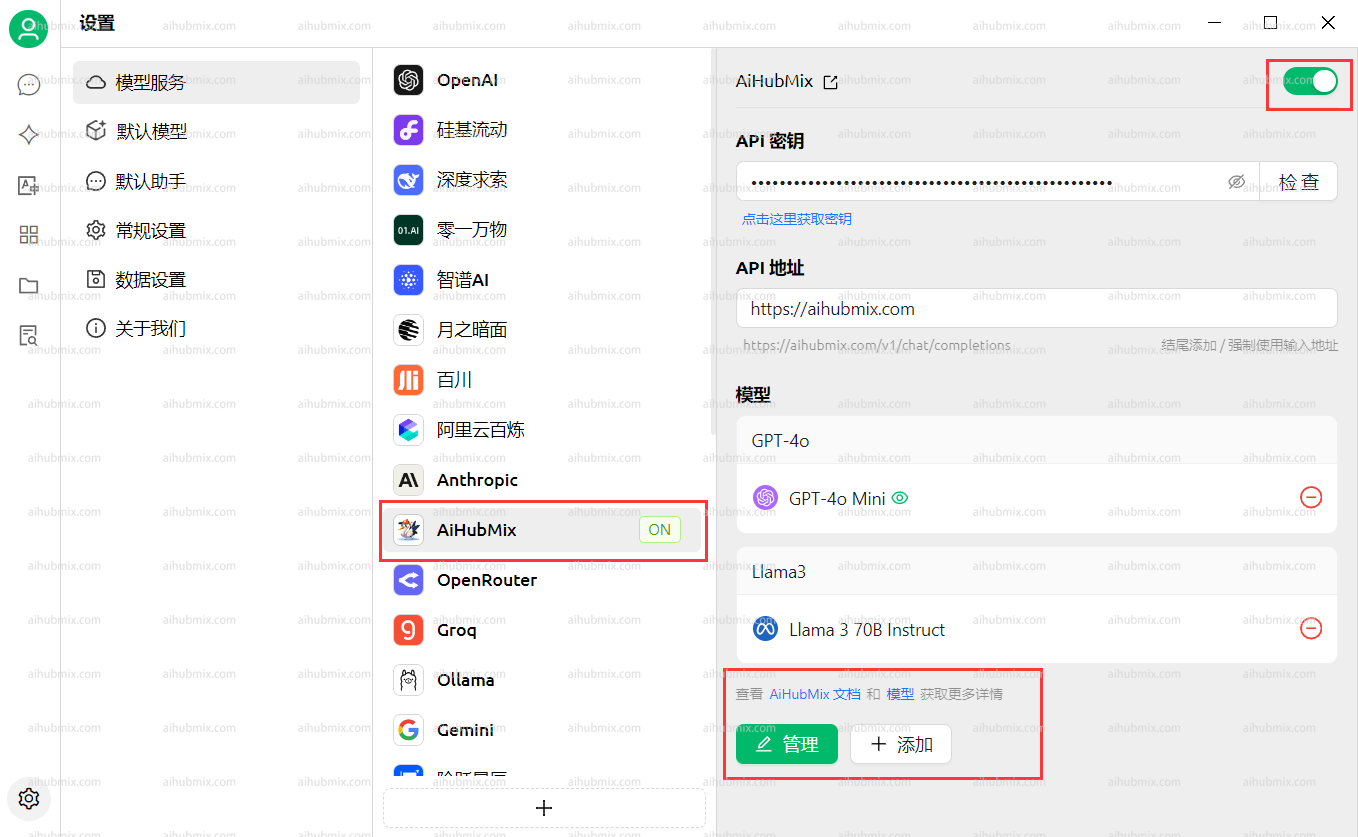 4. 下方點擊新增模型,模型 ID 從本網站的設定介面選擇想要使用的模型複製貼上名稱。\\
 ## 如果遇到模型看不到圖片的問題
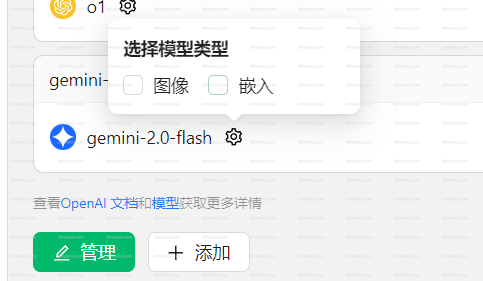
一些新模型可能遇到輸入圖片後模型看不到的問題。需要在設定頁面手動勾選圖像選項。\\
## 如果遇到模型看不到圖片的問題
一些新模型可能遇到輸入圖片後模型看不到的問題。需要在設定頁面手動勾選圖像選項。\\
 ## 啟用 Claude 提示詞緩存
在 Aihubmix 供應商的「API 設定」(供應商名稱右側齒輪)裡,配置「緩存 Token 閾值」「緩存系統消息」「緩存最後 N 條消息」即可為 Claude 模型自動注入 `cache_control`。各項含義與命中要點見 [Claude 提示詞緩存](../api/Claude-Cache)。
***
最後更新:2026-06-01
## 啟用 Claude 提示詞緩存
在 Aihubmix 供應商的「API 設定」(供應商名稱右側齒輪)裡,配置「緩存 Token 閾值」「緩存系統消息」「緩存最後 N 條消息」即可為 Claude 模型自動注入 `cache_control`。各項含義與命中要點見 [Claude 提示詞緩存](../api/Claude-Cache)。
***
最後更新:2026-06-01