> ## Documentation Index
> Fetch the complete documentation index at: https://docs.aihubmix.com/llms.txt
> Use this file to discover all available pages before exploring further.
# 在 ChatHub 中使用
> 在 ChatHub 中透過 OpenAI 相容 API Key 設定接入 AIHubMix。
ChatHub 是一款多模型 AI 客戶端,可以並排比較不同模型的回答。AIHubMix 可透過 ChatHub 的 OpenAI 相容自訂 API Key 設定接入。
## 安裝並設定 AIHubMix
1. 透過 Chrome Web Store 安裝 ChatHub 外掛:[ChatHub - ChatGPT, Gemini, Claude sidebar](https://chromewebstore.google.com/detail/chathub-chatgpt-gemini-cl/iaakpnchhognanibcahlpcplchdfmgma?utm_source=chathub.gg)。
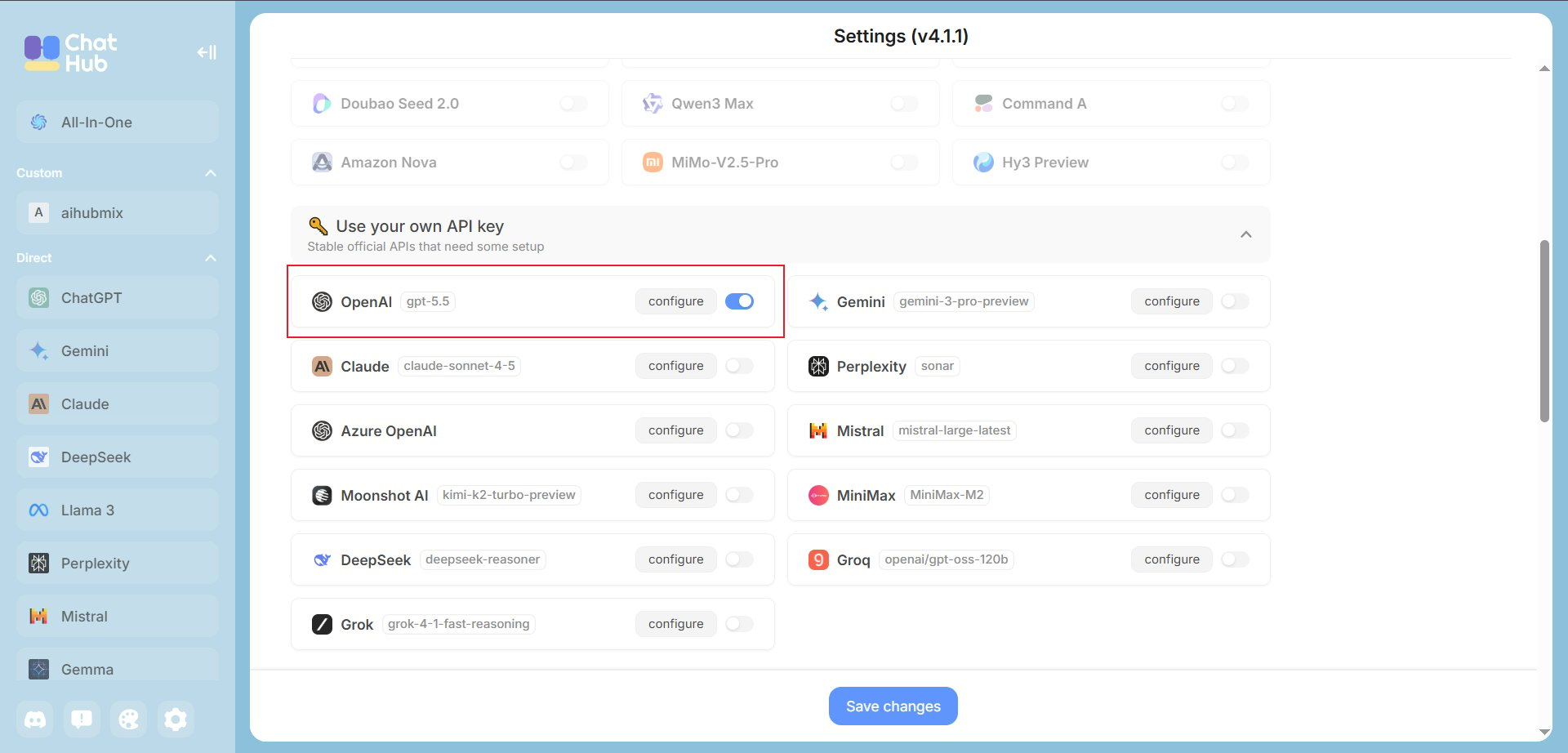
2. 開啟 ChatHub 後,點擊左下角齒輪進入設定頁。在 **Use your own API key** 區域啟用 **OpenAI**,然後點擊 **configure**。
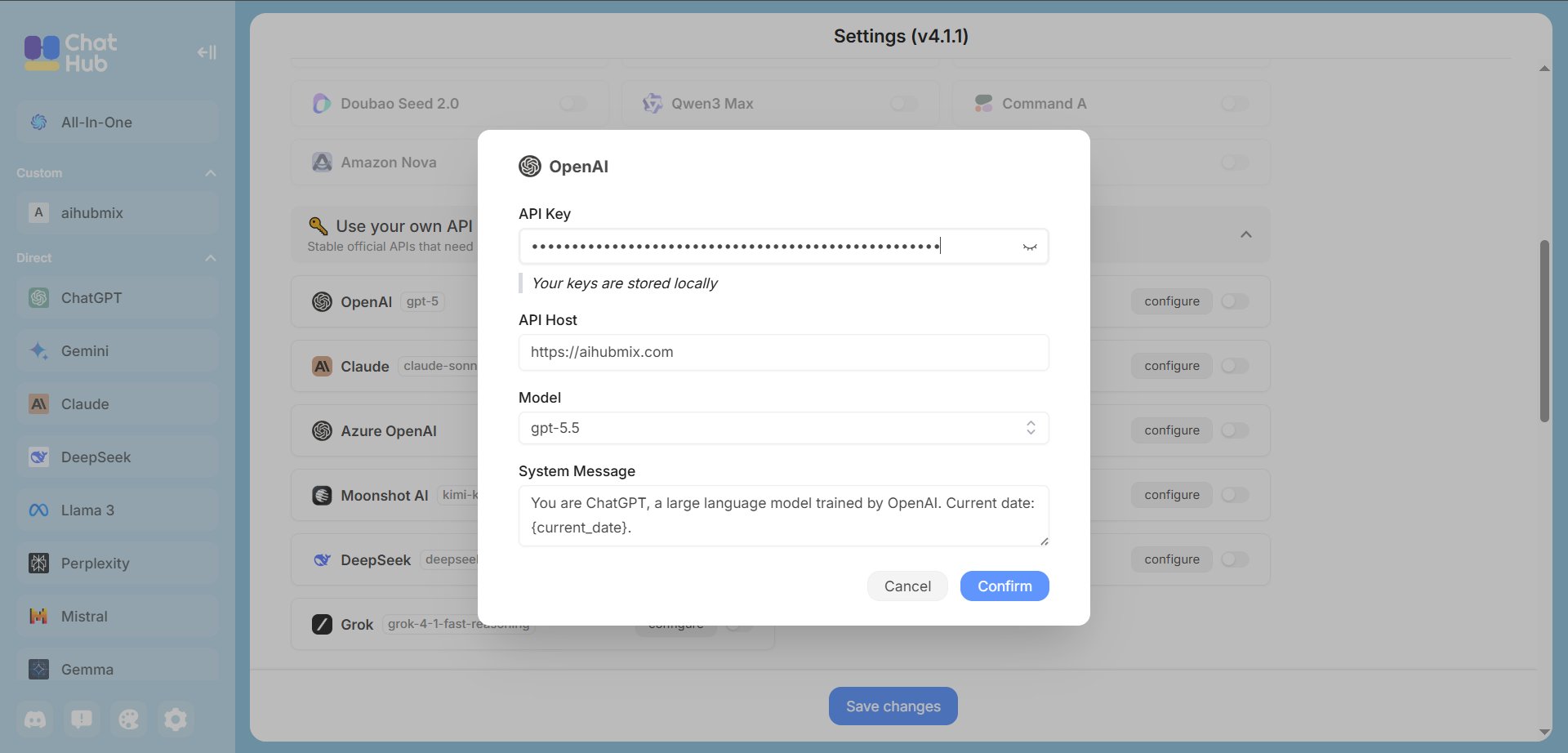
 3. 填寫 AIHubMix 連線資訊:
* **API Key**:在 [AIHubMix 控制台](https://aihubmix.com/token)建立的 Key,通常為 `sk-***` 格式。
* **API Host**:填寫 AIHubMix 位址。如主網域不可用,可改用 `https://api.inferera.com`。
```text theme={null}
https://aihubmix.com
```
* **Model**:選擇或填入要使用的模型 ID,例如 `gpt-5.5`。確認後點擊 **Confirm**,再回到設定頁點擊 **Save changes**。
3. 填寫 AIHubMix 連線資訊:
* **API Key**:在 [AIHubMix 控制台](https://aihubmix.com/token)建立的 Key,通常為 `sk-***` 格式。
* **API Host**:填寫 AIHubMix 位址。如主網域不可用,可改用 `https://api.inferera.com`。
```text theme={null}
https://aihubmix.com
```
* **Model**:選擇或填入要使用的模型 ID,例如 `gpt-5.5`。確認後點擊 **Confirm**,再回到設定頁點擊 **Save changes**。
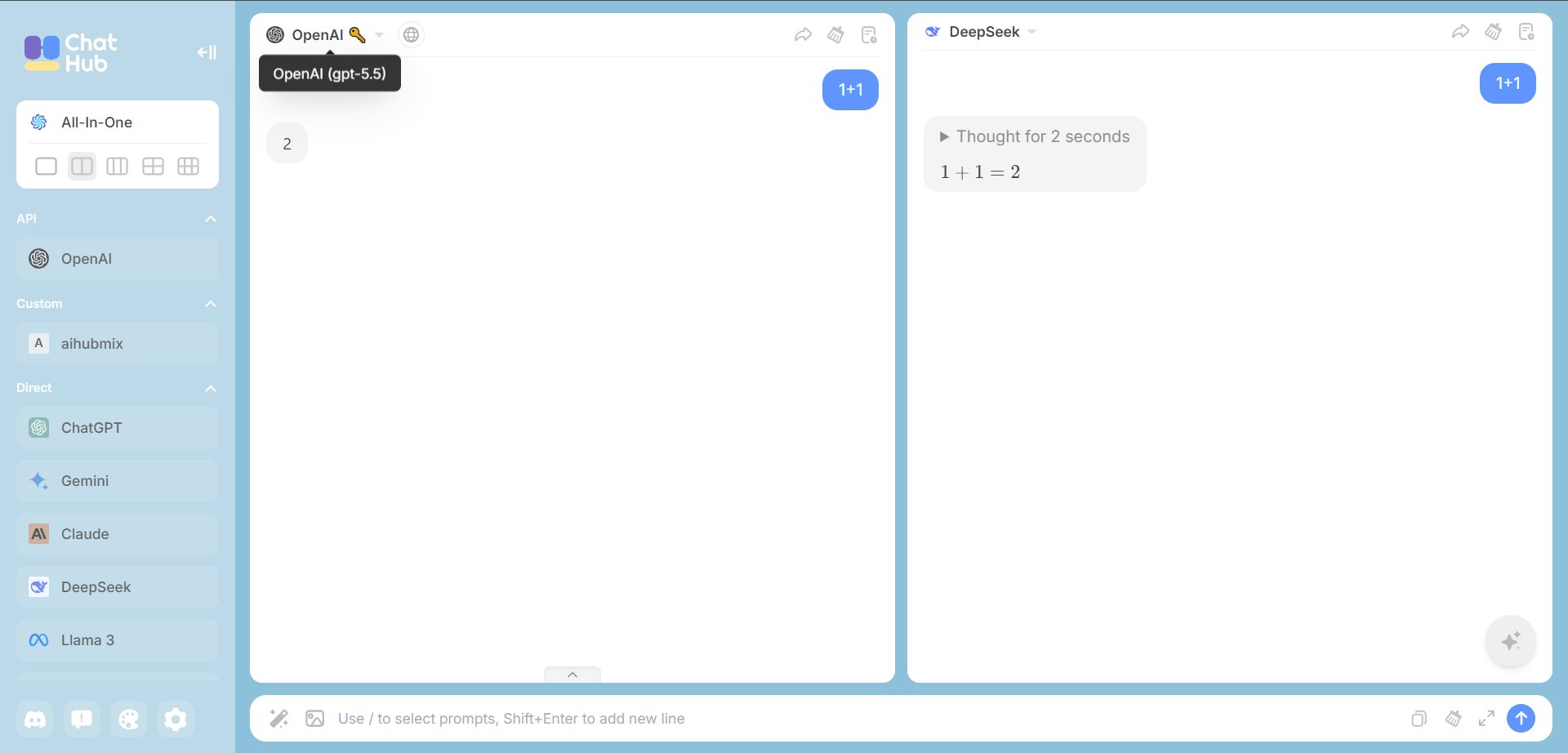
 4. 回到 ChatHub 主頁,左側應能看到已啟用的 AIHubMix 設定。傳送一則簡短訊息確認模型是否正常回覆。
 ## 常見排查
**儲存後沒有反應**:確認 API Key 以 `sk-` 開頭、API Host 為無結尾斜線的 `https://aihubmix.com`,且 AIHubMix 帳戶餘額充足。
**Model not found**:從 AIHubMix 模型列表重新複製模型 ID,貼回 ChatHub。
***
最後更新:2026-07-03
## 常見排查
**儲存後沒有反應**:確認 API Key 以 `sk-` 開頭、API Host 為無結尾斜線的 `https://aihubmix.com`,且 AIHubMix 帳戶餘額充足。
**Model not found**:從 AIHubMix 模型列表重新複製模型 ID,貼回 ChatHub。
***
最後更新:2026-07-03