> ## Documentation Index
> Fetch the complete documentation index at: https://docs.aihubmix.com/llms.txt
> Use this file to discover all available pages before exploring further.
# Obsidian
> Text Generator Plugin needed.
1. Go to Settings no bottom left corner of the software, and selecione Community Plugins.\
After turning off safe mode, search for "text generator" no community plugin market, install it, and enable it.\\
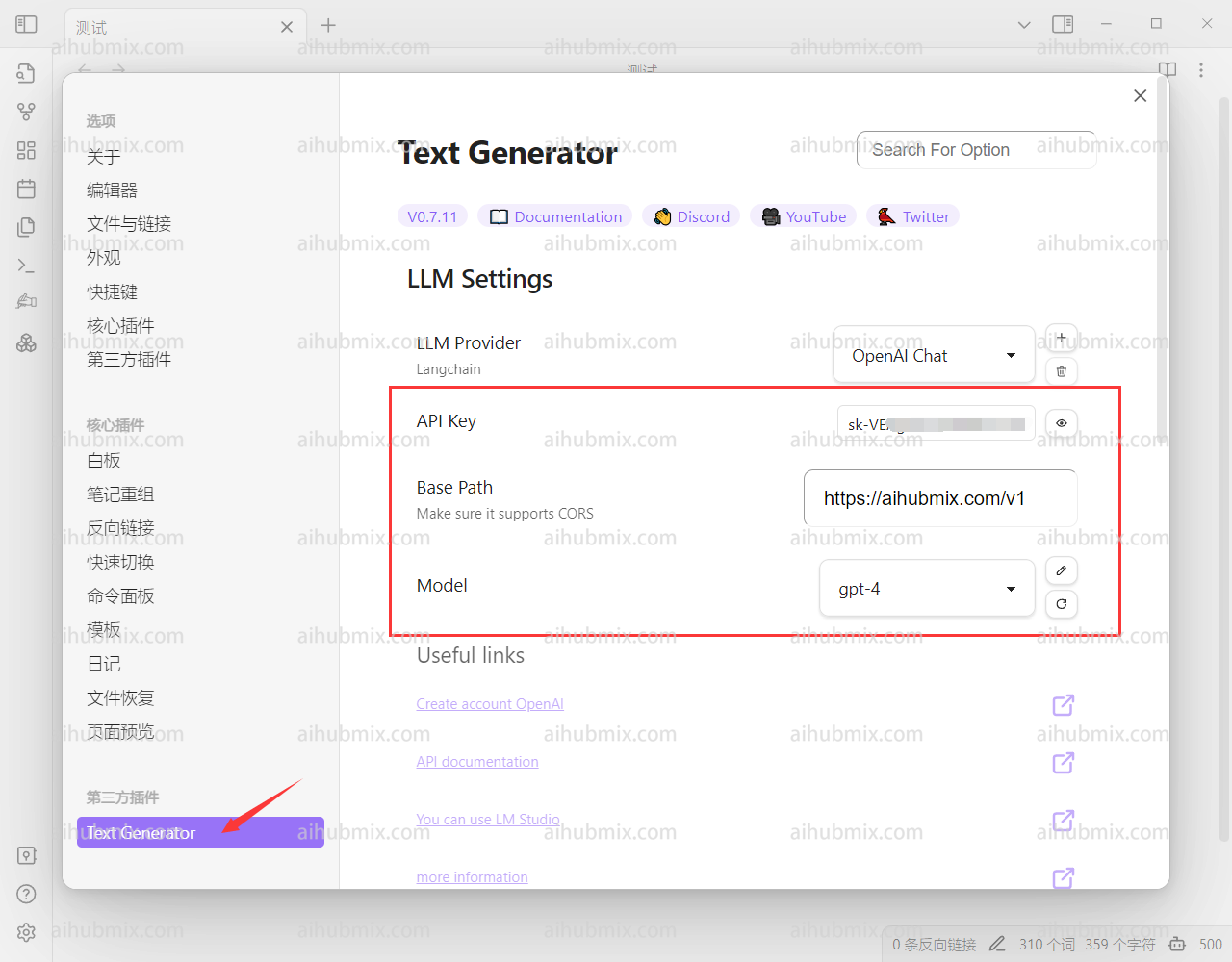
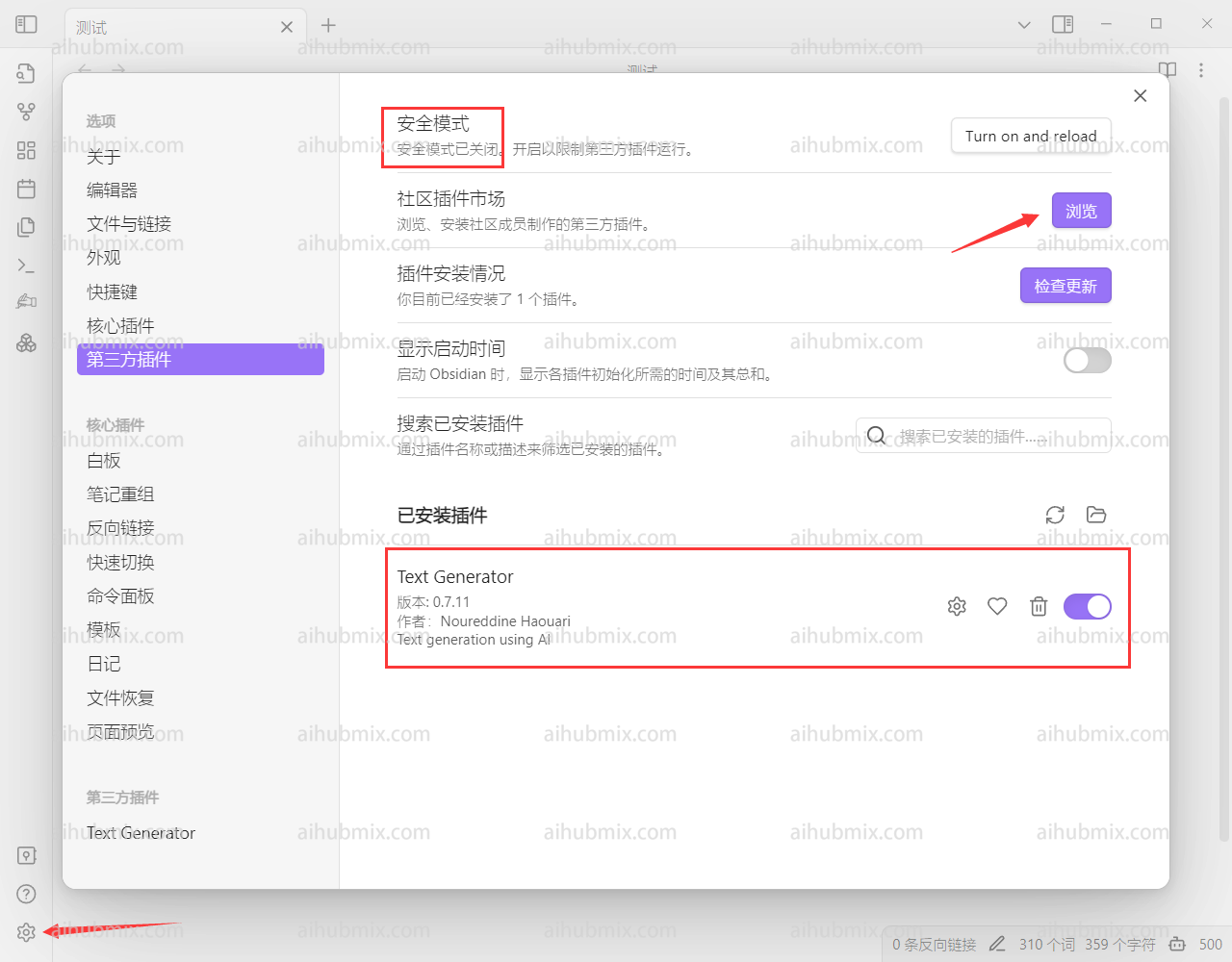 2. Insira o settings page for the text generator.
3. Gere the API KEY from [our site’s Key](https://aihubmix.com/token).
4. Insira o following no Base Path field:
```
https://aihubmix.com/v1
```
5. Finally, selecione the model you want to use.\\
2. Insira o settings page for the text generator.
3. Gere the API KEY from [our site’s Key](https://aihubmix.com/token).
4. Insira o following no Base Path field:
```
https://aihubmix.com/v1
```
5. Finally, selecione the model you want to use.\\
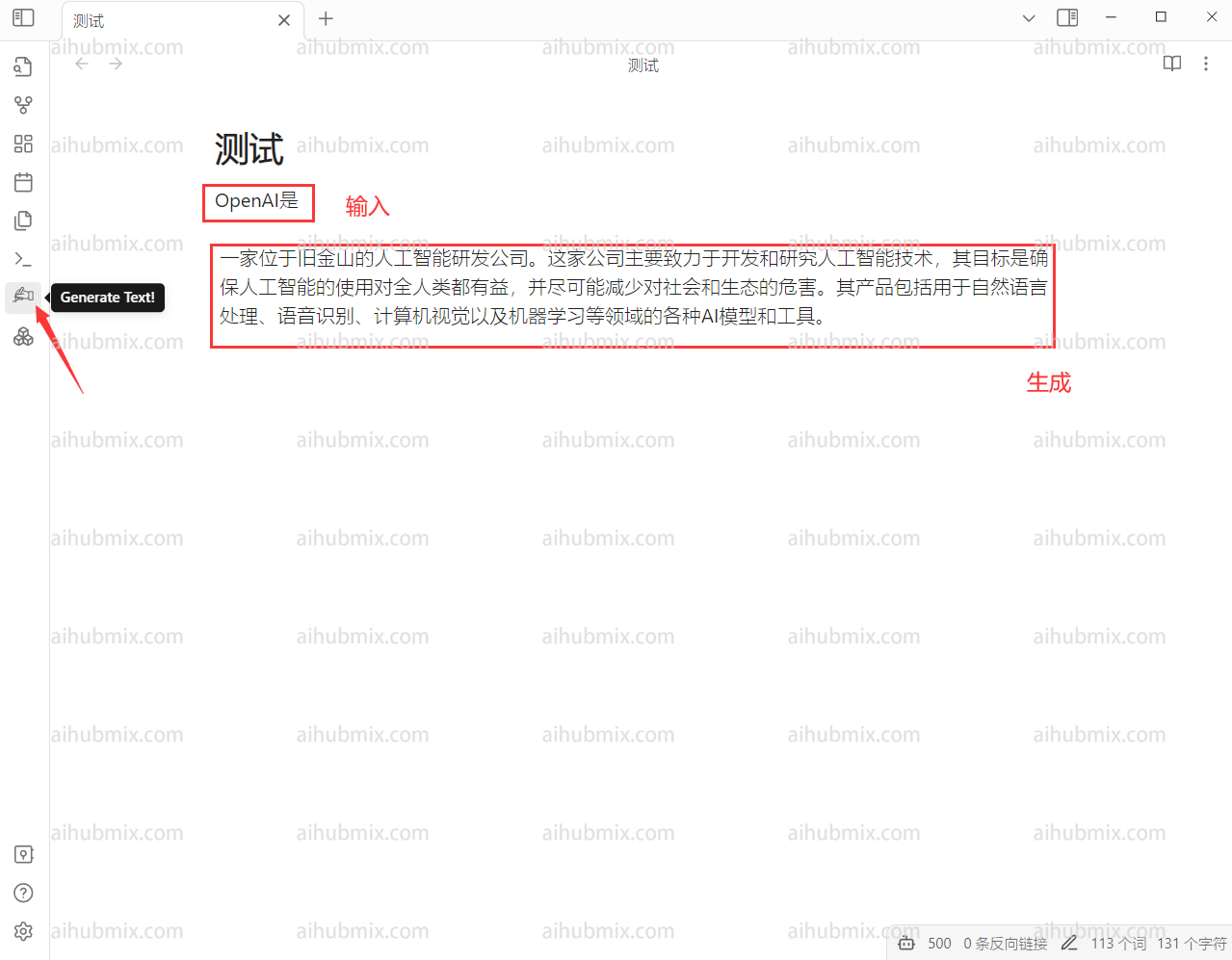
 6. When entering a piece of text, clique no hand-shaped button on the left.\\
 ***
Última atualização: 2026-06-01
***
Última atualização: 2026-06-01