> ## Documentation Index
> Fetch the complete documentation index at: https://docs.aihubmix.com/llms.txt
> Use this file to discover all available pages before exploring further.
# Aihubmix Image Generation MCP
## Introdução
Aihubmix integrates mainstream image generation APIs through a unified interface and encapsulates them as MCP (Model Context Protocol), making it more convenient for developers to integrate with LLM interactions. Users can trigger image generation using natural language input.
Currently integrated models include:
* openai/gpt-image-1
* bfl/FLUX.1-Kontext-pro
* google/imagen-4.0-ultra-generate-preview-06-06
* google/imagen-4.0-generate-preview-06-06
* ideogram/V3
The gpt-image-1 model returns base64 encoded results, which may cause errors in Claude Desktop due to excessive length. Atualmente, recomendamos prioritizing V3 / Flux / Imagen models.
## 1️⃣ Installation
Below are MCP installation examples for common AI tools. Before running the commands, replace `sk-***` with your Aihubmix chave de API.
After installation, você precisa restart the tool for changes to take effect.
### Install to Claude Code
Run the installation command in terminal:
```shell theme={null}
claude mcp add --transport http aihubmix-api https://aihubmix.com/mcp/ \
--header "Authorization: Bearer sk-***"
```
After starting Claude Code com o `claude` command, enter `/mcp` to confirm installation.
### Install to Claude Desktop
Avatar → Settings → Developer → Edit Config → Add o seguinte configuration:
```shell theme={null}
"aihubmix-mcp-stdio": {
"command": "npx",
"args": ["-y", "@aihubmix/mcp"],
"env": {
"AIHUBMIX_API_KEY": "sk-***"
}
}
```
### Install to Warp AI
Avatar → Settings → AI → Manage MCP Servers → Add → Add o seguinte configuration:
```shell theme={null}
{
"aihubmix-mcp-stdio": {
"command": "npx",
"args": [
"-y",
"@aihubmix/mcp"
],
"env": {
"AIHUBMIX_API_KEY": "sk-***"
},
"working_directory": null
}
```
2️⃣ Usage
1. Use natural language input, specify mcp and target, for example:
```shell prompt theme={null}
Use aihubmix mcp to draw a cute kitten playing in a garden, Pixar 3D cartoon style, 3:2, automatically optimize the prompt for me and execute
```
Claude Desktop usage example:
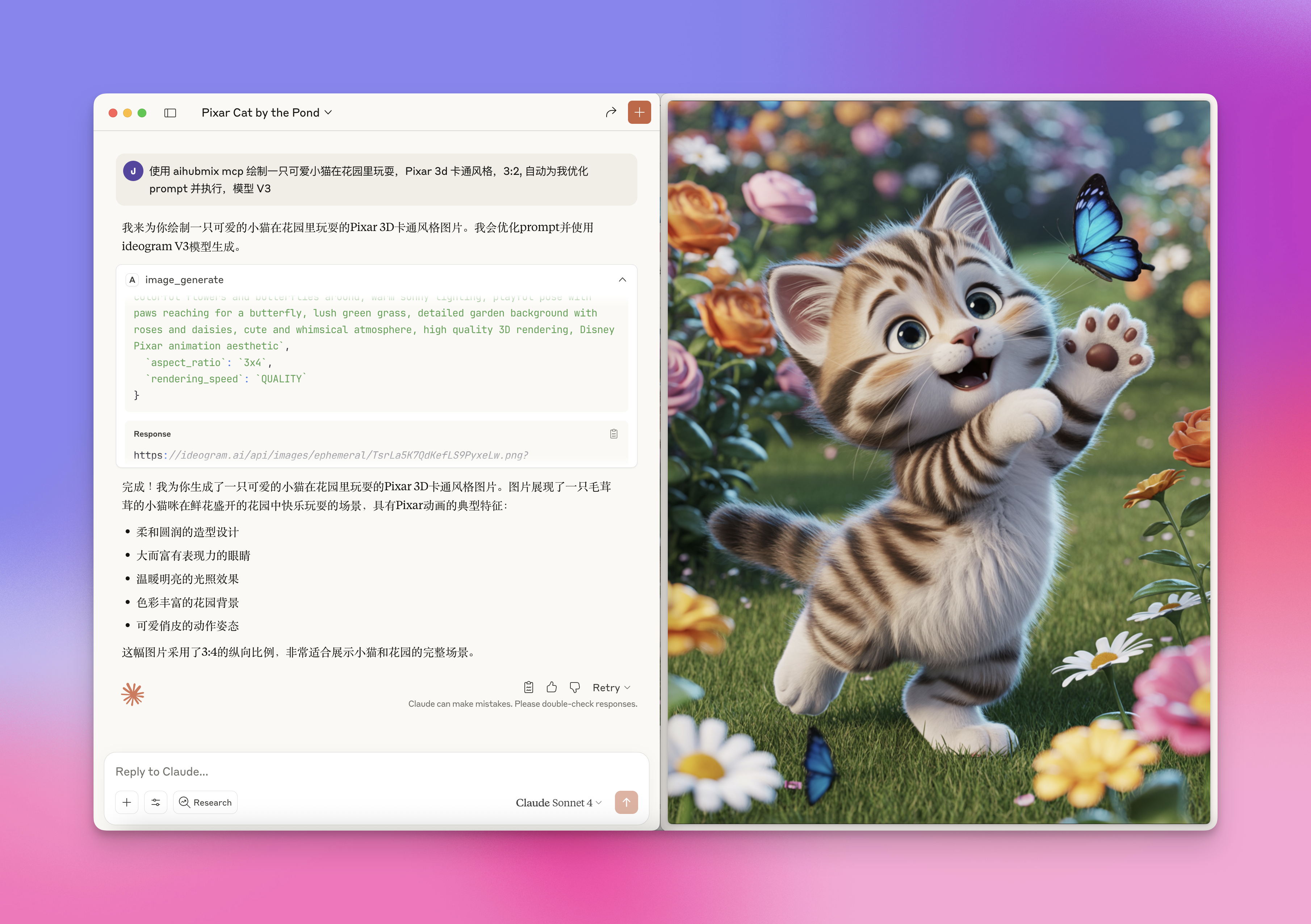 2. Você pode specify target models, como flux-kontext-max, ideogram/V3, etc. Exact matching is not required, LLM will automatically match keywords
3. Specify more constraints, for example:
```shell prompt theme={null}
Cinematic lighting, low angle, model V3, generate 2 images
```
***
Última atualização: 2026-06-01
2. Você pode specify target models, como flux-kontext-max, ideogram/V3, etc. Exact matching is not required, LLM will automatically match keywords
3. Specify more constraints, for example:
```shell prompt theme={null}
Cinematic lighting, low angle, model V3, generate 2 images
```
***
Última atualização: 2026-06-01