> ## Documentation Index
> Fetch the complete documentation index at: https://docs.aihubmix.com/llms.txt
> Use this file to discover all available pages before exploring further.
# Zoteroでの使用
## PDF閲覧プラグイン zotero-gpt
ダウンロードリンク:[https://github.com/MuiseDestiny/zotero-gpt/releases](https://github.com/MuiseDestiny/zotero-gpt/releases)
プラグインをインストールした後、編集メニューから設定を見つけます(古いバージョンでは編集メニューの環境設定)。GPTの設定画面を見つけます。
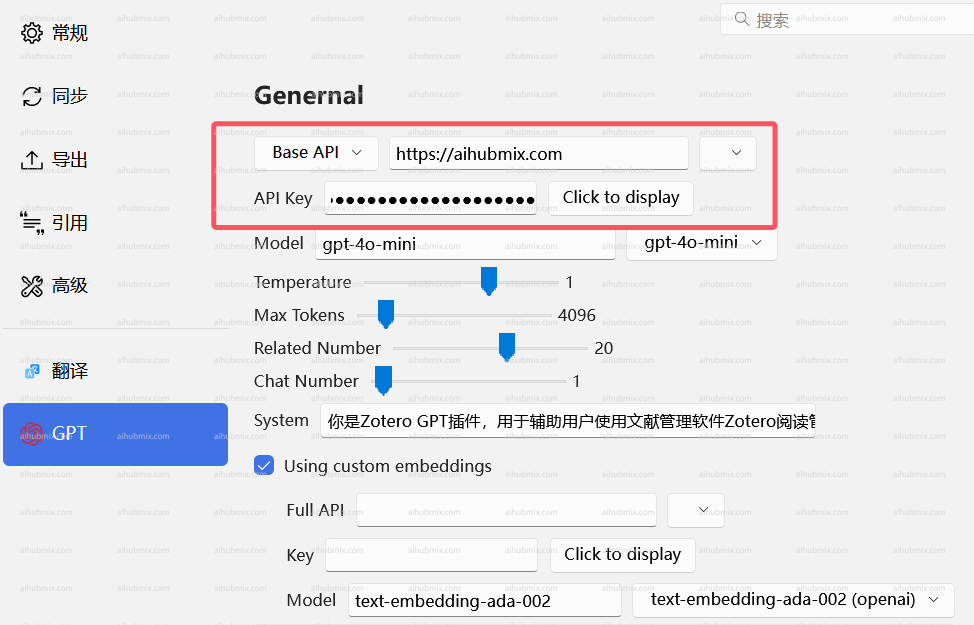 図のようにBase APIを設定し、[APIキー](https://aihubmix.com/token)を入力します。
または、以下のコマンドを使用して設定します。
まず、「ctrl + /」で利用ウィンドウを開きます。\
図のようにBase APIを設定し、[APIキー](https://aihubmix.com/token)を入力します。
または、以下のコマンドを使用して設定します。
まず、「ctrl + /」で利用ウィンドウを開きます。\
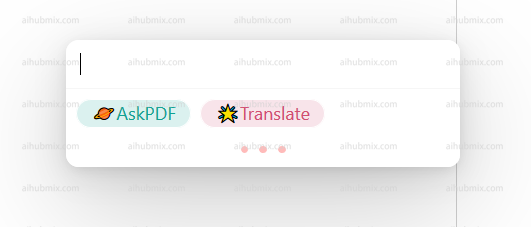 \
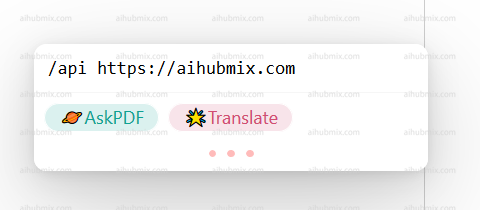
以下を入力します。
```
/api https://aihubmix.com
```
そしてEnterキーを押します。\\
\
以下を入力します。
```
/api https://aihubmix.com
```
そしてEnterキーを押します。\\
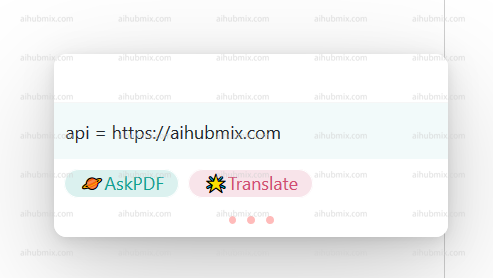 \
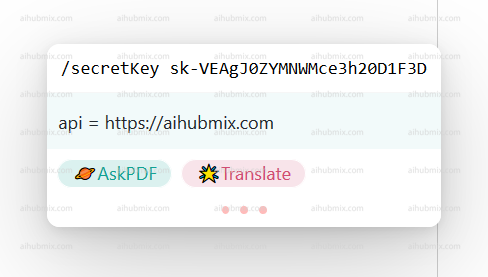
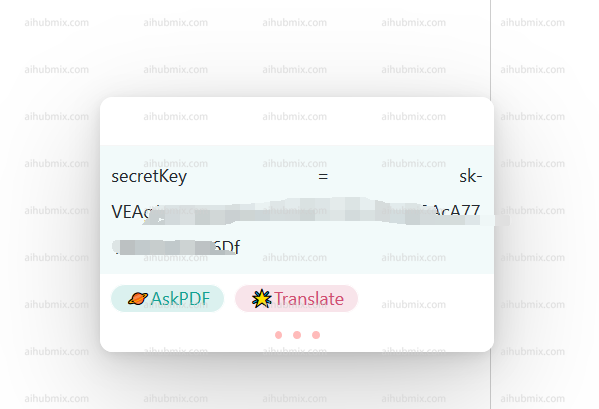
以下を入力します。
```
/secretKey + キー(Keyから生成し、sk-を忘れずに付けてください)
```
\
以下を入力します。
```
/secretKey + キー(Keyから生成し、sk-を忘れずに付けてください)
```
 \
モデル切り替えコマンド
```
/model gpt-3.5-turbo-0125
```
\
モデル切り替えコマンド
```
/model gpt-3.5-turbo-0125
```
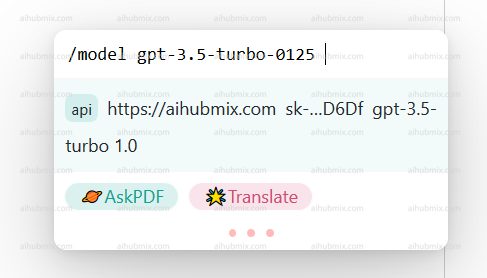 \
使用したいモデルを選択すれば、利用できるようになります。\\
\
使用したいモデルを選択すれば、利用できるようになります。\\
 ## 翻訳プラグイン zotero-pdf-translate
ダウンロードリンク:[https://github.com/windingwind/zotero-pdf-translate/releases](https://github.com/windingwind/zotero-pdf-translate/releases)
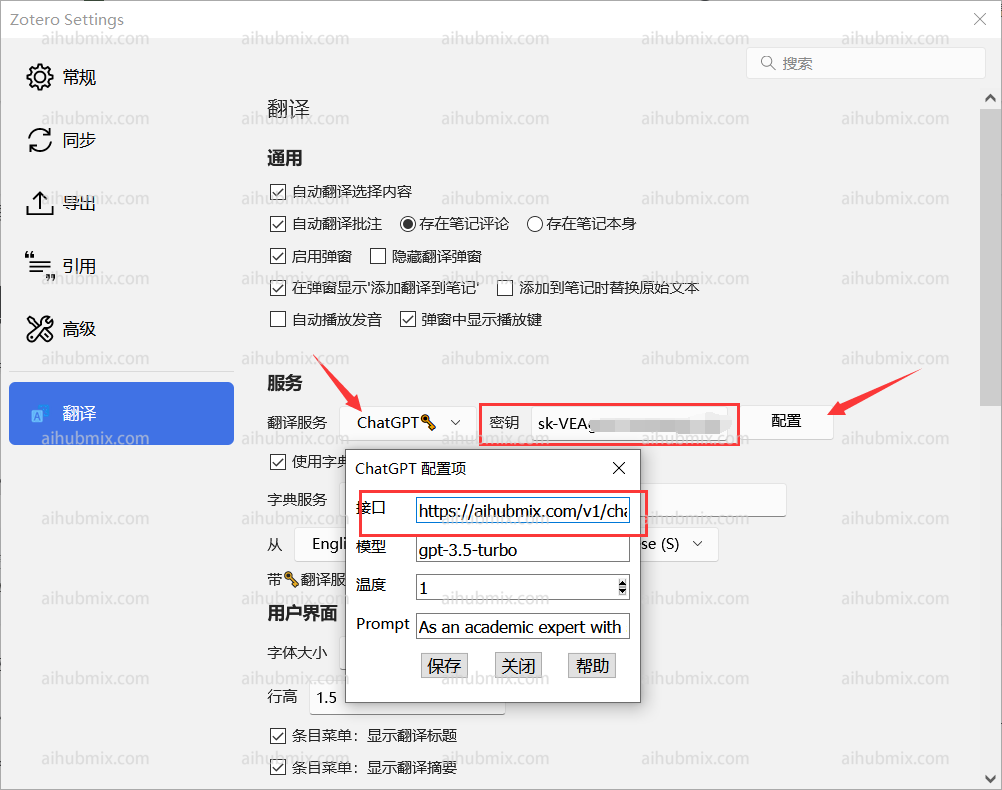
編集メニューから設定を見つけます(古いバージョンでは編集メニューの環境設定)。翻訳の設定画面を見つけます。\
インターフェースアドレスに以下を記入します:
```
https://aihubmix.com/v1/chat/completions
```
ステータスが利用可能と表示されているかどうかは気にせず、記入すればOKです。\\
## 翻訳プラグイン zotero-pdf-translate
ダウンロードリンク:[https://github.com/windingwind/zotero-pdf-translate/releases](https://github.com/windingwind/zotero-pdf-translate/releases)
編集メニューから設定を見つけます(古いバージョンでは編集メニューの環境設定)。翻訳の設定画面を見つけます。\
インターフェースアドレスに以下を記入します:
```
https://aihubmix.com/v1/chat/completions
```
ステータスが利用可能と表示されているかどうかは気にせず、記入すればOKです。\\
 ***
最終更新日:2026-06-01
***
最終更新日:2026-06-01