> ## Documentation Index
> Fetch the complete documentation index at: https://docs.aihubmix.com/llms.txt
> Use this file to discover all available pages before exploring further.
# Obsidianでの使用
> text generator プラグインが必要です
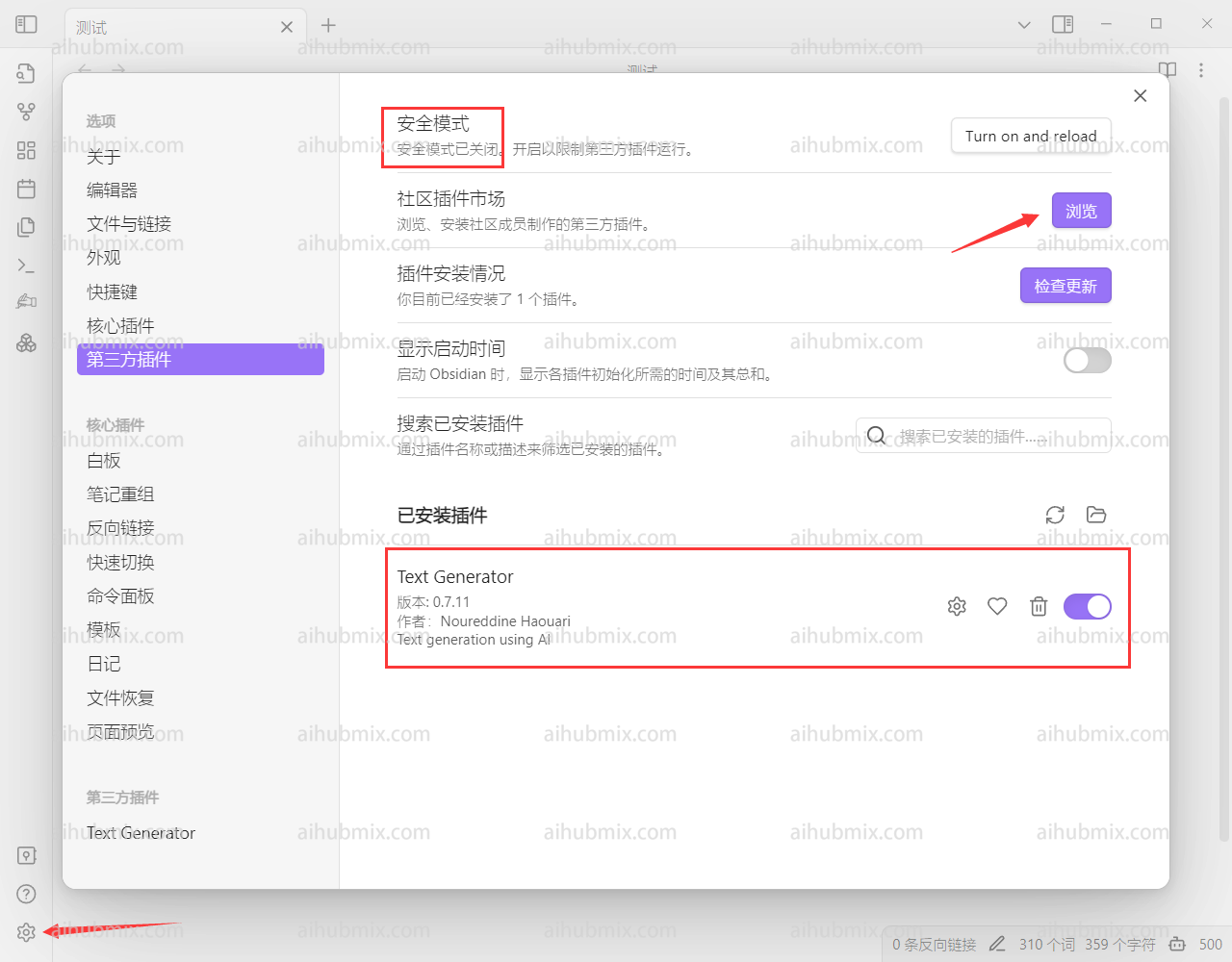
1. ソフトウェアの左下隅にある設定に入り、サードパーティのプラグインを選択します。\
セーフモードをオフにした後、コミュニティプラグインマーケットでtext generatorを検索してインストールし、有効にします。\\
 2. text generatorの設定ページに入ります。
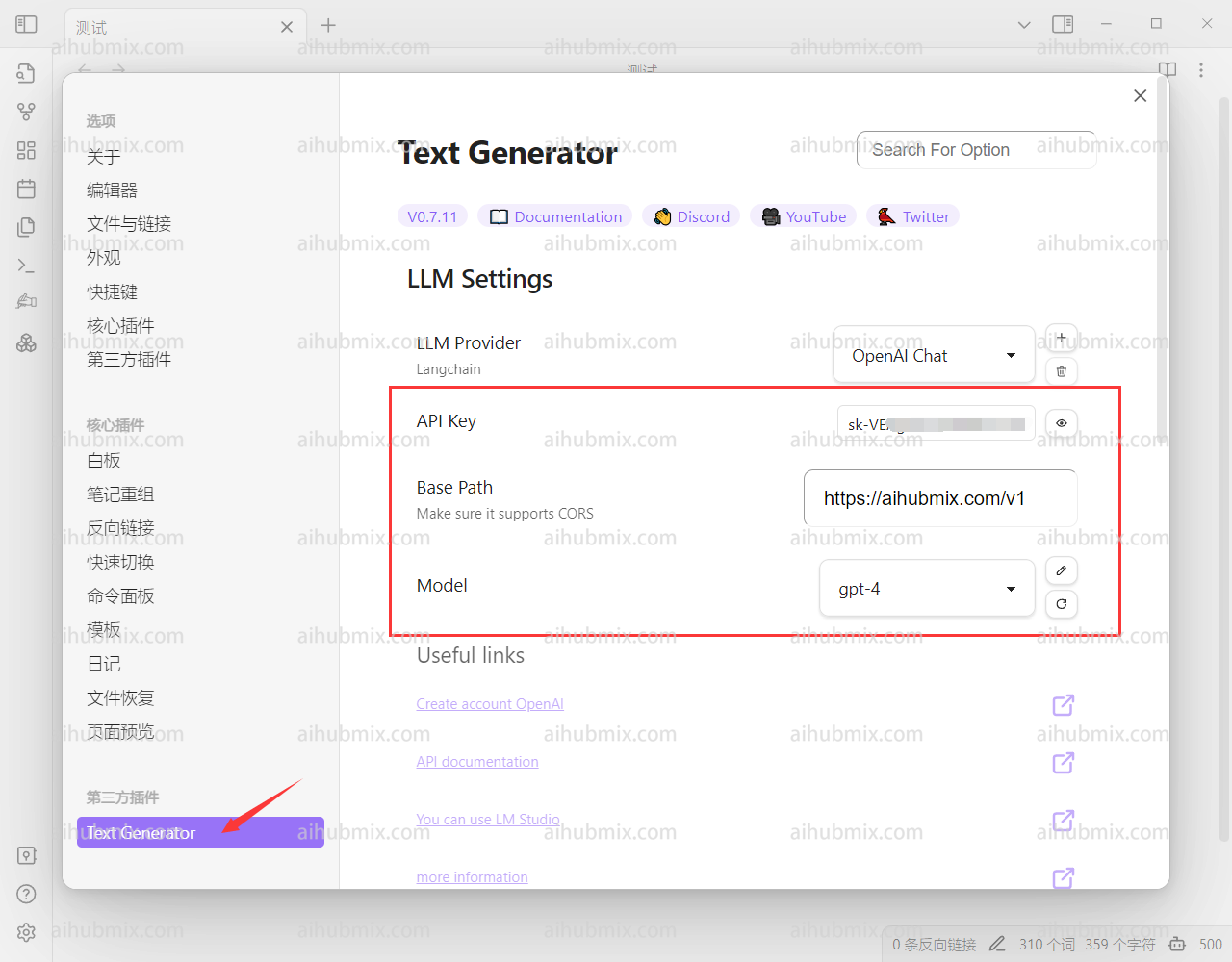
3. 上部のAPI KEY欄には[当サイトのキー](https://aihubmix.com/token)から生成したものを入力します。
4. 下部のBase Pathには次のように入力します:
```
https://aihubmix.com/v1
```
5. 最後に、使用するモデルを選択します。\\
2. text generatorの設定ページに入ります。
3. 上部のAPI KEY欄には[当サイトのキー](https://aihubmix.com/token)から生成したものを入力します。
4. 下部のBase Pathには次のように入力します:
```
https://aihubmix.com/v1
```
5. 最後に、使用するモデルを選択します。\\
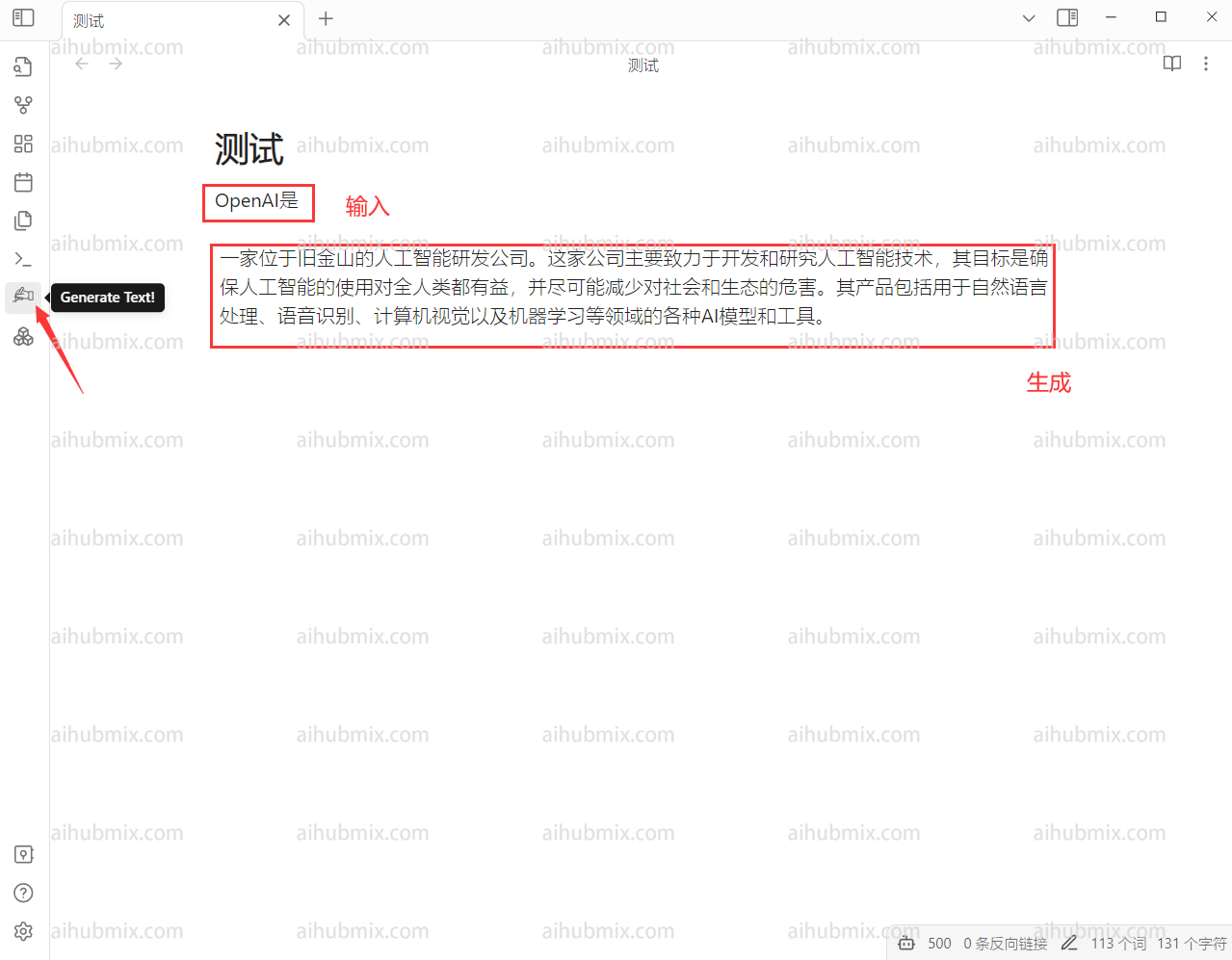
 6. テキストを入力した後、左側にある手の形のボタンをクリックします。\\
 ***
最終更新日:2026-06-01
***
最終更新日:2026-06-01