> ## Documentation Index
> Fetch the complete documentation index at: https://docs.aihubmix.com/llms.txt
> Use this file to discover all available pages before exploring further.
# Difyでの使用
## 通常の使用状況(OpenAIモデルを使用)
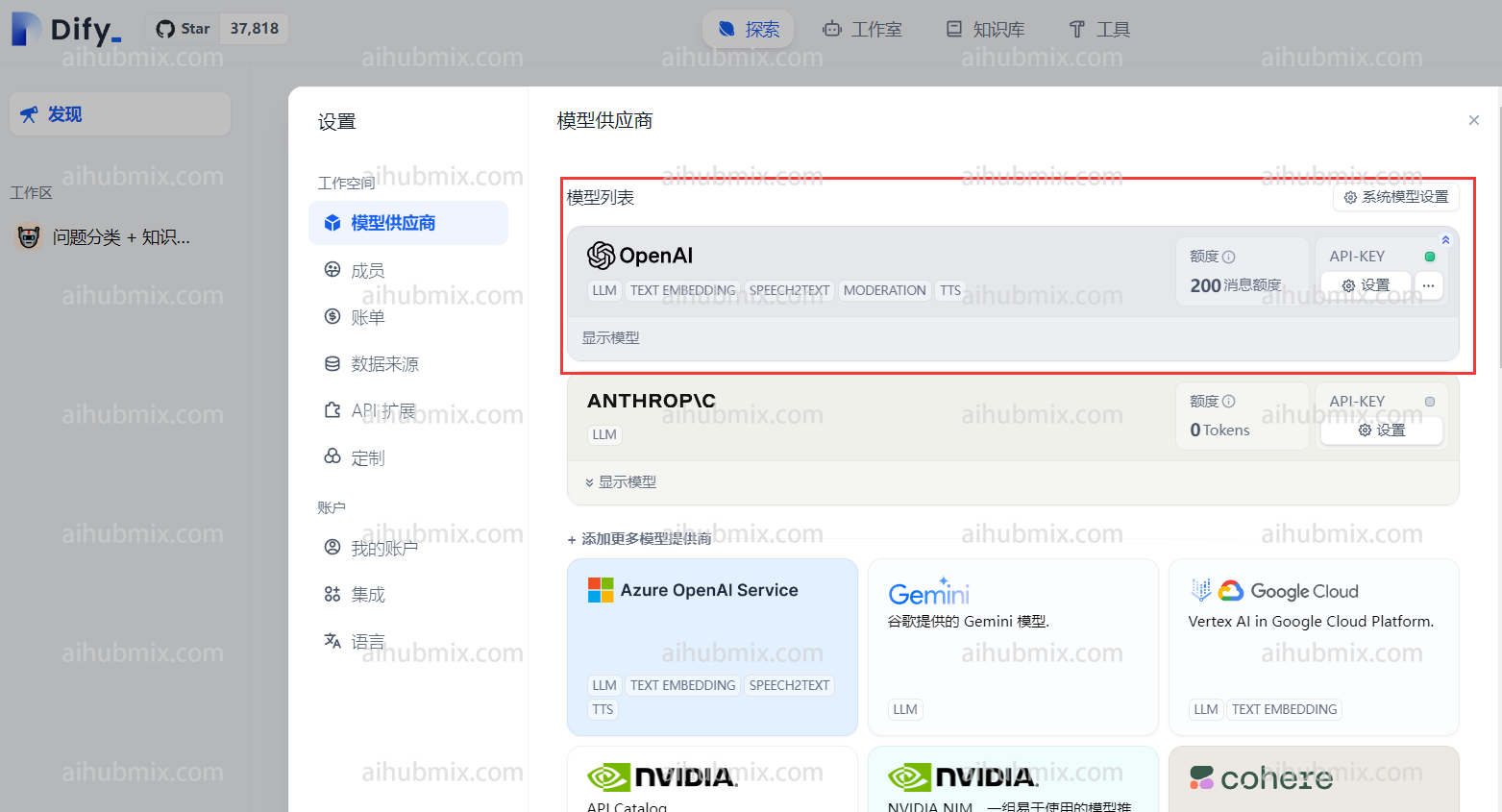
ウェブページの右上隅にある自分のユーザー名をクリックして、設定画面に入ります。\
モデルプロバイダーでOpenAIを選択し、設定を開きます。\\
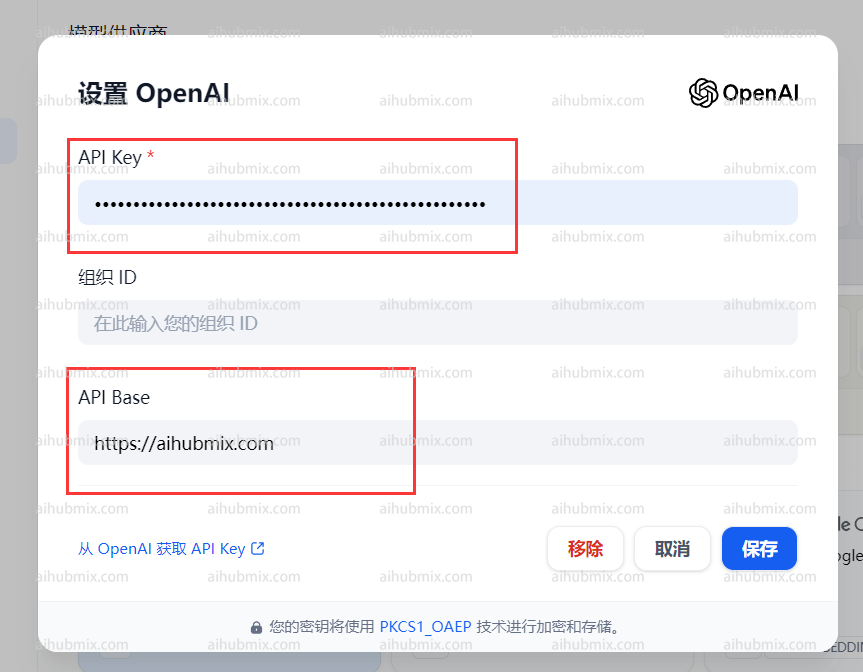
 * APIキーの欄に[当サイトのキー](https://aihubmix.com/token)を入力します。
* APIベースの欄に次のように入力します:
```
https://aihubmix.com
```
* APIキーの欄に[当サイトのキー](https://aihubmix.com/token)を入力します。
* APIベースの欄に次のように入力します:
```
https://aihubmix.com
```
 ## 非OpenAIモデルの使用方法
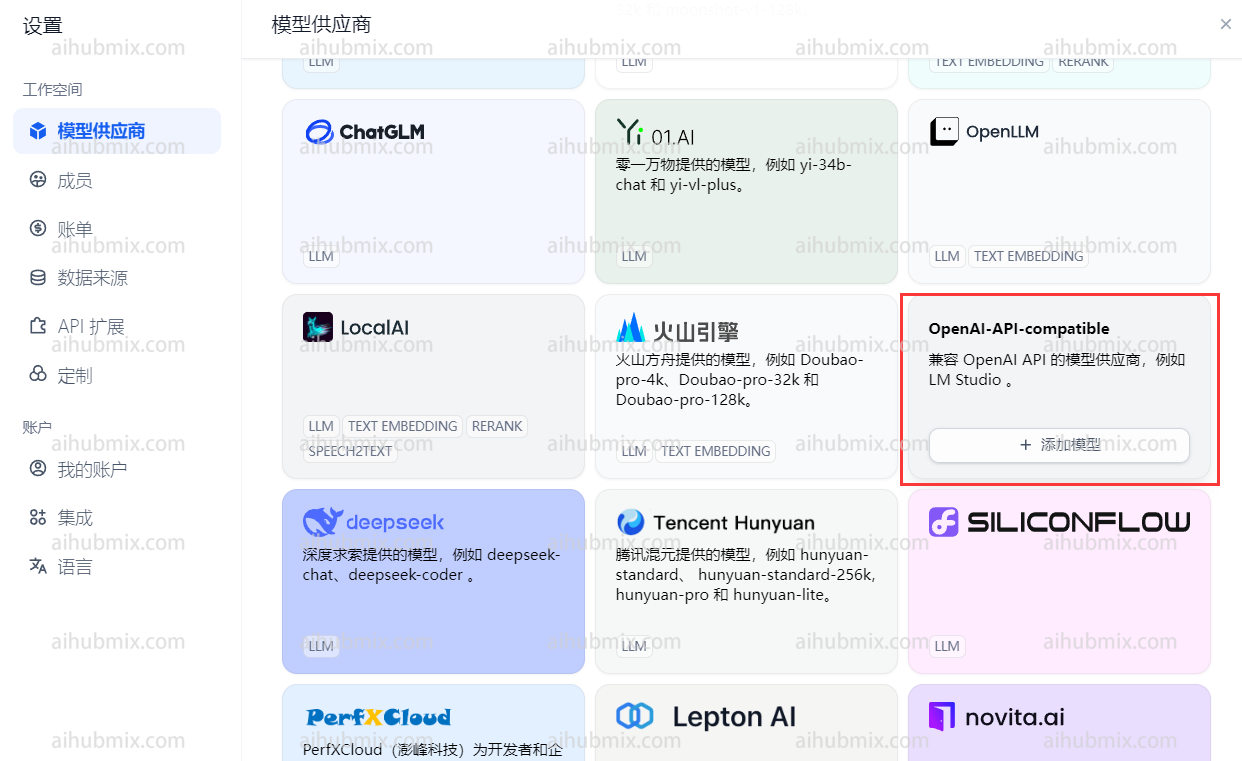
モデルプロバイダーのドロップダウンからOpenAI-API-compatibleを見つけ、「モデルを追加」をクリックします。\\
## 非OpenAIモデルの使用方法
モデルプロバイダーのドロップダウンからOpenAI-API-compatibleを見つけ、「モデルを追加」をクリックします。\\
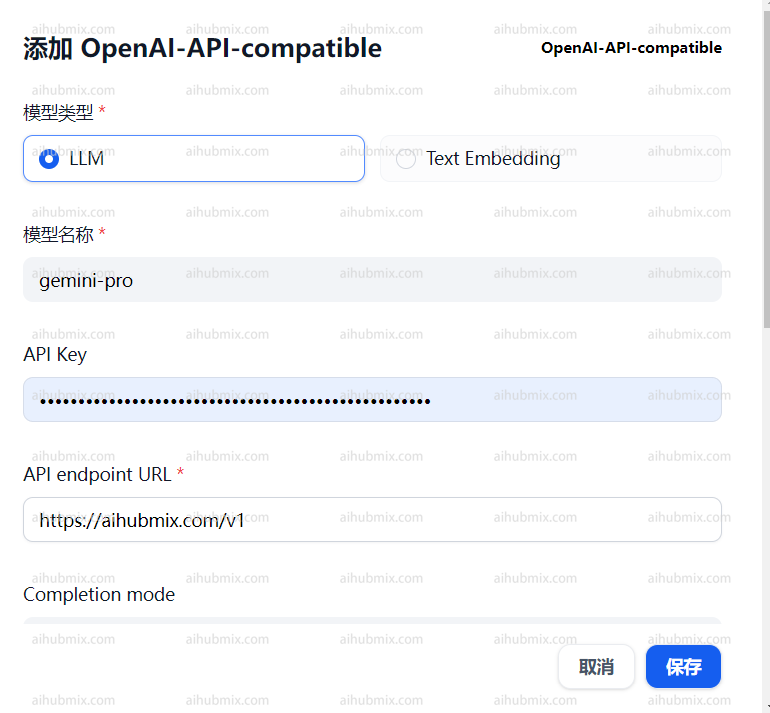
 * ウェブサイトの管理画面設定ページを開き、モデルリストを見つけます。
* 使用したいモデル名(例:gemini-proまたはclaude-3-opus-20240229)をコピーします。
* APIキーの欄に[当サイトのキー](https://aihubmix.com/token)を入力します。
* APIエンドポイントURLの欄に次のように入力します:
```
https://aihubmix.com/v1
```
##
* ウェブサイトの管理画面設定ページを開き、モデルリストを見つけます。
* 使用したいモデル名(例:gemini-proまたはclaude-3-opus-20240229)をコピーします。
* APIキーの欄に[当サイトのキー](https://aihubmix.com/token)を入力します。
* APIエンドポイントURLの欄に次のように入力します:
```
https://aihubmix.com/v1
```
##  最終更新日:2026-06-01