> ## Documentation Index
> Fetch the complete documentation index at: https://docs.aihubmix.com/llms.txt
> Use this file to discover all available pages before exploring further.
# Zotero
## Plugin de lecture de PDF : zotero-gpt
Lien de téléchargement : [https://github.com/MuiseDestiny/zotero-gpt/releases](https://github.com/MuiseDestiny/zotero-gpt/releases)
Après l'installation du plugin, dans le menu Edit, trouvez Settings (Preferences dans les versions plus anciennes). Localisez l'interface des paramètres GPT.
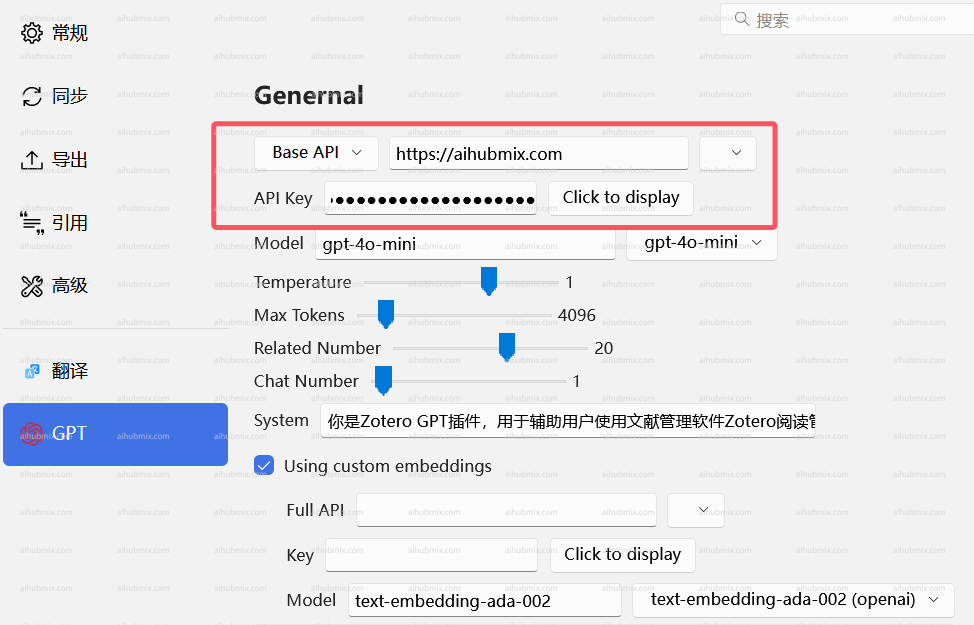 Configurez la Base API comme indiqué sur la figure, et saisissez la [clé API](https://aihubmix.com/token).
Si vous utilisez les commandes suivantes pour la configuration.
D'abord, utilisez « Ctrl + / » pour ouvrir la fenêtre de commande
Configurez la Base API comme indiqué sur la figure, et saisissez la [clé API](https://aihubmix.com/token).
Si vous utilisez les commandes suivantes pour la configuration.
D'abord, utilisez « Ctrl + / » pour ouvrir la fenêtre de commande
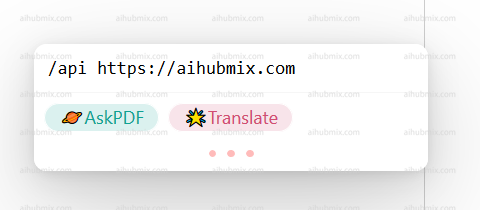
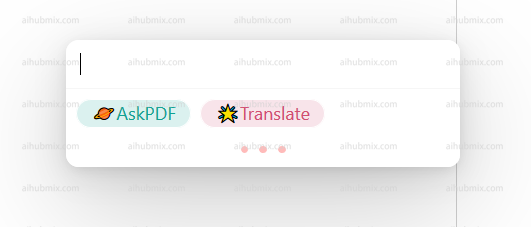 Saisissez
```
/api https://aihubmix.com
```
et appuyez sur Entrée
Saisissez
```
/api https://aihubmix.com
```
et appuyez sur Entrée
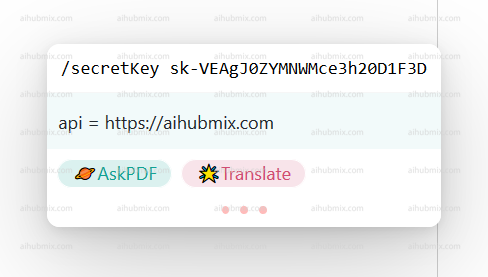
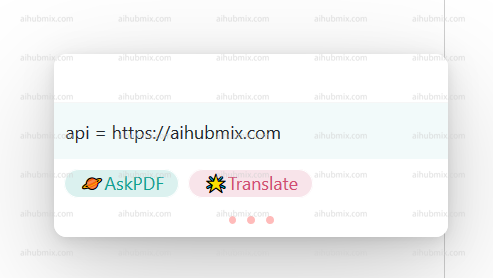 Saisissez
```
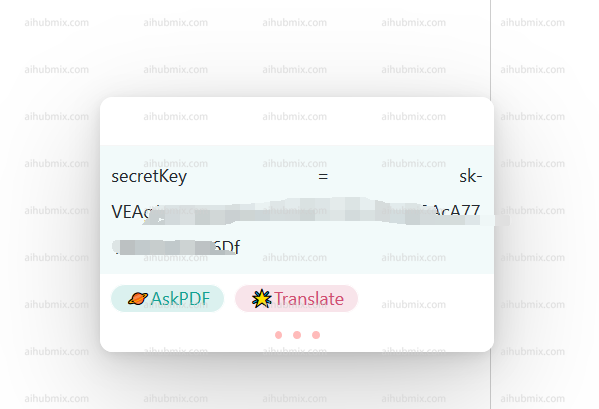
/secretKey + your API key (generated from the Key, remember to include sk-)
```
Saisissez
```
/secretKey + your API key (generated from the Key, remember to include sk-)
```
 Commande pour changer de modèle
```
/model gpt-3.5-turbo-0125
```
Commande pour changer de modèle
```
/model gpt-3.5-turbo-0125
```
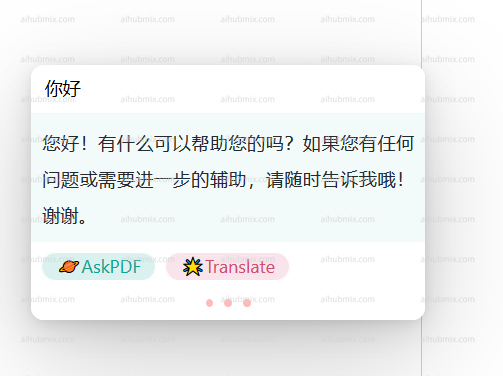
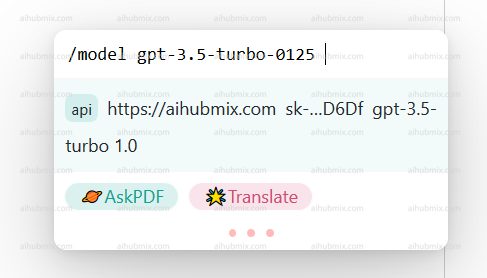 Après avoir sélectionné le modèle que vous souhaitez utiliser, vous pouvez commencer à l'utiliser.
 ## Plugin de traduction : zotero-pdf-translate
Lien de téléchargement : [https://github.com/windingwind/zotero-pdf-translate/releases](https://github.com/windingwind/zotero-pdf-translate/releases)
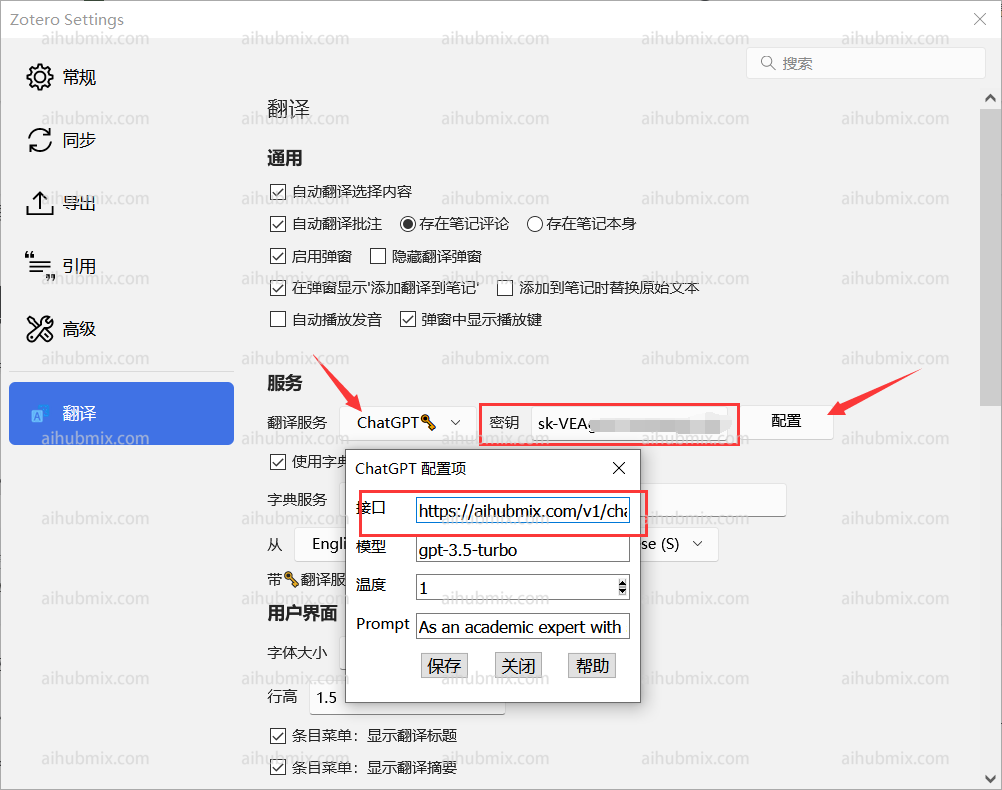
Dans le menu Edit, trouvez Settings (Preferences dans les versions plus anciennes). Localisez l'interface des paramètres de traduction.
Saisissez l'URL de l'endpoint API comme suit :
```
https://aihubmix.com/v1/chat/completions
```
Ne vous souciez pas du statut « disponible » affiché ; remplissez simplement et cela fonctionnera.
## Plugin de traduction : zotero-pdf-translate
Lien de téléchargement : [https://github.com/windingwind/zotero-pdf-translate/releases](https://github.com/windingwind/zotero-pdf-translate/releases)
Dans le menu Edit, trouvez Settings (Preferences dans les versions plus anciennes). Localisez l'interface des paramètres de traduction.
Saisissez l'URL de l'endpoint API comme suit :
```
https://aihubmix.com/v1/chat/completions
```
Ne vous souciez pas du statut « disponible » affiché ; remplissez simplement et cela fonctionnera.
 ***
Dernière mise à jour : 2026-06-01
***
Dernière mise à jour : 2026-06-01