> ## Documentation Index
> Fetch the complete documentation index at: https://docs.aihubmix.com/llms.txt
> Use this file to discover all available pages before exploring further.
# Zotero
## Plugin de lectura de PDF: zotero-gpt
Enlace de descarga: [https://github.com/MuiseDestiny/zotero-gpt/releases](https://github.com/MuiseDestiny/zotero-gpt/releases)
Después de instalar el plugin, en el menú Edit, busca Settings (Preferences en versiones anteriores). Localiza la interfaz de configuración de GPT.
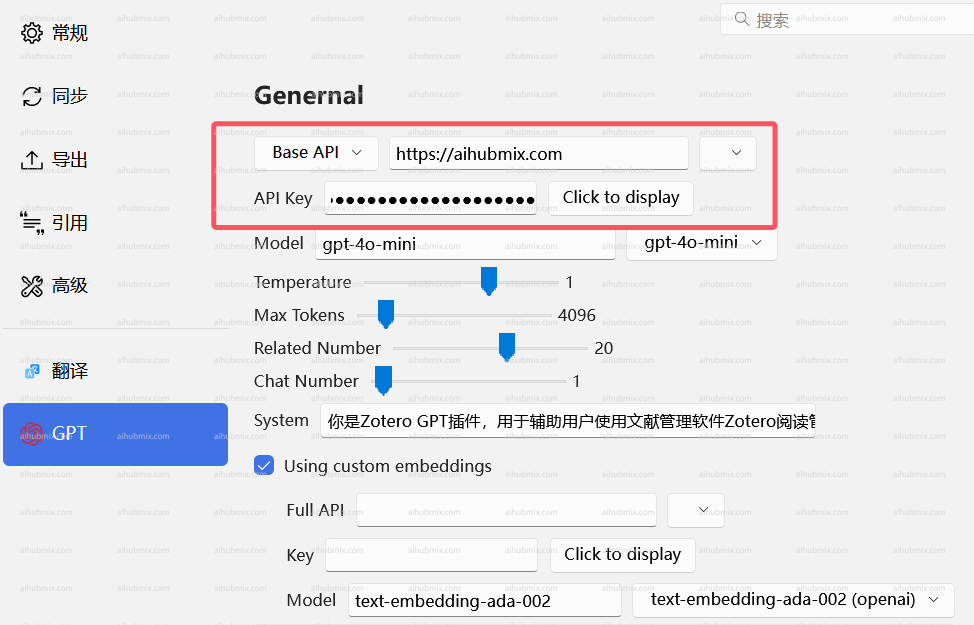 Configura la Base API como se muestra en la figura e introduce la [clave API](https://aihubmix.com/token).
Si lo configuras con los siguientes comandos:
Primero, usa "Ctrl + /" para abrir la ventana de comandos.
Configura la Base API como se muestra en la figura e introduce la [clave API](https://aihubmix.com/token).
Si lo configuras con los siguientes comandos:
Primero, usa "Ctrl + /" para abrir la ventana de comandos.
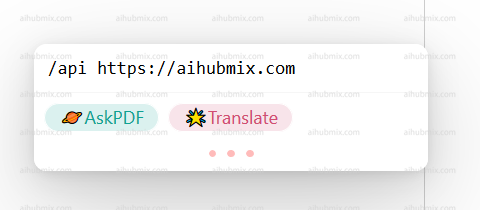
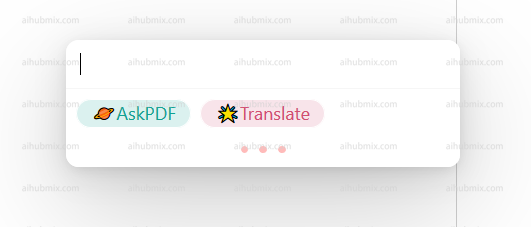 Introduce
```
/api https://aihubmix.com
```
y pulsa Enter.
Introduce
```
/api https://aihubmix.com
```
y pulsa Enter.
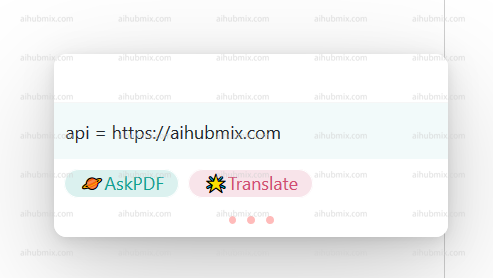 Introduce
```
/secretKey + tu clave API (generada desde la clave, recuerda incluir sk-)
```
Introduce
```
/secretKey + tu clave API (generada desde la clave, recuerda incluir sk-)
```
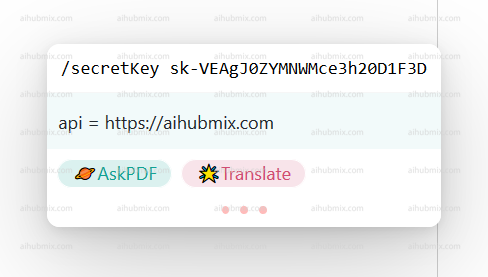
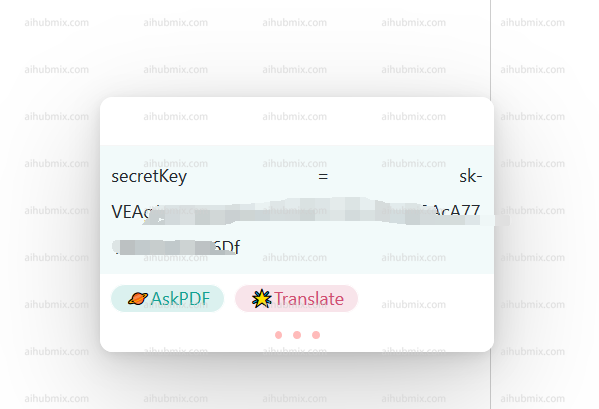 Comando para cambiar de modelo:
```
/model gpt-3.5-turbo-0125
```
Comando para cambiar de modelo:
```
/model gpt-3.5-turbo-0125
```
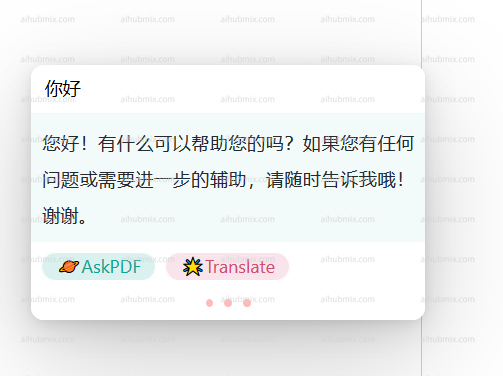
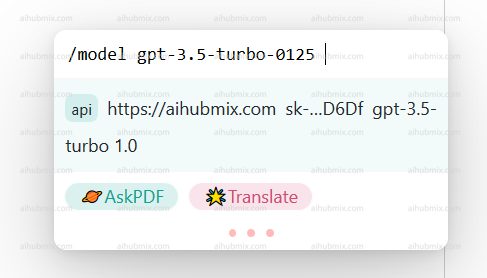 Tras seleccionar el modelo que quieras usar, puedes empezar a utilizarlo.
 ## Plugin de traducción: zotero-pdf-translate
Enlace de descarga: [https://github.com/windingwind/zotero-pdf-translate/releases](https://github.com/windingwind/zotero-pdf-translate/releases)
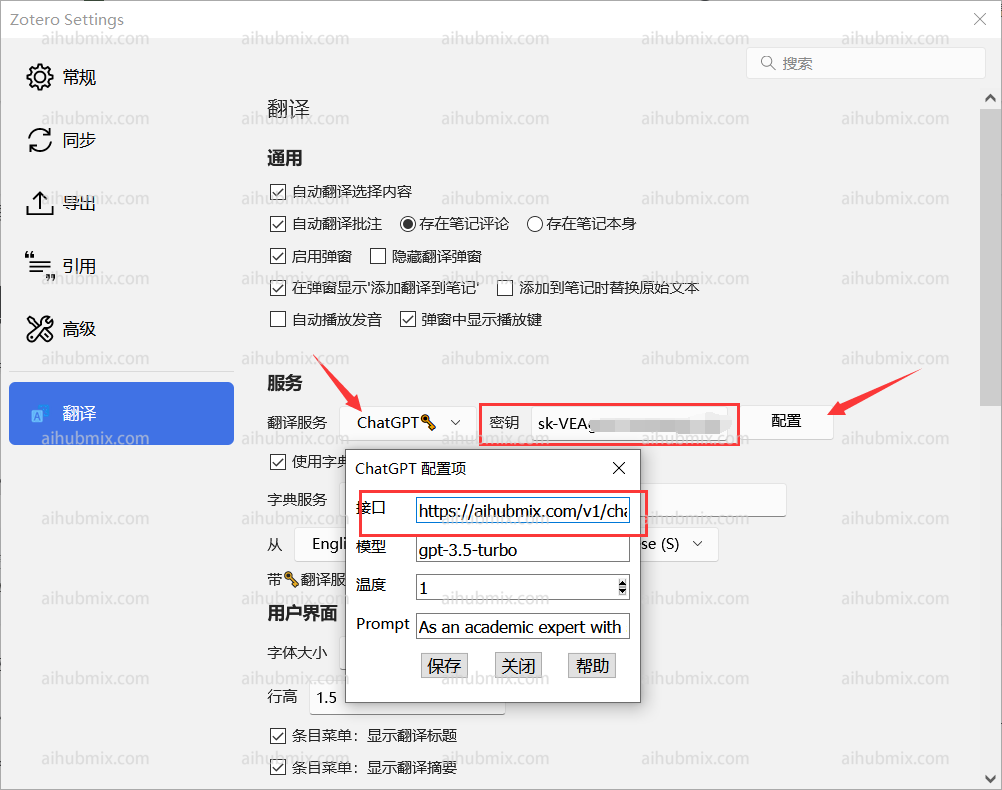
En el menú Edit, busca Settings (Preferences en versiones anteriores). Localiza la interfaz de configuración de traducción.
Introduce la URL del endpoint de la API como:
```
https://aihubmix.com/v1/chat/completions
```
No te preocupes si el estado muestra que no está disponible; basta con rellenarlo y funcionará.
## Plugin de traducción: zotero-pdf-translate
Enlace de descarga: [https://github.com/windingwind/zotero-pdf-translate/releases](https://github.com/windingwind/zotero-pdf-translate/releases)
En el menú Edit, busca Settings (Preferences en versiones anteriores). Localiza la interfaz de configuración de traducción.
Introduce la URL del endpoint de la API como:
```
https://aihubmix.com/v1/chat/completions
```
No te preocupes si el estado muestra que no está disponible; basta con rellenarlo y funcionará.
 ***
Última actualización: 2026-06-01
***
Última actualización: 2026-06-01