> ## Documentation Index
> Fetch the complete documentation index at: https://docs.aihubmix.com/llms.txt
> Use this file to discover all available pages before exploring further.
# RikkaHub
> Configure AIHubMix in RikkaHub, add models, and verify that they work.
RikkaHub is an Android app that supports multiple LLM providers.
Download: [RikkaHub Releases](https://github.com/rikkahub/rikkahub/releases)
## Before you start
* Install and open RikkaHub.
* Create an API key in the [AIHubMix Console](https://aihubmix.com/token).
## Configure AIHubMix
### 1. Open Providers
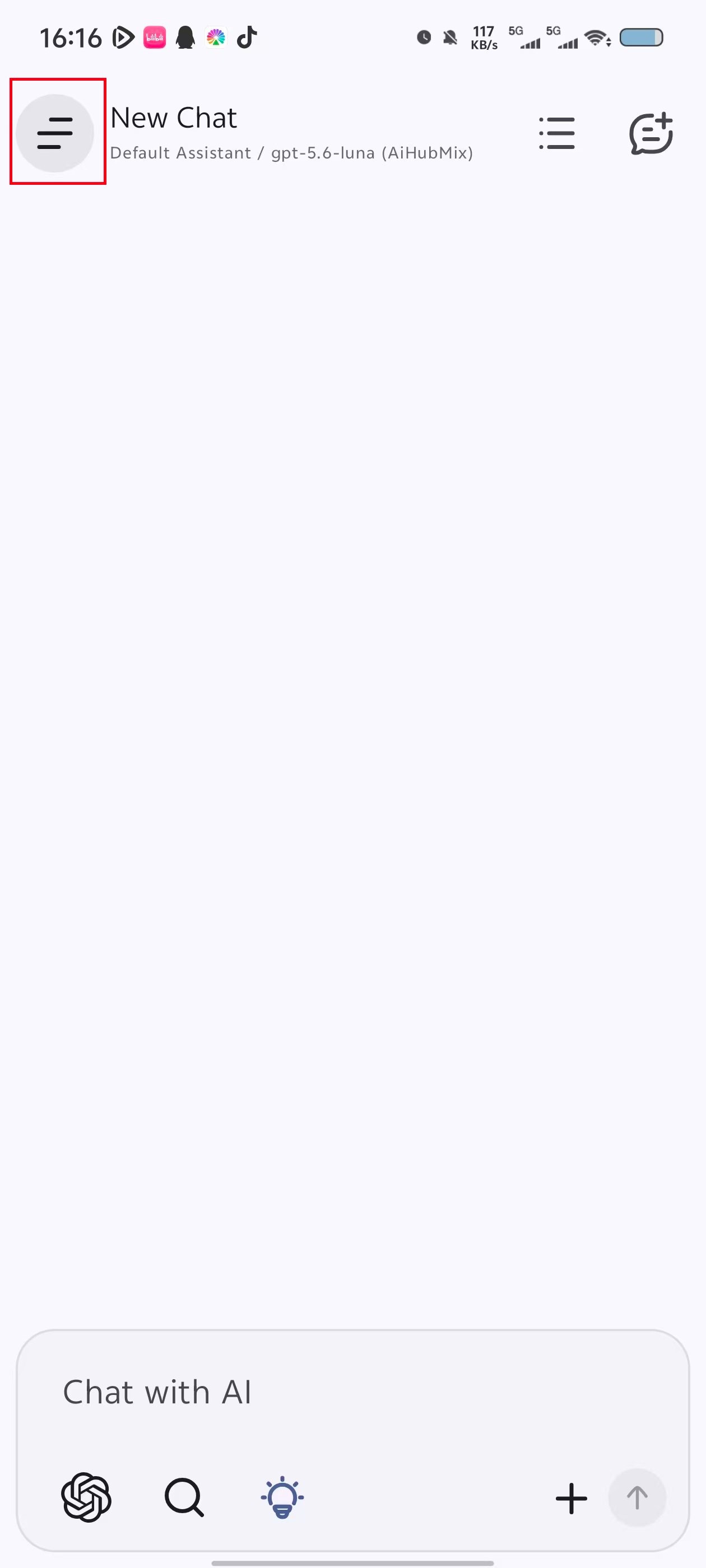
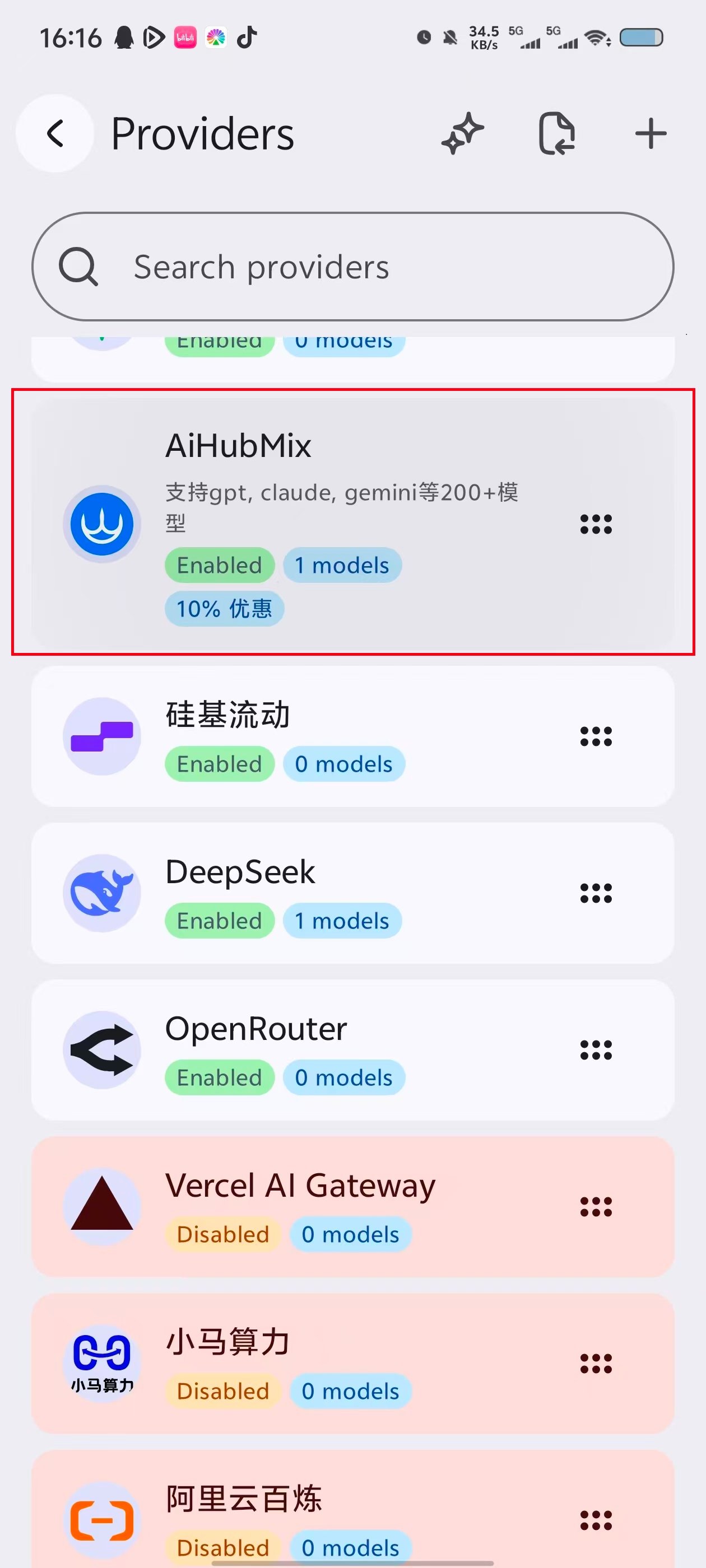
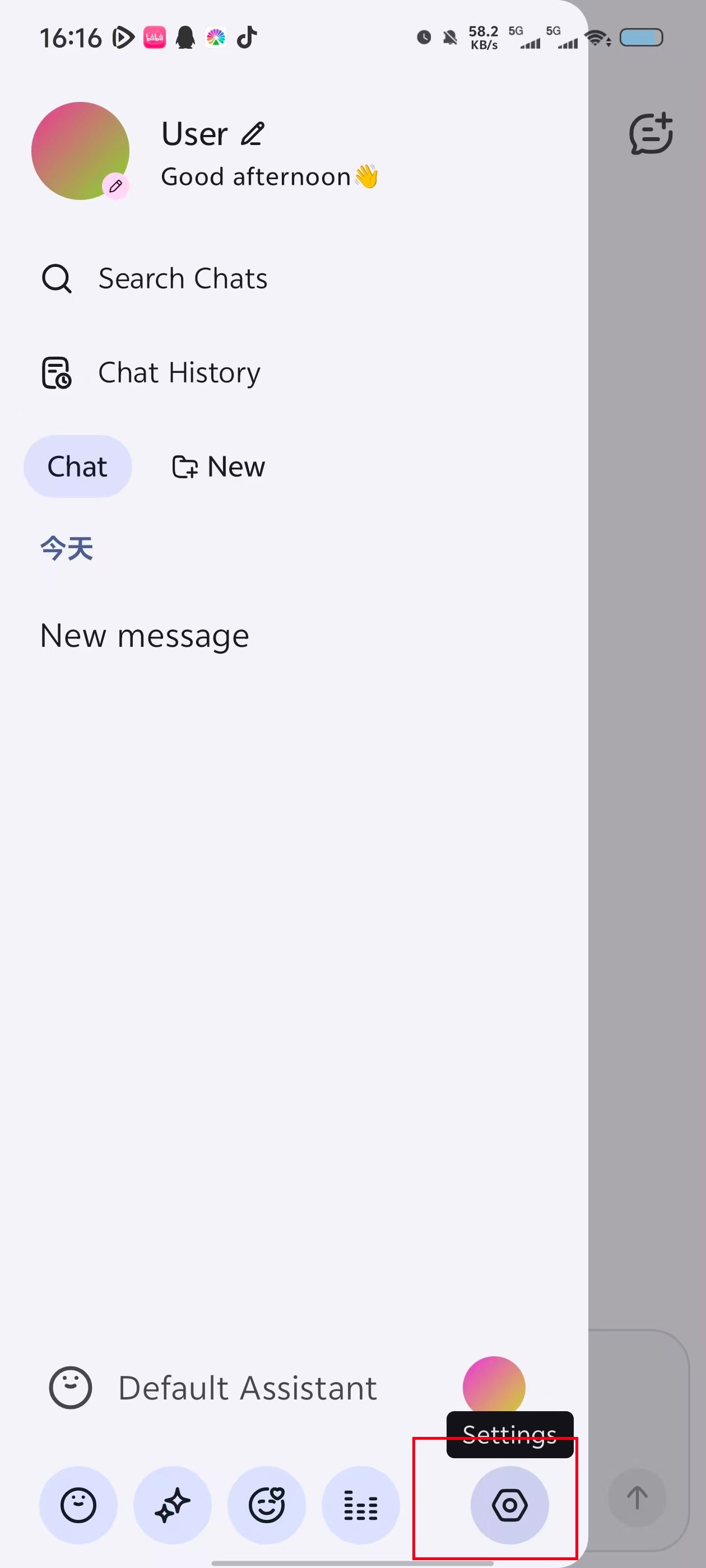
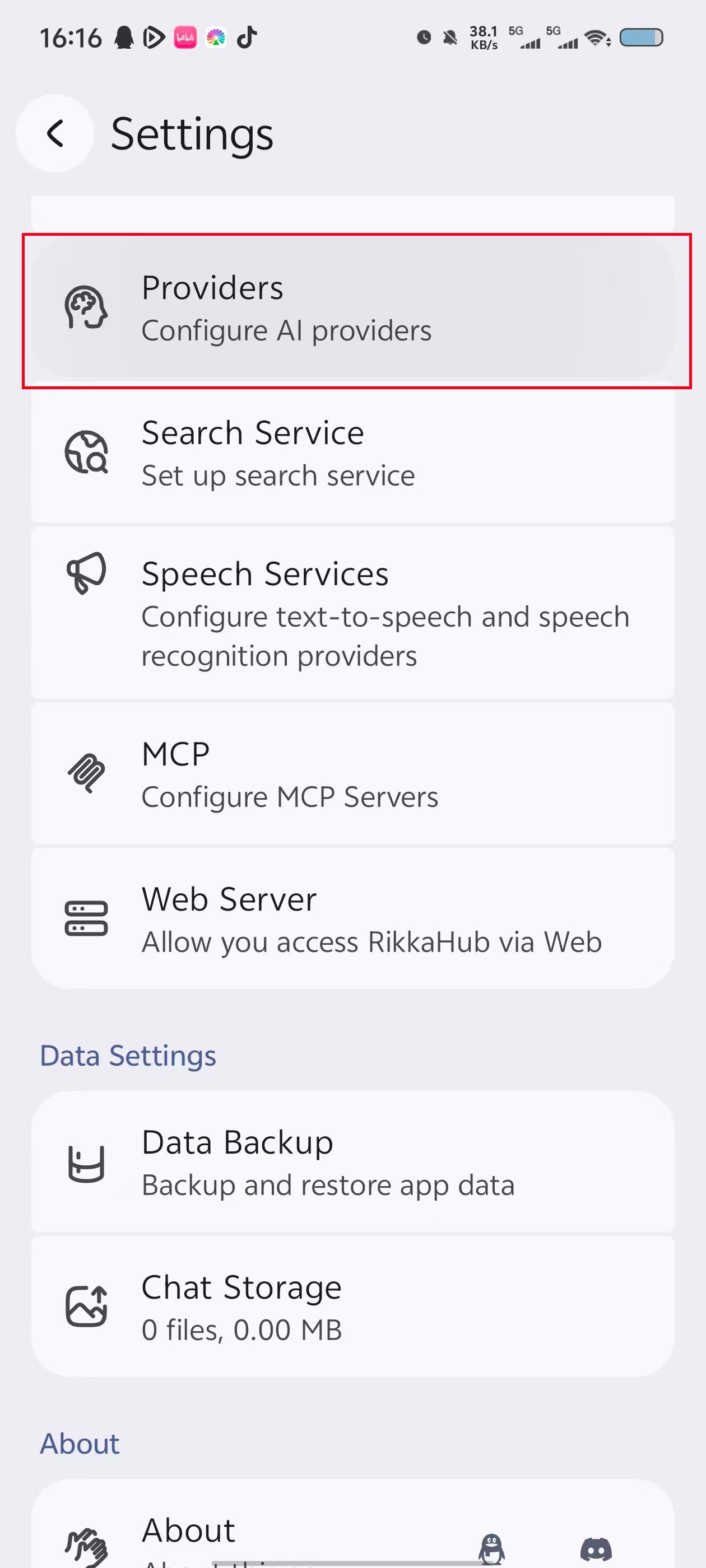
On the chat page, tap the menu button in the upper-left corner. Open the sidebar, tap the settings button at the bottom, and then select **Providers**.
 ### 2. Enter and save the provider details
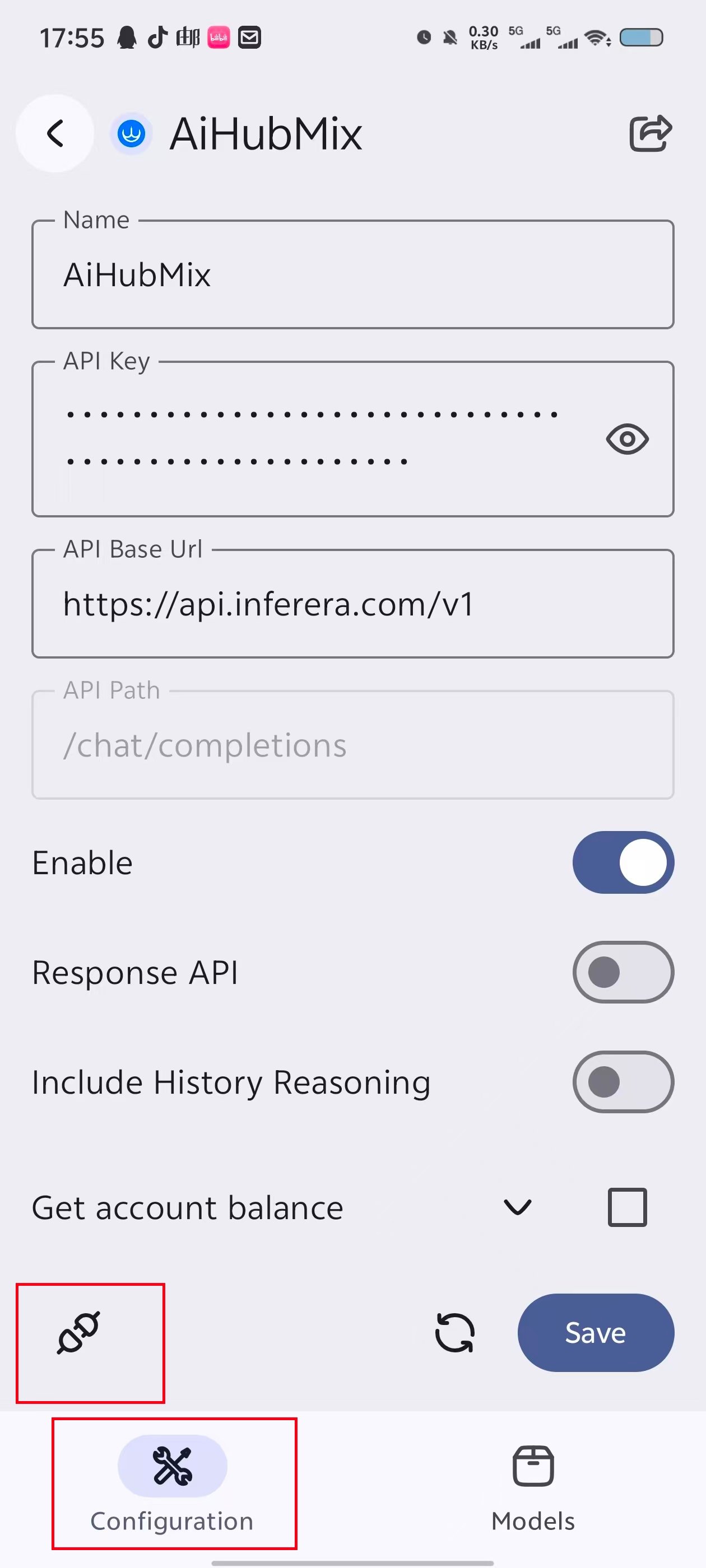
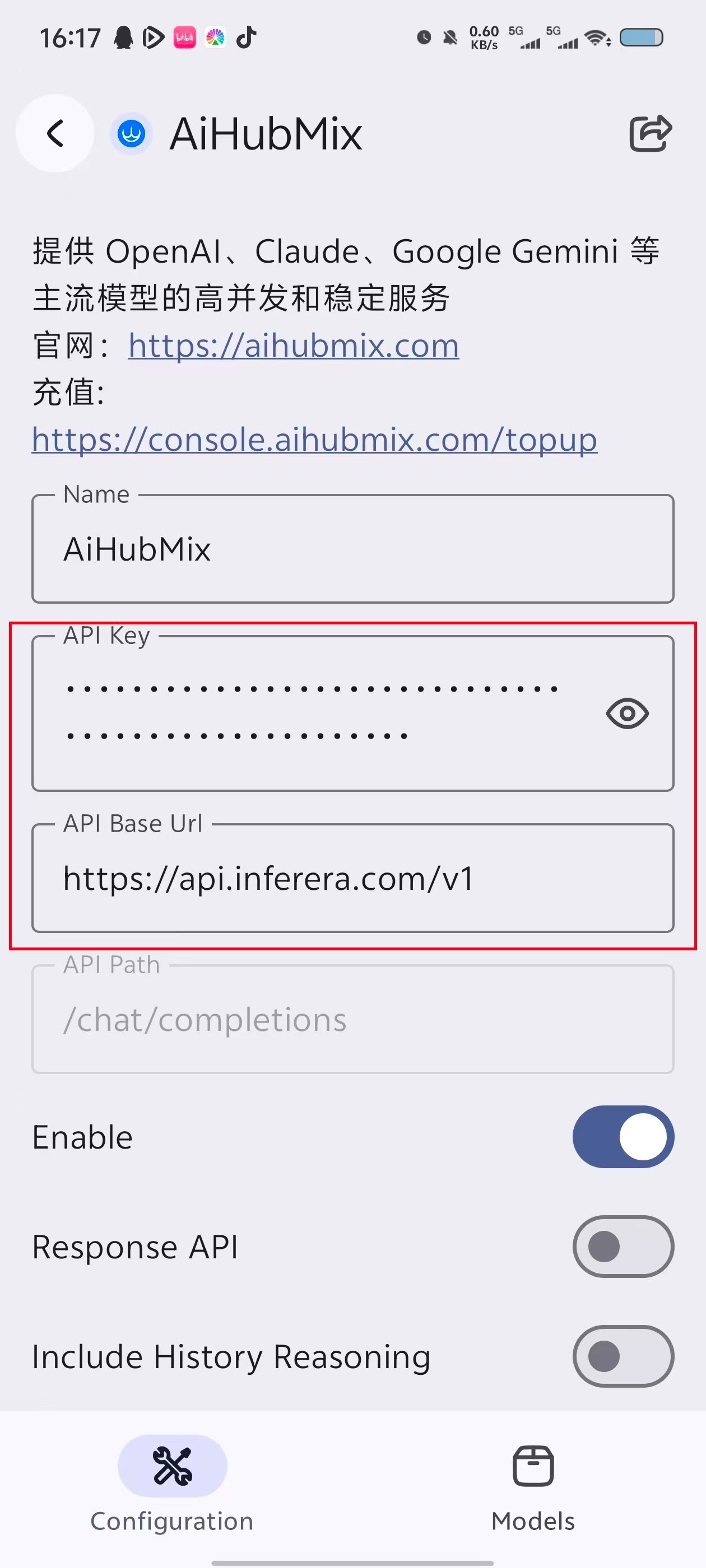
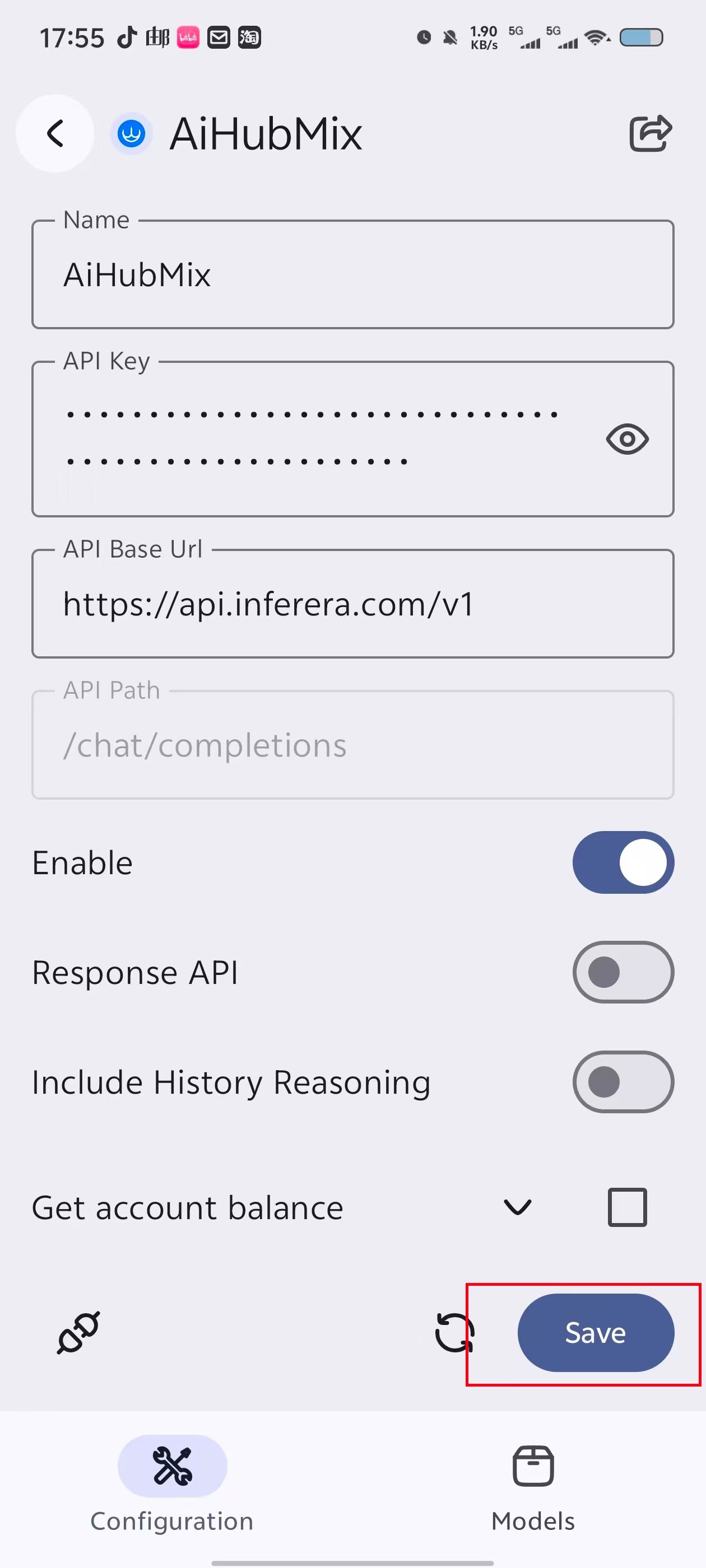
Select **AiHubMix** from the provider list, then enter the following details:
* **API Key**: Enter the API key created in the AIHubMix Console.
* **API Base Url**: Enter `https://aihubmix.com/v1`. If the primary address is temporarily unavailable, use `https://api.inferera.com/v1`.
* **API Path**: Keep the default value `/chat/completions`.
* **Enable**: Turn it on.
* **Response API**: Leave it off.
When finished, tap **Save** in the lower-right corner.
### 2. Enter and save the provider details
Select **AiHubMix** from the provider list, then enter the following details:
* **API Key**: Enter the API key created in the AIHubMix Console.
* **API Base Url**: Enter `https://aihubmix.com/v1`. If the primary address is temporarily unavailable, use `https://api.inferera.com/v1`.
* **API Path**: Keep the default value `/chat/completions`.
* **Enable**: Turn it on.
* **Response API**: Leave it off.
When finished, tap **Save** in the lower-right corner.
 ## Add models
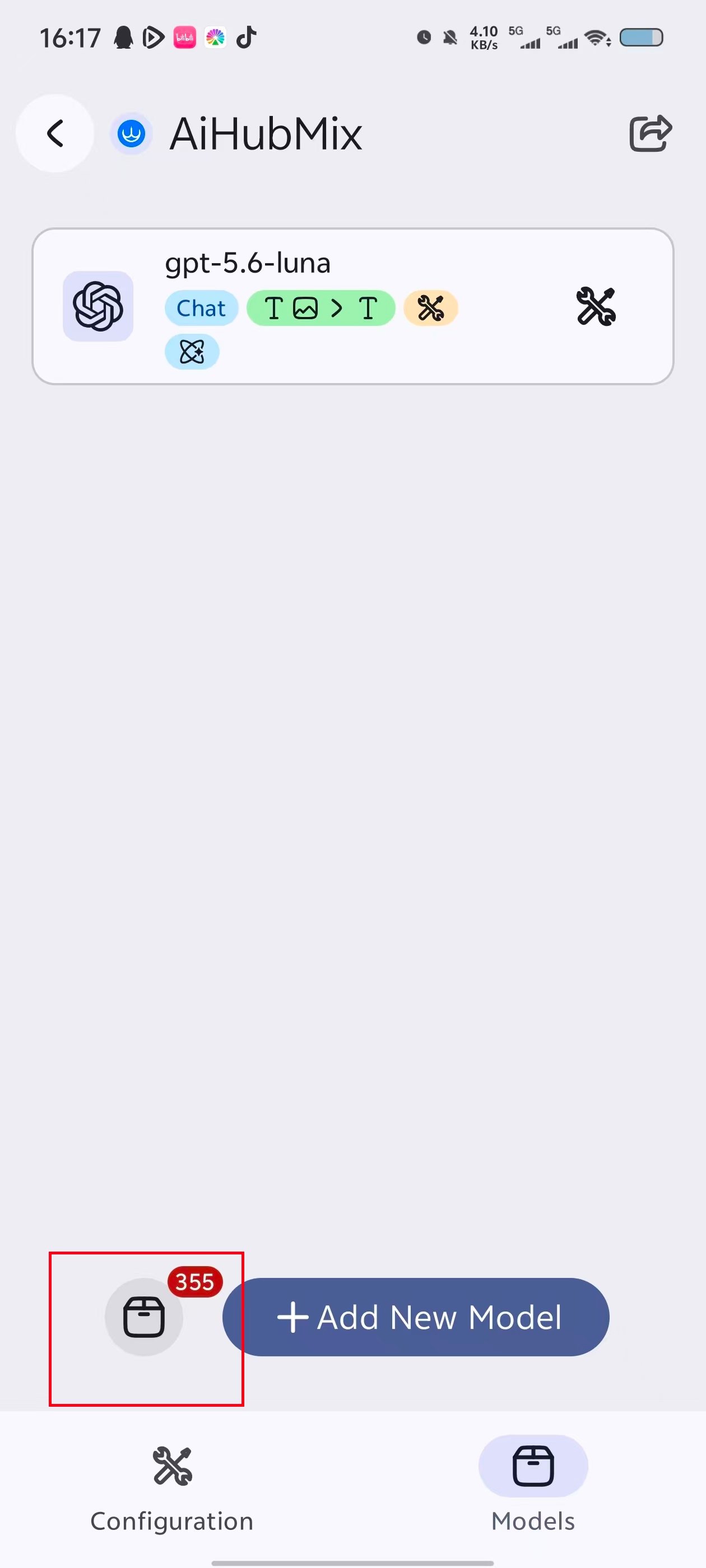
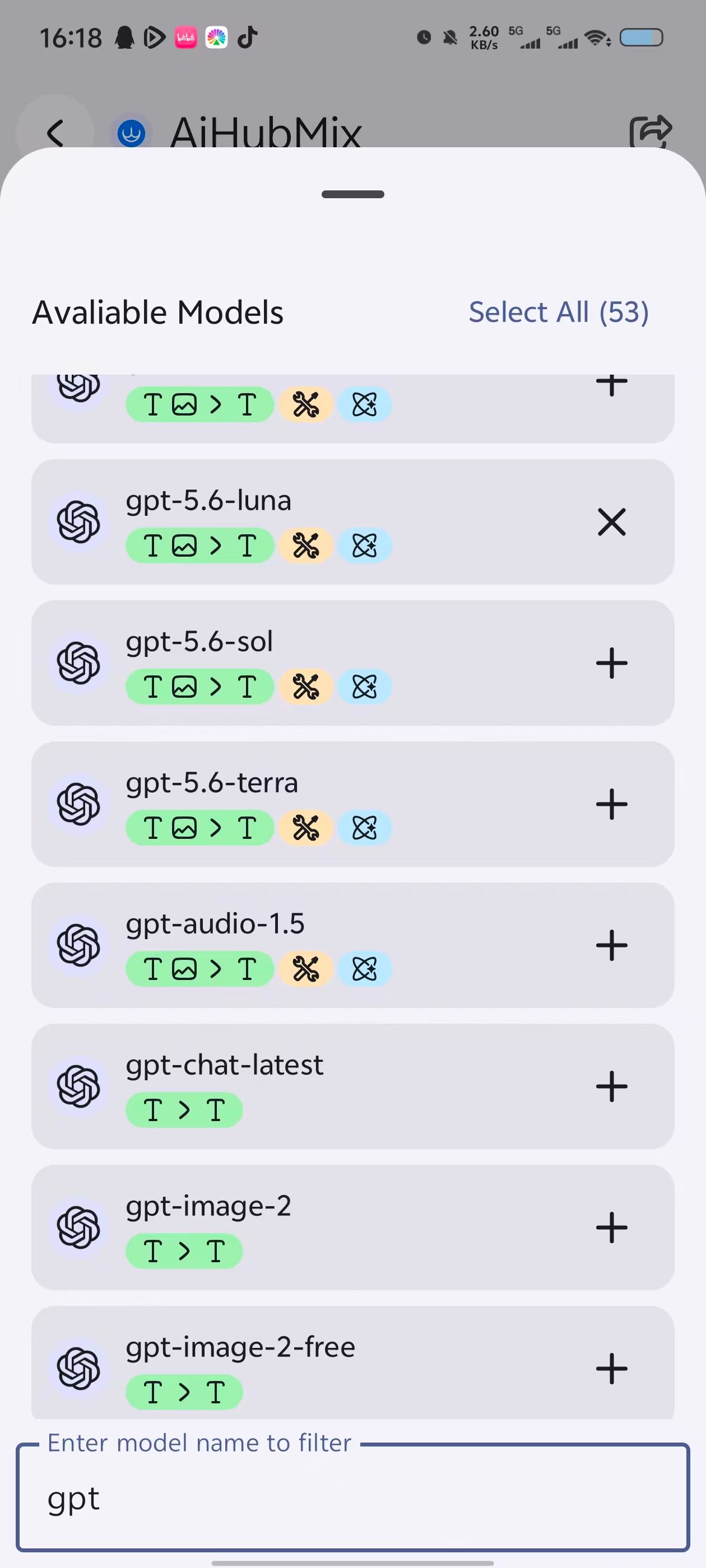
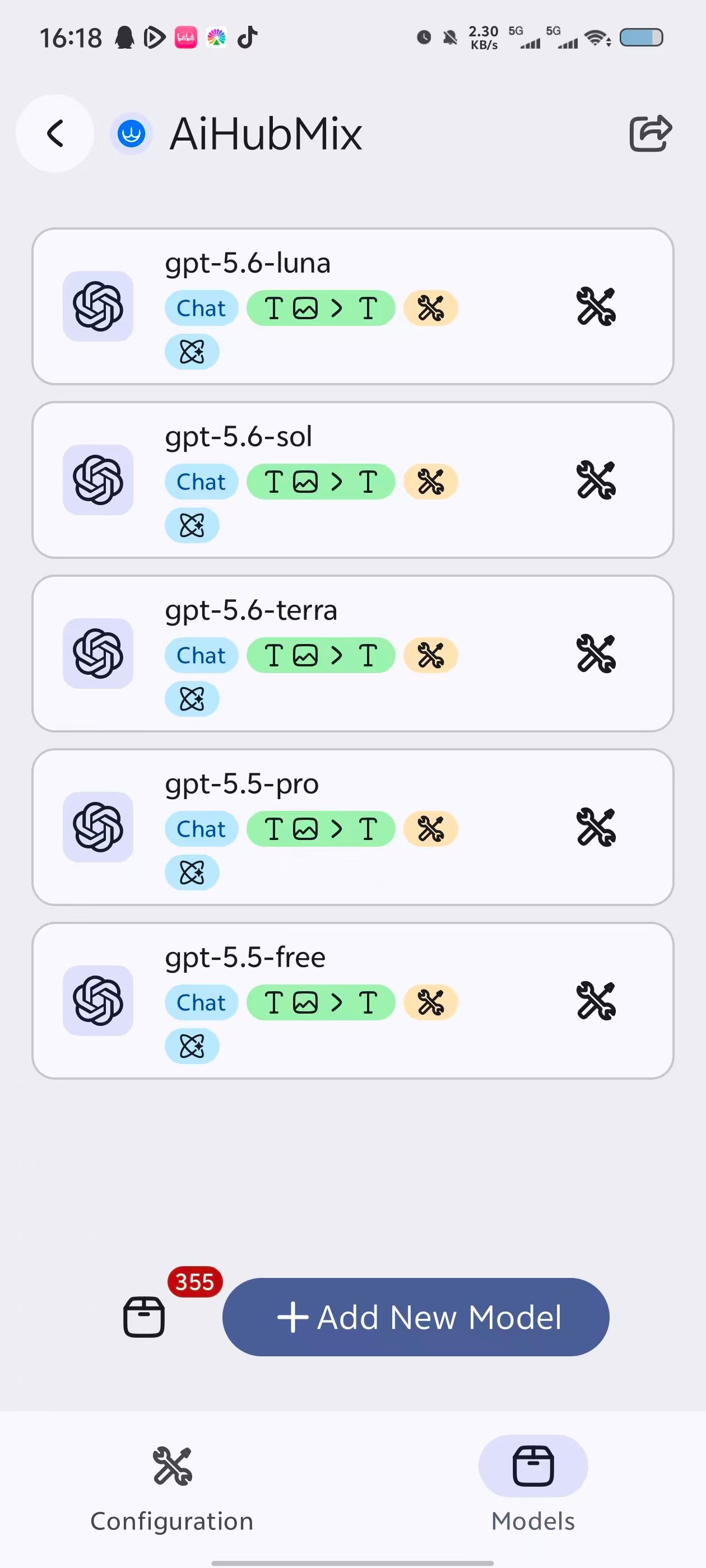
Switch to the **Models** tab. Tap **Add New Model** to define a model manually, or tap the model-list button to its left to choose a model directly from the list.
In the model list, filter by name and tap **+** next to a model to add it. To add every model, tap **Select All**. Return to the model management page to review and manage the models you added.
## Add models
Switch to the **Models** tab. Tap **Add New Model** to define a model manually, or tap the model-list button to its left to choose a model directly from the list.
In the model list, filter by name and tap **+** next to a model to add it. To add every model, tap **Select All**. Return to the model management page to review and manage the models you added.
 ## Test the connection
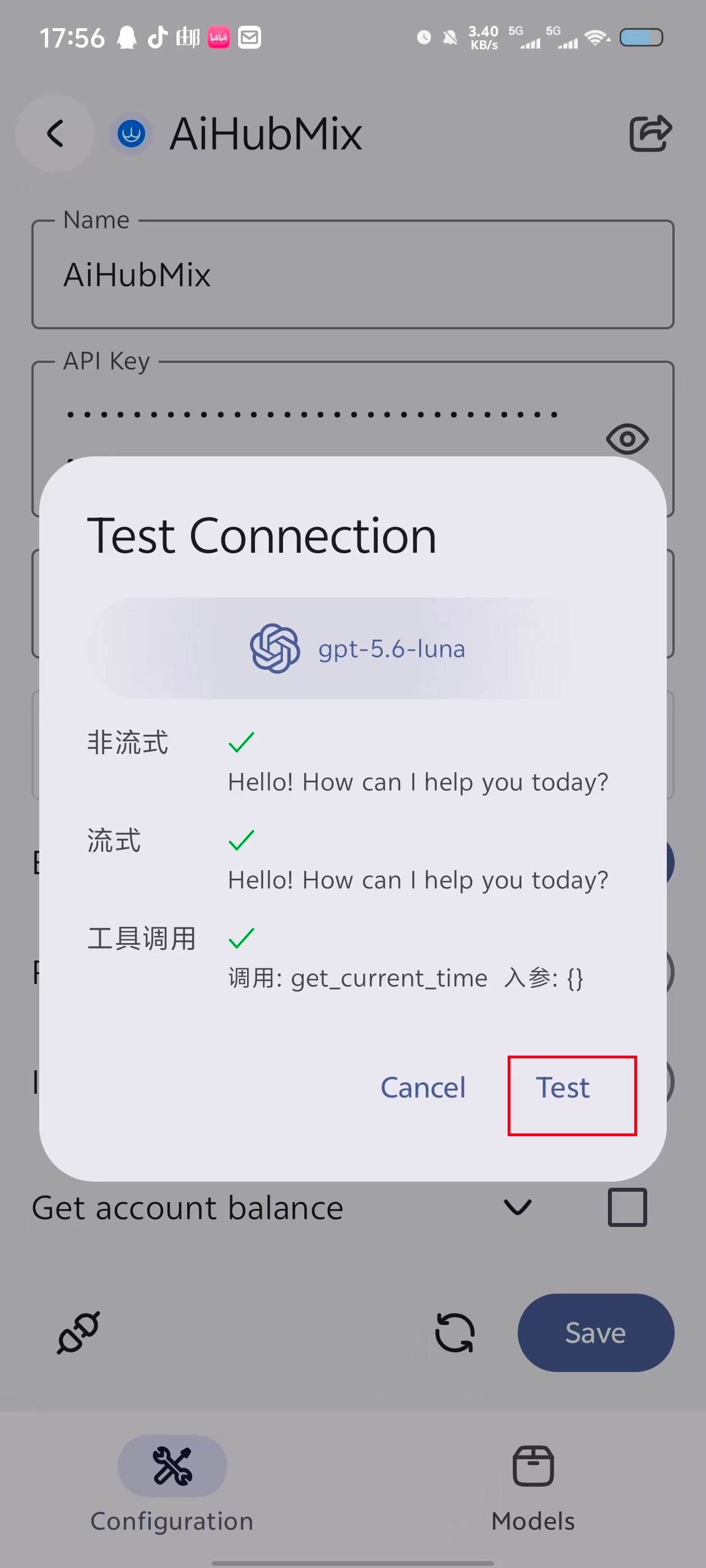
After adding the models, switch back to the **Configuration** tab and tap the connection-test button in the lower-left area.
Select one of the models you added, then tap **Test**. The connection is working when the non-streaming, streaming, and tool-call tests all pass.
## Test the connection
After adding the models, switch back to the **Configuration** tab and tap the connection-test button in the lower-left area.
Select one of the models you added, then tap **Test**. The connection is working when the non-streaming, streaming, and tool-call tests all pass.
 ## Select a model and verify
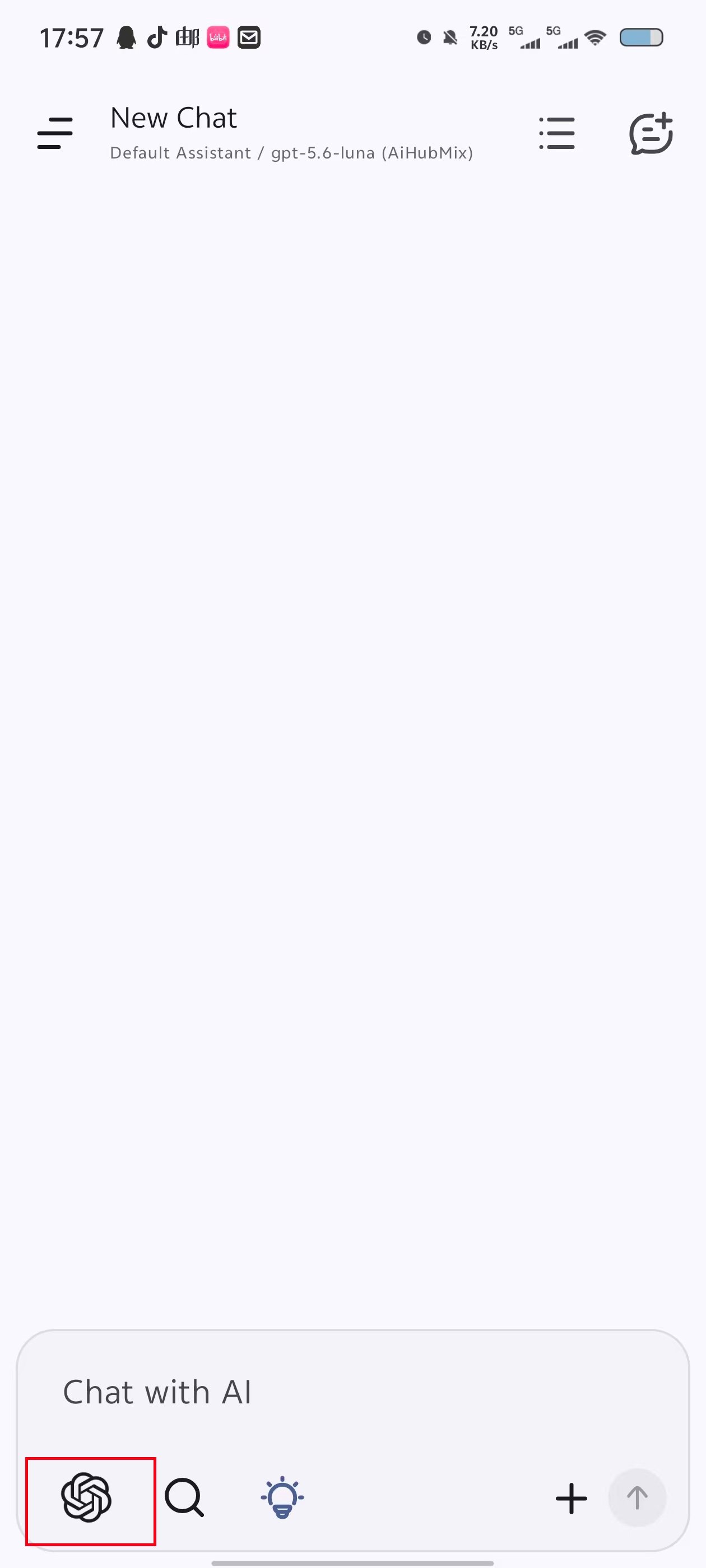
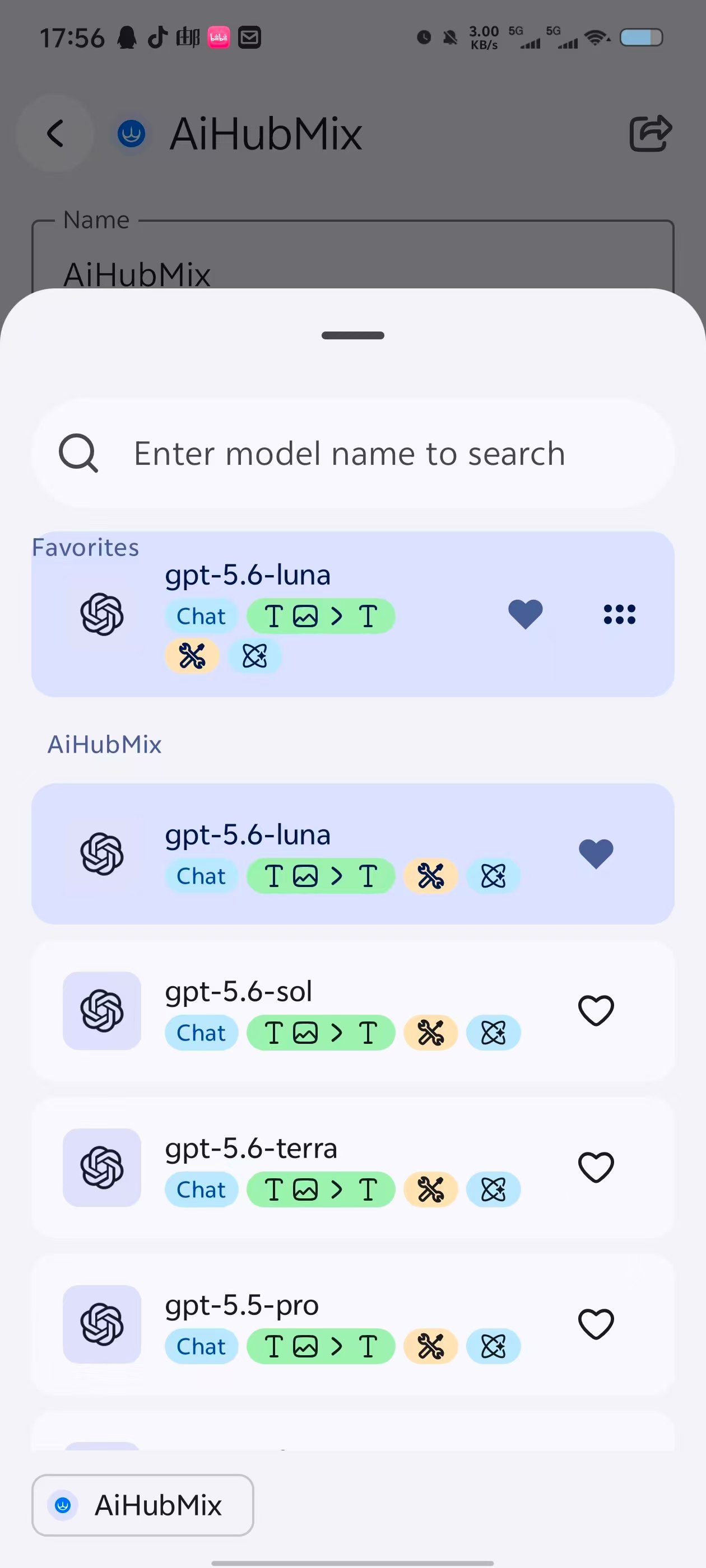
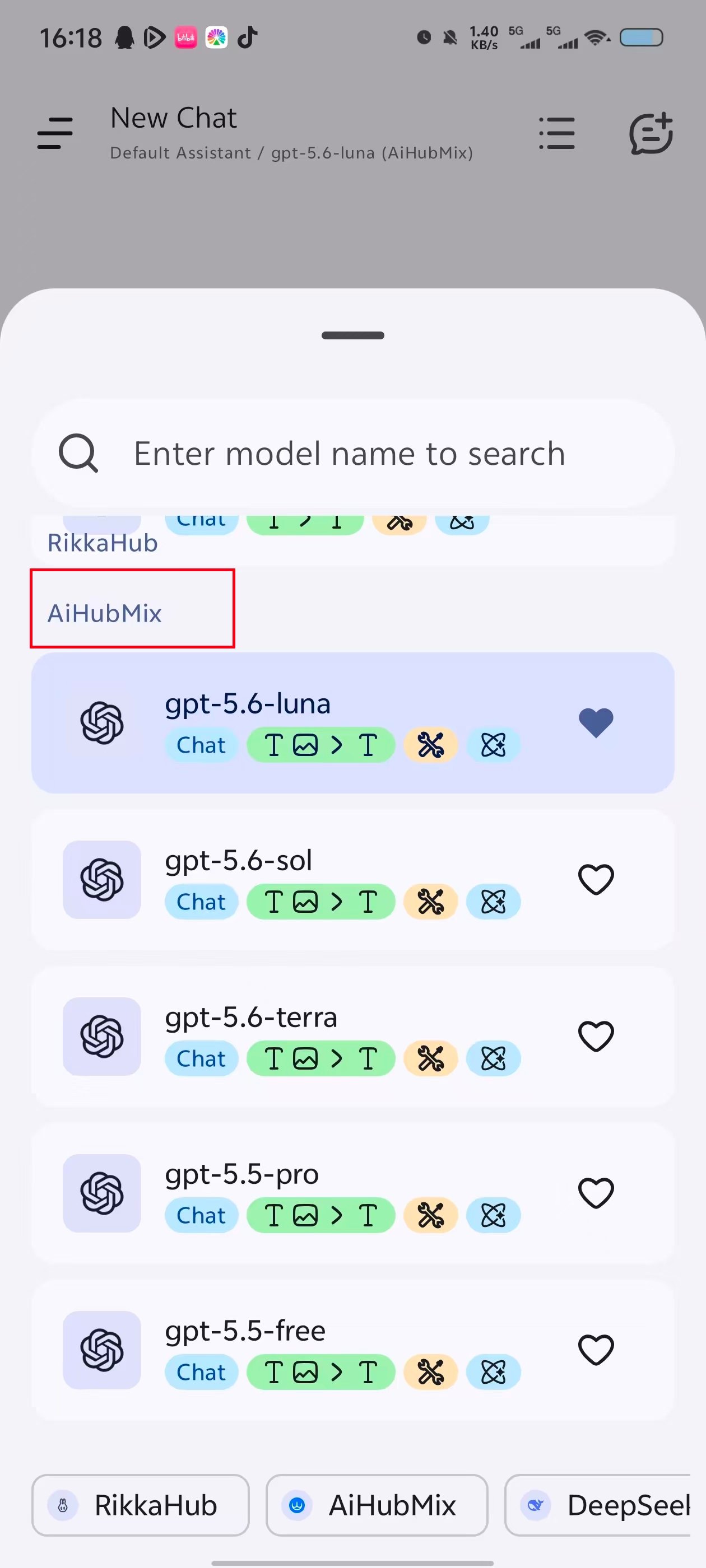
Return to the chat page and open the model picker in the lower-left corner. Select one of the models you added under **AiHubMix**.
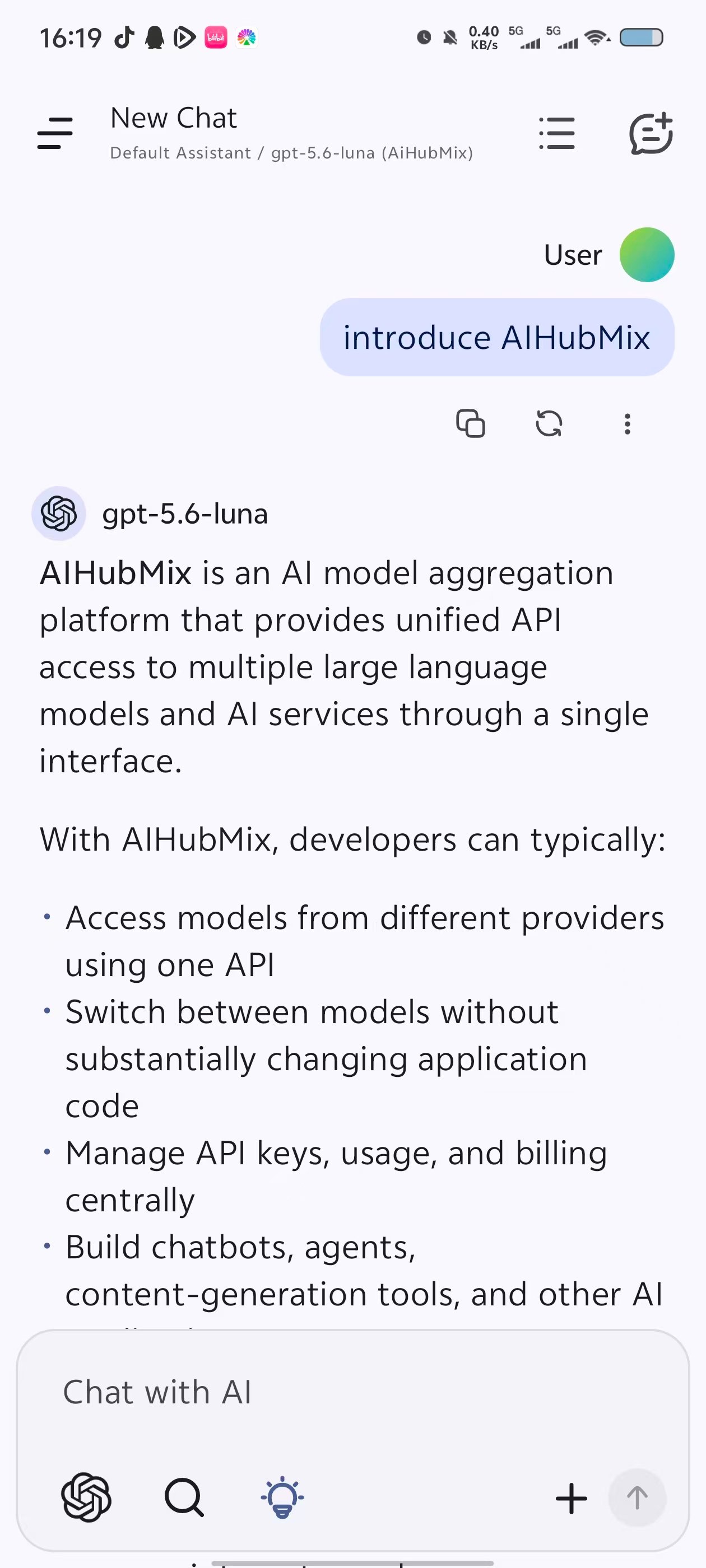
Send a message. A normal response confirms that the configuration works.
## Select a model and verify
Return to the chat page and open the model picker in the lower-left corner. Select one of the models you added under **AiHubMix**.
Send a message. A normal response confirms that the configuration works.
 ## FAQ
**Should API Base Url include the full request path?**
No. Set **API Base Url** to the address ending in `/v1`, and keep `/chat/completions` in the separate **API Path** field.
**Why is an added model missing from the model picker?**
Confirm that the provider is enabled and saved, then check that the model appears on the **Models** tab. If needed, return to the provider configuration and run the connection test again.
**What should I check when a request fails?**
Check the API key, API Base Url, and model selection. If the primary address is temporarily unavailable, change **API Base Url** to `https://api.inferera.com/v1`.
Last updated: 2026-07-17
## FAQ
**Should API Base Url include the full request path?**
No. Set **API Base Url** to the address ending in `/v1`, and keep `/chat/completions` in the separate **API Path** field.
**Why is an added model missing from the model picker?**
Confirm that the provider is enabled and saved, then check that the model appears on the **Models** tab. If needed, return to the provider configuration and run the connection test again.
**What should I check when a request fails?**
Check the API key, API Base Url, and model selection. If the primary address is temporarily unavailable, change **API Base Url** to `https://api.inferera.com/v1`.
Last updated: 2026-07-17