> ## Documentation Index
> Fetch the complete documentation index at: https://docs.aihubmix.com/llms.txt
> Use this file to discover all available pages before exploring further.
# CodeBuddy
> Configure AIHubMix in CodeBuddy and use any model supported by AIHubMix.
CodeBuddy supports custom OpenAI-compatible models. After adding AIHubMix, you can use GPT, Claude, Gemini, DeepSeek, GLM, and other AIHubMix models in CodeBuddy.
## Before you start
* Install and open [CodeBuddy](https://www.codebuddy.cn/).
* Create an API key in the [AIHubMix Console](https://aihubmix.com/token). It usually starts with `sk-***`.
* Copy the model ID you want to use, such as `gpt-5.5`, `gemini-3.5-flash`, or `deepseek-chat`, from the AIHubMix model list.
## Configure AIHubMix in the interface
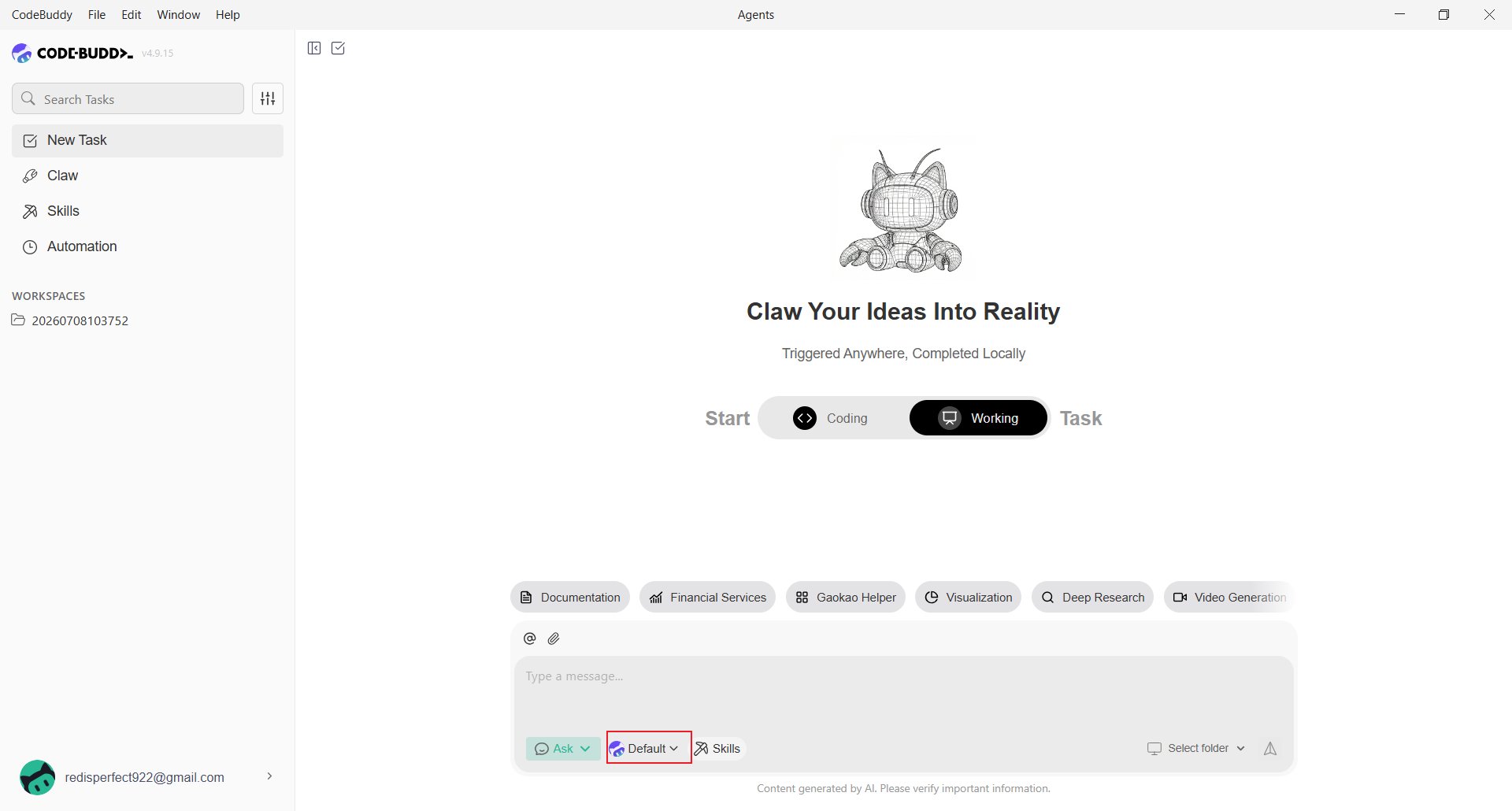
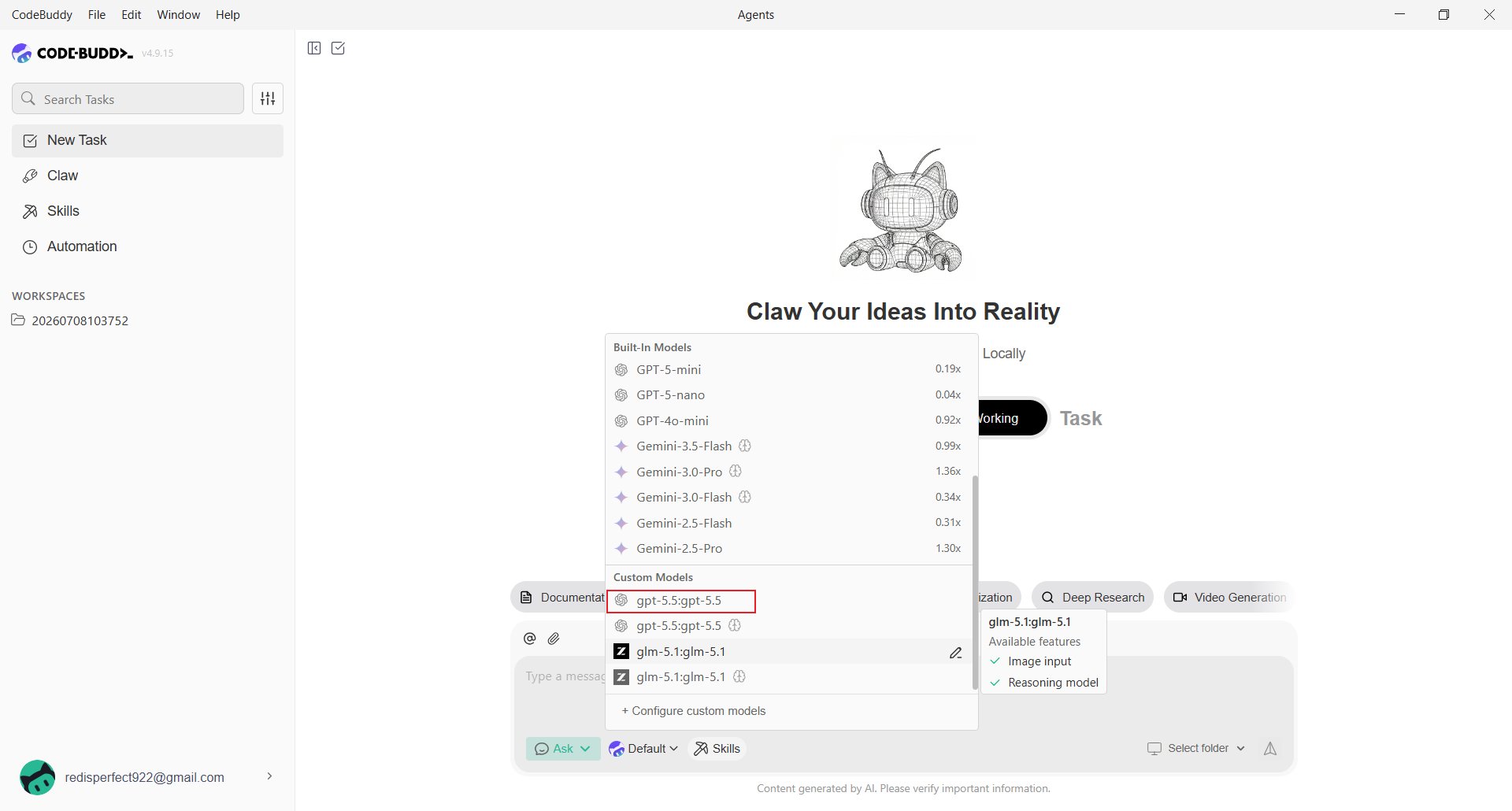
Open CodeBuddy and click the current model name below the input box, for example **Default**.
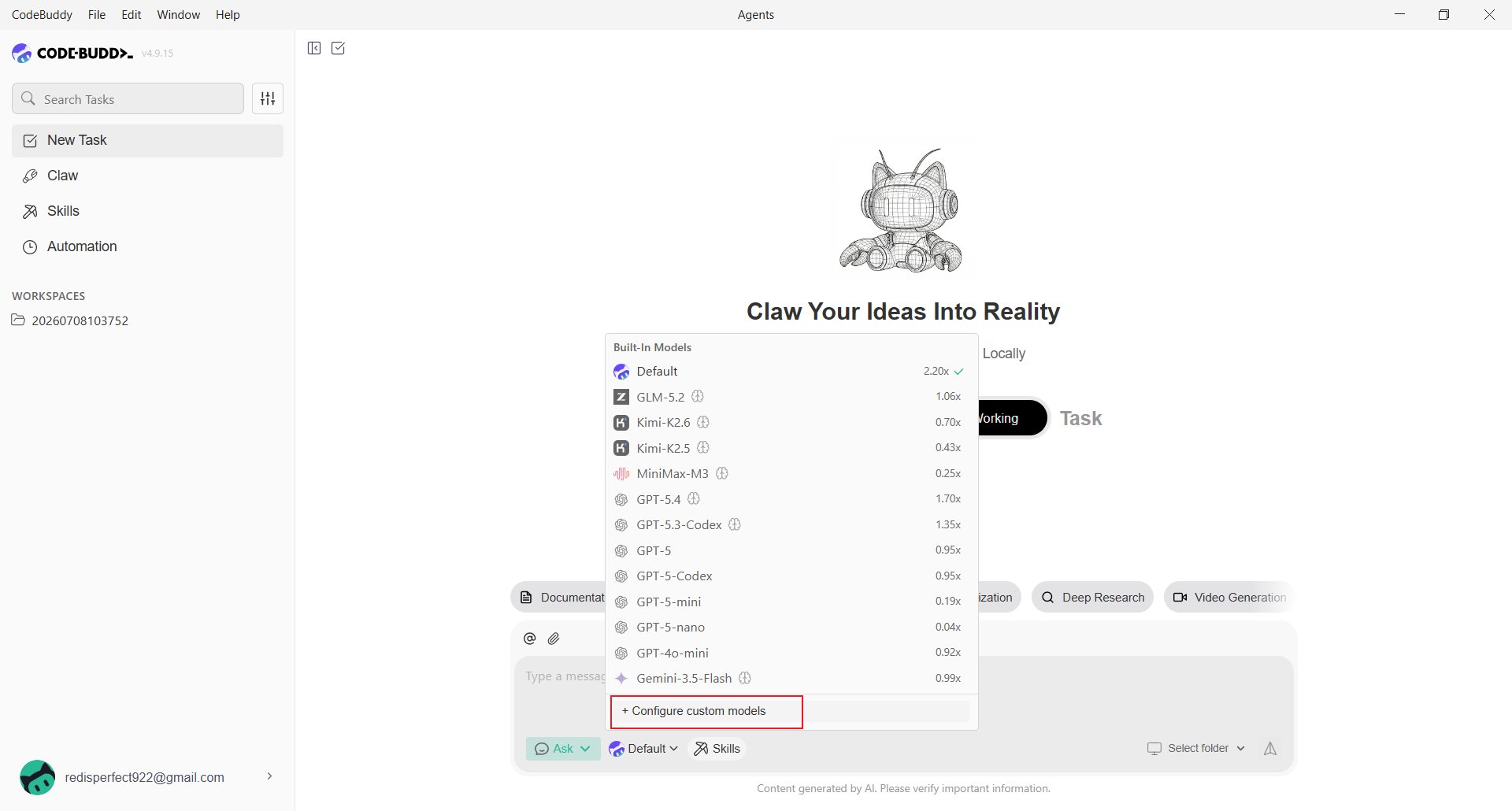
 Scroll to the bottom of the model list and select **Configure custom models**.
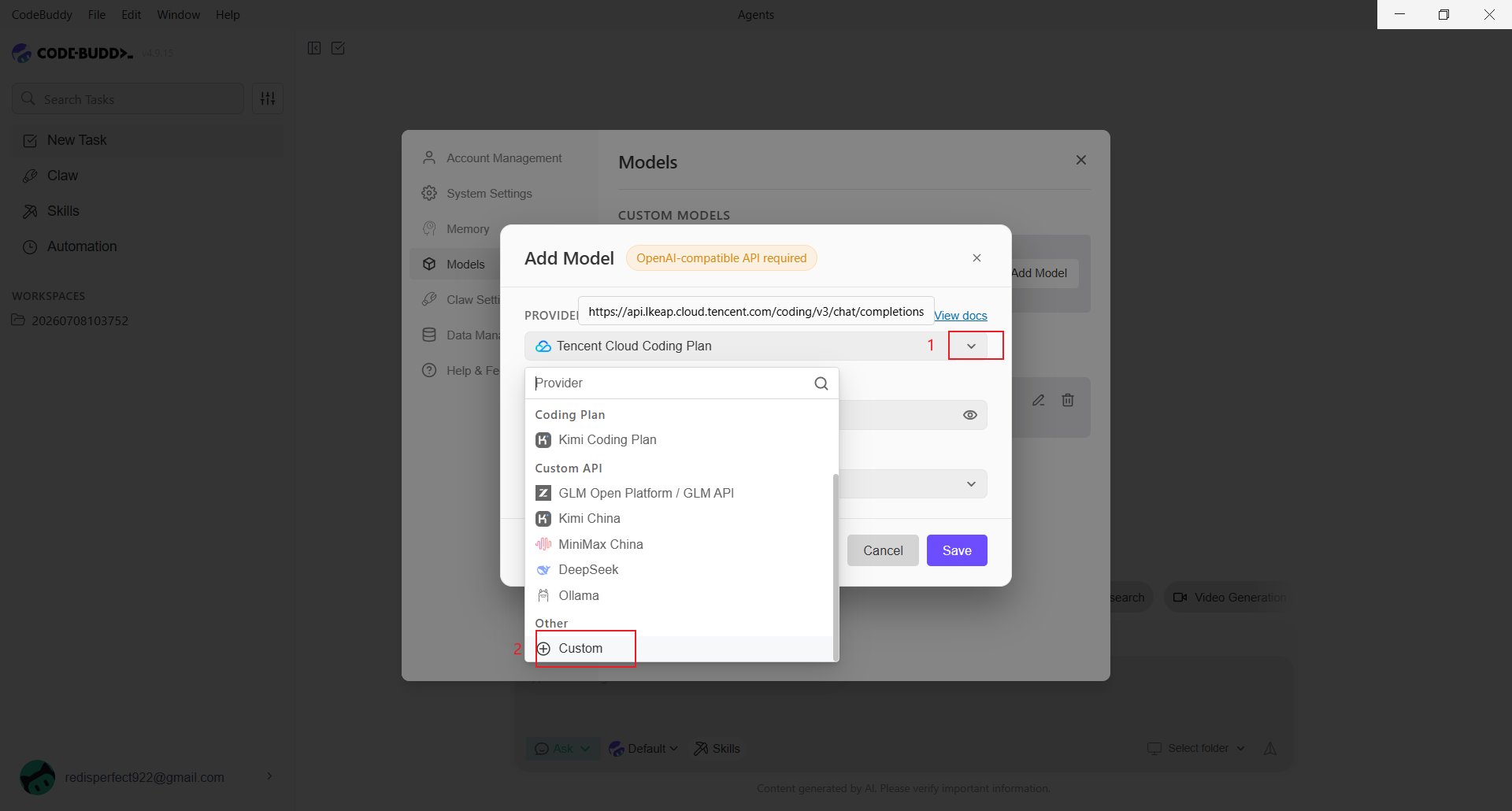
 Click **Add Model**, then choose **Custom** from the **Provider** menu.
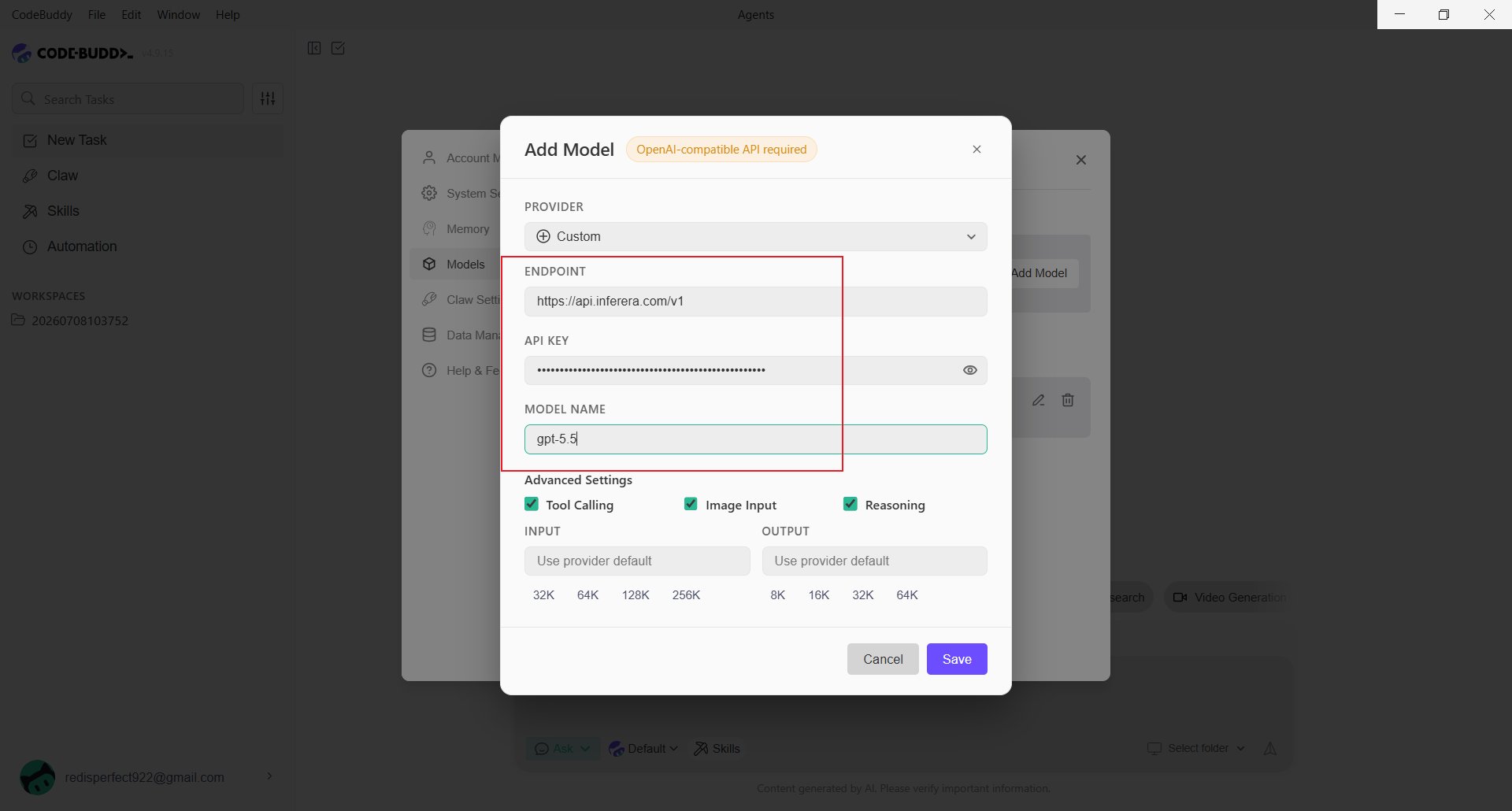
 Complete the following fields:
* **Endpoint**: Use `https://aihubmix.com/v1`. If it is temporarily unavailable, use the backup endpoint `https://api.inferera.com/v1`.
* **API Key**: Enter the key created in the [AIHubMix Console](https://aihubmix.com/token).
* **Model Name**: Enter the model ID, such as `gpt-5.5`.
* **Advanced Settings**: Enable **Tool Calling**, **Image Input**, or **Reasoning** only when the selected model supports that capability.
Click **Save**.
Complete the following fields:
* **Endpoint**: Use `https://aihubmix.com/v1`. If it is temporarily unavailable, use the backup endpoint `https://api.inferera.com/v1`.
* **API Key**: Enter the key created in the [AIHubMix Console](https://aihubmix.com/token).
* **Model Name**: Enter the model ID, such as `gpt-5.5`.
* **Advanced Settings**: Enable **Tool Calling**, **Image Input**, or **Reasoning** only when the selected model supports that capability.
Click **Save**.
 Return to the model picker and select the model from **Custom Models**.
 ## Add a model through a configuration file
CodeBuddy stores custom models locally. Edit the following file when configuring through the interface is inconvenient:
```text theme={null}
%USERPROFILE%\.codebuddy\models.json
```
You can also set a project-level configuration here:
```text theme={null}
your-project-directory\.codebuddy\models.json
```
The project-level setting takes precedence. When editing `models.json`, use the full Chat Completions URL:
```json theme={null}
{
"models": [
{
"id": "gpt-5.5",
"name": "gpt-5.5",
"vendor": "AIHubMix",
"url": "https://aihubmix.com/v1/chat/completions",
"apiKey": "sk-***",
"maxInputTokens": 128000,
"maxOutputTokens": 8192,
"supportsToolCall": true,
"supportsImages": true,
"supportsReasoning": true
}
],
"availableModels": ["gpt-5.5"]
}
```
If the primary endpoint is unavailable, change `url` to:
```json theme={null}
"url": "https://api.inferera.com/v1/chat/completions"
```
The interface only needs the `/v1` endpoint; `models.json` needs the complete `/chat/completions` path. Restart CodeBuddy or reopen the model picker after saving. To avoid storing the key in plain text, use an environment variable:
```json theme={null}
"apiKey": "${AIHUBMIX_API_KEY}"
```
## CodeBuddy CLI
The command-line version is called **CodeBuddy Code**. Install it with npm, then run `codebuddy` to start it:
```shell theme={null}
npm install -g @tencent-ai/codebuddy-code
```
Set the API key, endpoint, and default model with environment variables. AIHubMix's Anthropic-compatible interface uses the root URL for `CODEBUDDY_BASE_URL`:
```powershell theme={null}
$env:CODEBUDDY_API_KEY="sk-***"
$env:CODEBUDDY_BASE_URL="https://aihubmix.com"
$env:CODEBUDDY_MODEL="glm-4.7"
codebuddy
```
To keep these settings, add them to `%USERPROFILE%\.codebuddy\settings.json`:
```json theme={null}
{
"env": {
"CODEBUDDY_API_KEY": "sk-***",
"CODEBUDDY_BASE_URL": "https://aihubmix.com",
"CODEBUDDY_MODEL": "glm-4.7"
}
}
```
The CLI uses the Anthropic-compatible protocol, while desktop custom models use the OpenAI-compatible endpoint. For a 404 error, check that `CODEBUDDY_BASE_URL` was not set to an OpenAI path such as `/v1/chat/completions`.
## Verify the setup
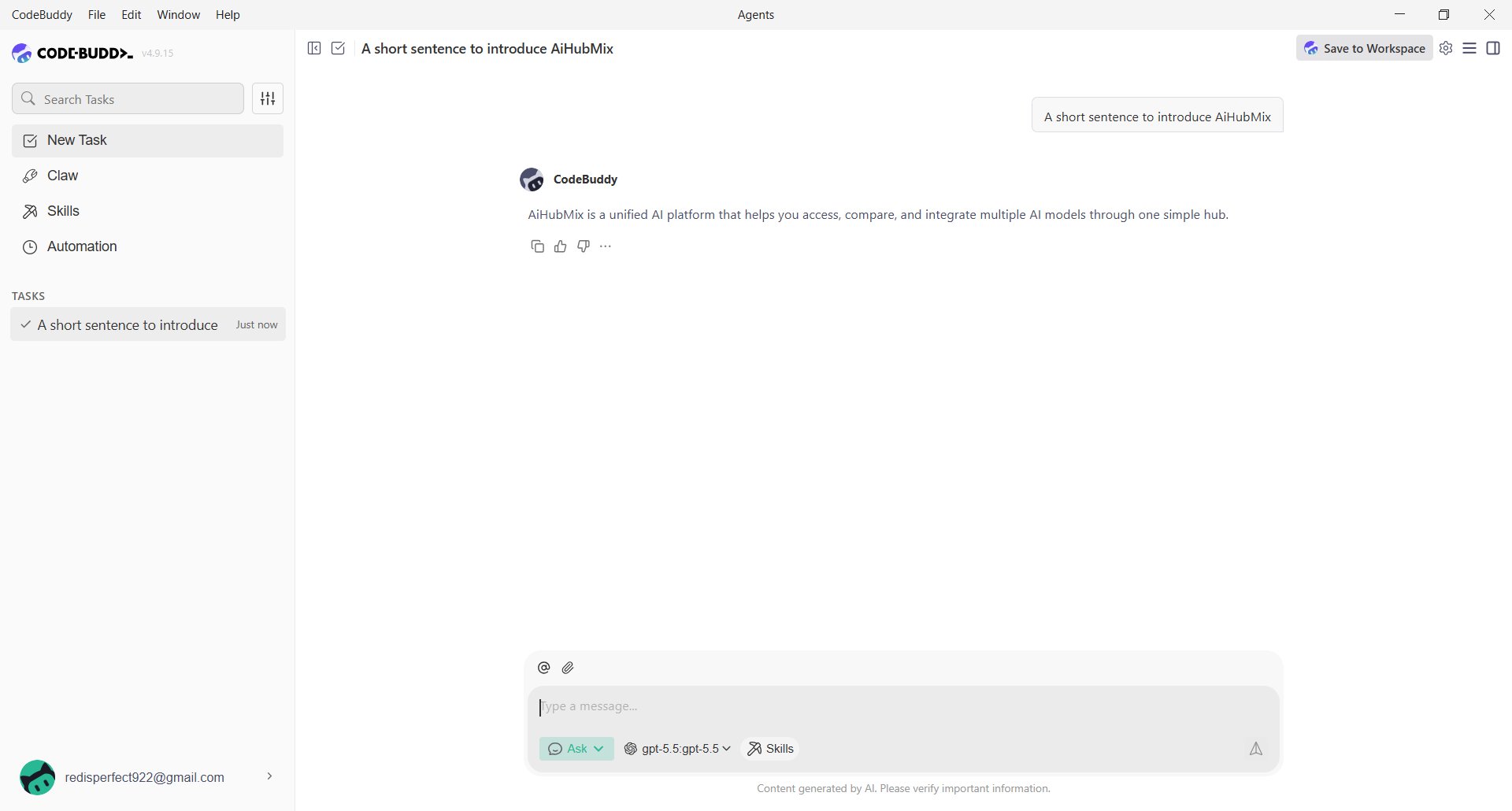
Select the custom model and send a short message, such as asking CodeBuddy to introduce AIHubMix. A successful reply confirms the configuration.
## Add a model through a configuration file
CodeBuddy stores custom models locally. Edit the following file when configuring through the interface is inconvenient:
```text theme={null}
%USERPROFILE%\.codebuddy\models.json
```
You can also set a project-level configuration here:
```text theme={null}
your-project-directory\.codebuddy\models.json
```
The project-level setting takes precedence. When editing `models.json`, use the full Chat Completions URL:
```json theme={null}
{
"models": [
{
"id": "gpt-5.5",
"name": "gpt-5.5",
"vendor": "AIHubMix",
"url": "https://aihubmix.com/v1/chat/completions",
"apiKey": "sk-***",
"maxInputTokens": 128000,
"maxOutputTokens": 8192,
"supportsToolCall": true,
"supportsImages": true,
"supportsReasoning": true
}
],
"availableModels": ["gpt-5.5"]
}
```
If the primary endpoint is unavailable, change `url` to:
```json theme={null}
"url": "https://api.inferera.com/v1/chat/completions"
```
The interface only needs the `/v1` endpoint; `models.json` needs the complete `/chat/completions` path. Restart CodeBuddy or reopen the model picker after saving. To avoid storing the key in plain text, use an environment variable:
```json theme={null}
"apiKey": "${AIHUBMIX_API_KEY}"
```
## CodeBuddy CLI
The command-line version is called **CodeBuddy Code**. Install it with npm, then run `codebuddy` to start it:
```shell theme={null}
npm install -g @tencent-ai/codebuddy-code
```
Set the API key, endpoint, and default model with environment variables. AIHubMix's Anthropic-compatible interface uses the root URL for `CODEBUDDY_BASE_URL`:
```powershell theme={null}
$env:CODEBUDDY_API_KEY="sk-***"
$env:CODEBUDDY_BASE_URL="https://aihubmix.com"
$env:CODEBUDDY_MODEL="glm-4.7"
codebuddy
```
To keep these settings, add them to `%USERPROFILE%\.codebuddy\settings.json`:
```json theme={null}
{
"env": {
"CODEBUDDY_API_KEY": "sk-***",
"CODEBUDDY_BASE_URL": "https://aihubmix.com",
"CODEBUDDY_MODEL": "glm-4.7"
}
}
```
The CLI uses the Anthropic-compatible protocol, while desktop custom models use the OpenAI-compatible endpoint. For a 404 error, check that `CODEBUDDY_BASE_URL` was not set to an OpenAI path such as `/v1/chat/completions`.
## Verify the setup
Select the custom model and send a short message, such as asking CodeBuddy to introduce AIHubMix. A successful reply confirms the configuration.
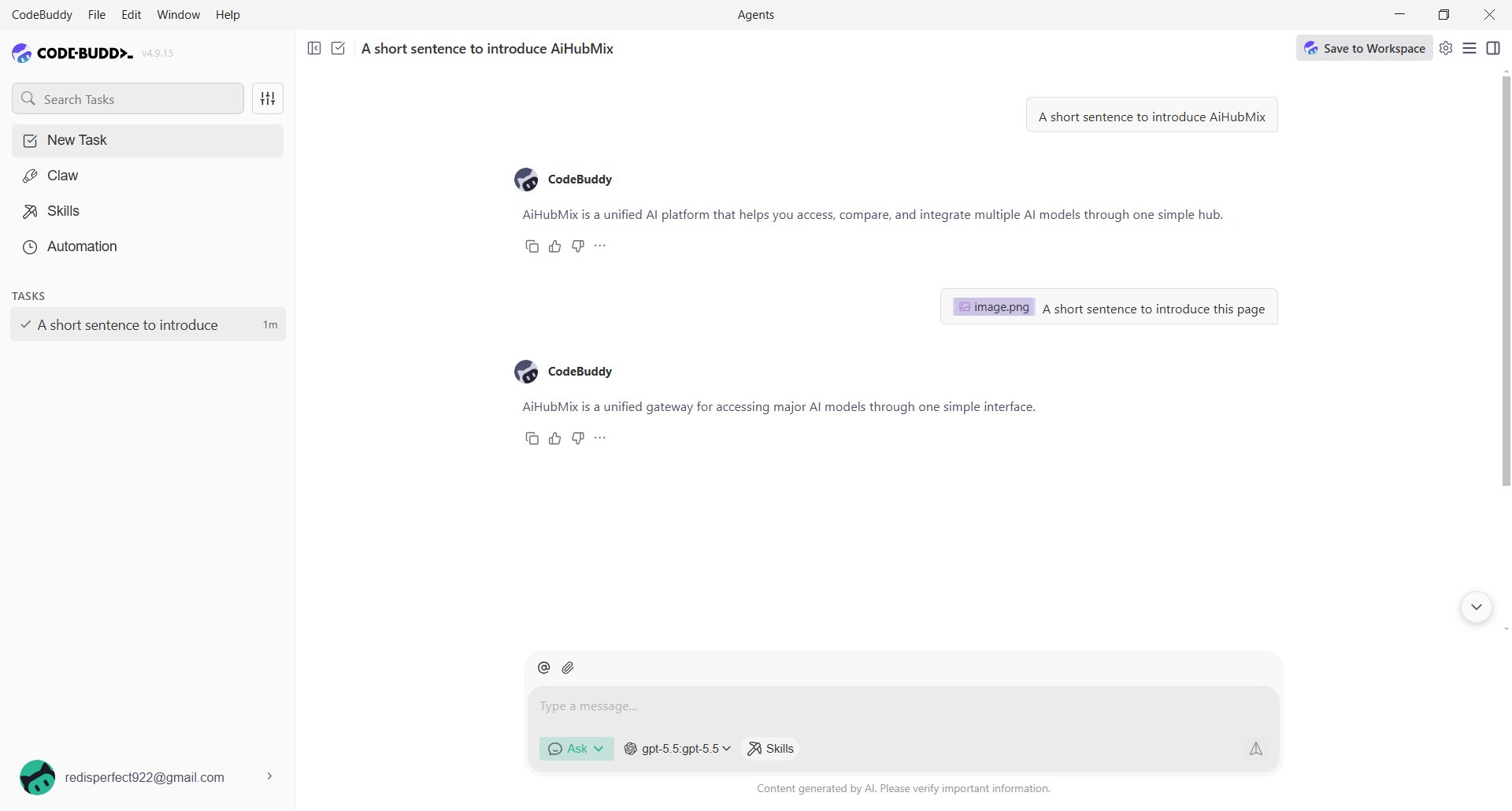
 For a model that supports image input, upload an image to test that capability.
 ## FAQ
**The model is unavailable after saving. What should I check?**
Confirm that the endpoint includes `/v1`, the API key is complete, and the model name matches the AIHubMix model ID. For `models.json`, also confirm that `url` includes `/chat/completions`.
**Why are two similar model names shown?**
CodeBuddy may display a custom model as `model-name:model-name`. This is normal as long as it responds correctly.
**Do the CLI and desktop app use the same settings?**
Not exactly. Desktop custom models use `models.json`; the CLI reads environment variables or the `env` object in `settings.json`.
Last updated: 2026-07-10
## FAQ
**The model is unavailable after saving. What should I check?**
Confirm that the endpoint includes `/v1`, the API key is complete, and the model name matches the AIHubMix model ID. For `models.json`, also confirm that `url` includes `/chat/completions`.
**Why are two similar model names shown?**
CodeBuddy may display a custom model as `model-name:model-name`. This is normal as long as it responds correctly.
**Do the CLI and desktop app use the same settings?**
Not exactly. Desktop custom models use `models.json`; the CLI reads environment variables or the `env` object in `settings.json`.
Last updated: 2026-07-10