> ## Documentation Index
> Fetch the complete documentation index at: https://docs.aihubmix.com/llms.txt
> Use this file to discover all available pages before exploring further.
# Hermes Agent
> Hermes Agent is an open-source self-improving AI agent from Nous Research. It learns autonomously, evolves continuously, and features a persistent memory system.
 # Quick Start
## Step 1: Install Hermes
Open your terminal and run the following command:
### Linux / macOS / WSL2
```text theme={null}
curl -fsSL https://raw.githubusercontent.com/NousResearch/hermes-agent/main/scripts/install.sh | bash
```
### Android / Termux
```text theme={null}
curl -fsSL https://raw.githubusercontent.com/NousResearch/hermes-agent/main/scripts/install.sh | bash
```
> Native Windows is **not supported**. Please install [WSL2](https://learn.microsoft.com/en-us/windows/wsl/install) and run Hermes Agent from within WSL2.
## Step 2: Choose a Provider
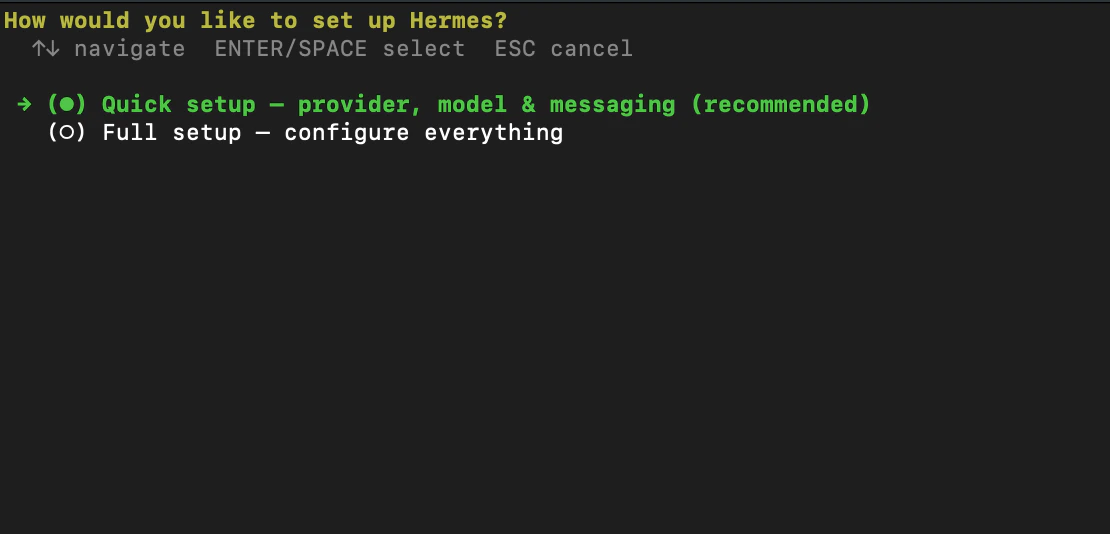
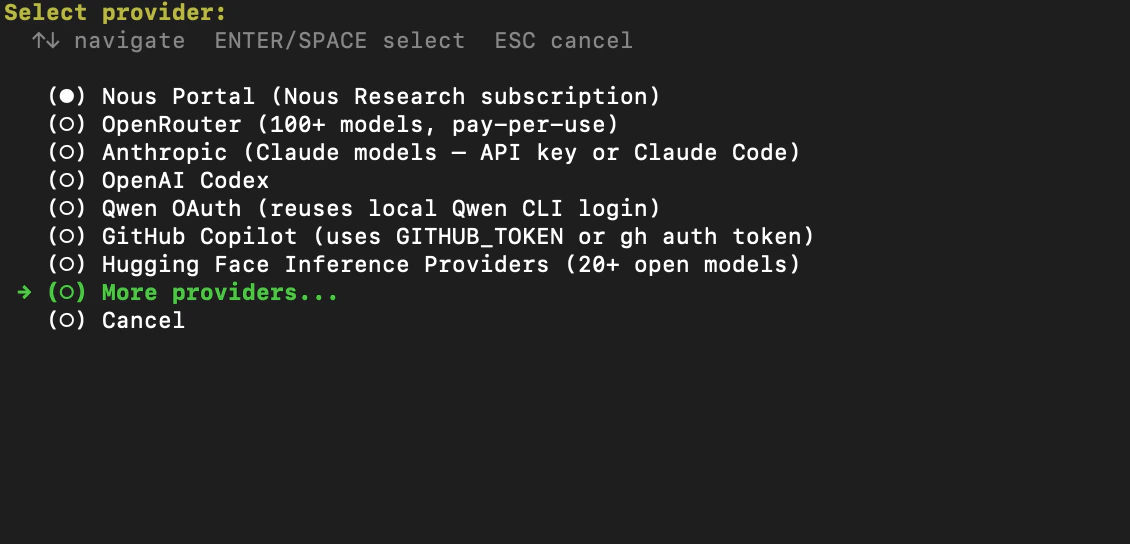
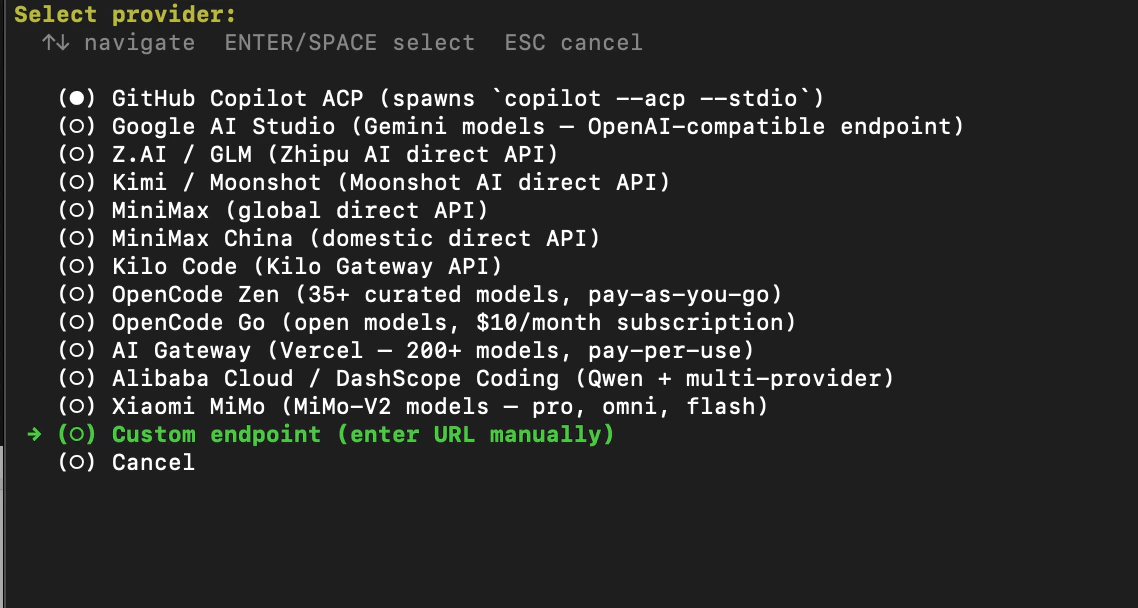
After a successful installation, select Quick setup -> More providers -> Custom endpoint.
# Quick Start
## Step 1: Install Hermes
Open your terminal and run the following command:
### Linux / macOS / WSL2
```text theme={null}
curl -fsSL https://raw.githubusercontent.com/NousResearch/hermes-agent/main/scripts/install.sh | bash
```
### Android / Termux
```text theme={null}
curl -fsSL https://raw.githubusercontent.com/NousResearch/hermes-agent/main/scripts/install.sh | bash
```
> Native Windows is **not supported**. Please install [WSL2](https://learn.microsoft.com/en-us/windows/wsl/install) and run Hermes Agent from within WSL2.
## Step 2: Choose a Provider
After a successful installation, select Quick setup -> More providers -> Custom endpoint.
 ## Step 3: Configure AIHubMix Parameters
1. Enter the API base URL: `https://aihubmix.com/v1`.
2. Enter your [AIHUBMIX\_API\_KEY](https://console.aihubmix.com/token): sk-\*\*\*.
## Step 3: Configure AIHubMix Parameters
1. Enter the API base URL: `https://aihubmix.com/v1`.
2. Enter your [AIHUBMIX\_API\_KEY](https://console.aihubmix.com/token): sk-\*\*\*.
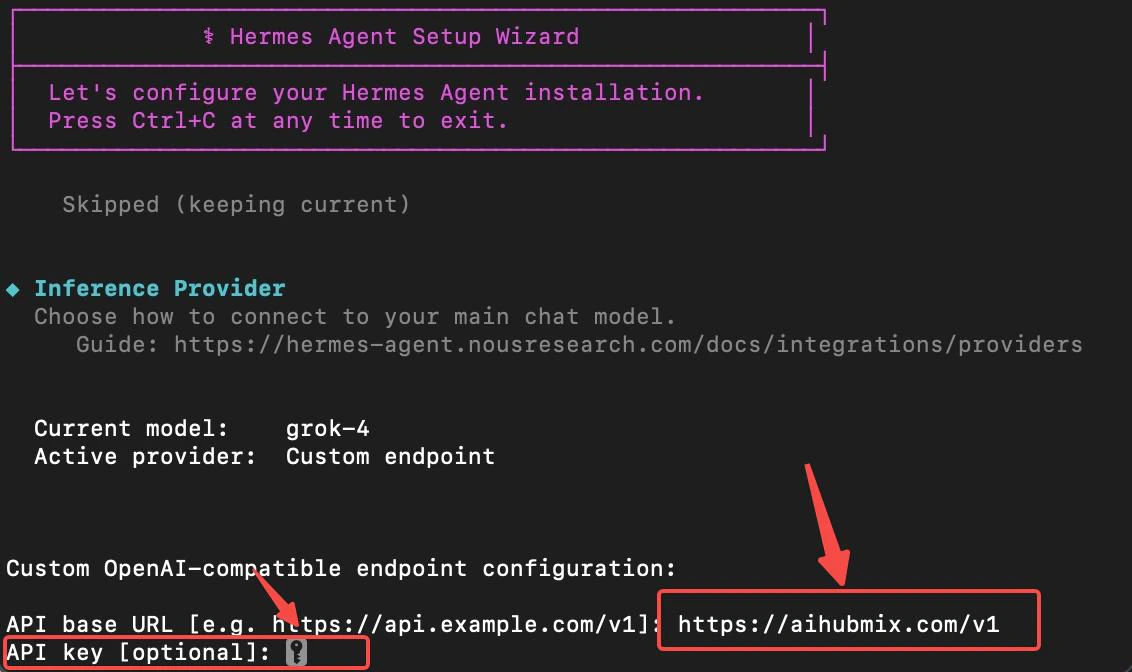 3. Enter the model ID to select the model you want to use.
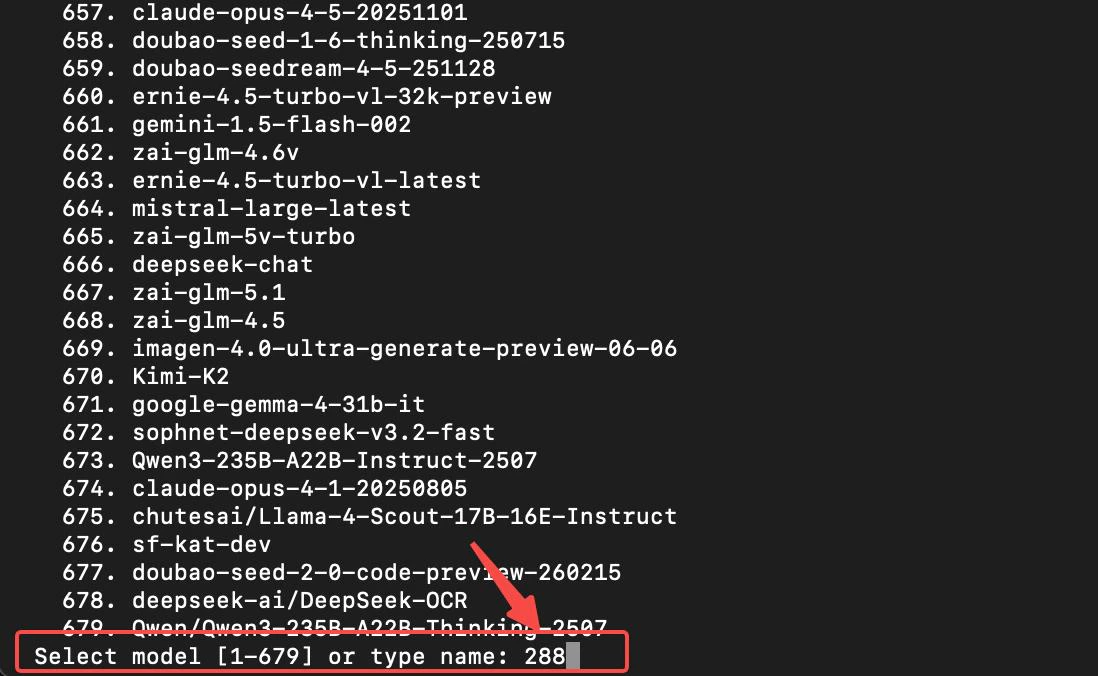 ## Step 4: Set Up the Messaging Platform
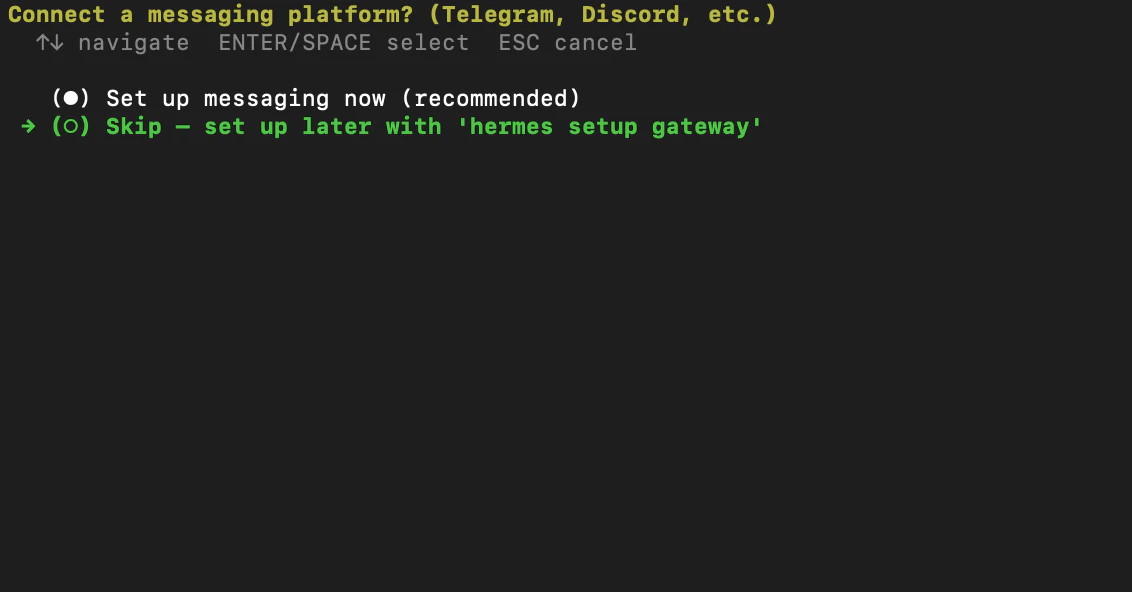
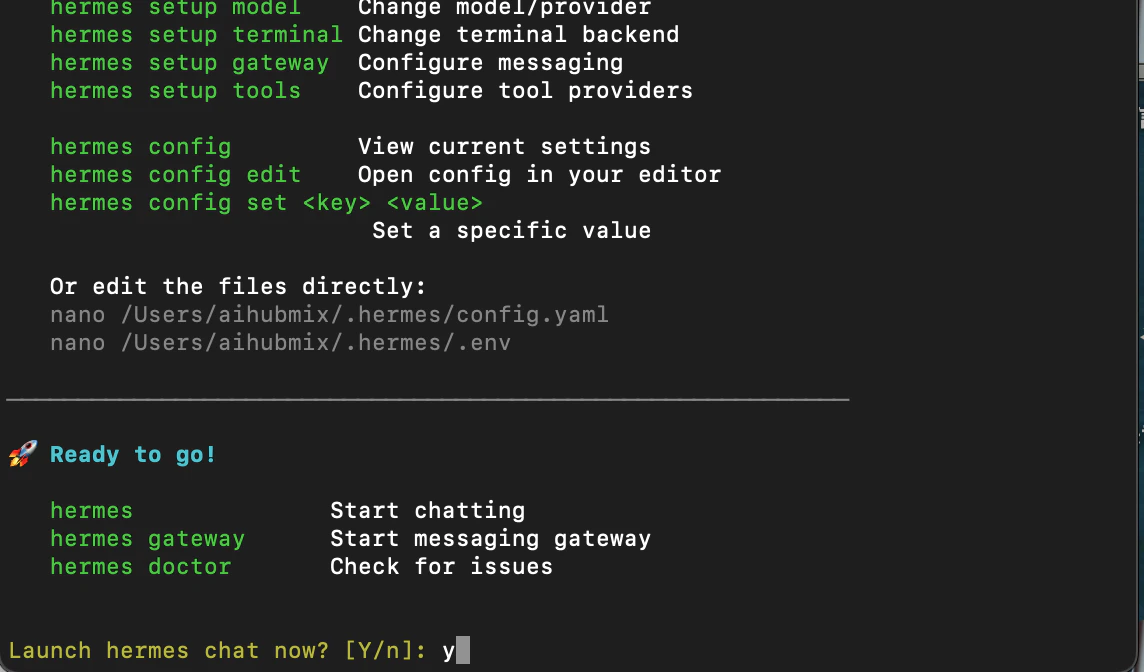
Configure the messaging platform as needed (use Skip as a reference) -> Whether to run now (select Y)
## Step 4: Set Up the Messaging Platform
Configure the messaging platform as needed (use Skip as a reference) -> Whether to run now (select Y)
 ## Step 5: Run a Test
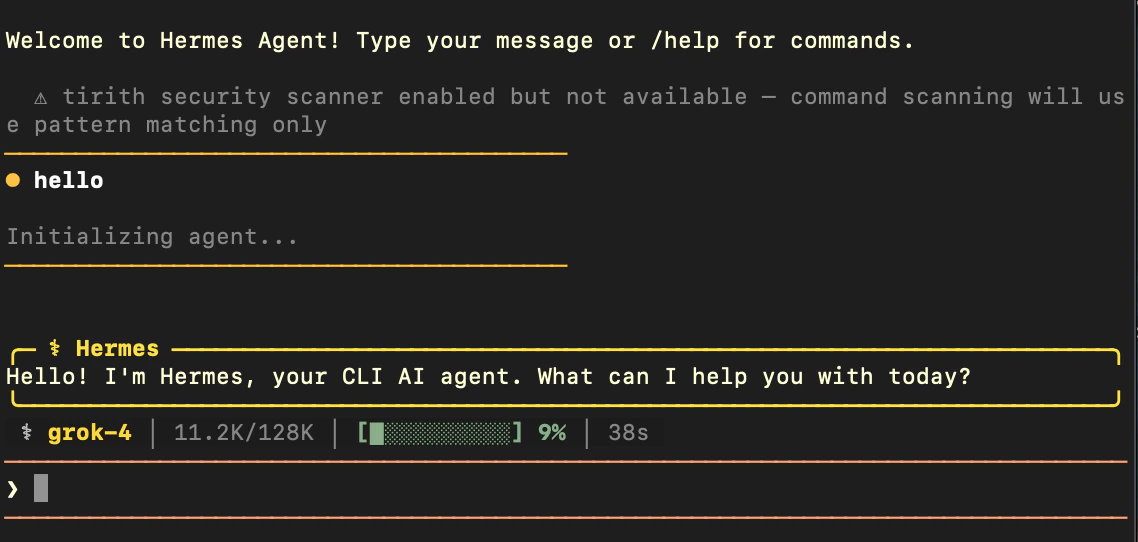
1. Enter `hermes` in the terminal to open the Hermes Agent interactive interface.
## Step 5: Run a Test
1. Enter `hermes` in the terminal to open the Hermes Agent interactive interface.
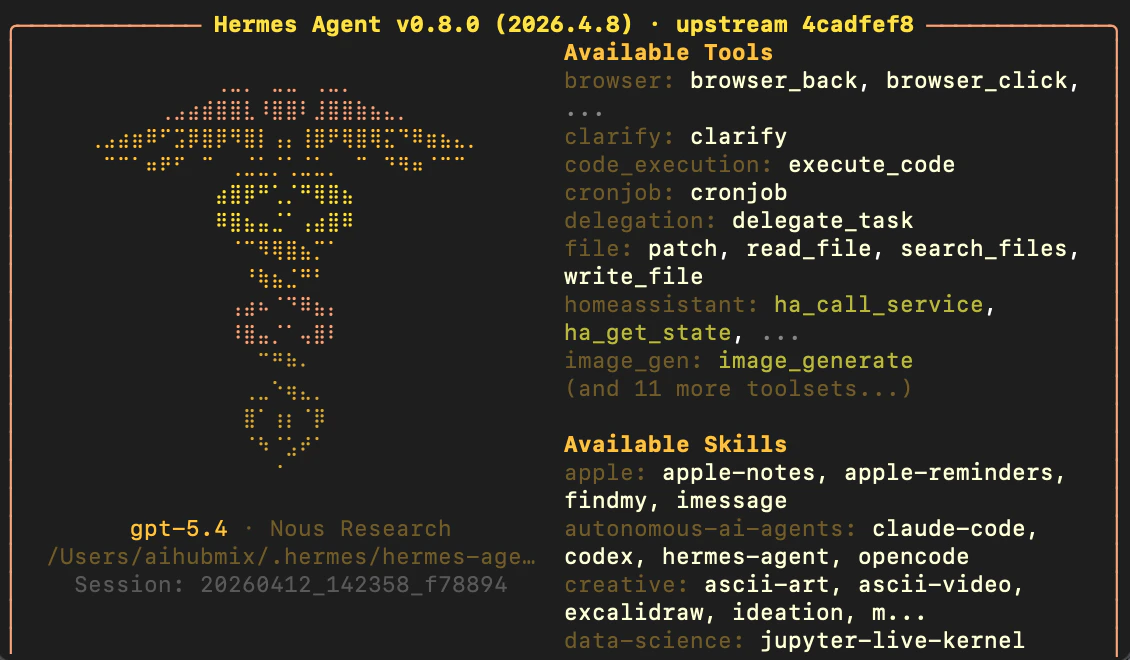 2. Type a message into the input box. If the model responds normally, the installation was successful.
 # Common Commands
Code block
```text theme={null}
hermes model # 选择模型供应商
hermes tools # 配置要启动的工具
hermes gateway setup # 设置消息平台
hermes config set # 设置各个配置参数
hermes setup # 运行完整设置向导,一次性配置所有内容
```
# Hermes Evolution Dashboard
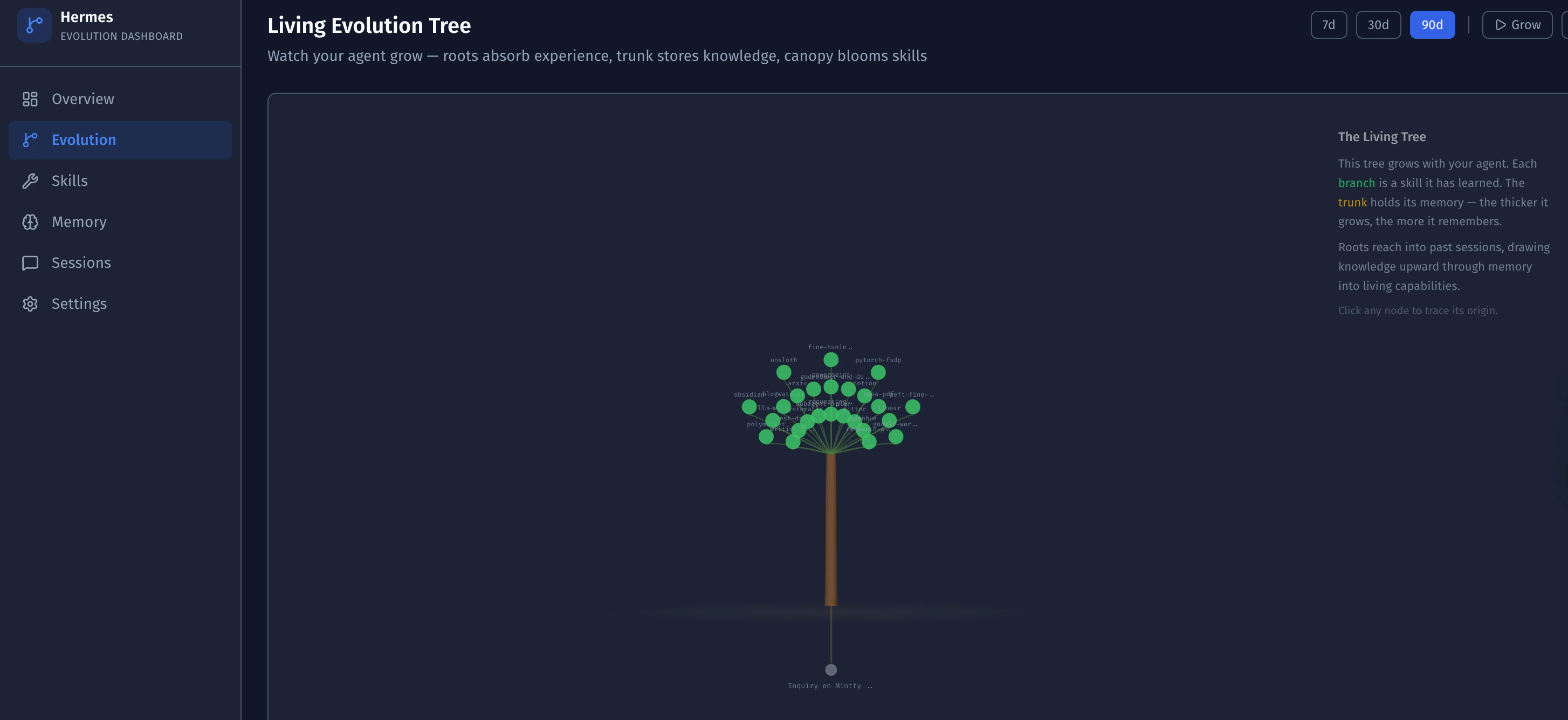
To make the self-improvement process of **Hermes Agent** clearly visible, AIHubMix has released a companion "horse-raising" tool—the **Hermes Evolution Dashboard**.
It transforms the dull `~/.hermes/` directory into a living, dynamic "evolution tree."
In this system:
✅ **Visual Evolution**: Built on D3.js to observe the agent's growth trajectory in real time—skills bloom like new leaves, memory thickens the trunk, and you can dynamically track skill source code and health status.
✅ **Global Perspective**: Full transparency into token trends, model costs, and tool distribution. Paired with an activity heatmap, it supports multi-dimensional analysis of operational data.
✅ **Maximum Restraint**: **A purely read-only design.** Intuitively manage memory capacity and retrieval priority without touching your core configuration, with full control over cross-conversation full-text search.
This is an experiment in "visualized intelligence," and our gift to the agent developer community.
🔗 **Visit GitHub for the source code:** [https://github.com/AIhubmix/hermes-dashboard](https://github.com/AIhubmix/hermes-dashboard)
# Common Commands
Code block
```text theme={null}
hermes model # 选择模型供应商
hermes tools # 配置要启动的工具
hermes gateway setup # 设置消息平台
hermes config set # 设置各个配置参数
hermes setup # 运行完整设置向导,一次性配置所有内容
```
# Hermes Evolution Dashboard
To make the self-improvement process of **Hermes Agent** clearly visible, AIHubMix has released a companion "horse-raising" tool—the **Hermes Evolution Dashboard**.
It transforms the dull `~/.hermes/` directory into a living, dynamic "evolution tree."
In this system:
✅ **Visual Evolution**: Built on D3.js to observe the agent's growth trajectory in real time—skills bloom like new leaves, memory thickens the trunk, and you can dynamically track skill source code and health status.
✅ **Global Perspective**: Full transparency into token trends, model costs, and tool distribution. Paired with an activity heatmap, it supports multi-dimensional analysis of operational data.
✅ **Maximum Restraint**: **A purely read-only design.** Intuitively manage memory capacity and retrieval priority without touching your core configuration, with full control over cross-conversation full-text search.
This is an experiment in "visualized intelligence," and our gift to the agent developer community.
🔗 **Visit GitHub for the source code:** [https://github.com/AIhubmix/hermes-dashboard](https://github.com/AIhubmix/hermes-dashboard)
 ***
Last updated: 2026-06-01
***
Last updated: 2026-06-01