> ## Documentation Index
> Fetch the complete documentation index at: https://docs.aihubmix.com/llms.txt
> Use this file to discover all available pages before exploring further.
# Claude Code
> Use AIHubMix with Claude Code: call models across providers with one API key, stable routing, and unified billing.
## Quick Start
This guide will help you get started with Claude Code provided by AIHubMix in just a few minutes.
### 1. Install Claude Code
#### Local Installation
```shellscript macOS theme={null}
curl -fsSL https://claude.ai/install.sh | bash
```
```shellscript Windows theme={null}
irm https://claude.ai/install.ps1 | iex
```
#### Install via npm
You need [Node.js version 18 or higher](https://nodejs.org/en/download/).
```shellscript theme={null}
npm install -g @anthropic-ai/claude-code
```
### 2. Configure AIHubMix API
To access AIHubMix's model services via the compatible Anthropic API, you need to configure the following environment variables.
1. Set `ANTHROPIC_BASE_URL` to `https://aihubmix.com`
2. Set `ANTHROPIC_AUTH_TOKEN` to the API Key obtained from the [AIHubMix platform](https://console.aihubmix.com/token)
3. Set `ANTHROPIC_MODEL` to a supported Claude model from the [model list](https://aihubmix.com/models), such as `claude-sonnet-4-5`.
`AIHUBMIX_API_KEY` is only a placeholder. Replace it with your real key, usually starting with `sk-`. If you copy it as-is, Claude Code will treat it as the actual key and return `401 invalid key: AIHUBMIX_API_KEY`.
1. Run the following command in the terminal to check your default Shell type.
```shellscript theme={null}
echo $SHELL
```
2. Set the environment variables according to your Shell type using the following commands:
```shellscript Zsh theme={null}
# Replace with your real key from AIHubMix
echo 'export ANTHROPIC_BASE_URL="https://aihubmix.com"' >> ~/.zshrc
echo 'export ANTHROPIC_AUTH_TOKEN=""' >> ~/.zshrc
echo 'export ANTHROPIC_MODEL="claude-sonnet-4-5"' >> ~/.zshrc
```
```shellscript Bash theme={null}
# Replace with your real key from AIHubMix
echo 'export ANTHROPIC_BASE_URL="https://aihubmix.com"' >> ~/.bash_profile
echo 'export ANTHROPIC_AUTH_TOKEN=""' >> ~/.bash_profile
echo 'export ANTHROPIC_MODEL="claude-sonnet-4-5"' >> ~/.bash_profile
```
3. Run the following command in the terminal to make the environment variables effective.
```shellscript Zsh theme={null}
source ~/.zshrc
```
```shellscript Bash theme={null}
source ~/.bash_profile
```
4. Open a new terminal and run the following commands to check if the environment variables are effective.
```shellscript theme={null}
echo $ANTHROPIC_BASE_URL
test -n "$ANTHROPIC_AUTH_TOKEN" && echo "ANTHROPIC_AUTH_TOKEN is set"
echo $ANTHROPIC_MODEL
```
In Windows, you can set the AIHubMix Base URL and [API Key](https://console.aihubmix.com/token) as environment variables using CMD or PowerShell.
1. Run the following command in CMD to set the environment variables.
```shellscript theme={null}
REM Replace with your real key from AIHubMix
setx ANTHROPIC_AUTH_TOKEN ""
setx ANTHROPIC_BASE_URL "https://aihubmix.com"
setx ANTHROPIC_MODEL "claude-sonnet-4-5"
```
2. Open a new CMD window and run the following commands to check if the environment variables are effective.
```shellscript theme={null}
if defined ANTHROPIC_AUTH_TOKEN echo ANTHROPIC_AUTH_TOKEN is set
echo %ANTHROPIC_BASE_URL%
echo %ANTHROPIC_MODEL%
```
1. Run the following command in PowerShell to set the environment variables.
```shellscript theme={null}
# Replace with your real key from AIHubMix
[Environment]::SetEnvironmentVariable("ANTHROPIC_AUTH_TOKEN", "", [EnvironmentVariableTarget]::User)
[Environment]::SetEnvironmentVariable("ANTHROPIC_BASE_URL", "https://aihubmix.com", [EnvironmentVariableTarget]::User)
[Environment]::SetEnvironmentVariable("ANTHROPIC_MODEL", "claude-sonnet-4-5", [EnvironmentVariableTarget]::User)
```
2. Open a new PowerShell window and run the following commands to check if the environment variables are effective.
```shellscript theme={null}
if ($env:ANTHROPIC_AUTH_TOKEN) { "ANTHROPIC_AUTH_TOKEN is set" }
echo $env:ANTHROPIC_BASE_URL
echo $env:ANTHROPIC_MODEL
```
If you plan to manage Claude Code through CC Switch, avoid setting global `ANTHROPIC_AUTH_TOKEN`, `ANTHROPIC_BASE_URL`, or `ANTHROPIC_MODEL` separately. System or user environment variables may override the Provider configuration written by CC Switch, so Claude Code may still use an old key or model even when the correct Provider is selected in the UI.
### 3. Verify the Configuration
After configuring environment variables or CC Switch, run a minimal request first to confirm that the key, model, and Anthropic-compatible endpoint are available before starting a long session.
```bash macOS/Linux theme={null}
curl https://aihubmix.com/v1/messages \
-H "content-type: application/json" \
-H "anthropic-version: 2023-06-01" \
-H "x-api-key: $ANTHROPIC_AUTH_TOKEN" \
-d '{
"model": "claude-sonnet-4-5",
"max_tokens": 16,
"messages": [{"role": "user", "content": "1+1, output only the answer"}]
}'
```
```powershell Windows theme={null}
curl.exe https://aihubmix.com/v1/messages `
-H "content-type: application/json" `
-H "anthropic-version: 2023-06-01" `
-H "x-api-key: $env:ANTHROPIC_AUTH_TOKEN" `
-d "{\"model\":\"claude-sonnet-4-5\",\"max_tokens\":16,\"messages\":[{\"role\":\"user\",\"content\":\"1+1, output only the answer\"}]}"
```
If the request returns `200` and the content is `2`, your AIHubMix key and Claude model are available. Then run:
```bash theme={null}
claude -p "1+1, output only the answer" --model claude-sonnet-4-5
```
If it returns `2`, Claude Code is configured successfully end to end.
### 4. Get Started
Once the configuration is complete, navigate to your working directory and run the `claude` command in the terminal to start using Claude Code.
```bash theme={null}
$ cd /path/your-project
> claude
```
If startup shows `Not logged in · Please run /login`, or opens Anthropic login options, Claude Code usually has not read a usable AIHubMix configuration, or the first-run onboarding is not complete. First confirm that the minimal request above returns `2`, and check whether `ANTHROPIC_AUTH_TOKEN`, `ANTHROPIC_BASE_URL`, or `ANTHROPIC_MODEL` is being overridden by old global environment variables. After confirming the key is usable, if Claude Code still enters the login flow, follow these steps to skip first-run onboarding:
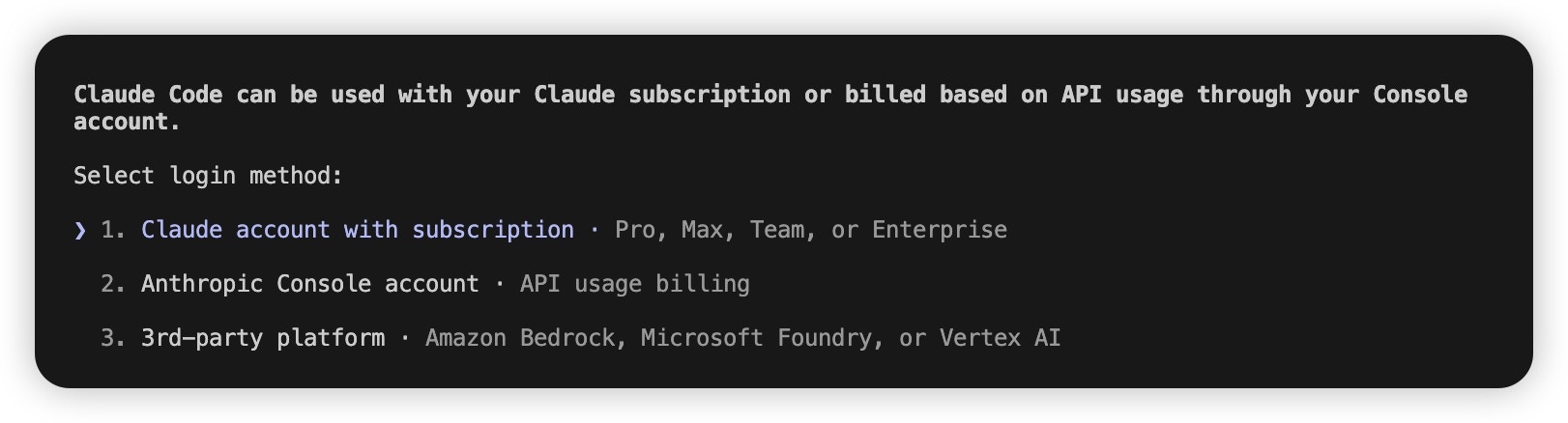 1. Locate the `.claude.json` file in your user home directory, with the following paths:
* macOS / Linux: `~/.claude.json`
* Windows: `C:\Users\%USERNAME%\.claude.json`
2. Set the `hasCompletedOnboarding` field's value to `true`.
```json theme={null}
{
"hasCompletedOnboarding": true
}
```
3. Save the file, then rerun `claude` in the terminal.
#### (Optional) Additional Model Configuration Methods
Claude Code supports the following model configuration methods, **ranked in order of priority from highest to lowest**, where higher-priority configurations will override lower-priority ones.
1. **During a conversation:** Execute the `/model ` command to switch models. This is suitable for temporary model changes.
```text theme={null}
/model claude-sonnet-4-5
```
2. **When starting Claude Code:** Execute `claude --model ` to specify the model. This is suitable for single-session use.
```text theme={null}
claude --model claude-sonnet-4-5
```
3. **Set environment variables:** You can configure different levels of models based on the complexity of the task. Claude Code will automatically select the appropriate model based on the task type. This is suitable for global effects.
```shellscript theme={null}
export ANTHROPIC_DEFAULT_OPUS_MODEL="claude-opus-4-5"
export ANTHROPIC_DEFAULT_SONNET_MODEL="claude-sonnet-4-5"
export ANTHROPIC_DEFAULT_HAIKU_MODEL="claude-haiku-4-5"
```
Where:
* `ANTHROPIC_DEFAULT_OPUS_MODEL`: For complex reasoning, architectural design, and other high-difficulty tasks.
* `ANTHROPIC_DEFAULT_SONNET_MODEL`: For coding, feature implementation, and other routine tasks.
* `ANTHROPIC_DEFAULT_HAIKU_MODEL`: For grammar checks, file searches, and other simple tasks.
4. **Permanently set in the settings.json configuration file:** Write the model configuration in the Claude Code user settings file, such as `~/.claude/settings.json` on macOS/Linux or `C:\Users\%USERNAME%\.claude\settings.json` on Windows, or in a project-level configuration.
**Fallback configuration:** If `/model`, startup arguments, environment variables, or CC Switch do not take effect, or Claude Code still reads an old model, edit `settings.json` directly. The example below sets both `ANTHROPIC_MODEL` and the top-level `model`, while keeping model names for the Opus, Sonnet, and Haiku slots.
```json theme={null}
{
"env": {
"ANTHROPIC_AUTH_TOKEN": "",
"ANTHROPIC_BASE_URL": "https://aihubmix.com",
"ANTHROPIC_DEFAULT_HAIKU_MODEL": "gemini-3.5-flash",
"ANTHROPIC_DEFAULT_HAIKU_MODEL_NAME": "gemini-3.5-flash",
"ANTHROPIC_DEFAULT_OPUS_MODEL": "gemini-3.5-flash",
"ANTHROPIC_DEFAULT_OPUS_MODEL_NAME": "gemini-3.5-flash",
"ANTHROPIC_DEFAULT_SONNET_MODEL": "gemini-3.5-flash",
"ANTHROPIC_DEFAULT_SONNET_MODEL_NAME": "gemini-3.5-flash",
"ANTHROPIC_MODEL": "gpt-5.5"
},
"model": "gpt-5.5"
}
```
Replace `` with your real key. After saving, restart Claude Code and enter `/models` to check the models available for the current session.
## How to Configure via CC Switch?
1. Run CC Switch, select **Claude Code** on the left, then click "Add Vendor."
1. Locate the `.claude.json` file in your user home directory, with the following paths:
* macOS / Linux: `~/.claude.json`
* Windows: `C:\Users\%USERNAME%\.claude.json`
2. Set the `hasCompletedOnboarding` field's value to `true`.
```json theme={null}
{
"hasCompletedOnboarding": true
}
```
3. Save the file, then rerun `claude` in the terminal.
#### (Optional) Additional Model Configuration Methods
Claude Code supports the following model configuration methods, **ranked in order of priority from highest to lowest**, where higher-priority configurations will override lower-priority ones.
1. **During a conversation:** Execute the `/model ` command to switch models. This is suitable for temporary model changes.
```text theme={null}
/model claude-sonnet-4-5
```
2. **When starting Claude Code:** Execute `claude --model ` to specify the model. This is suitable for single-session use.
```text theme={null}
claude --model claude-sonnet-4-5
```
3. **Set environment variables:** You can configure different levels of models based on the complexity of the task. Claude Code will automatically select the appropriate model based on the task type. This is suitable for global effects.
```shellscript theme={null}
export ANTHROPIC_DEFAULT_OPUS_MODEL="claude-opus-4-5"
export ANTHROPIC_DEFAULT_SONNET_MODEL="claude-sonnet-4-5"
export ANTHROPIC_DEFAULT_HAIKU_MODEL="claude-haiku-4-5"
```
Where:
* `ANTHROPIC_DEFAULT_OPUS_MODEL`: For complex reasoning, architectural design, and other high-difficulty tasks.
* `ANTHROPIC_DEFAULT_SONNET_MODEL`: For coding, feature implementation, and other routine tasks.
* `ANTHROPIC_DEFAULT_HAIKU_MODEL`: For grammar checks, file searches, and other simple tasks.
4. **Permanently set in the settings.json configuration file:** Write the model configuration in the Claude Code user settings file, such as `~/.claude/settings.json` on macOS/Linux or `C:\Users\%USERNAME%\.claude\settings.json` on Windows, or in a project-level configuration.
**Fallback configuration:** If `/model`, startup arguments, environment variables, or CC Switch do not take effect, or Claude Code still reads an old model, edit `settings.json` directly. The example below sets both `ANTHROPIC_MODEL` and the top-level `model`, while keeping model names for the Opus, Sonnet, and Haiku slots.
```json theme={null}
{
"env": {
"ANTHROPIC_AUTH_TOKEN": "",
"ANTHROPIC_BASE_URL": "https://aihubmix.com",
"ANTHROPIC_DEFAULT_HAIKU_MODEL": "gemini-3.5-flash",
"ANTHROPIC_DEFAULT_HAIKU_MODEL_NAME": "gemini-3.5-flash",
"ANTHROPIC_DEFAULT_OPUS_MODEL": "gemini-3.5-flash",
"ANTHROPIC_DEFAULT_OPUS_MODEL_NAME": "gemini-3.5-flash",
"ANTHROPIC_DEFAULT_SONNET_MODEL": "gemini-3.5-flash",
"ANTHROPIC_DEFAULT_SONNET_MODEL_NAME": "gemini-3.5-flash",
"ANTHROPIC_MODEL": "gpt-5.5"
},
"model": "gpt-5.5"
}
```
Replace `` with your real key. After saving, restart Claude Code and enter `/models` to check the models available for the current session.
## How to Configure via CC Switch?
1. Run CC Switch, select **Claude Code** on the left, then click "Add Vendor."
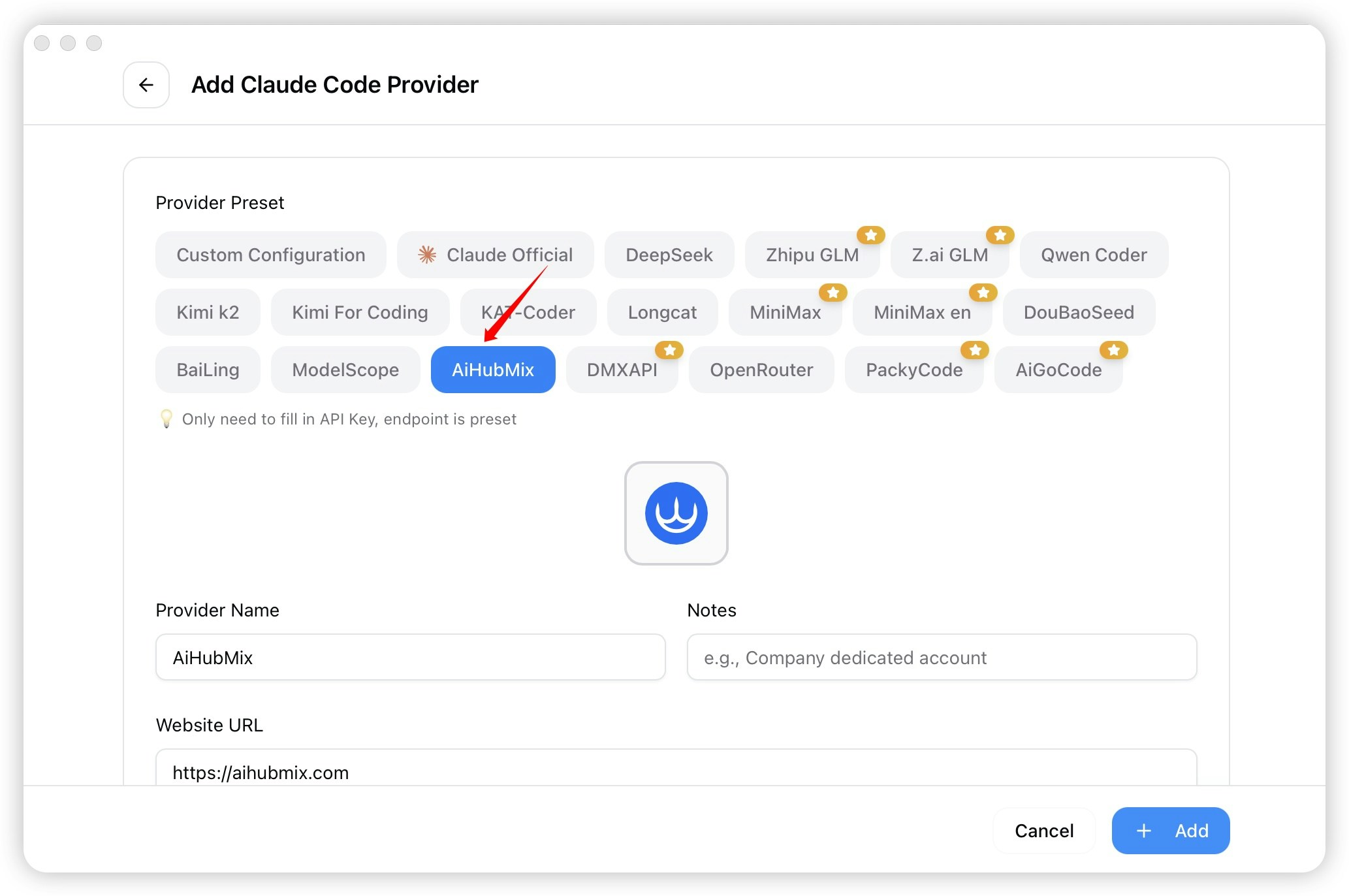
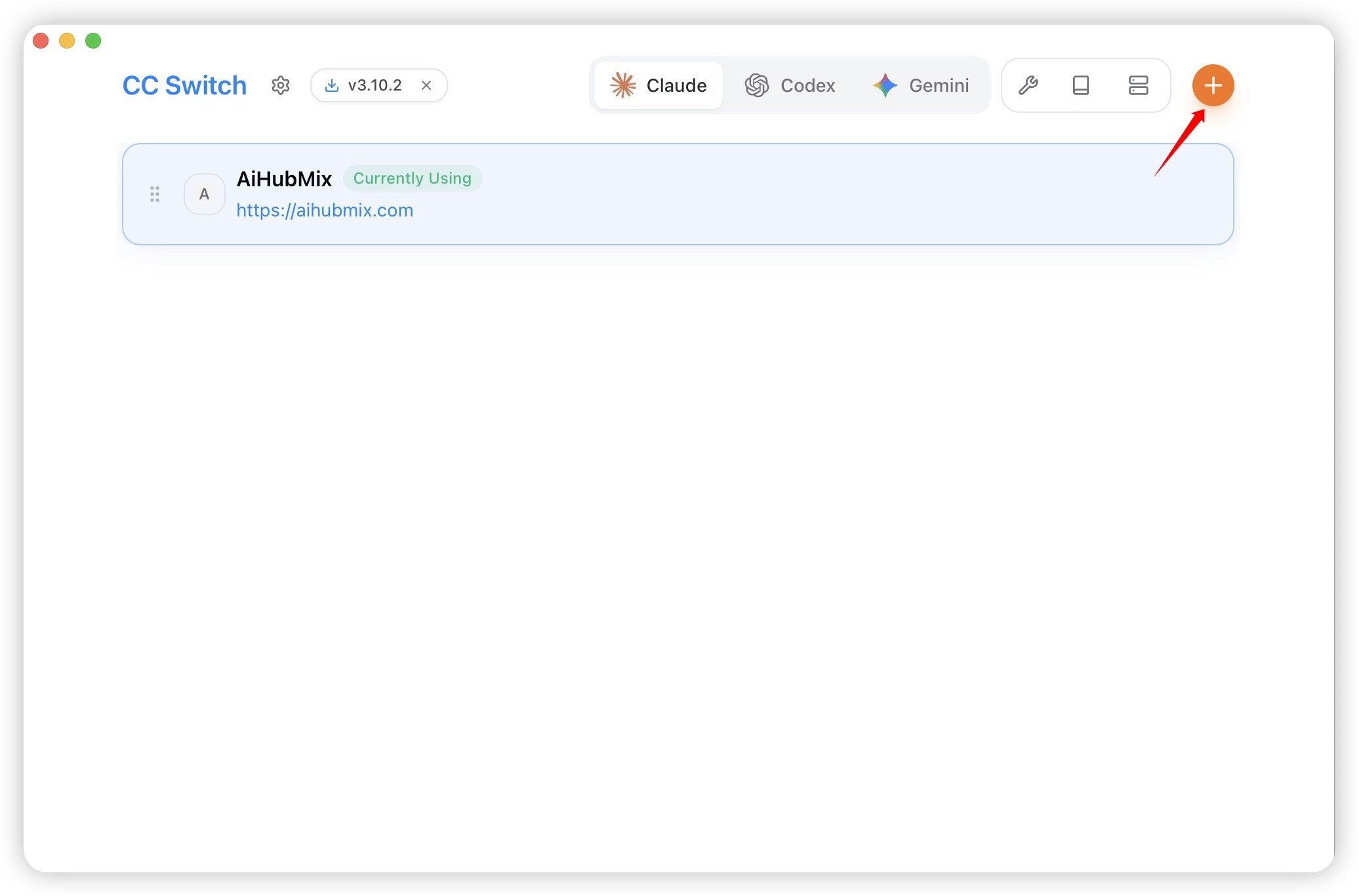 2. Select "AiHubMix" from the preset list. Make sure you are configuring the Provider for Claude Code.
 3. Enter your real key in the "API Key" field.

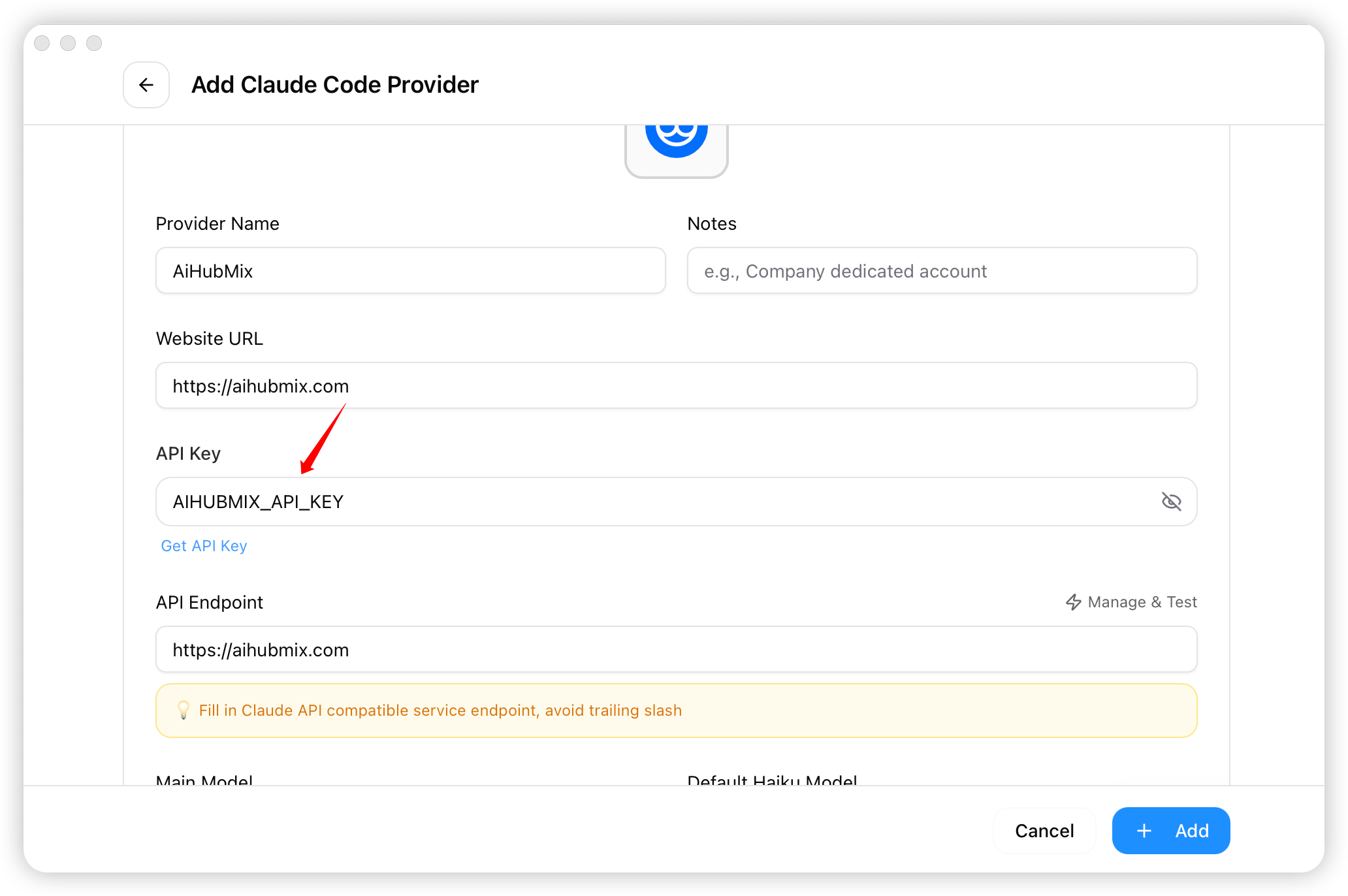 4. After configuration is complete, first use `claude-sonnet-4-5` as the model ID, then click "Add" to save the settings. After the health check passes, you can switch to other Claude models in Claude Code with `/models` or `/model`.
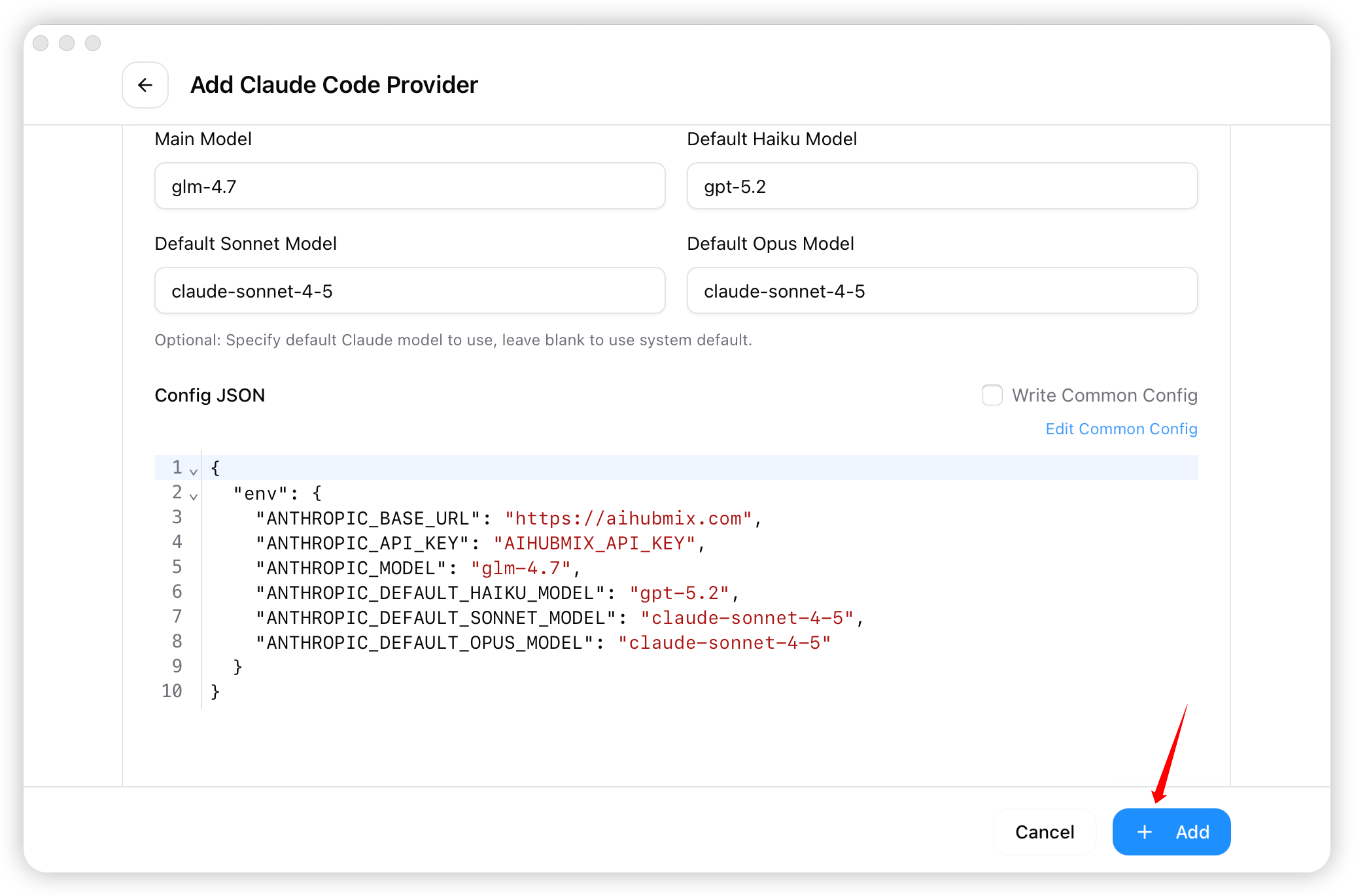 5. Return to the homepage, select "AiHubMix" from the vendor list, and click "Start" to use it.
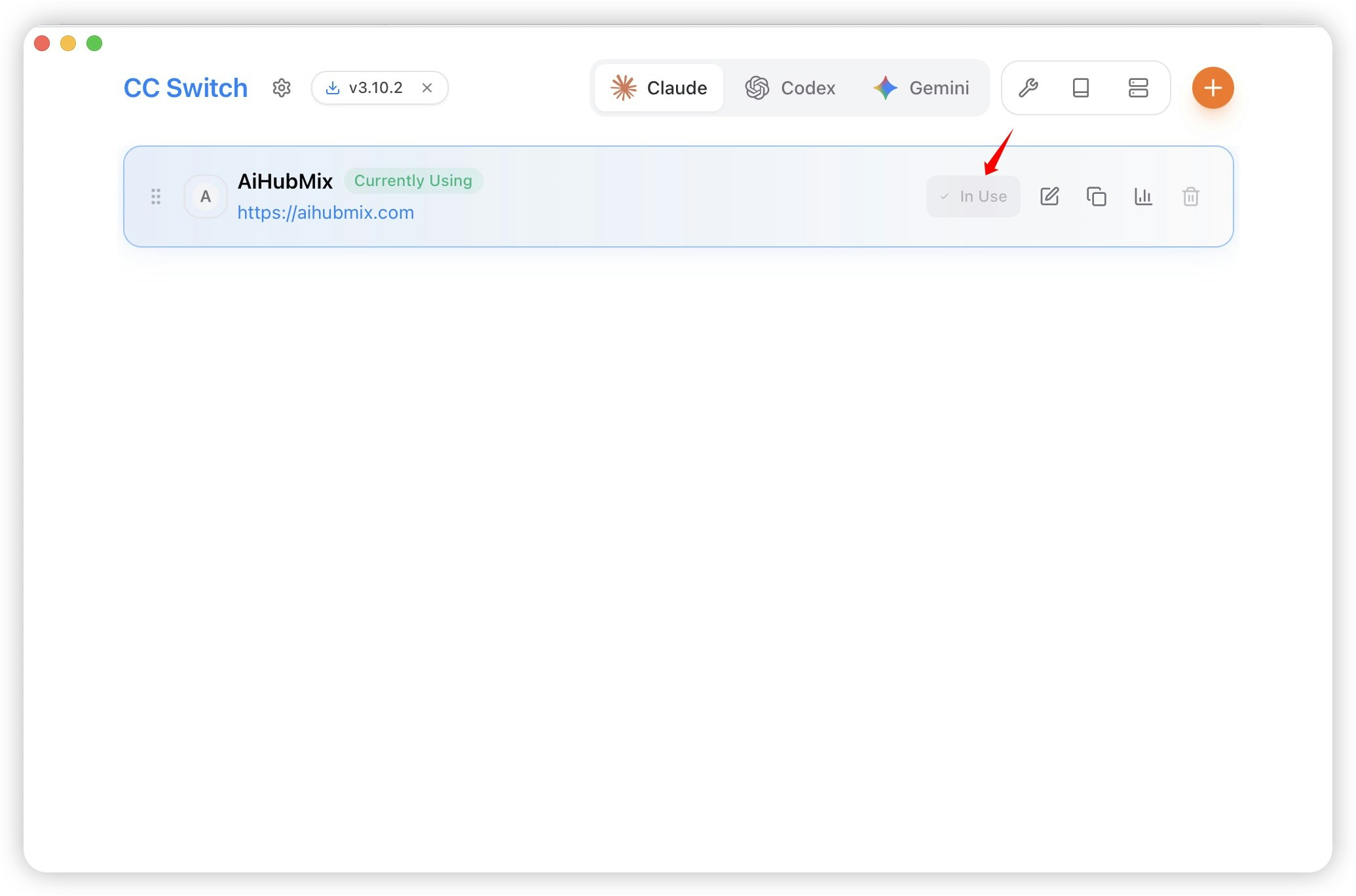 If CC Switch shows a system environment variable conflict, handle `ANTHROPIC_AUTH_TOKEN`, `ANTHROPIC_BASE_URL`, and `ANTHROPIC_MODEL` first. These global variables can override the current Provider configuration. Placeholder values such as `ANTHROPIC_AUTH_TOKEN=AIHUBMIX_API_KEY` will directly cause authentication failures. After confirming you no longer need the global variables, delete the conflicting items in CC Switch or remove the system/user environment variables manually, then restart the terminal.
## How to Configure through the VS Code Plugin?
1. Run VS Code and install the plugin.
If CC Switch shows a system environment variable conflict, handle `ANTHROPIC_AUTH_TOKEN`, `ANTHROPIC_BASE_URL`, and `ANTHROPIC_MODEL` first. These global variables can override the current Provider configuration. Placeholder values such as `ANTHROPIC_AUTH_TOKEN=AIHUBMIX_API_KEY` will directly cause authentication failures. After confirming you no longer need the global variables, delete the conflicting items in CC Switch or remove the system/user environment variables manually, then restart the terminal.
## How to Configure through the VS Code Plugin?
1. Run VS Code and install the plugin.
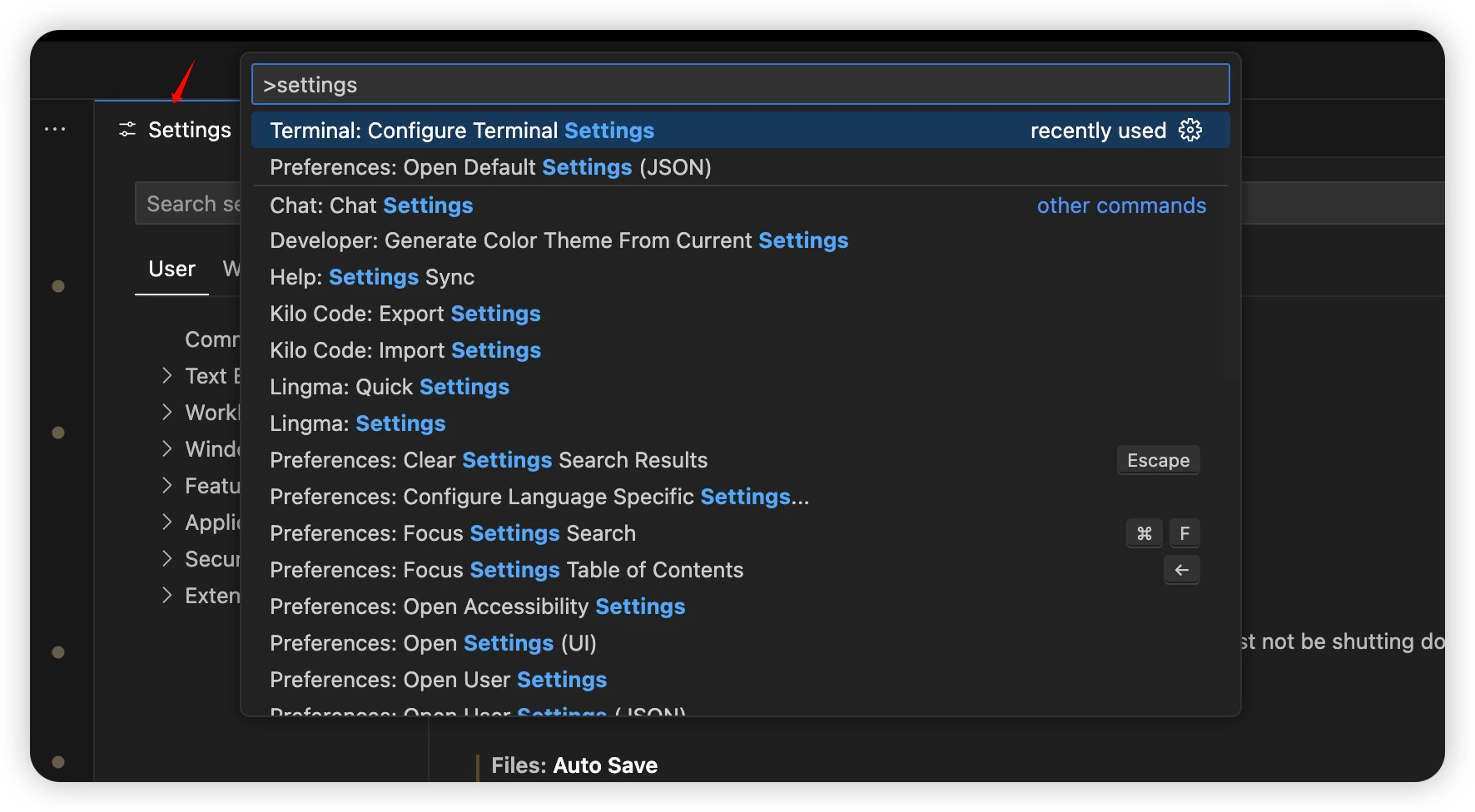
 2. Press `Ctrl + Shift + P` (or `Cmd + Shift + P`), type `Settings` to open the settings.
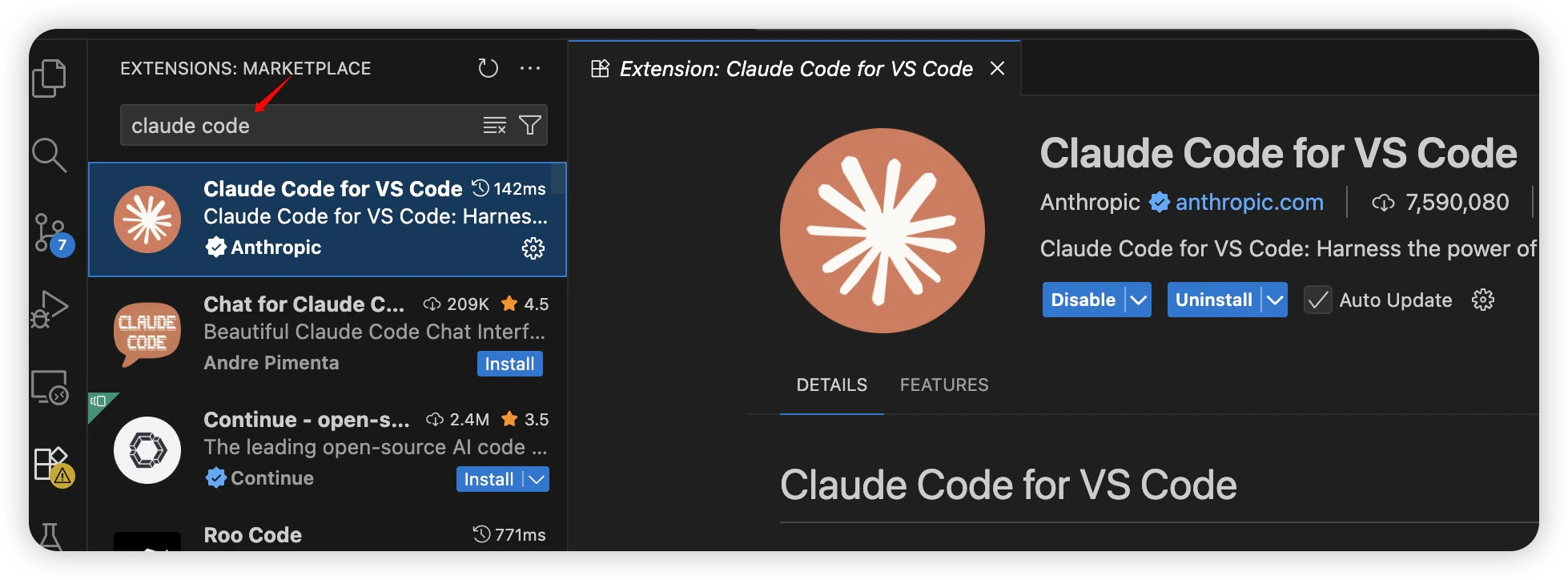
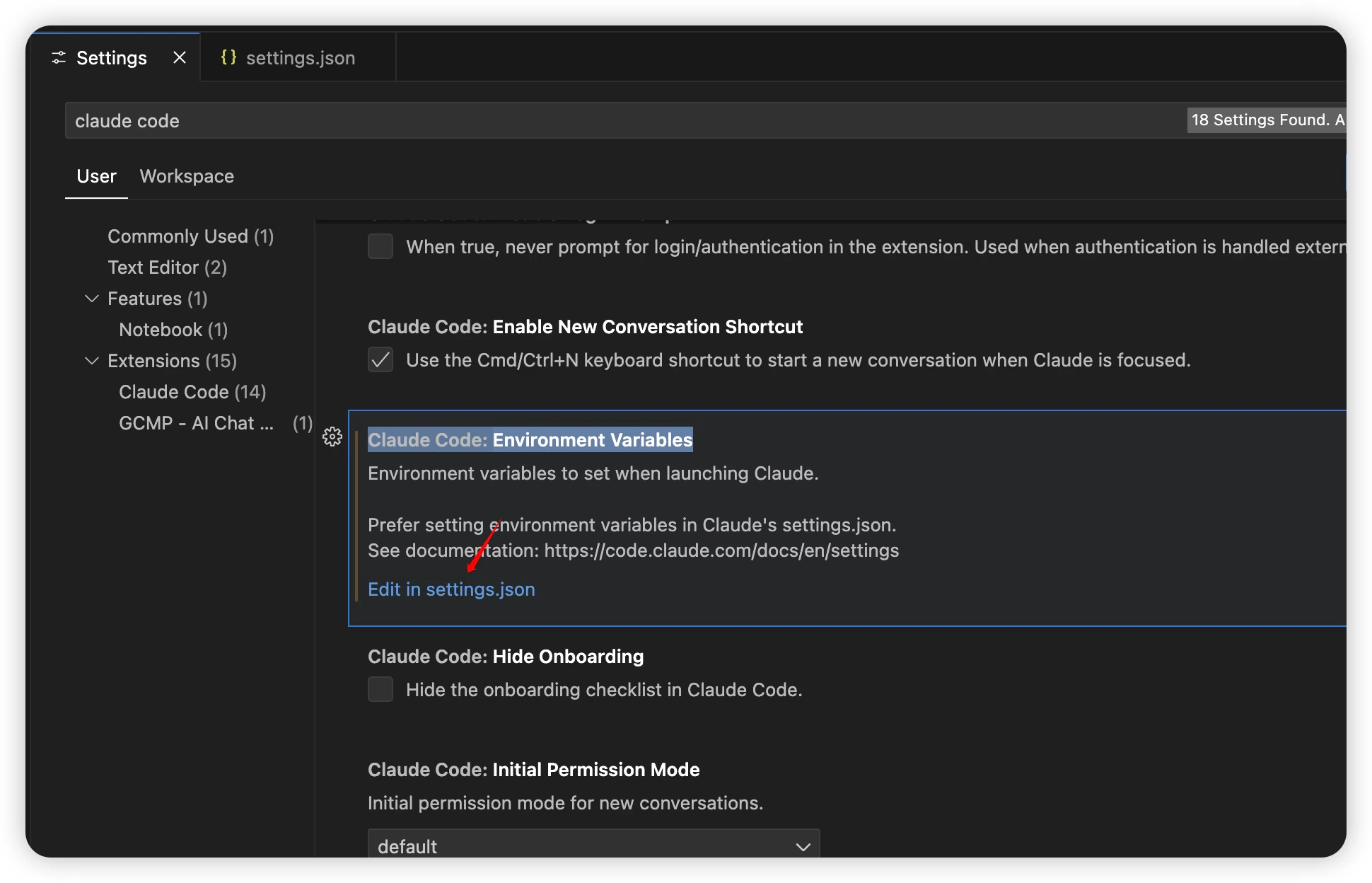
 3. Search for `Claude Code`, find `Claude Code: Environment Variable` → `Edit in settings.json`.
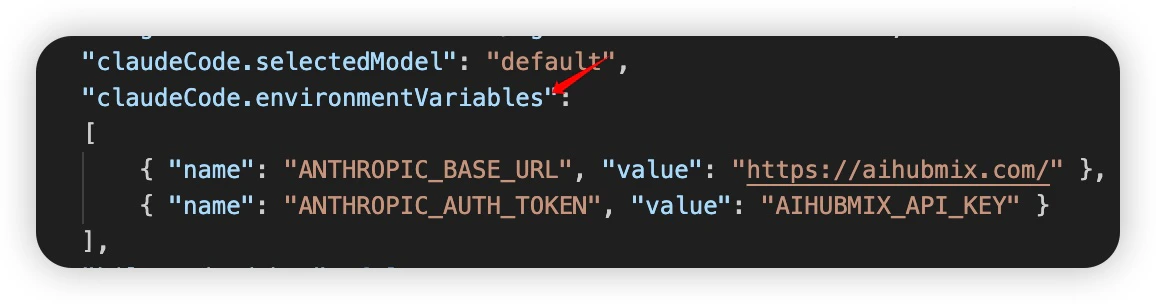
 4. Fill in the AIHubMix-related information in `claudeCode.environmentVariables`.
 ## [Wechat-Agent-SDK](https://github.com/AIhubmix/wechat-agent-sdk)
With simple API calls, easily integrate mainstream AI entities like Claude Code, Codex, and Kimi into WeChat with one click. It supports the ACP protocol, runs entirely locally without the need for a server or database, and includes enterprise-level features such as built-in breakpoint resume and automatic reconnection, enabling your AI assistant to engage in intelligent conversations seamlessly within WeChat.
> Installation link: [https://github.com/AIhubmix/wechat-agent-sdk](https://github.com/AIhubmix/wechat-agent-sdk)
## FAQ
### Q: What should I do if I get a `401` authentication error?
`401` means the request did not pass authentication, but the exact cause depends on the full error message:
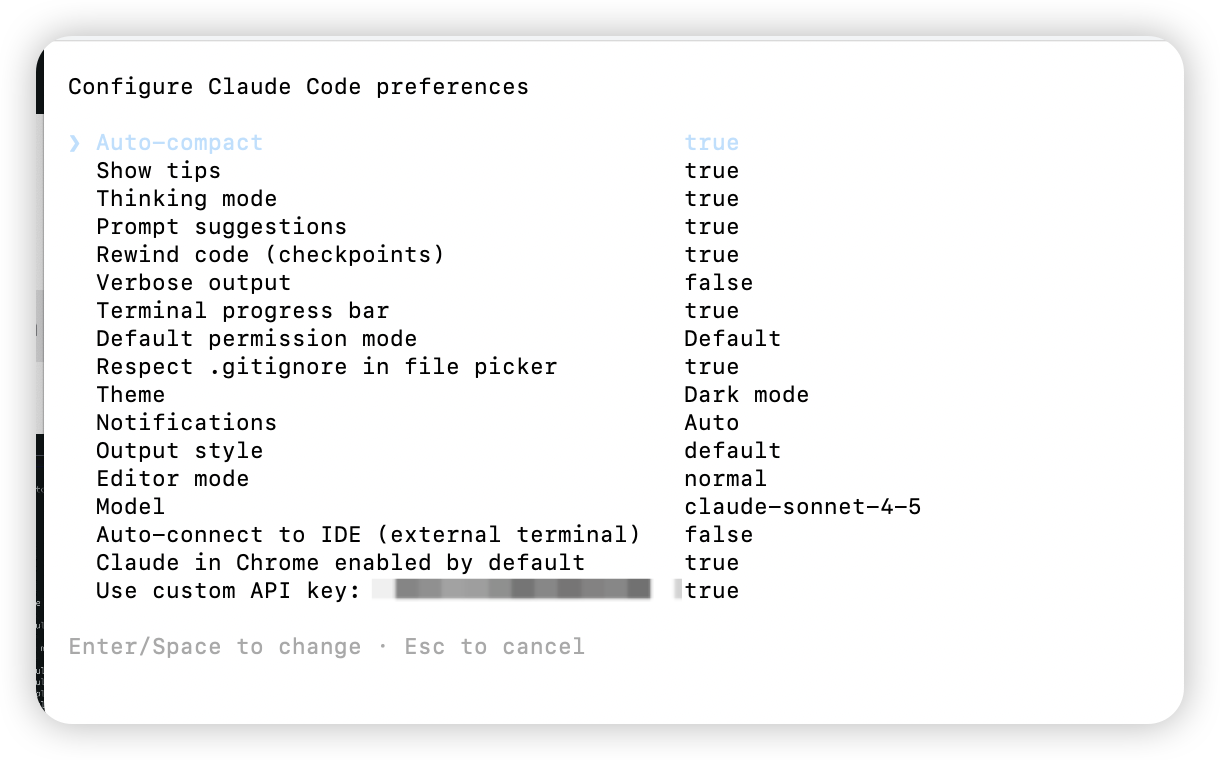
* `No token provided`: no key was sent. Open Claude Code, enter `/config`, find `Use custom API key`, and check whether the token is configured.
* `invalid key: AIHUBMIX_API_KEY`: this usually means the placeholder from the example was copied as-is. Copy your real key again from the AIHubMix console and update `ANTHROPIC_AUTH_TOKEN`.
* `this key is not enabled`: the request reached AIHubMix, but the current key is not enabled or does not have permission. Check whether the key is enabled, expired, has quota, and can call the selected Claude model in the [AIHubMix console](https://console.aihubmix.com/token).
## [Wechat-Agent-SDK](https://github.com/AIhubmix/wechat-agent-sdk)
With simple API calls, easily integrate mainstream AI entities like Claude Code, Codex, and Kimi into WeChat with one click. It supports the ACP protocol, runs entirely locally without the need for a server or database, and includes enterprise-level features such as built-in breakpoint resume and automatic reconnection, enabling your AI assistant to engage in intelligent conversations seamlessly within WeChat.
> Installation link: [https://github.com/AIhubmix/wechat-agent-sdk](https://github.com/AIhubmix/wechat-agent-sdk)
## FAQ
### Q: What should I do if I get a `401` authentication error?
`401` means the request did not pass authentication, but the exact cause depends on the full error message:
* `No token provided`: no key was sent. Open Claude Code, enter `/config`, find `Use custom API key`, and check whether the token is configured.
* `invalid key: AIHUBMIX_API_KEY`: this usually means the placeholder from the example was copied as-is. Copy your real key again from the AIHubMix console and update `ANTHROPIC_AUTH_TOKEN`.
* `this key is not enabled`: the request reached AIHubMix, but the current key is not enabled or does not have permission. Check whether the key is enabled, expired, has quota, and can call the selected Claude model in the [AIHubMix console](https://console.aihubmix.com/token).
 On Windows, also check whether old values remain in user or system environment variables:
```powershell theme={null}
[Environment]::GetEnvironmentVariable("ANTHROPIC_AUTH_TOKEN", "User")
[Environment]::GetEnvironmentVariable("ANTHROPIC_BASE_URL", "User")
[Environment]::GetEnvironmentVariable("ANTHROPIC_MODEL", "User")
```
If you use CC Switch to manage configuration, delete these global `ANTHROPIC_*` variables so the current Provider in CC Switch can take over.
Note: `/v1/models` may return a model list even without a valid key, so do not use it to determine whether the key is usable. Use the minimal message request in "Verify the Configuration" above. If it returns `200` and the content is `2`, the key and model are usable. Then restart Claude Code or restart it through CC Switch.
### Q: What should I do if I get `400 Incorrect model ID` or `Bad request (400)`?
This usually means the request reached the provider side, but the model ID is incorrect, the model name does not match the interface, or the current key does not have permission to call that model. Copy the full model ID again from the [AIHubMix model list](https://aihubmix.com/models), and make sure there are no manual spelling, capitalization, or model-family mistakes.
If you configure through CC Switch, return to the corresponding Provider, update the model ID, save it, and restart Claude Code. If the error persists, first use a Claude model confirmed available in the model list to complete the health check, then switch to the target model.
### Q: After successfully installing on macOS, I still get an error: `zsh: command not found: claude`
This is because the Claude CLI is installed, but its executable directory is not added to the system `PATH`.
1. Confirm the Claude installation path. The official Claude Code script typically installs in one of the following directories:
* `~/.claude/bin`
* `~/.local/bin`
Run the following command in the terminal:
```bash theme={null}
ls -l ~/.claude/bin
or
ls -l ~/.local/bin | grep claude
```
If you see the claude file, it means the installation was successful, but the PATH is not configured.
2. Add the installation directory to the PATH. Execute the corresponding command based on the actual installation location:
#### Case A: Installed in `~/.claude/bin`
```shellscript theme={null}
echo 'export PATH="$HOME/.claude/bin:$PATH"' >> ~/.zshrc
source ~/.zshrc
```
#### Case B: Installed in `~/.local/bin`
```shellscript theme={null}
echo 'export PATH="$HOME/.local/bin:$PATH"' >> ~/.zshrc
source ~/.zshrc
```
3. Verify if it takes effect. Execute:
```shellscript theme={null}
which claude
claude -v
```
If you can see the `claude` path and version number, the installation was successful.
### Q: Claude Code Unable to Connect to Anthropic Services
After upgrading to the latest version of Claude Code, if you encounter issues connecting to Anthropic services or authentication failures, it is typically due to changes in the authentication request header name. The new version requires updating the request header from `ANTHROPIC_API_KEY` to `ANTHROPIC_AUTH_TOKEN`. The value of the API Key does not need to be changed; you only need to update the request header name and reload the configuration. For specific instructions, please refer to this document for reconfiguration.
## More Resources
* [Github](https://github.com/inferera/aihubmix/blob/main/packages/claude-code/README.md)
* [npm Package](https://www.npmjs.com/package/@aihubmix/claude-code)
* [Official Best Practices](https://www.anthropic.com/engineering/claude-code-best-practices)
* [Official Configuration Guide](https://docs.anthropic.com/en/docs/claude-code/settings#settings-files)
## Happy coding!
Last updated: 2026-06-10
On Windows, also check whether old values remain in user or system environment variables:
```powershell theme={null}
[Environment]::GetEnvironmentVariable("ANTHROPIC_AUTH_TOKEN", "User")
[Environment]::GetEnvironmentVariable("ANTHROPIC_BASE_URL", "User")
[Environment]::GetEnvironmentVariable("ANTHROPIC_MODEL", "User")
```
If you use CC Switch to manage configuration, delete these global `ANTHROPIC_*` variables so the current Provider in CC Switch can take over.
Note: `/v1/models` may return a model list even without a valid key, so do not use it to determine whether the key is usable. Use the minimal message request in "Verify the Configuration" above. If it returns `200` and the content is `2`, the key and model are usable. Then restart Claude Code or restart it through CC Switch.
### Q: What should I do if I get `400 Incorrect model ID` or `Bad request (400)`?
This usually means the request reached the provider side, but the model ID is incorrect, the model name does not match the interface, or the current key does not have permission to call that model. Copy the full model ID again from the [AIHubMix model list](https://aihubmix.com/models), and make sure there are no manual spelling, capitalization, or model-family mistakes.
If you configure through CC Switch, return to the corresponding Provider, update the model ID, save it, and restart Claude Code. If the error persists, first use a Claude model confirmed available in the model list to complete the health check, then switch to the target model.
### Q: After successfully installing on macOS, I still get an error: `zsh: command not found: claude`
This is because the Claude CLI is installed, but its executable directory is not added to the system `PATH`.
1. Confirm the Claude installation path. The official Claude Code script typically installs in one of the following directories:
* `~/.claude/bin`
* `~/.local/bin`
Run the following command in the terminal:
```bash theme={null}
ls -l ~/.claude/bin
or
ls -l ~/.local/bin | grep claude
```
If you see the claude file, it means the installation was successful, but the PATH is not configured.
2. Add the installation directory to the PATH. Execute the corresponding command based on the actual installation location:
#### Case A: Installed in `~/.claude/bin`
```shellscript theme={null}
echo 'export PATH="$HOME/.claude/bin:$PATH"' >> ~/.zshrc
source ~/.zshrc
```
#### Case B: Installed in `~/.local/bin`
```shellscript theme={null}
echo 'export PATH="$HOME/.local/bin:$PATH"' >> ~/.zshrc
source ~/.zshrc
```
3. Verify if it takes effect. Execute:
```shellscript theme={null}
which claude
claude -v
```
If you can see the `claude` path and version number, the installation was successful.
### Q: Claude Code Unable to Connect to Anthropic Services
After upgrading to the latest version of Claude Code, if you encounter issues connecting to Anthropic services or authentication failures, it is typically due to changes in the authentication request header name. The new version requires updating the request header from `ANTHROPIC_API_KEY` to `ANTHROPIC_AUTH_TOKEN`. The value of the API Key does not need to be changed; you only need to update the request header name and reload the configuration. For specific instructions, please refer to this document for reconfiguration.
## More Resources
* [Github](https://github.com/inferera/aihubmix/blob/main/packages/claude-code/README.md)
* [npm Package](https://www.npmjs.com/package/@aihubmix/claude-code)
* [Official Best Practices](https://www.anthropic.com/engineering/claude-code-best-practices)
* [Official Configuration Guide](https://docs.anthropic.com/en/docs/claude-code/settings#settings-files)
## Happy coding!
Last updated: 2026-06-10