> ## Documentation Index
> Fetch the complete documentation index at: https://docs.aihubmix.com/llms.txt
> Use this file to discover all available pages before exploring further.
# GCMP
GCMP (AI Chat Models) ist eine VS Code-Erweiterung, mit der Zhipu AI, MoonshotAI, DeepSeek, Alibaba Cloud DashScope, Volcengine, Tencent Cloud, MiniMax, Xiaomi MiMo und weitere Modellanbieter in GitHub Copilot Chat eingebunden werden können. Außerdem unterstützt sie OpenAI- / Anthropic-kompatible Endpunkte, sodass AIHubMix als benutzerdefiniertes OpenAI-kompatibles Modell hinzugefügt werden kann.
## GCMP-Erweiterung installieren
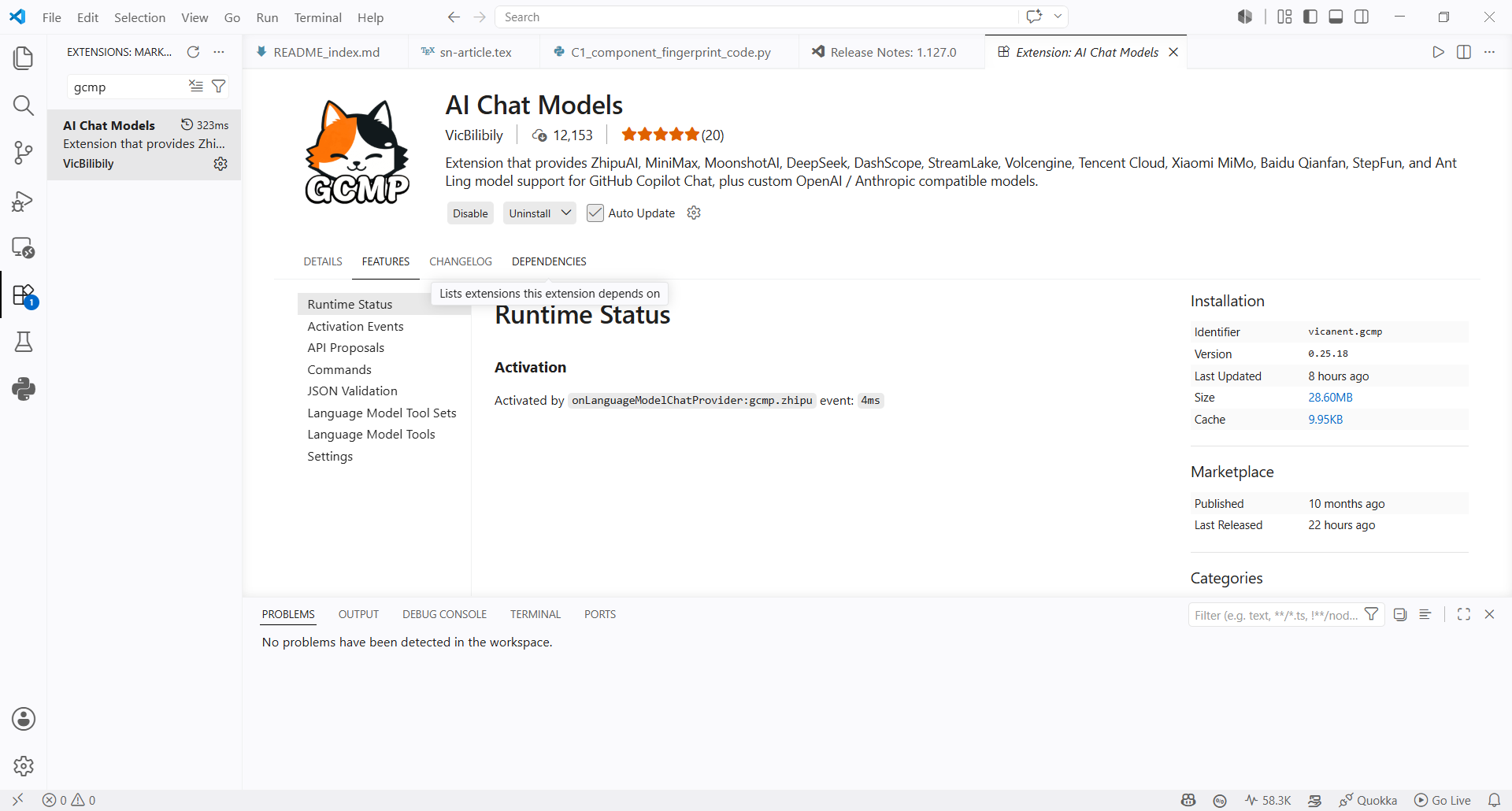
1. Suchen Sie im VS Code Extension Marketplace nach `GCMP` und installieren Sie **AI Chat Models**.
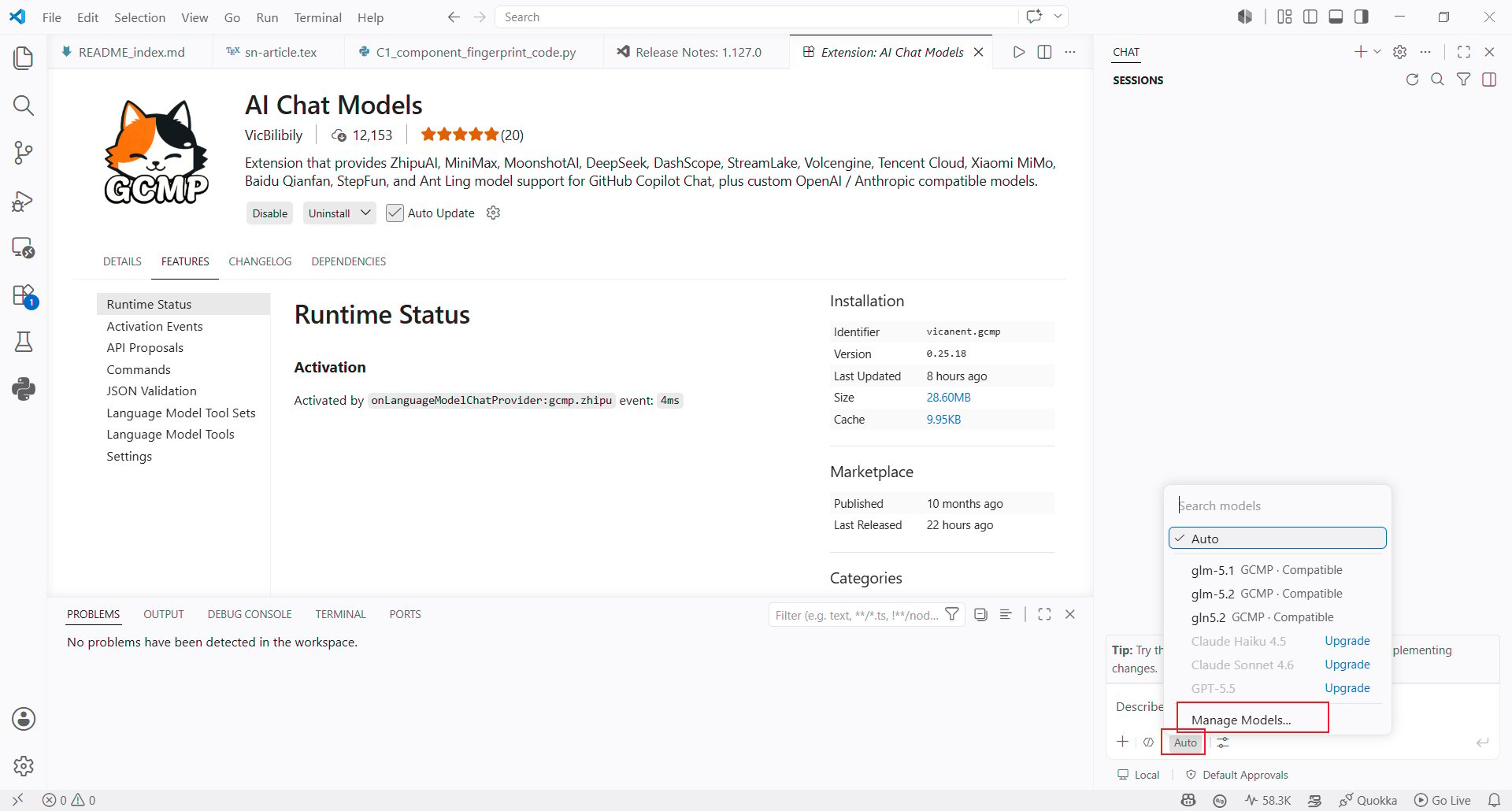
 2. Öffnen Sie nach der Installation den Modellauswähler in Copilot Chat und klicken Sie unten auf **Manage Models...**.
 ## AIHubMix API Key konfigurieren
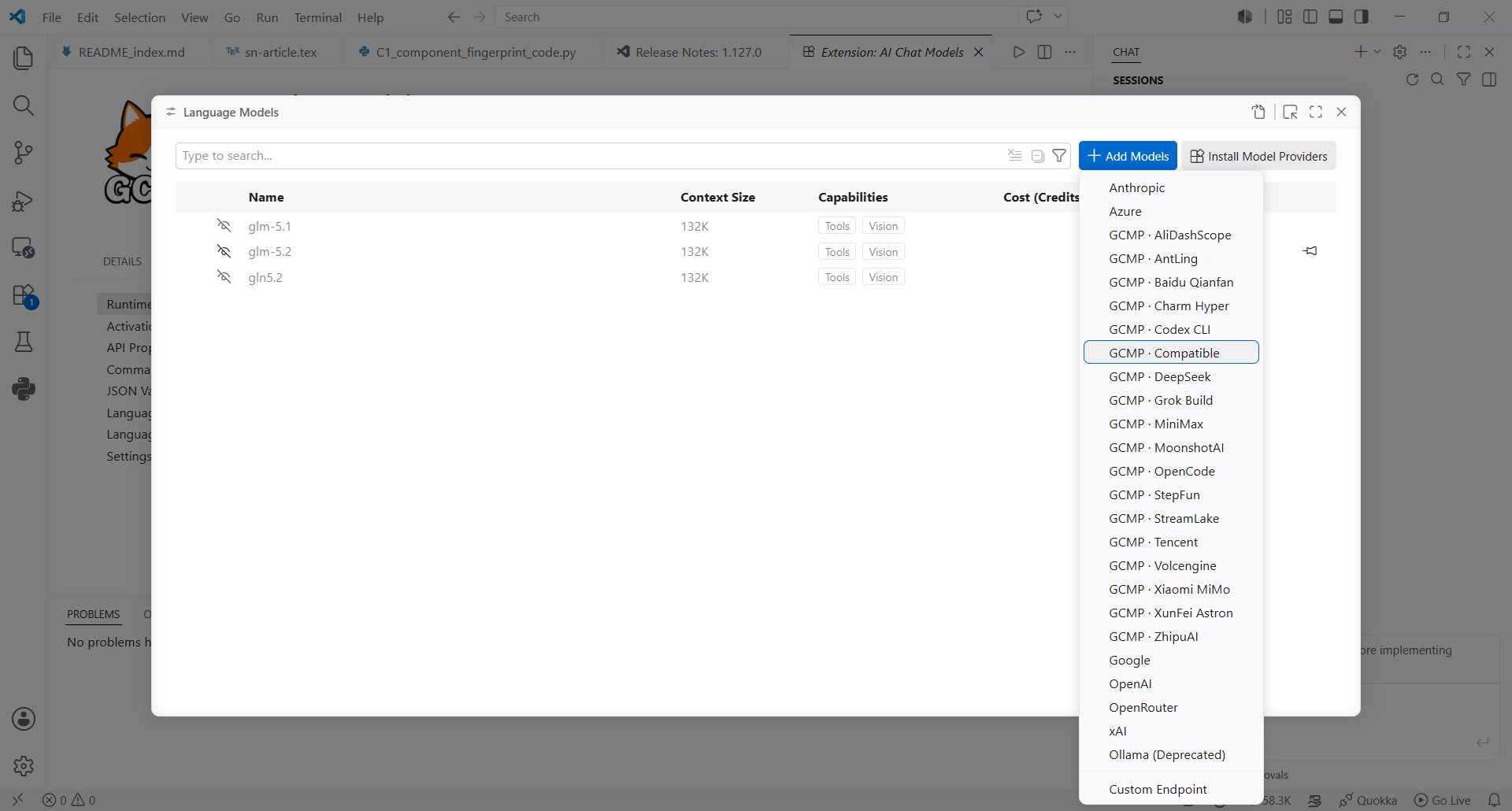
3. Wählen Sie in der Liste der Modellanbieter **Compatible** aus.
## AIHubMix API Key konfigurieren
3. Wählen Sie in der Liste der Modellanbieter **Compatible** aus.
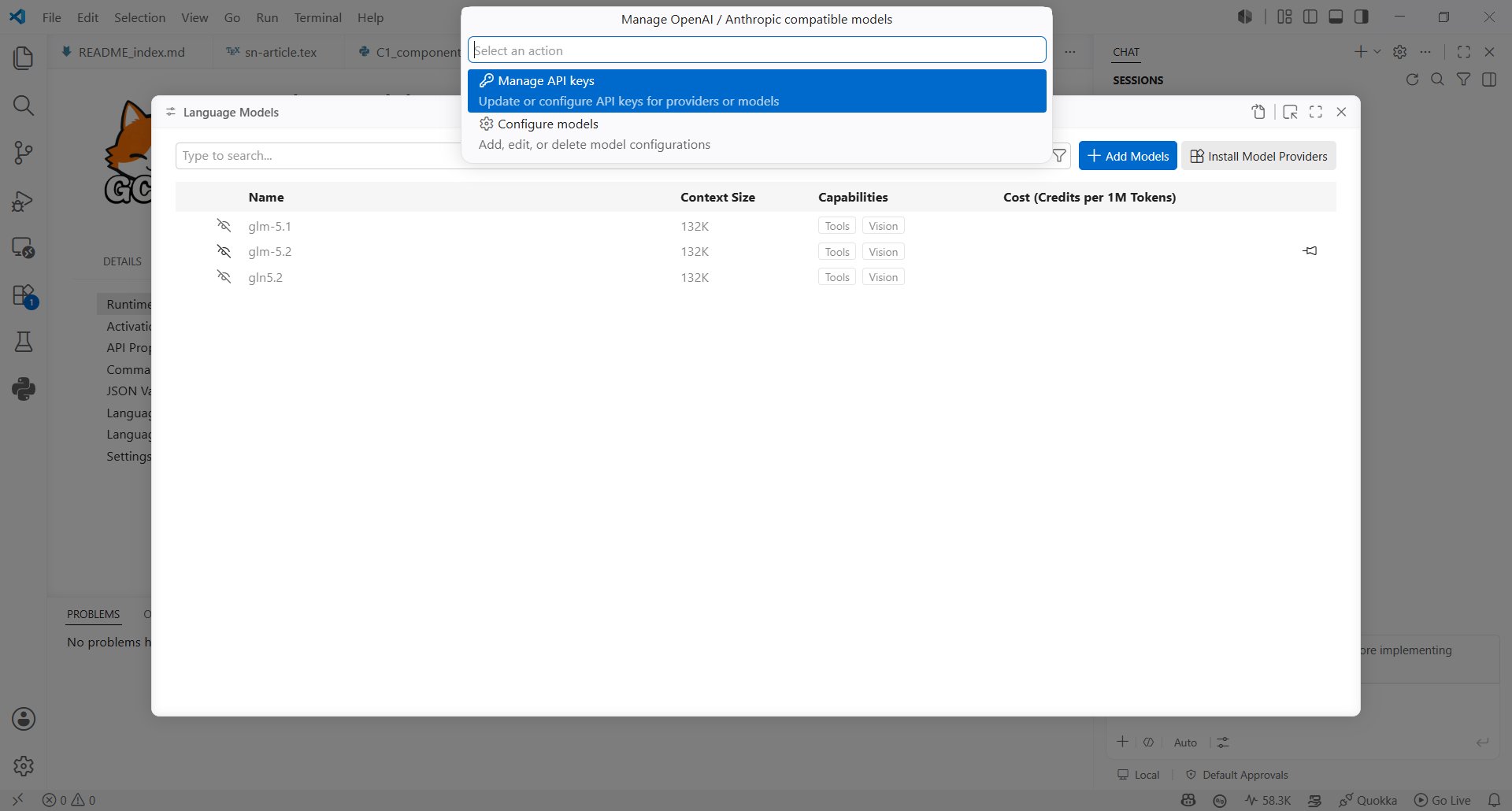
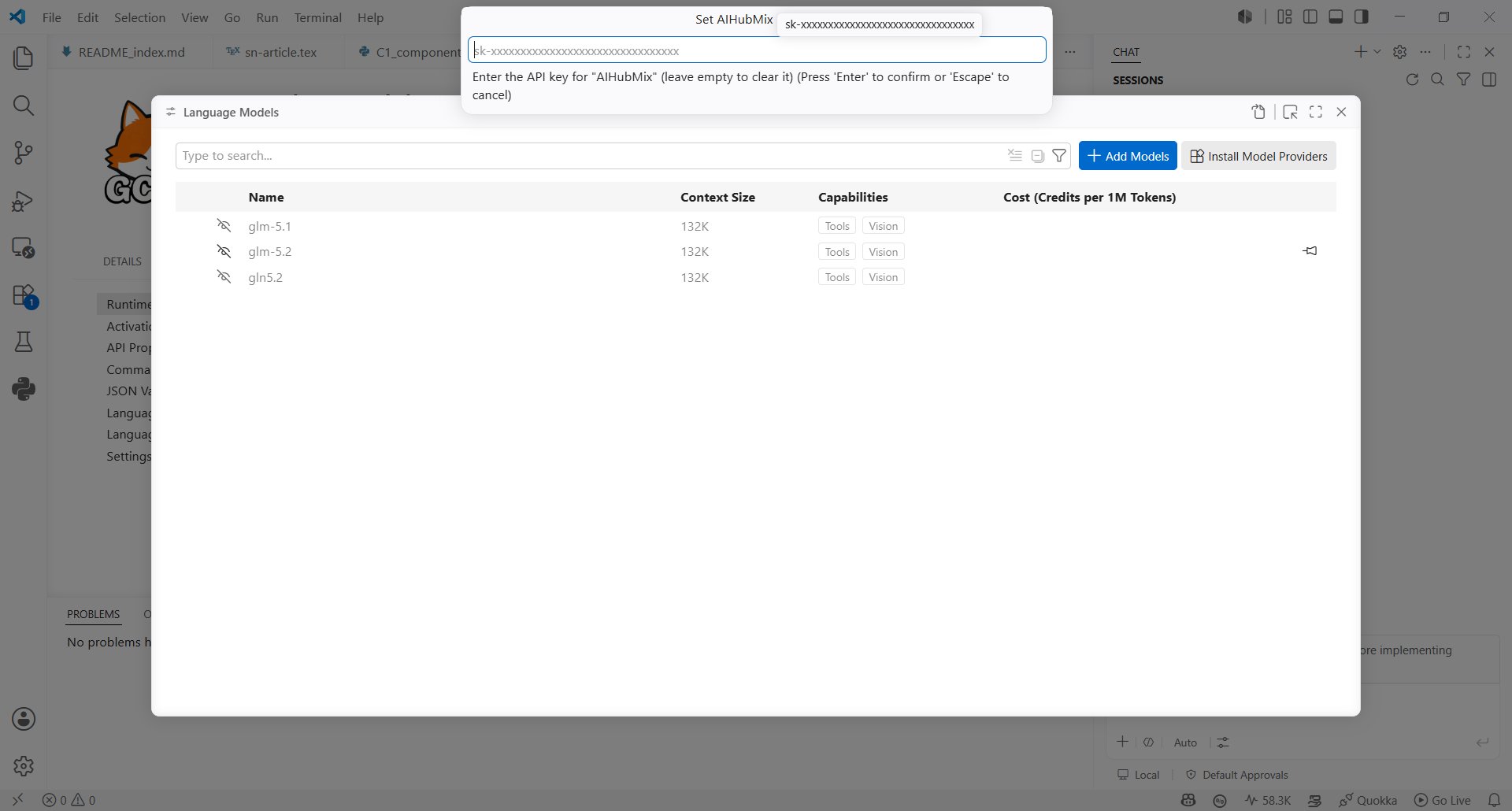
 4. Wählen Sie unter **Manage OpenAI / Anthropic compatible models** die Option **Manage API keys** aus.
 5. Geben Sie Ihren [AIHubMix API Key](https://console.aihubmix.com/token) in das Feld **Set AIHubMix** ein.
 ## AIHubMix-Modell erstellen
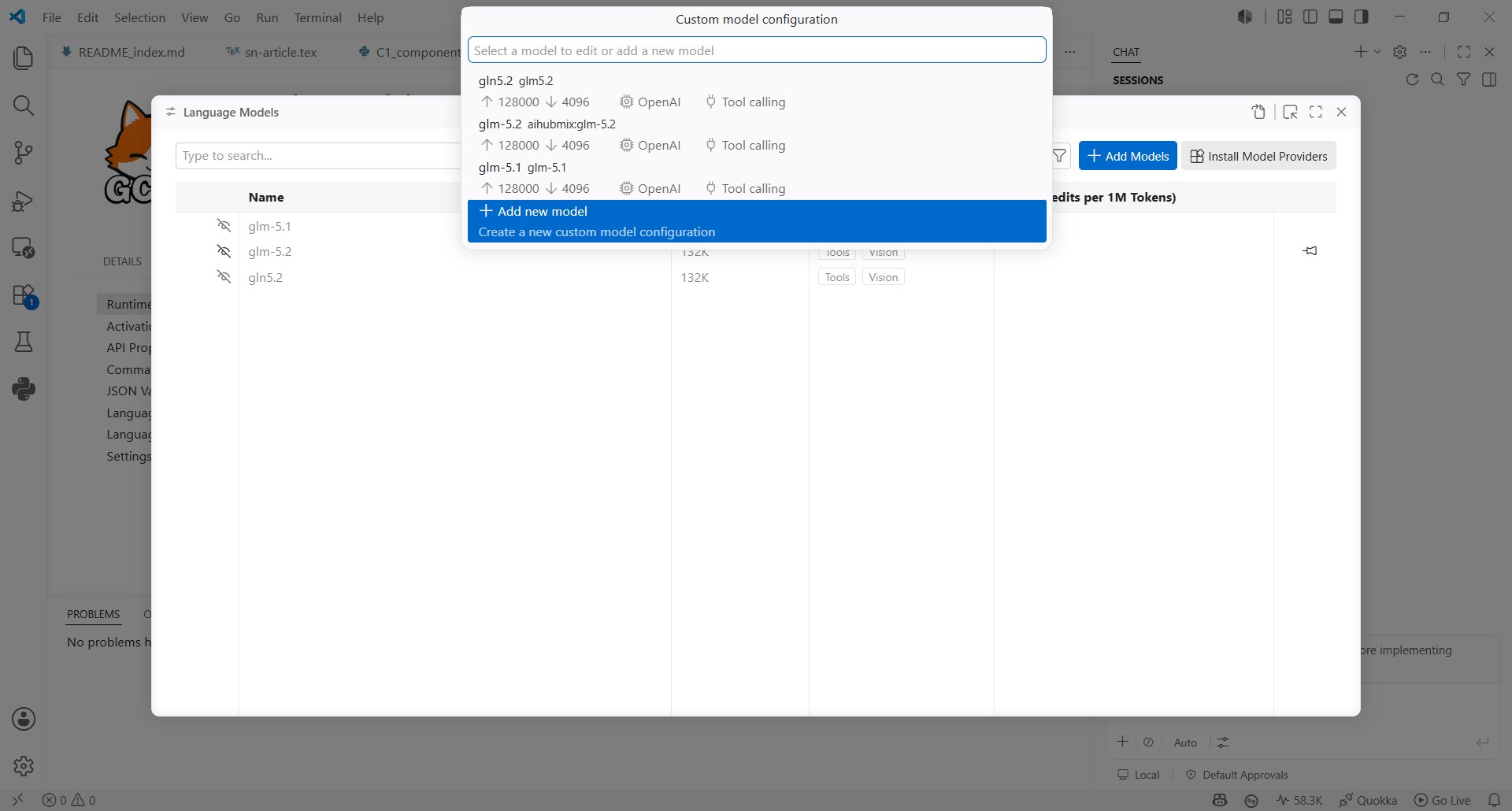
6. Kehren Sie zur Modellkonfiguration zurück, wählen Sie **Configure models** und klicken Sie auf **Add new model**.
## AIHubMix-Modell erstellen
6. Kehren Sie zur Modellkonfiguration zurück, wählen Sie **Configure models** und klicken Sie auf **Add new model**.
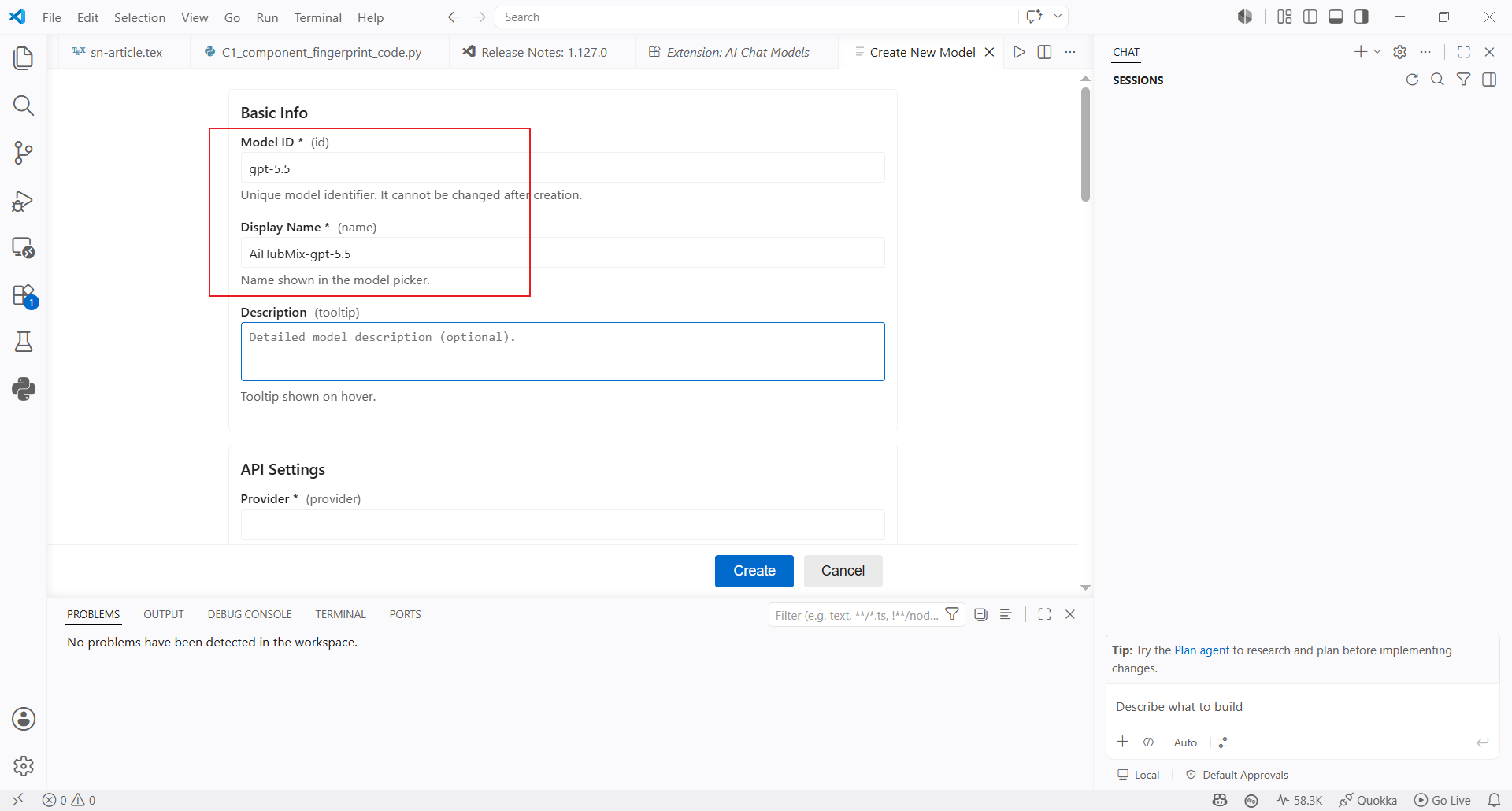
 7. Geben Sie die grundlegenden Modellinformationen ein:
* **Model ID**: Geben Sie die gewünschte Modell-ID ein, zum Beispiel `gpt-5.5`
* **Display Name**: Geben Sie den Namen ein, der im Modellauswähler angezeigt wird, zum Beispiel `AiHubMix-gpt-5.5`
* **Description**: optionaler Text, der beim Bewegen des Mauszeigers über das Modell angezeigt wird
7. Geben Sie die grundlegenden Modellinformationen ein:
* **Model ID**: Geben Sie die gewünschte Modell-ID ein, zum Beispiel `gpt-5.5`
* **Display Name**: Geben Sie den Namen ein, der im Modellauswähler angezeigt wird, zum Beispiel `AiHubMix-gpt-5.5`
* **Description**: optionaler Text, der beim Bewegen des Mauszeigers über das Modell angezeigt wird
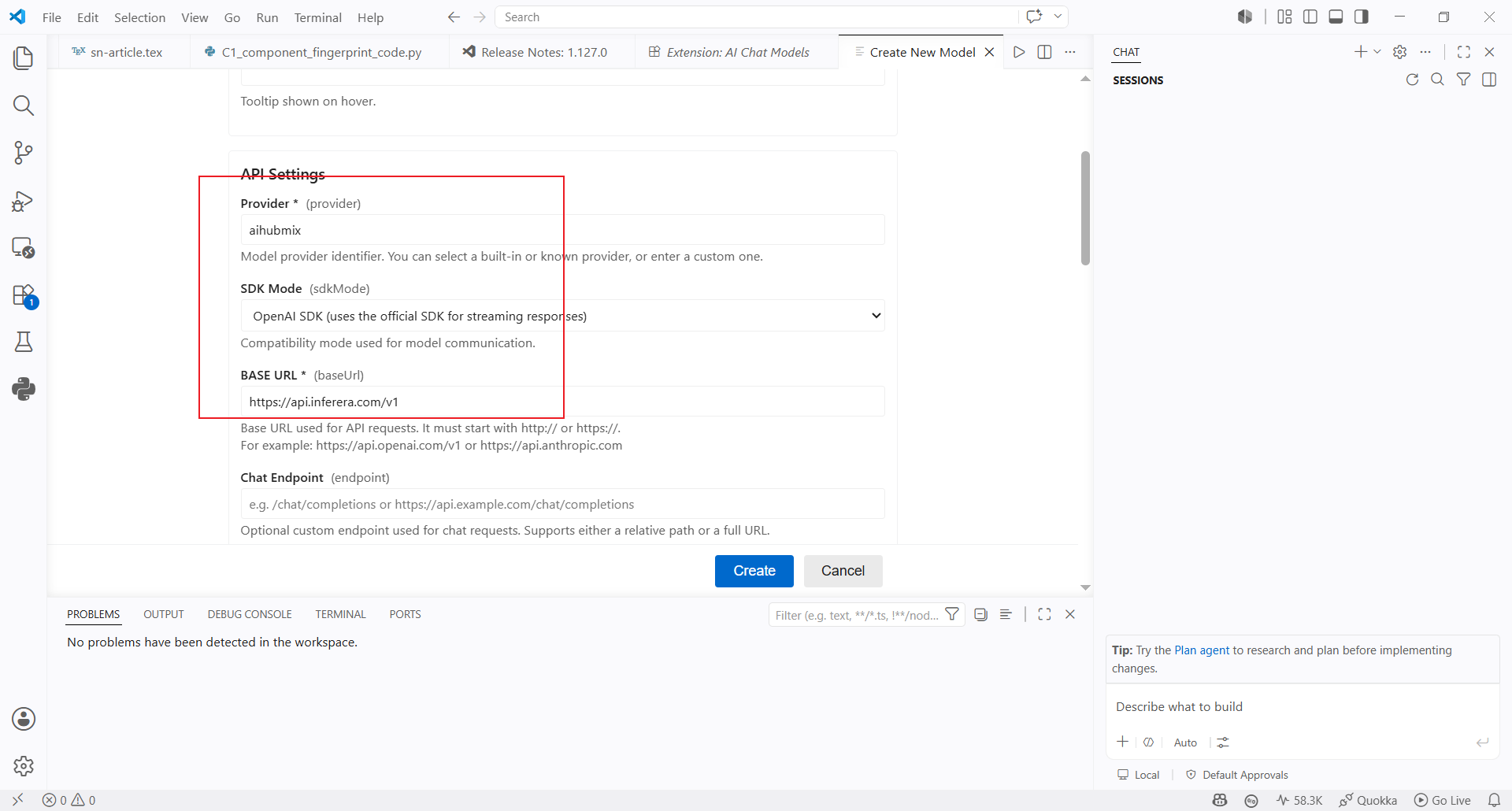
 8. Füllen Sie anschließend die API-Einstellungen aus:
* **Provider**: Geben Sie `aihubmix` ein
* **SDK Mode**: Wählen Sie den OpenAI-kompatiblen Modus aus
* **Base URL**: Verwenden Sie standardmäßig `https://aihubmix.com/v1`; falls die primäre Adresse nicht verfügbar ist, nutzen Sie die Ersatz-URL `https://api.inferera.com/v1`
* **Chat Endpoint**: Lassen Sie das Feld leer
Klicken Sie anschließend auf **Create**.
8. Füllen Sie anschließend die API-Einstellungen aus:
* **Provider**: Geben Sie `aihubmix` ein
* **SDK Mode**: Wählen Sie den OpenAI-kompatiblen Modus aus
* **Base URL**: Verwenden Sie standardmäßig `https://aihubmix.com/v1`; falls die primäre Adresse nicht verfügbar ist, nutzen Sie die Ersatz-URL `https://api.inferera.com/v1`
* **Chat Endpoint**: Lassen Sie das Feld leer
Klicken Sie anschließend auf **Create**.
 ## Modell verwenden
9. Kehren Sie zum Modellauswähler von Copilot Chat zurück und wählen Sie das soeben erstellte Modell `AiHubMix-gpt-5.5` aus.
## Modell verwenden
9. Kehren Sie zum Modellauswähler von Copilot Chat zurück und wählen Sie das soeben erstellte Modell `AiHubMix-gpt-5.5` aus.
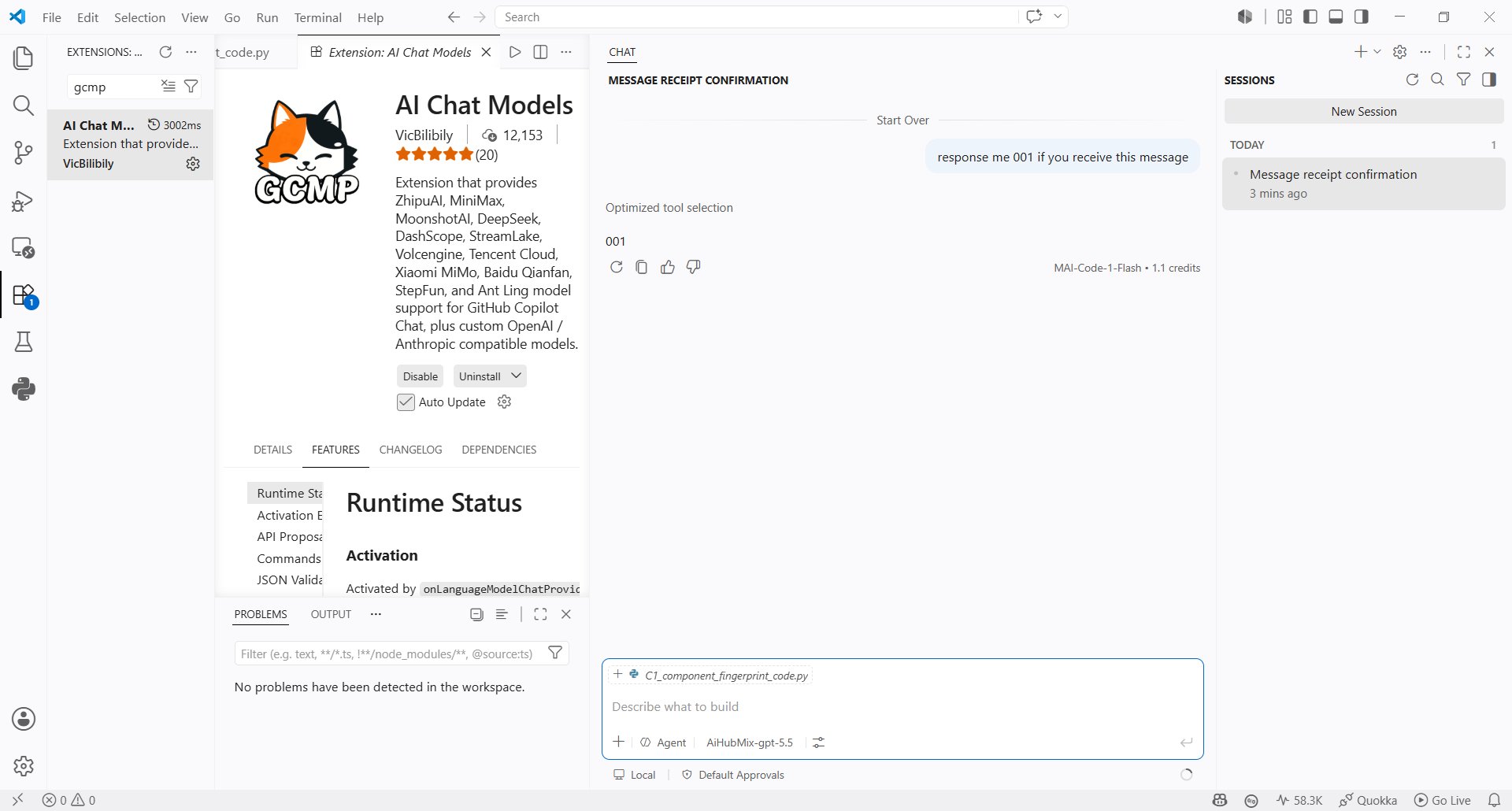
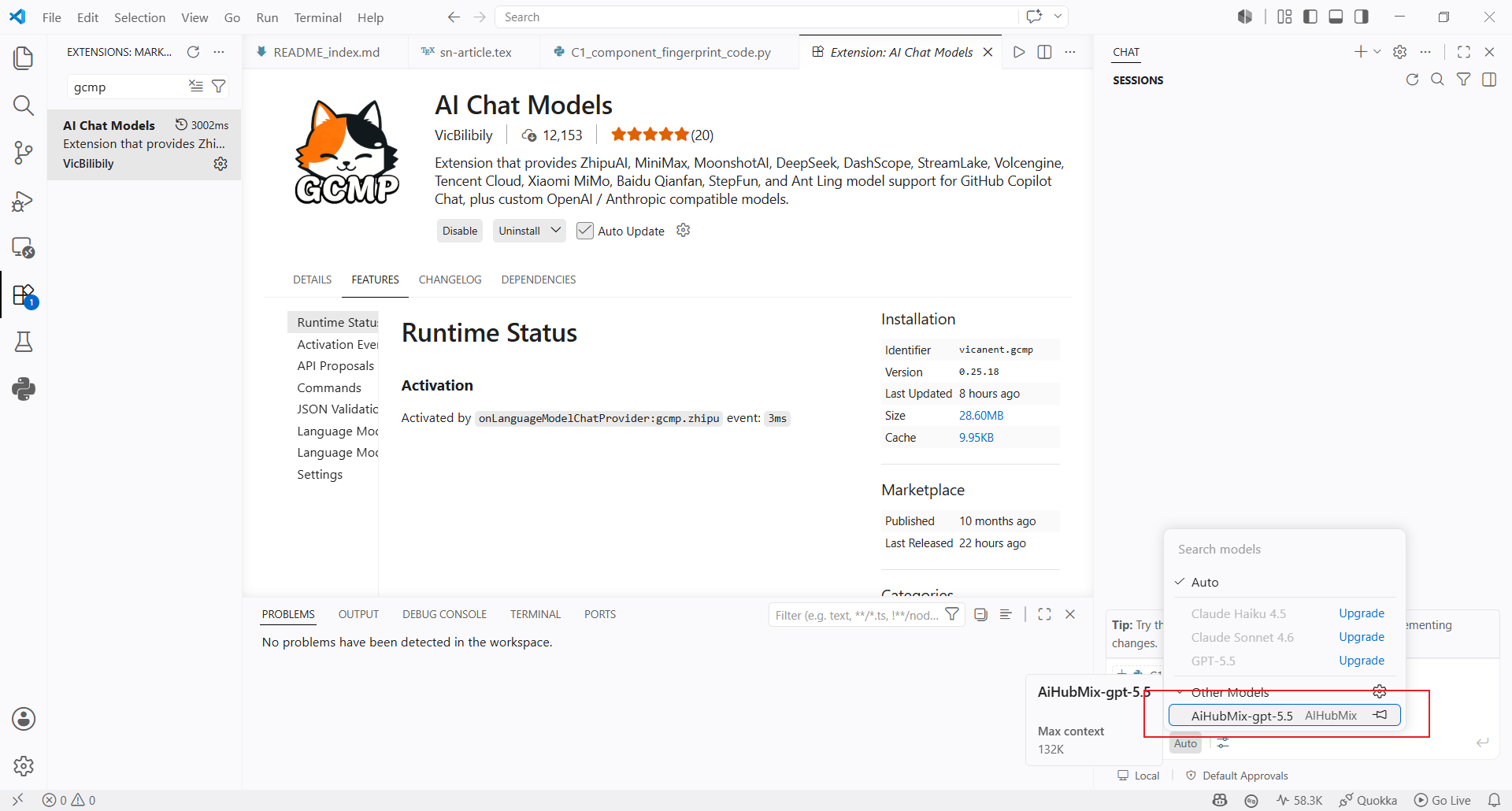 10. Senden Sie eine Nachricht in Copilot Chat, um zu prüfen, ob das Modell korrekt antwortet.
 ***
Zuletzt aktualisiert: 2026-07-02
***
Zuletzt aktualisiert: 2026-07-02