> ## Documentation Index
> Fetch the complete documentation index at: https://docs.aihubmix.com/llms.txt
> Use this file to discover all available pages before exploring further.
# NoteGen
> 在 NoteGen 中通过内置的 AIHubMix 模型平台配置模型,用于 AI 对话、笔记整理、写作辅助与知识库检索。
NoteGen 是一款本地优先、以 Markdown 为核心的跨平台应用,可以收集碎片信息,并借助 AI 将其整理成清晰的笔记。NoteGen 内置了 AIHubMix 模型平台,填入 API Key 并添加模型后,即可使用 AIHubMix 支持的模型。
下载链接:[NoteGen 官网下载](https://notegen.top/cn/download)
准备工作
* 安装并打开 NoteGen。本文教程基于 NoteGen `0.38.2` 桌面端。
* 在 [AIHubMix 控制台](https://aihubmix.com/token) 创建 API Key。
* 准备要使用的模型 ID,例如 `gpt-5.6-terra`。模型 ID 建议从 [模型列表](https://aihubmix.com/models) 复制,避免手动输入错误。
1\. 打开模型服务
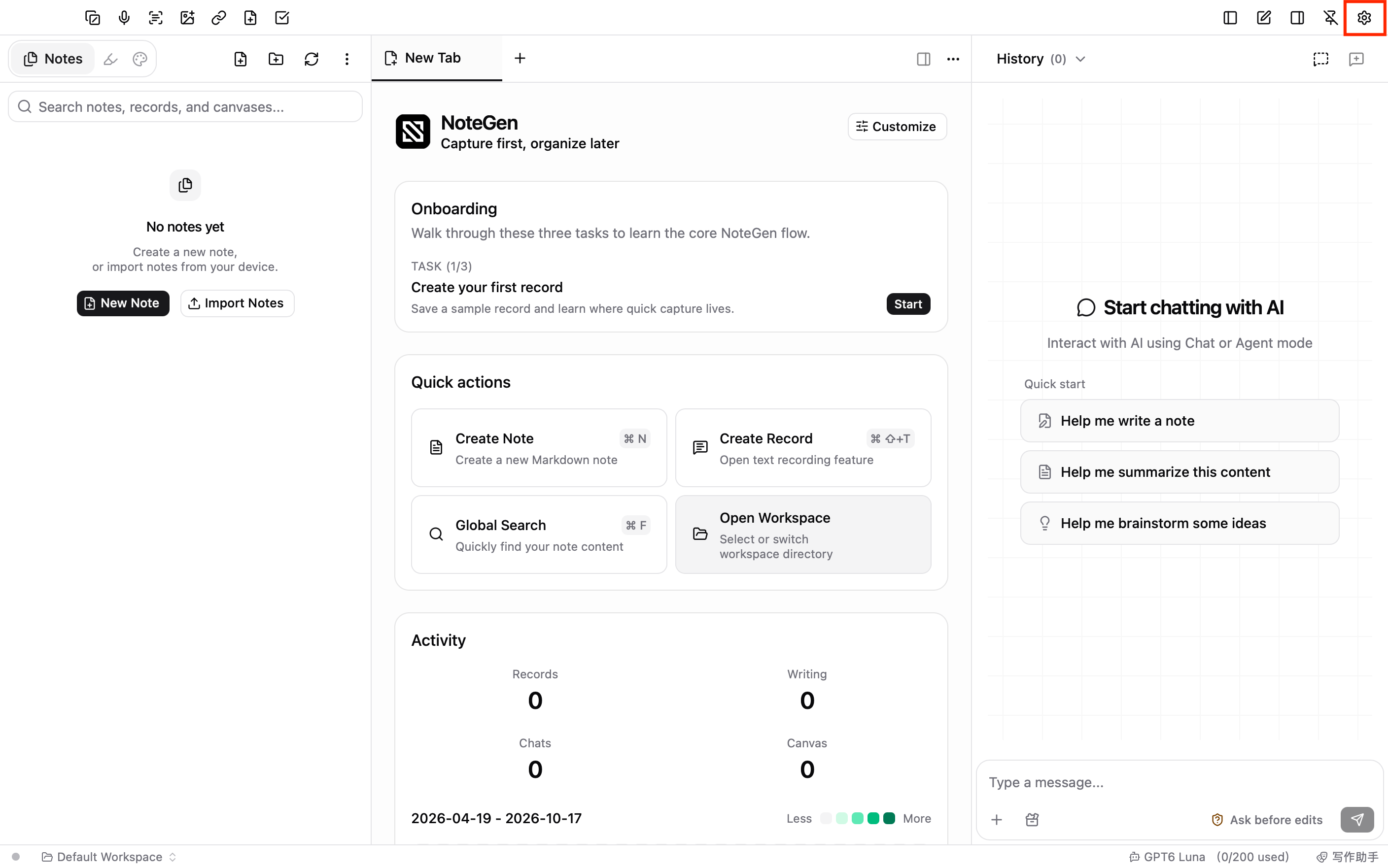
点击 NoteGen 窗口右上角的设置按钮,在设置左侧导航的 **AI** 分组中选择 **模型服务**。
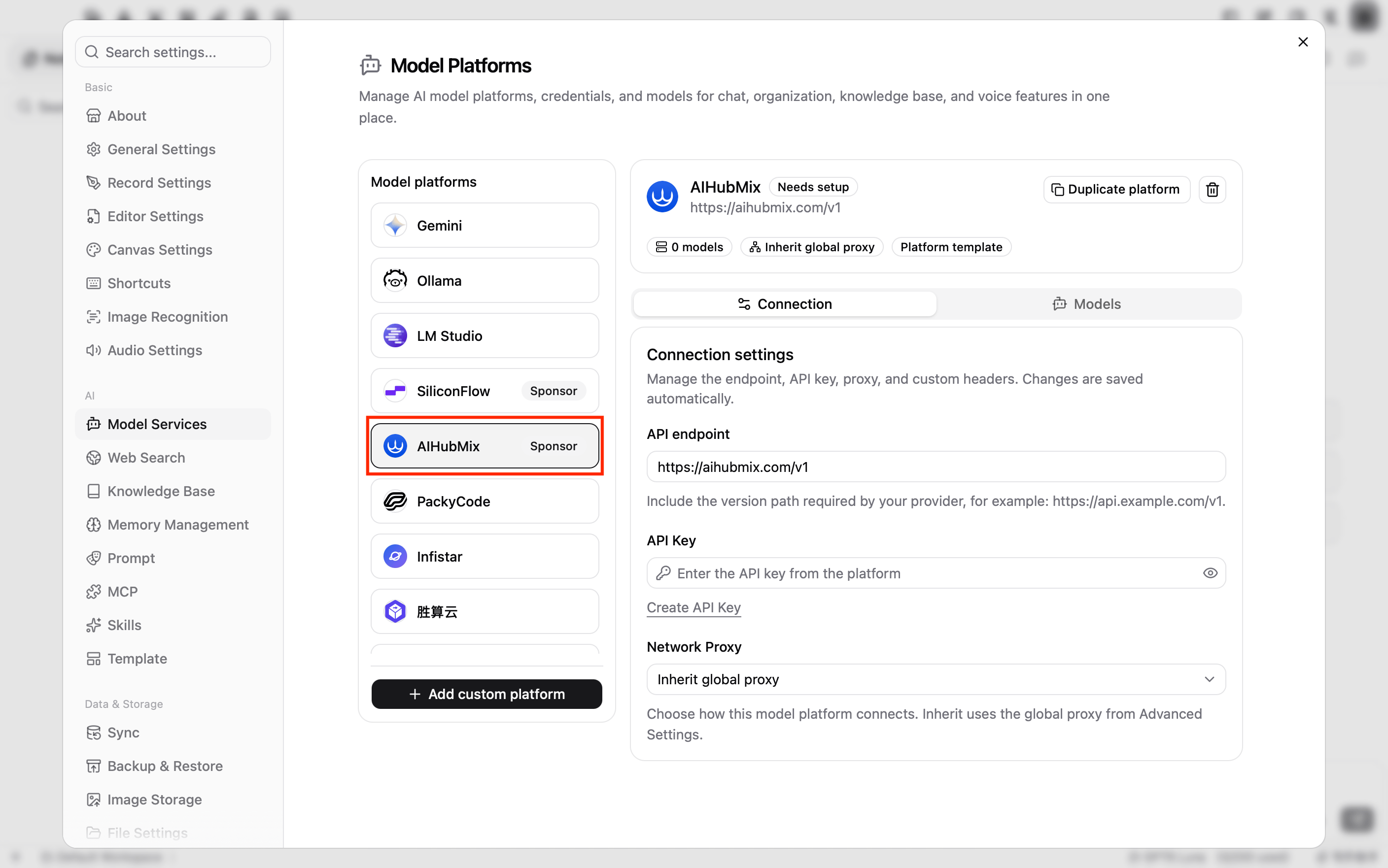
 在 **模型平台** 列表中点击 **AIHubMix**。该平台由 NoteGen 内置,名称旁带有 **赞助商** 标识。
3\. 填写连接设置
在 **连接设置** 标签页中填写以下内容:
* **API 地址**:已预设为 `https://aihubmix.com/v1`,保持不变。主地址暂时不可用时,改为备用地址 `https://api.inferera.com/v1`。
* **API Key**:填入在 AIHubMix 控制台创建的 API Key。
* **网络代理**:保持默认的 **继承全局代理**。
修改会自动保存。
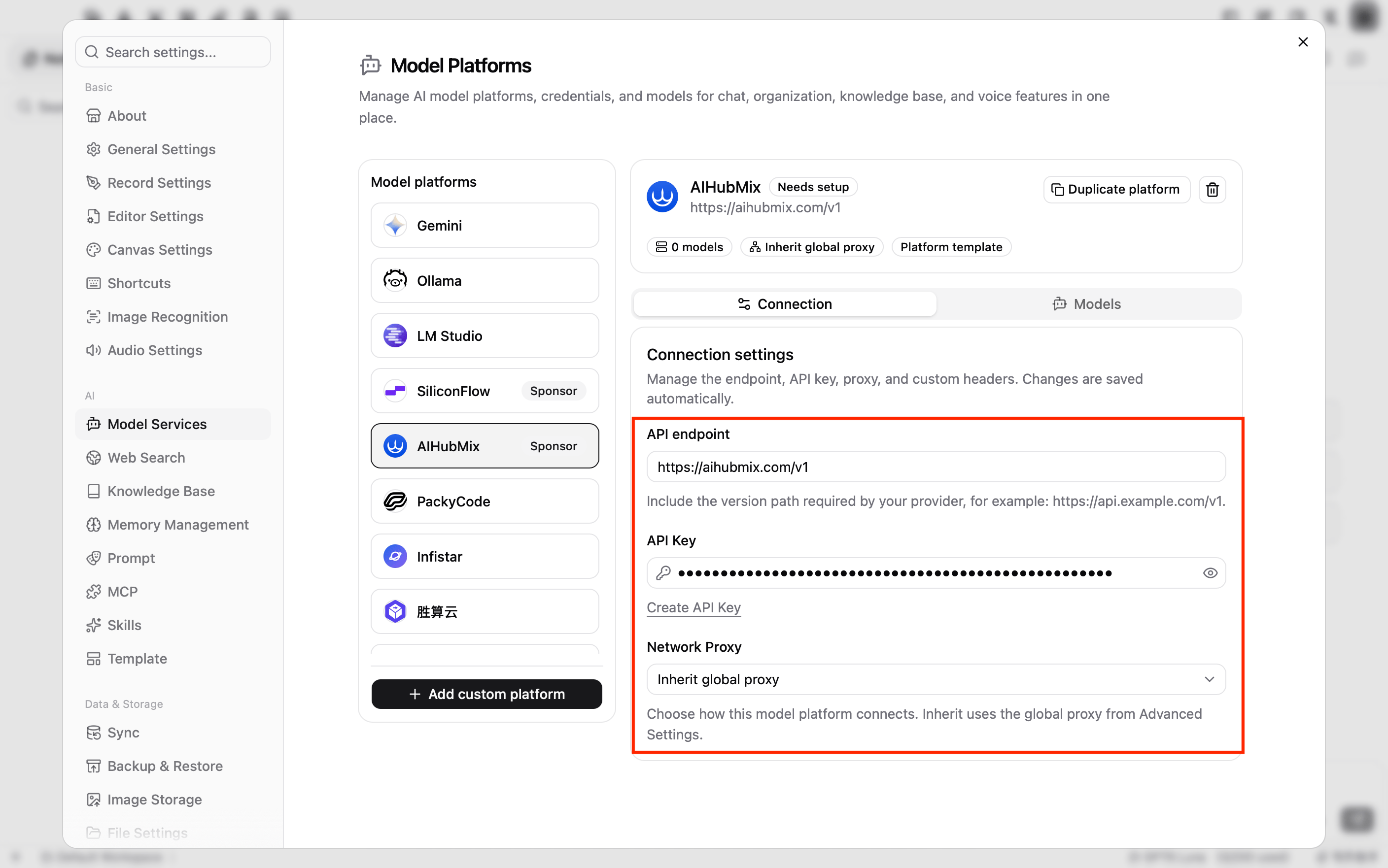 **API 地址** 填写到 `/v1`,例如 `https://aihubmix.com/v1`。NoteGen 会按模型类型自动拼接 `/chat/completions`、`/embeddings` 等接口路径。
4\. 添加对话模型
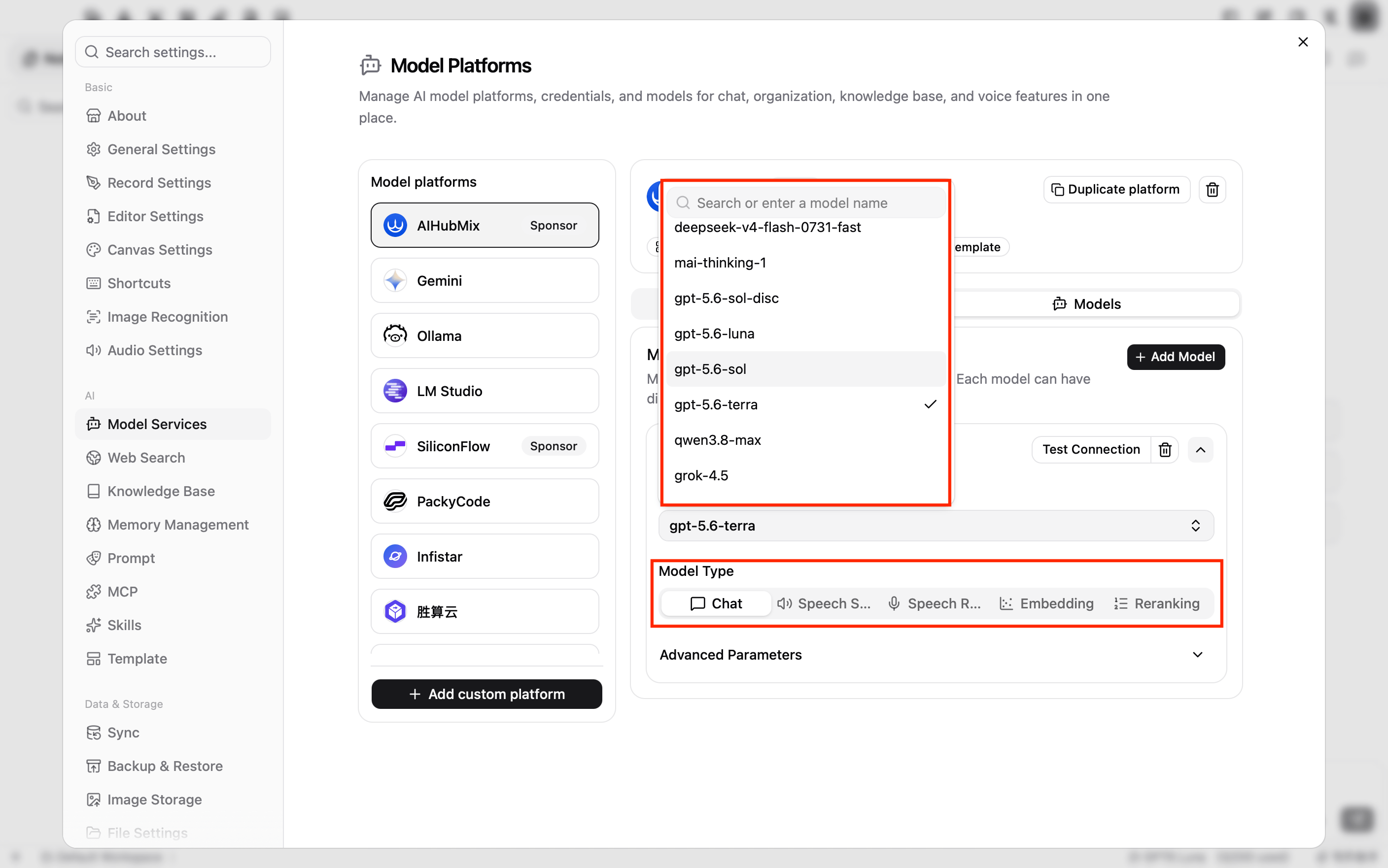
切换到 **模型列表** 标签页,点击 **添加模型**。
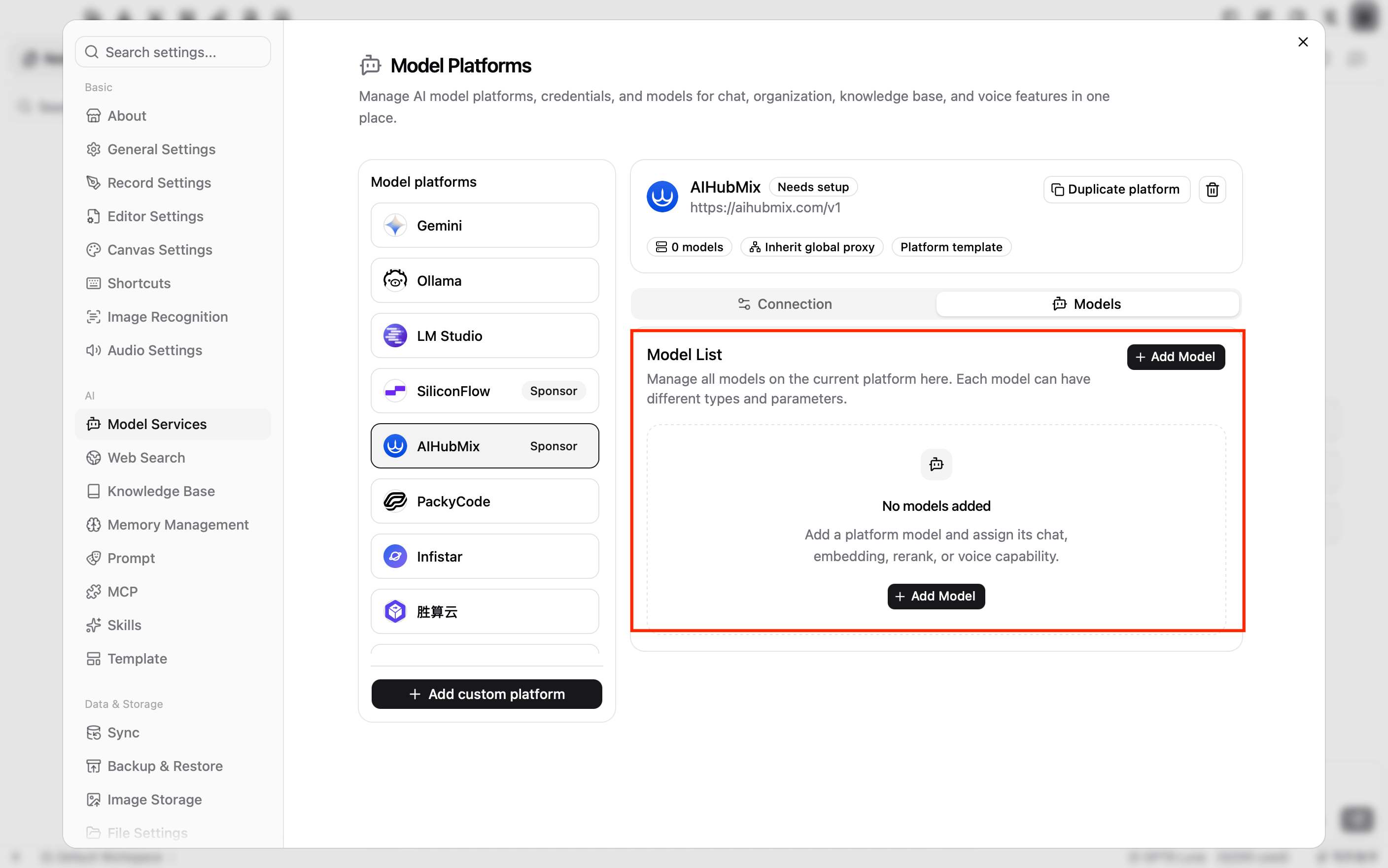 在自动展开的模型卡片中填写模型信息:
* **模型**:点击 **请选择模型**,在搜索框中输入模型 ID,例如 `gpt-5.6-terra`,然后选中该模型。列表中没有目标模型时,输入完整模型 ID 后点击 **Use "模型 ID"**。如果此处显示的是输入框,直接填写模型 ID 即可,也可以点击输入框右侧的刷新按钮重新获取模型列表。
* **模型类型**:选择 **对话**。新添加的模型默认即为 **对话**。
**高级参数** 中的最大输出 Token、上下文窗口、Temperature 等选项,没有特殊需求时保持默认值即可。填写模型后,平台名称旁的状态会从 **待完善** 变为 **已就绪**。
在自动展开的模型卡片中填写模型信息:
* **模型**:点击 **请选择模型**,在搜索框中输入模型 ID,例如 `gpt-5.6-terra`,然后选中该模型。列表中没有目标模型时,输入完整模型 ID 后点击 **Use "模型 ID"**。如果此处显示的是输入框,直接填写模型 ID 即可,也可以点击输入框右侧的刷新按钮重新获取模型列表。
* **模型类型**:选择 **对话**。新添加的模型默认即为 **对话**。
**高级参数** 中的最大输出 Token、上下文窗口、Temperature 等选项,没有特殊需求时保持默认值即可。填写模型后,平台名称旁的状态会从 **待完善** 变为 **已就绪**。
5\. 检测连接
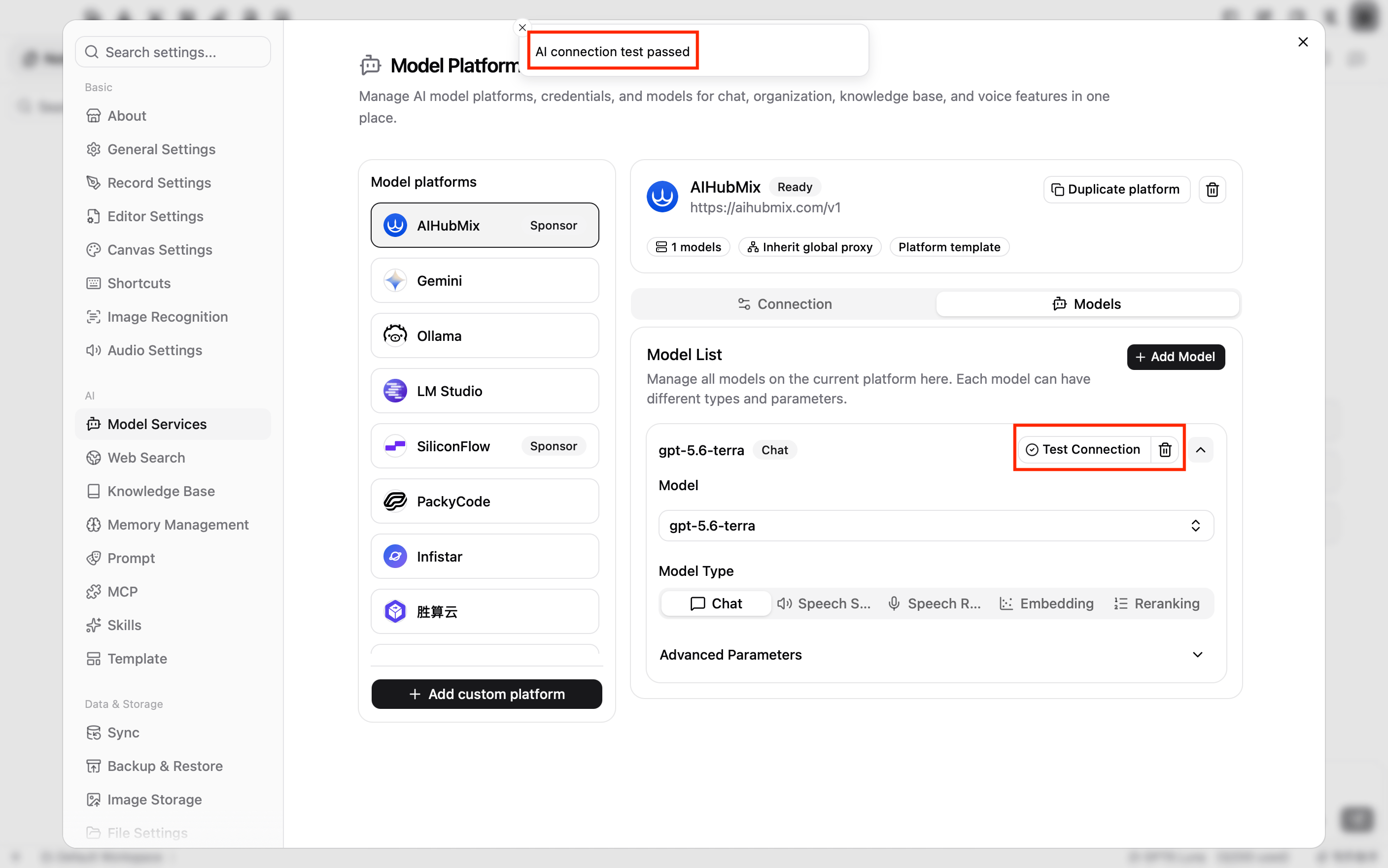
点击模型卡片右上方的 **检测连接**。提示 **AI 连接测试通过**,说明 API Key、API 地址和模型 ID 均已生效。
需要添加更多模型时,重复[步骤 4](#add-chat-model)和[步骤 5](#test-connection)。
使用 AIHubMix 模型
在 AI 对话中选择模型
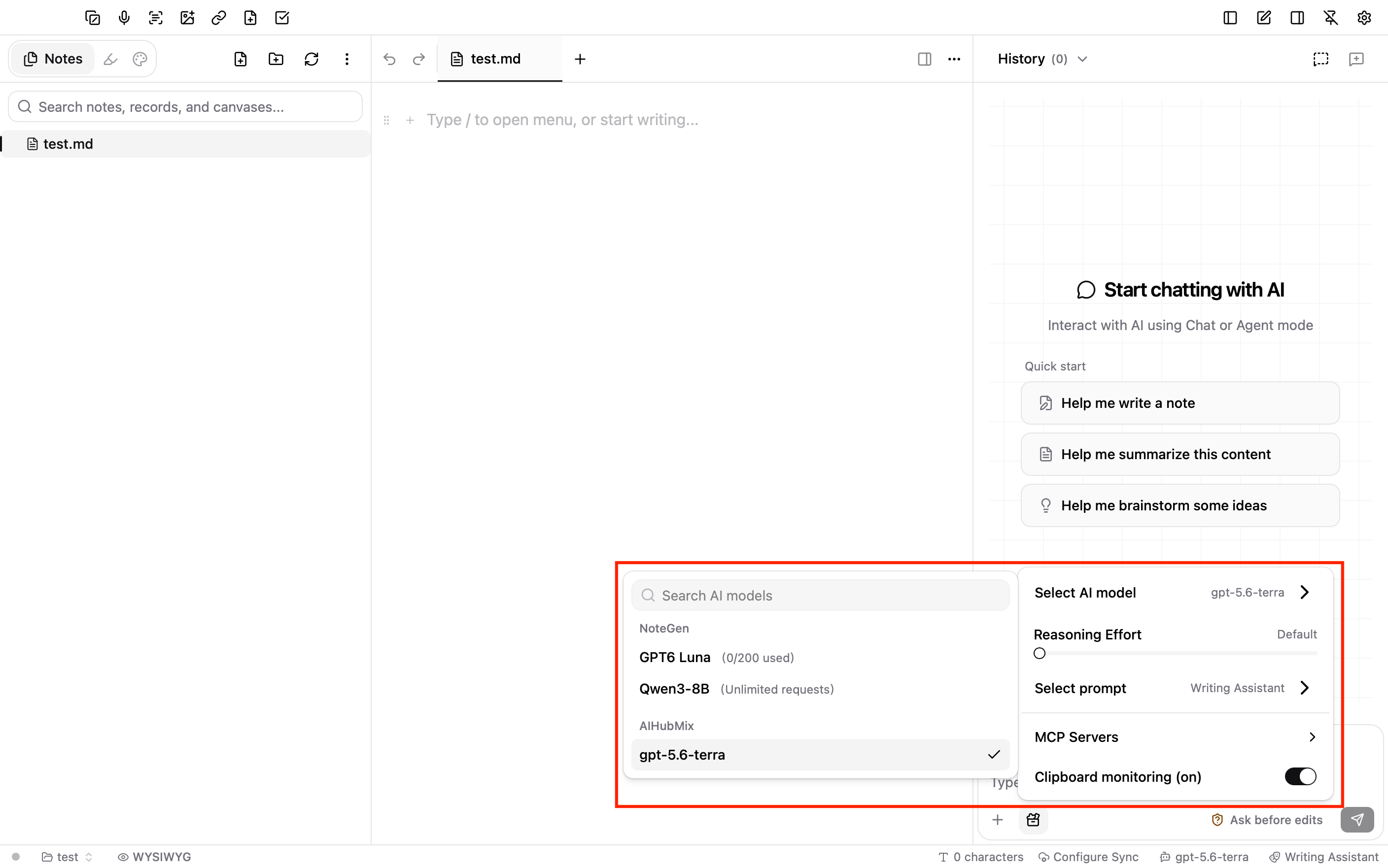
点击右上角的关闭按钮,返回主界面。点击窗口底部状态栏右侧显示的当前模型名称,在 **AIHubMix** 分组下选择刚才添加的模型。
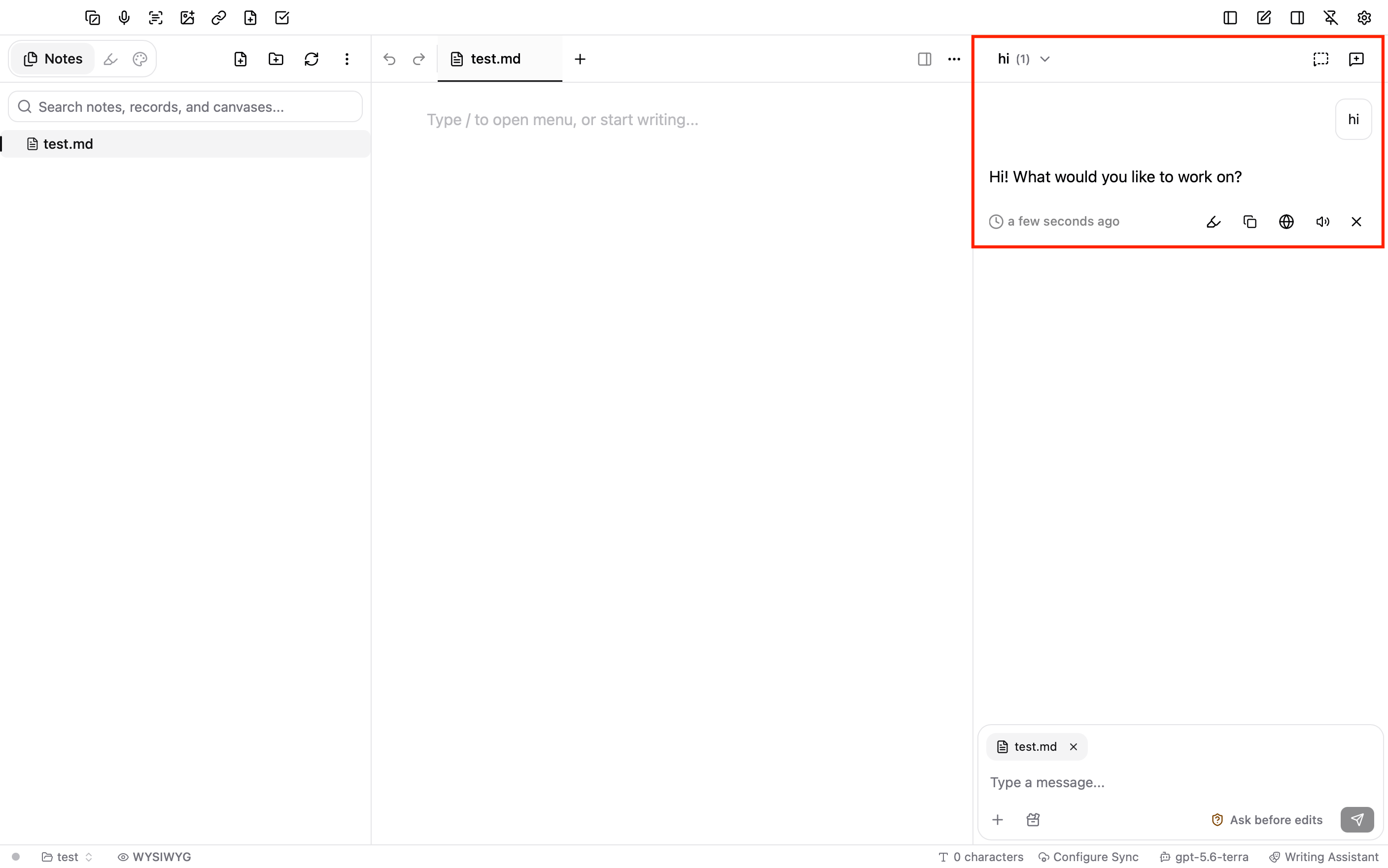
 在右侧对话面板中输入一条消息并发送。能正常收到回复,即表示配置成功。如果右侧对话面板未显示,点击窗口右上角的 **显示右侧边栏** 按钮。
在编辑器中使用
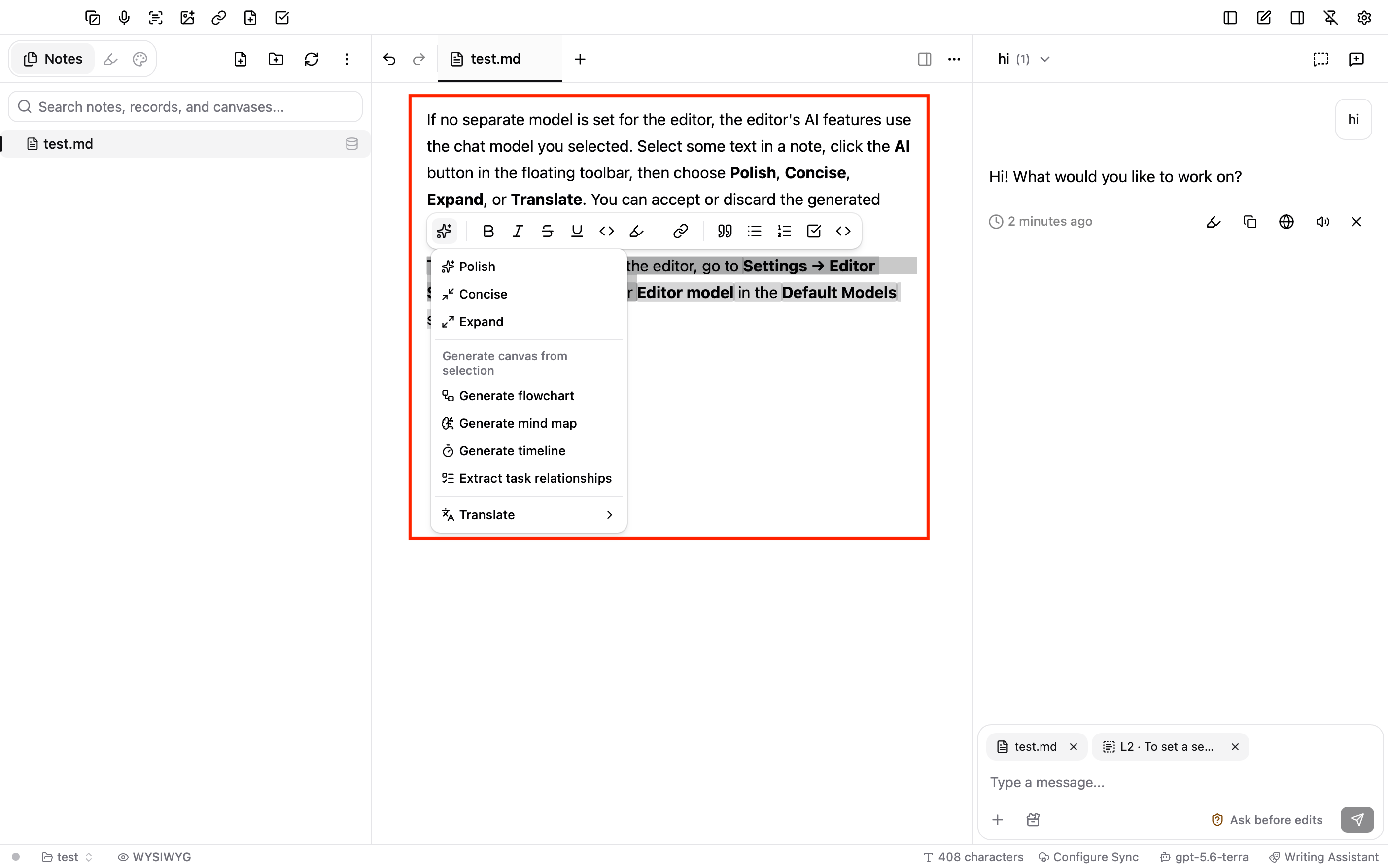
编辑器中的 AI 功能未单独指定模型时,会跟随当前选择的对话模型。在笔记中选中一段文字,点击浮动工具栏中的 **AI** 按钮,选择 **润色**、**精简**、**扩展** 或 **翻译**,生成结果可选择接受或放弃。
需要为编辑器单独指定模型时,可前往 **设置 → 编辑器设置**,在 **默认模型** 的 **编辑器模型** 中选择。
配置知识库模型(可选)
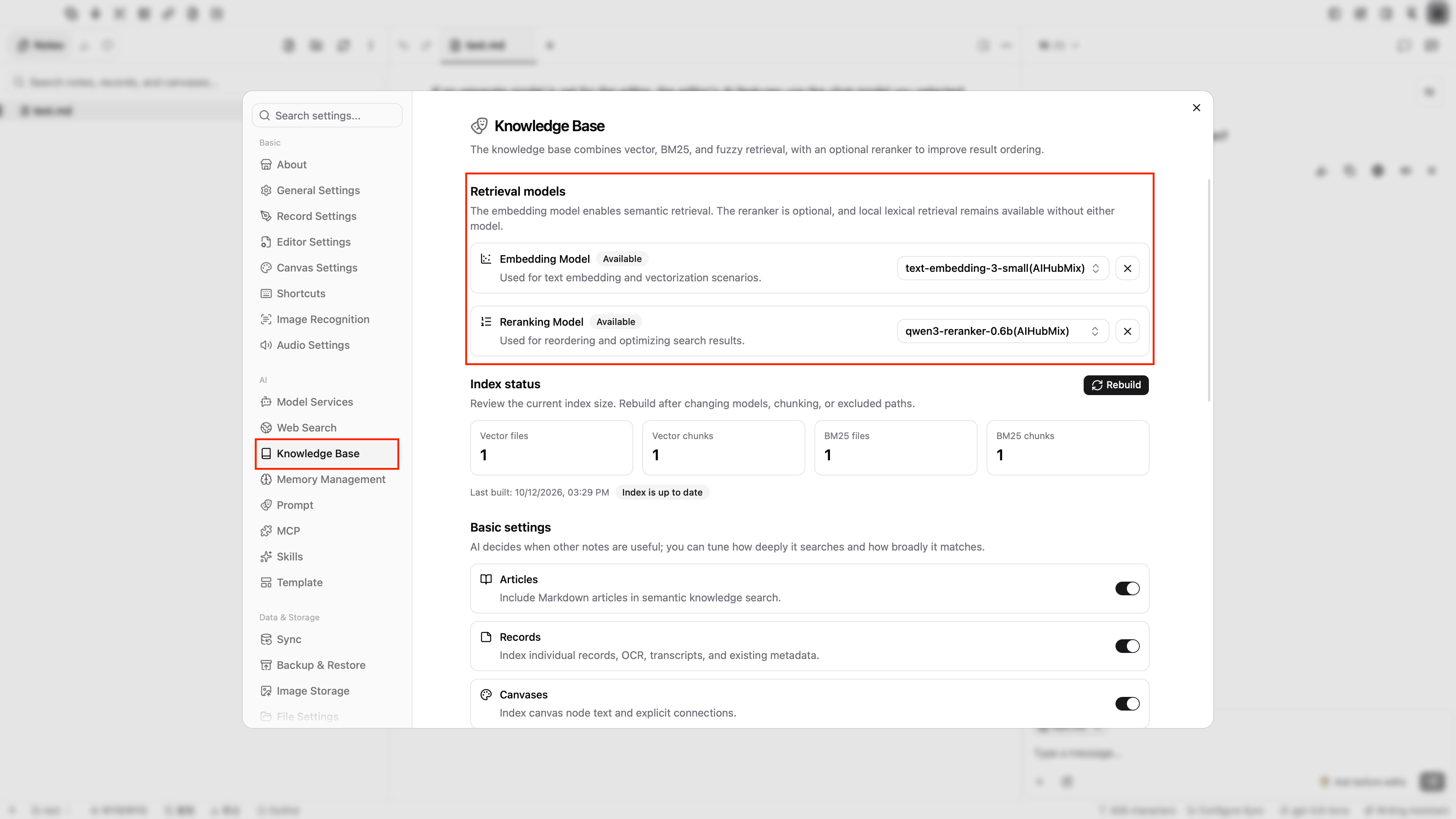
NoteGen 的知识库使用嵌入模型进行语义检索,重排模型可选,用于优化检索结果的排序。
1. 在 AIHubMix 平台的 **模型列表** 中点击 **添加模型**,填写嵌入模型 ID,例如 `text-embedding-3-small`,**模型类型** 选择 **嵌入**,然后点击 **检测连接**。
2. 需要重排时,再添加一个重排模型,例如 `qwen3-reranker-0.6b`,**模型类型** 选择 **重排序**,然后点击 **检测连接**。
3. 打开 **设置 → 知识库**,在 **检索模型** 中将 **嵌入模型** 选择为刚才添加的嵌入模型。添加了重排模型时,再将 **重排模型** 选择为该模型。
模型列表中没有所需的嵌入模型或重排模型时,在搜索框中输入完整模型 ID,再点击 **Use "模型 ID"**。
 更换嵌入模型后,建议重新计算知识库向量,确保知识库中的向量均由同一个模型生成。
常见问题
**模型平台列表中没有 AIHubMix 怎么办?**
检查网络连接后,关闭设置窗口并重新打开 **模型服务**,NoteGen 会重新获取平台列表。也可以点击 **模型平台** 列表底部的 **添加自定义平台**,将平台名称改为 `AIHubMix`,**API 地址** 填 `https://aihubmix.com/v1`,再填写 API Key 并添加模型。
**检测连接失败怎么办?**
检查 API Key 是否完整、**API 地址** 是否为 `https://aihubmix.com/v1`、模型 ID 是否与 AIHubMix 模型列表一致,以及 **模型类型** 是否与模型能力匹配。返回 `401` 或 `403` 时,检查 API Key 和账户权限;返回 `404` 时,检查 API 地址和模型 ID。主地址暂时不可用时,将 **API 地址** 改为 `https://api.inferera.com/v1`。
**底部的模型选择器中找不到刚添加的模型怎么办?**
模型选择器只显示 **模型类型** 为 **对话** 的模型。返回 **设置 → 模型服务**,确认该模型已填写模型 ID,且 **模型类型** 为 **对话**。
**对话输入框提示“未配置主模型,无法使用 AI 对话功能”怎么办?**
点击窗口底部状态栏右侧的模型名称,在 **AIHubMix** 分组下选择一个对话模型。
***
更新时间:2026-10-12
This documentation is built and hosted on [Mintlify](https://mintlify.com), a developer documentation platform.