> ## Documentation Index
> Fetch the complete documentation index at: https://docs.aihubmix.com/llms.txt
> Use this file to discover all available pages before exploring further.
# Gemini CLI
用 Aihubmix 为 Gemini CLI 提供强劲动力,享受稳定高效的 Gemini 模型服务。
## 快速配置指引:
### 1️⃣ 全局安装 npm 包
终端运行:
```shell theme={null}
npm install -g @google/gemini-cli
```
确保你的 Node.js 版本 >= 18
更多详细说明可以参考:
1. [官方仓库](https://github.com/google-gemini/gemini-cli)
2. [详细配置](https://github.com/google-gemini/gemini-cli/blob/main/docs/cli/configuration.md)
### 2️⃣ 环境变量配置
在系统环境变量中填入 Aihubmix 密钥和转发地址,密钥可以在 Aihubmix [「Keys」页面](https://aihubmix.com/token) 生成。
比如在 \~/.zshrc 中添加:
```shell theme={null}
export GOOGLE_GEMINI_BASE_URL="https://aihubmix.com/gemini"
export GEMINI_API_KEY="sk-***"
```
对于 Mac 用户,你可以在`用户名`目录通过快捷键 `⌘ + ⇧ + .` 显示隐藏的 .zshrc 文件,用系统的「文本编辑」APP 打开并添加上述内容。
### 3️⃣ 使配置生效
添加配置之后,终端执行 `source ~/.zshrc`,回车即可。
### 4️⃣ 终端启动
终端输入
```shell theme={null}
gemini
```
## 初始化配置
### 选择接入方式
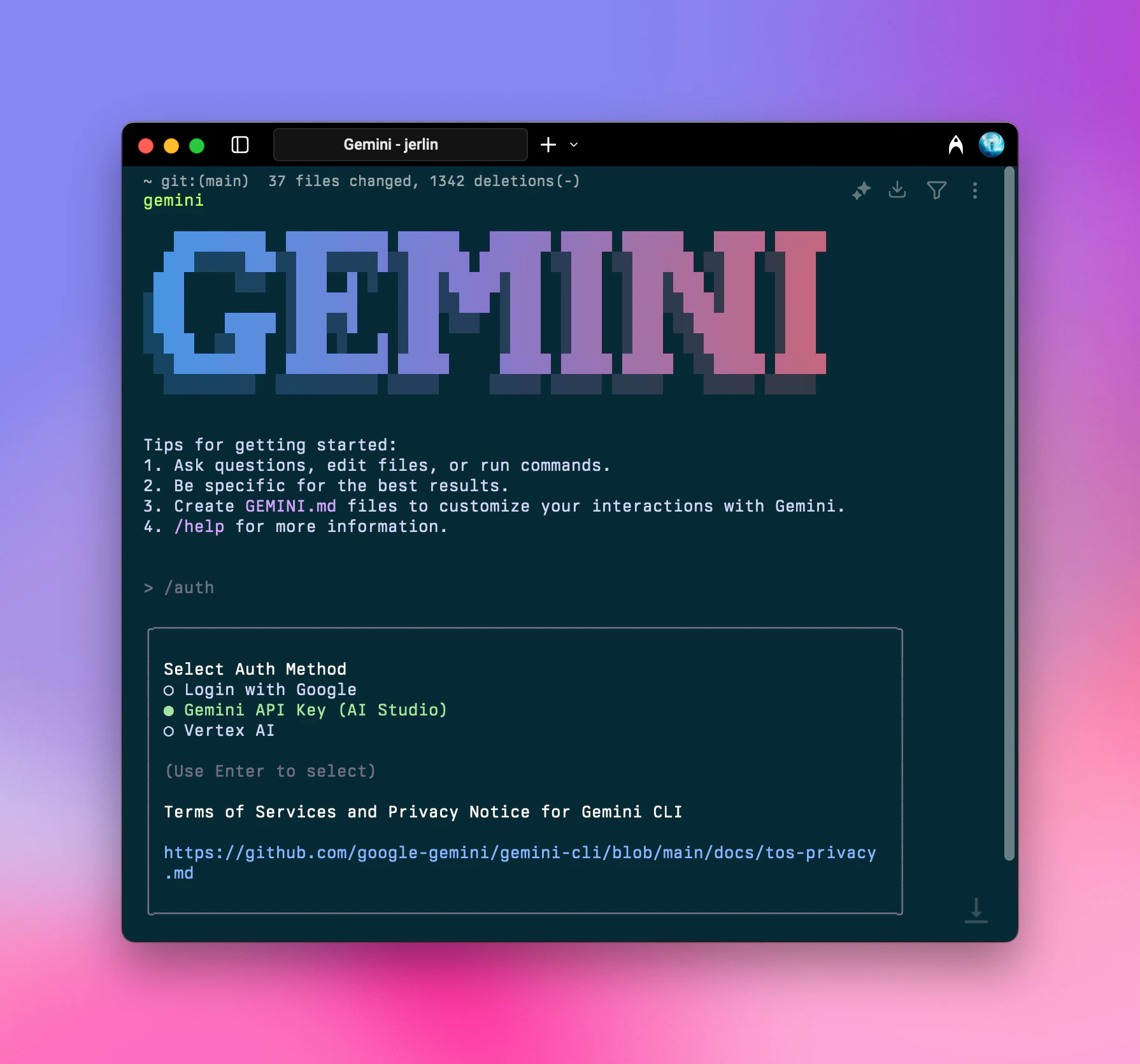 启动之后输入 `/auth`,回车,选择 `Gemini API Key (AI Studio)`
```shell theme={null}
○ Login with Google
● Gemini API Key (AI Studio)
○ vertex AI
```
你可以随时用 `/auth` 命令来切换授权方式。
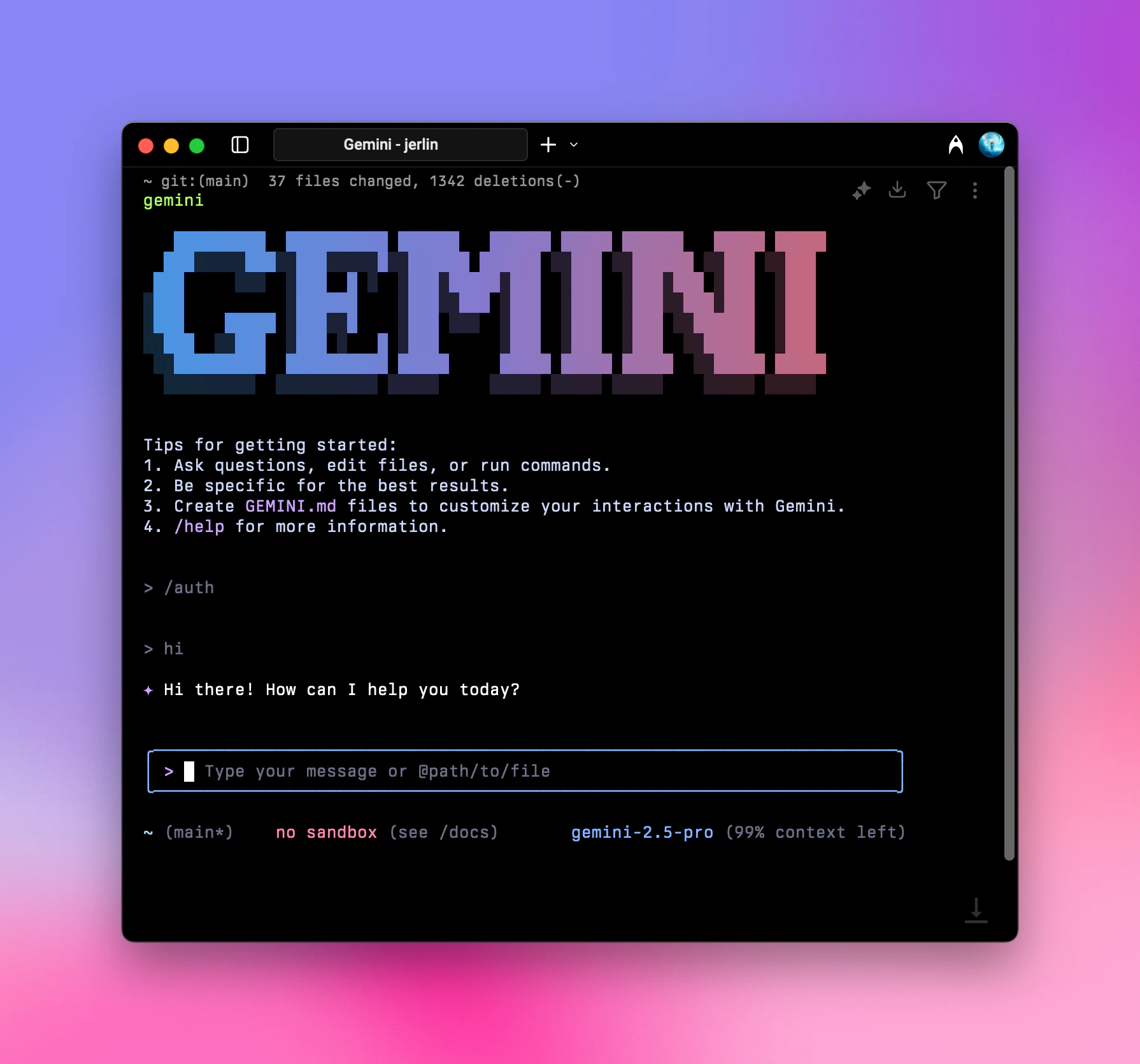
### 启动成功
完成以上初始化即可正常使用。
启动之后输入 `/auth`,回车,选择 `Gemini API Key (AI Studio)`
```shell theme={null}
○ Login with Google
● Gemini API Key (AI Studio)
○ vertex AI
```
你可以随时用 `/auth` 命令来切换授权方式。
### 启动成功
完成以上初始化即可正常使用。
 ## 祝你使用愉快!
更新时间:2026-06-01
## 祝你使用愉快!
更新时间:2026-06-01