> ## Documentation Index
> Fetch the complete documentation index at: https://docs.aihubmix.com/llms.txt
> Use this file to discover all available pages before exploring further.
# Using Non-OpenAI Models
## How It Works
Our platform uses the OpenAI model API as a standard interface to aggregate multiple non-OpenAI models, including but not limited to Google's **Gemini** series and Anthropic Claude. To use a non-OpenAI model, simply **change the model name** just as you would when calling an OpenAI model. You can find the available model names in the settings page of our website.
 ## Using in Applications - Lobe Chat Example
Typically, the API key provided by our website only allows access to OpenAI models (such as GPT-3.5).
## Using in Applications - Lobe Chat Example
Typically, the API key provided by our website only allows access to OpenAI models (such as GPT-3.5).
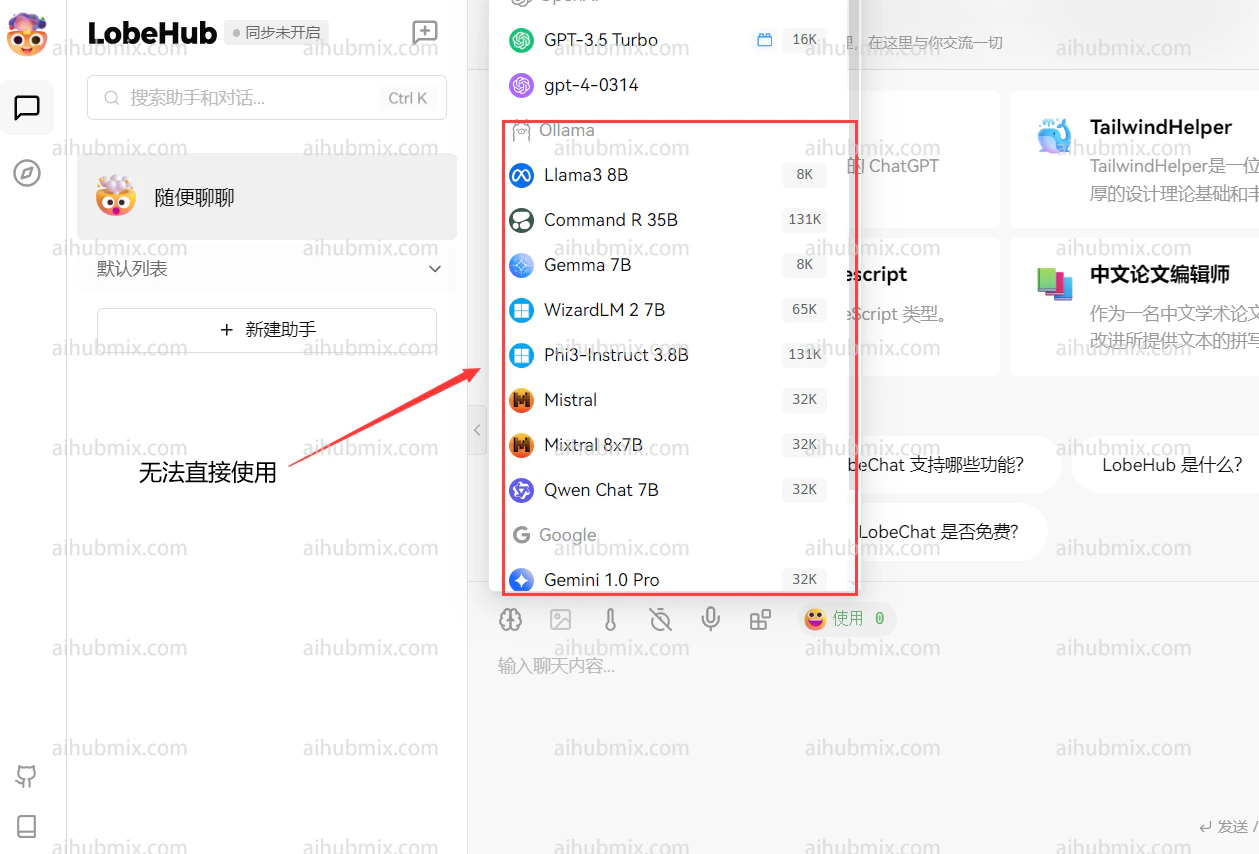 To use our aggregated models, you can add a custom model name. Here's how:
1. Open the settings interface and find the "Model List" section.
2. * Open the website model square page.
* Copy the name of the model you want to use (e.g., gemini-pro or claude-3-opus-20240229).
To use our aggregated models, you can add a custom model name. Here's how:
1. Open the settings interface and find the "Model List" section.
2. * Open the website model square page.
* Copy the name of the model you want to use (e.g., gemini-pro or claude-3-opus-20240229).
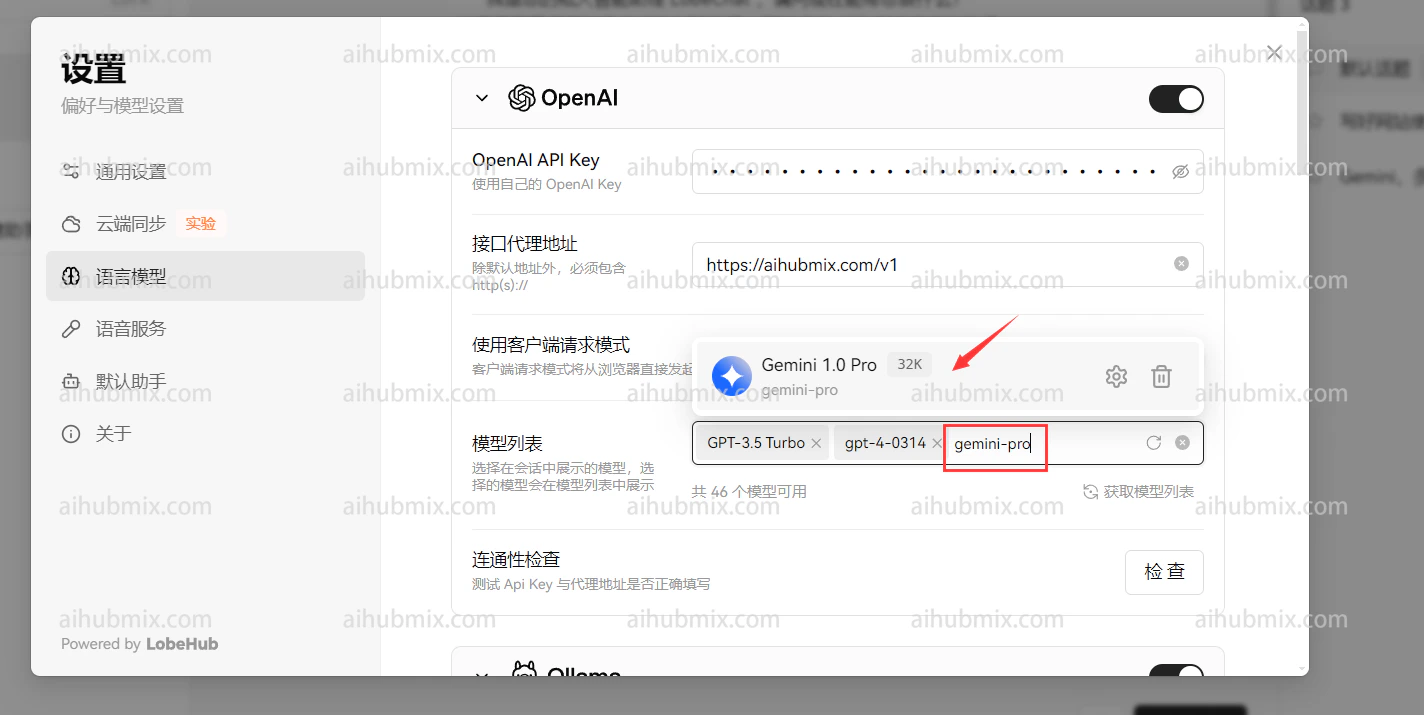
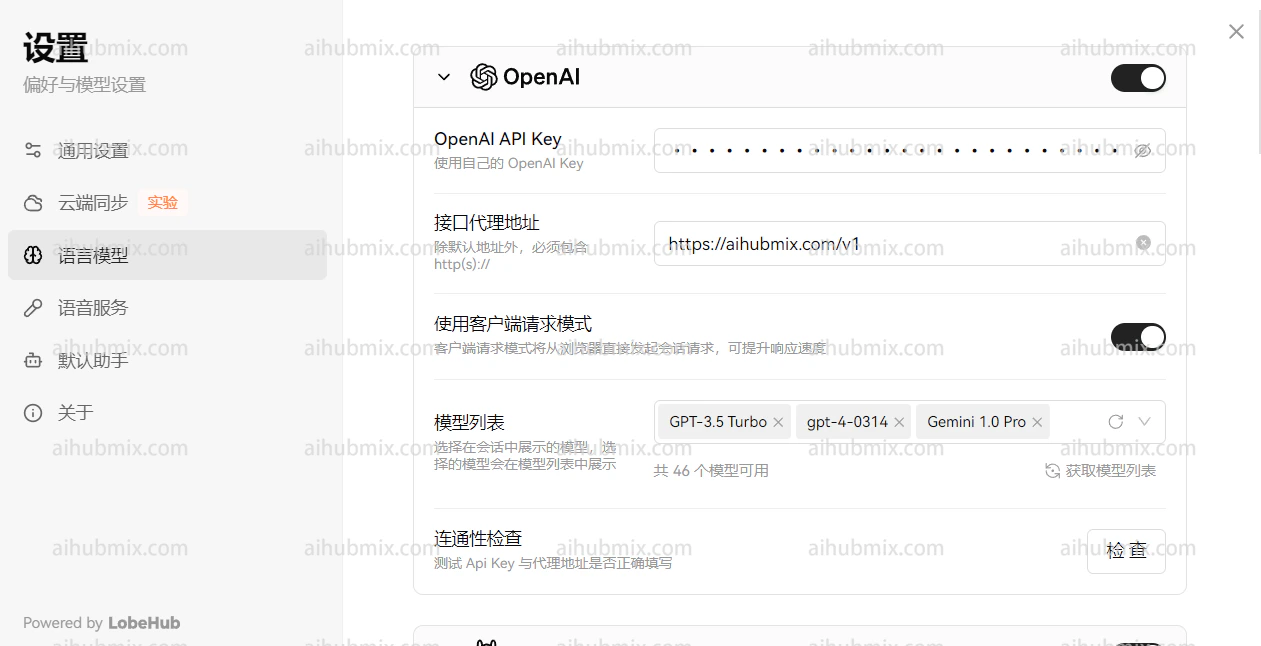 3. * Enter the desired model name and select it.
* Confirm that the manually added model appears below the OpenAI section.
3. * Enter the desired model name and select it.
* Confirm that the manually added model appears below the OpenAI section.
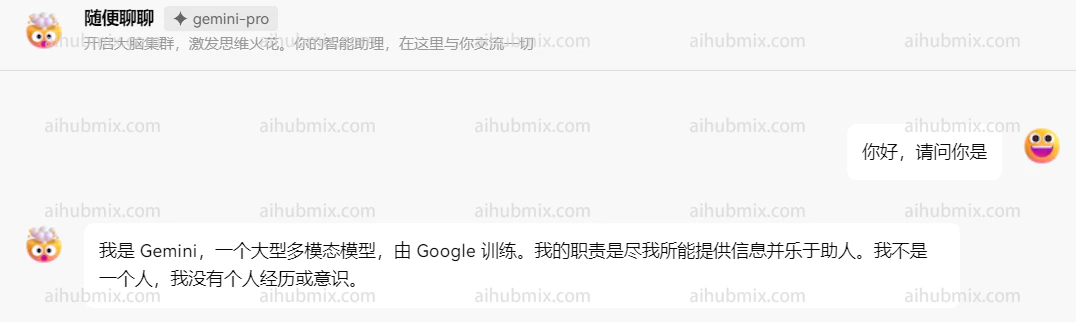
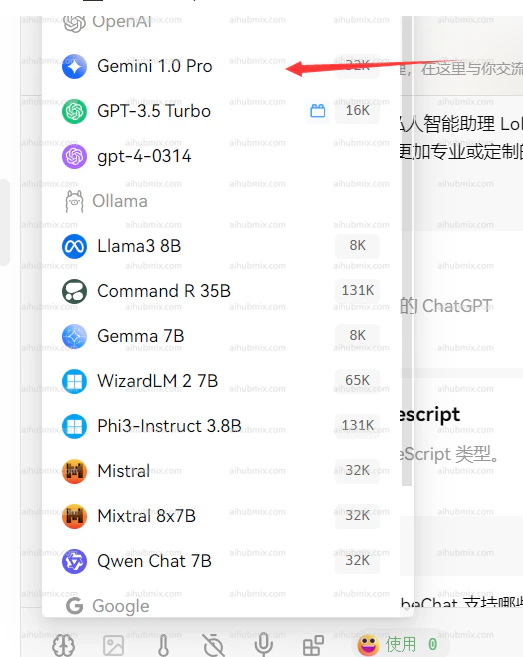 4. Select the model you want to use from the OpenAI section (e.g., gemini-pro). The result should look like this:
 ## Developer Integration - Official Library Example
Here's an example of how to use our API with the official Python library:
```python theme={null}
from openai import OpenAI
client = OpenAI(
api_key="AIHUBMIX_API_KEY", # Replace with the key you generated in AiHubMix
base_url="https://aihubmix.com/v1"
)
chat_completion = client.chat.completions.create(
messages=[
{
"role": "user",
"content": "Say this is a test",
}
],
model="gemini-2.0-flash",
)
print(chat_completion)
```
## Special Case: Next Web Client
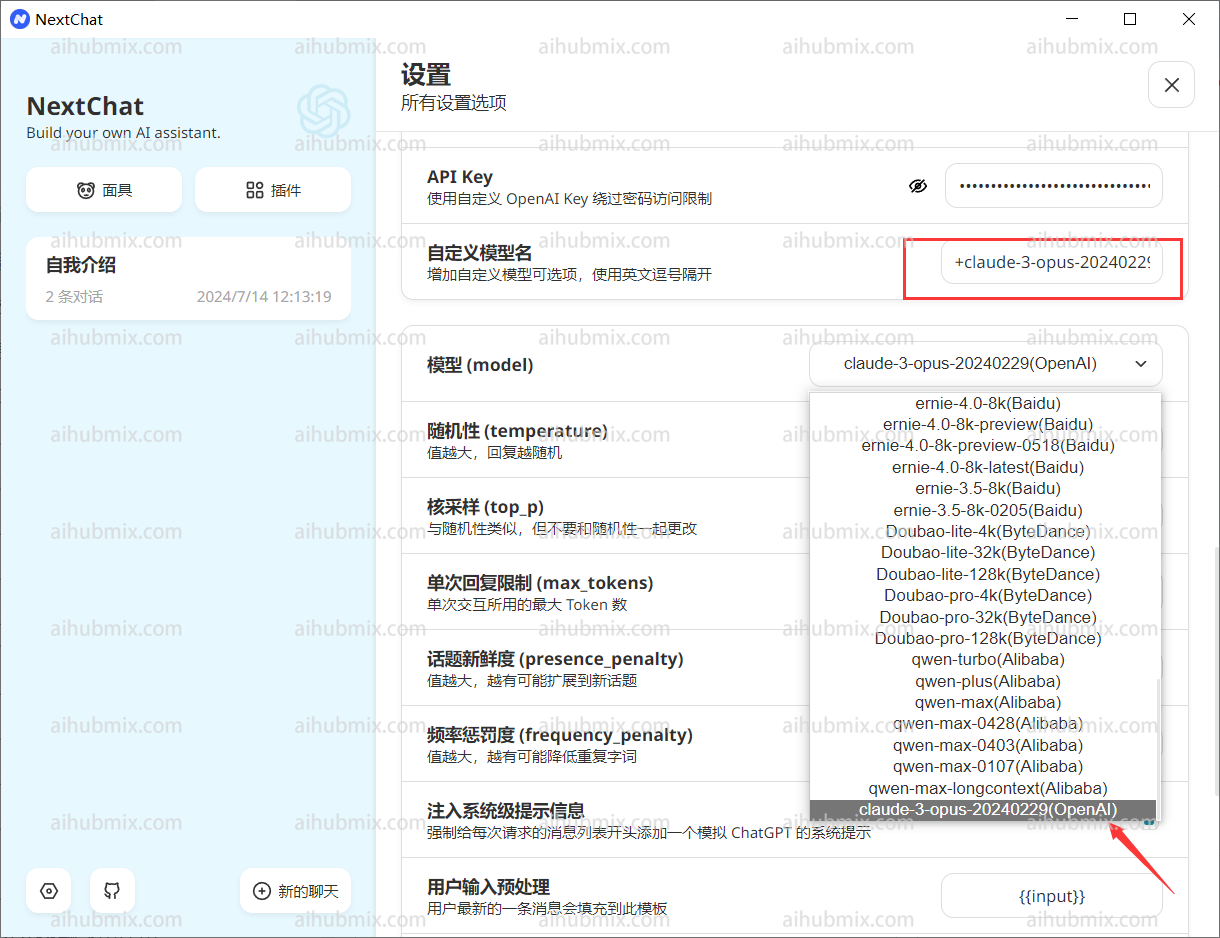
If you're using the Next Web client, make sure you've upgraded to the latest version (v2.13.0). This version introduces a new way to add custom models:
1. **Entering a custom model name**:
* The Next Web client automatically determines the model provider based on the input model name. However, the API key from our website is only compatible with the OpenAI interface.
* When entering a custom model name, use the format: "+'desired model name'@OpenAI".
* For example, to use the gemini-pro model, enter: "+gemini-pro\@OpenAI".
* This method manually directs the model provider to OpenAI.
2. **Confirming your selection**:
* On the model selection screen, confirm that your manually added model (OpenAI) appears at the bottom.
## Developer Integration - Official Library Example
Here's an example of how to use our API with the official Python library:
```python theme={null}
from openai import OpenAI
client = OpenAI(
api_key="AIHUBMIX_API_KEY", # Replace with the key you generated in AiHubMix
base_url="https://aihubmix.com/v1"
)
chat_completion = client.chat.completions.create(
messages=[
{
"role": "user",
"content": "Say this is a test",
}
],
model="gemini-2.0-flash",
)
print(chat_completion)
```
## Special Case: Next Web Client
If you're using the Next Web client, make sure you've upgraded to the latest version (v2.13.0). This version introduces a new way to add custom models:
1. **Entering a custom model name**:
* The Next Web client automatically determines the model provider based on the input model name. However, the API key from our website is only compatible with the OpenAI interface.
* When entering a custom model name, use the format: "+'desired model name'@OpenAI".
* For example, to use the gemini-pro model, enter: "+gemini-pro\@OpenAI".
* This method manually directs the model provider to OpenAI.
2. **Confirming your selection**:
* On the model selection screen, confirm that your manually added model (OpenAI) appears at the bottom.